Grundig is one of the best-known television names in Europe, and owners often ask whether their set can run an IPTV player. The honest answer is that it depends on the model and the year, because Grundig has sold sets with different operating systems. This page helps you identify yours, then points you to the matching route. It also covers what to do if the TV turns out to have no app store worth using.
Step one: identify the system
Open the home screen and look at it, then open the settings menu and find the entry for device information or about. Typical clues:
- A row of coloured app tiles and a Google Play Store icon points to Android TV or Google TV.
- An Amazon-style home screen with "Fire TV" branding and an Alexa microphone button on the remote points to Fire TV Edition. Grundig has sold sets in this form in some markets.
- A simple list of built-in apps with no way to add more suggests a closed system, where the route is an external device.
Because Grundig is part of the Arçelik group together with Beko, the pages on Vestel, Arçelik and Beko and on Turkish TV brands are useful companions, especially if you bought the TV in Turkey or from a Turkish-market range.
Route A: Android TV or Google TV
- Open the Play Store on the TV.
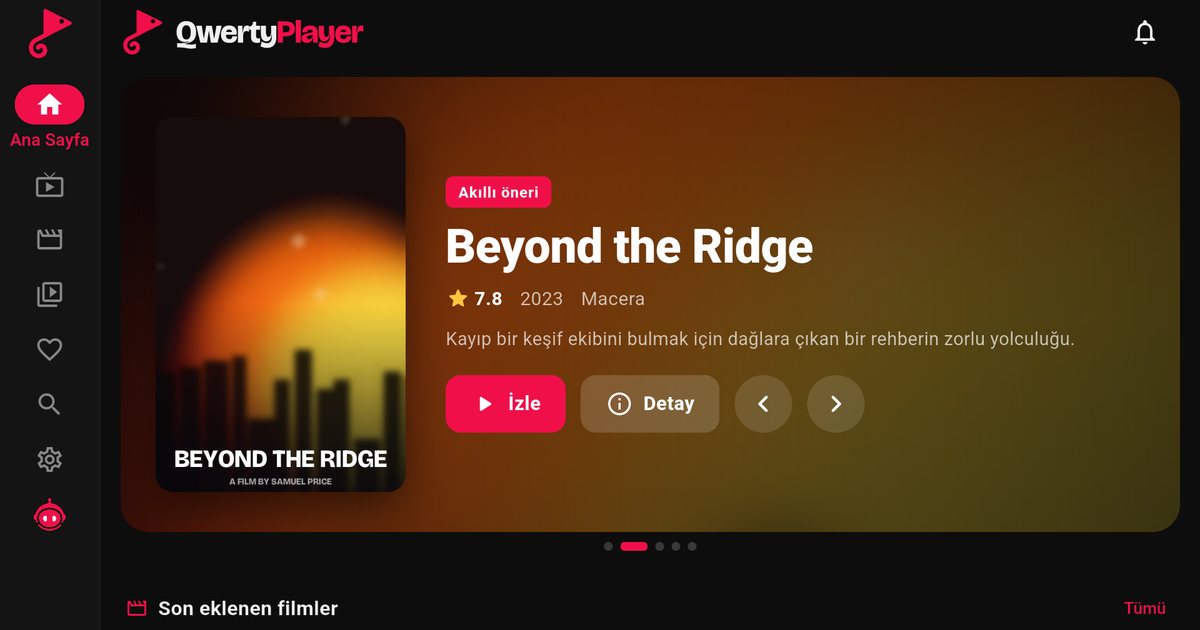
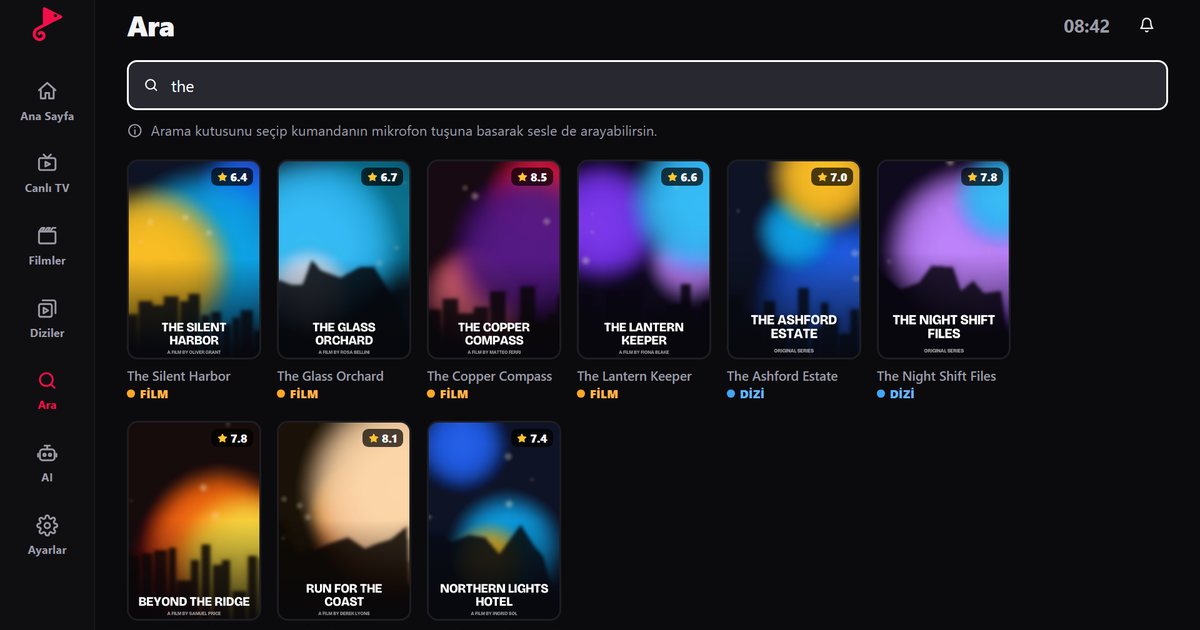
- Search for "QwertyPlayer" and install it. Voice search on the remote works too.
- Open the app and choose to add a playlist.
- Type an M3U link or Xtream Codes details, or avoid typing: show the address and code, then send the playlist from your phone through the Connect to TV page.
The difference between the two interface names is small for your purposes; Google TV compared with Android TV explains it.
Route B: Fire TV Edition
Search the Amazon Appstore from the home screen. The procedure is identical to a Fire TV Stick, which is explained in the Fire TV Edition guide.
Route C: no usable store
Many older Grundig Smart TVs offer streaming apps but cannot install new ones. Do not fight the menu. A Fire TV Stick or a Google TV streamer plugged into an HDMI port gives you a normal app store, and the TV only has to display it. Compare the options in which device is best for IPTV on a TV, or read the guide to older Smart TVs.
Smooth playback on Grundig sets
- Use an Ethernet cable if the TV has a port. Cheaper sets have modest Wi-Fi hardware.
- Restart the TV from time to time and clear the app cache in the application settings if the interface slows.
- Keep the system software up to date through the settings menu.
- Test your line speed in the app, then compare with the figures in how fast IPTV needs to be.
If the app is missing in the store
Check that the TV is set to the right country and fully updated. If the app still does not appear, the model probably uses a system we do not support. The article on missing IPTV apps in Smart TV stores walks through the checks. Other brands that share the same logic are on the Android TV brand list, and if you also own a Telefunken set, read the Telefunken page.
This is only a player. You supply the playlist, and you are responsible for having the right to watch it.
Frequently asked questions
Can I install an IPTV player on a Grundig Smart TV?
If your model runs Android TV or Google TV, yes, through the Play Store. Fire TV Edition models use the Amazon Appstore. Closed systems need an external device.
How do I know which system my Grundig TV uses?
Check the home screen and the about or device information page in Settings. A Play Store icon indicates Android TV or Google TV.
My Grundig TV has no app store. What can I do?
Plug in a Fire TV Stick or a Google TV streamer and install the app there.
Is Grundig related to Arçelik and Beko?
Grundig belongs to the Arçelik group, which is why the Turkish brand guides are a useful reference.
How do I enter a long playlist link on the TV?
Use the Connect to TV page: enter the code shown on the TV from your phone or computer.
Try it with QwertyPlayer
Download with a free trial for Android, Android TV, Fire TV, Huawei and Windows.