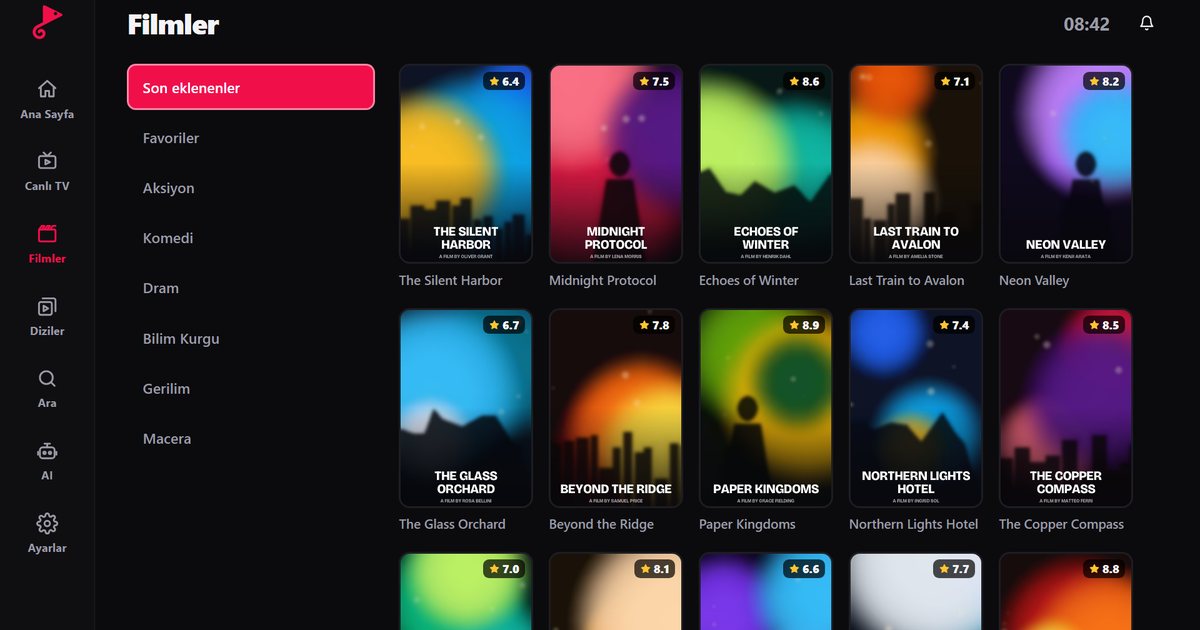
An Android TV box, or a television with Android TV built in, is one of the most common ways to make a TV smart. The app choice is wide, but navigating with a remote can be awkward and some apps are slow with large playlists. A good IPTV player for an Android TV box should be fully usable with the D-pad, open quickly and stay stable for hours. This guide covers installing QwertyPlayer, adding a playlist without typing on the remote, and tuning the box for smooth playback.
Install on the TV box
- Open the Google Play Store on the home screen and search for "QwertyPlayer". If your box has no Play Store, look at the options on the download page.
- Install and open the app. An address and a short code appear on the screen.
- On your phone or computer, open the Connect to TV page, enter the code, and type your playlist details there. The playlist is sent to the TV.
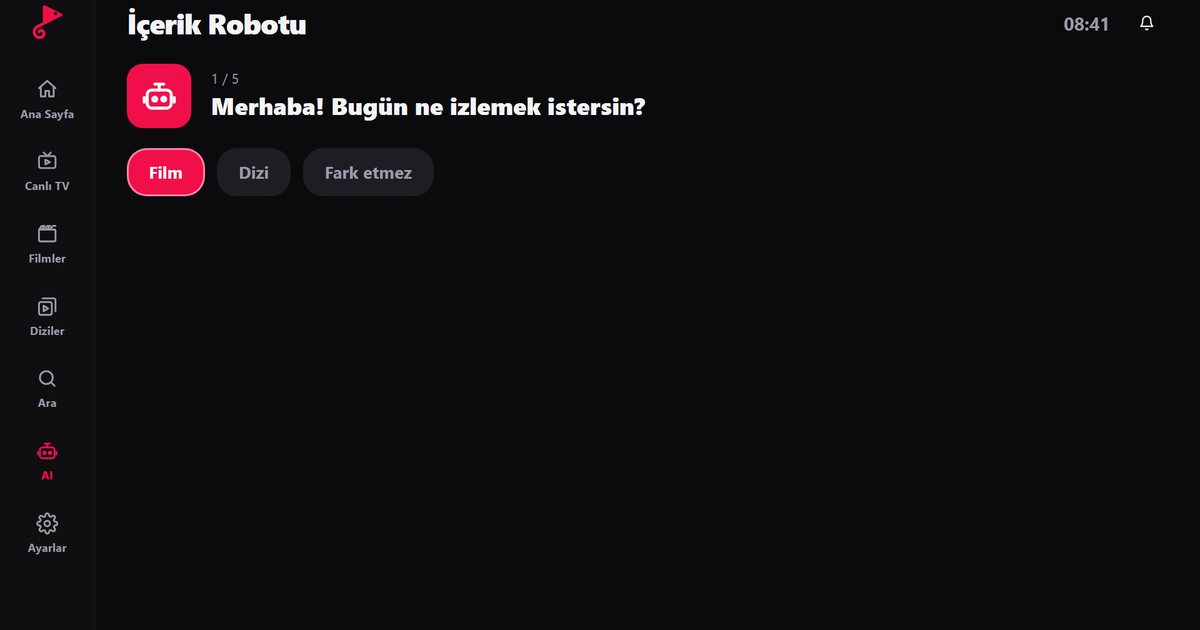
- When the playlist has loaded, live TV, films and series open in their own sections.
The code is short-lived and single-use, and playlist passwords are stored encrypted, so you do not need to type a long password into an on-screen keyboard.
Using it with a remote
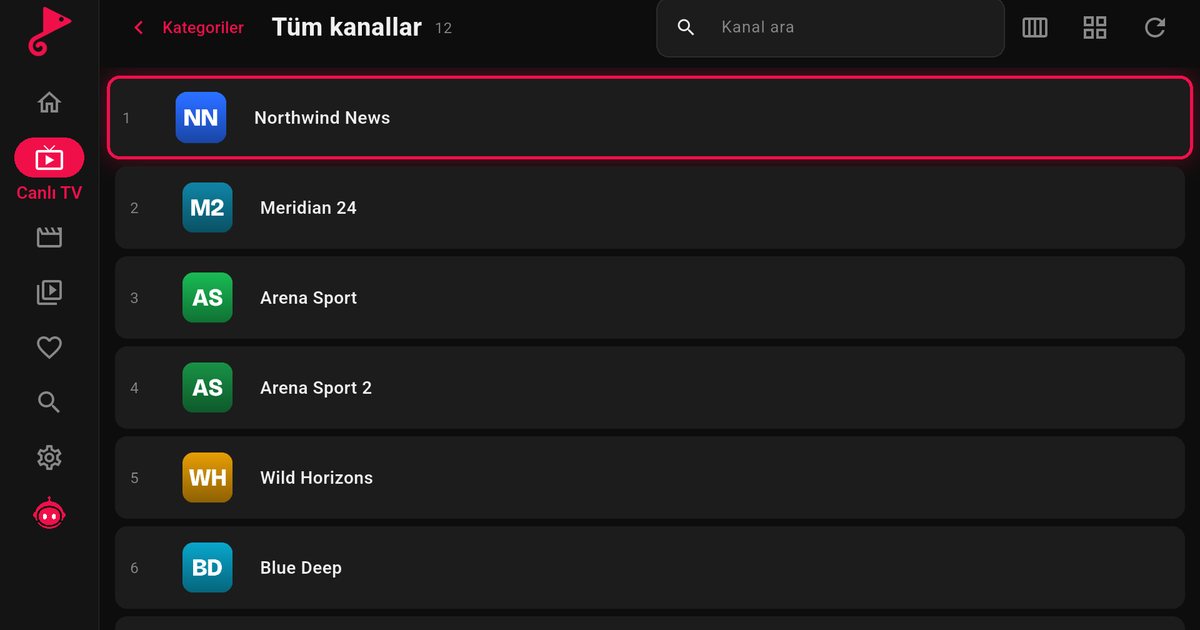
- Categories sit on the left and channels in the middle, so you can move through the list with the arrow keys.
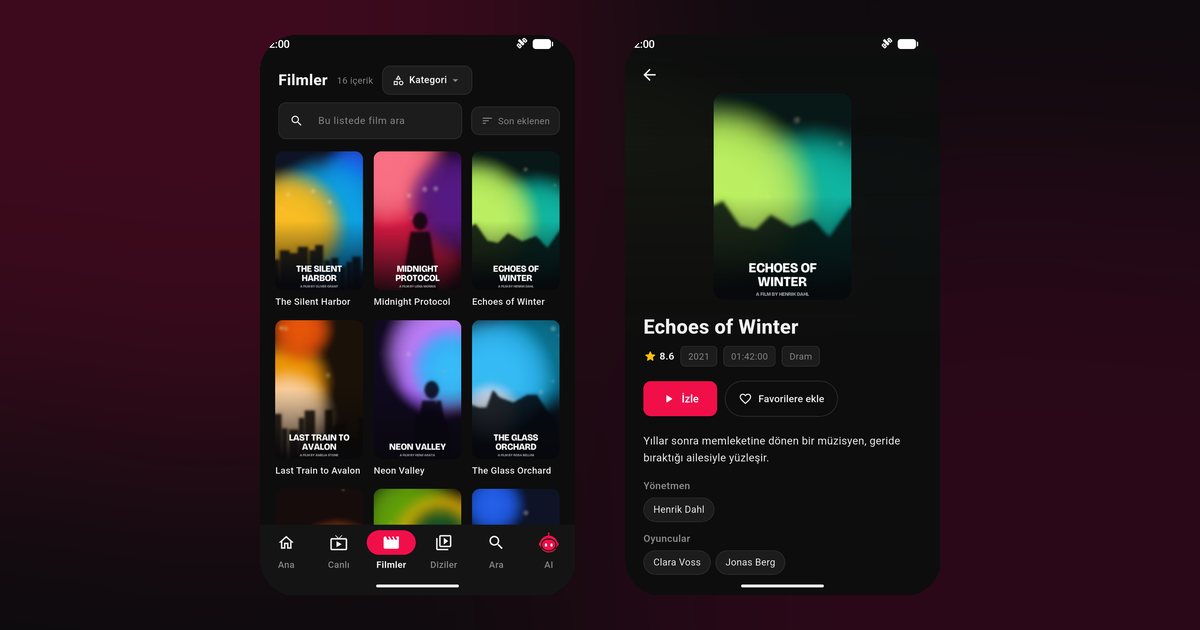
- Film and series pages show the poster, summary and episode list, and the app remembers where you stopped.
- Favourites keep your daily channels one step away, which saves scrolling through thousands of entries.
- The programme guide shows what is on now and next. Set it up with the EPG guide.
Tuning the box for large playlists
Low-cost TV boxes often have limited memory. If the app feels slow with a big playlist, try these steps in order:
- Restart the box occasionally and close apps running in the background.
- Use an Ethernet cable if the box has a port. A wired connection is much steadier than Wi-Fi, and Wi-Fi interference is the single most common cause of freezing.
- Check the free storage. A box with almost no free space slows down every app.
- Prefer Xtream Codes over a huge M3U file if your provider offers both. The Xtream Codes guide explains the login fields, and the M3U and Xtream comparison explains why.
How fast does the connection need to be?
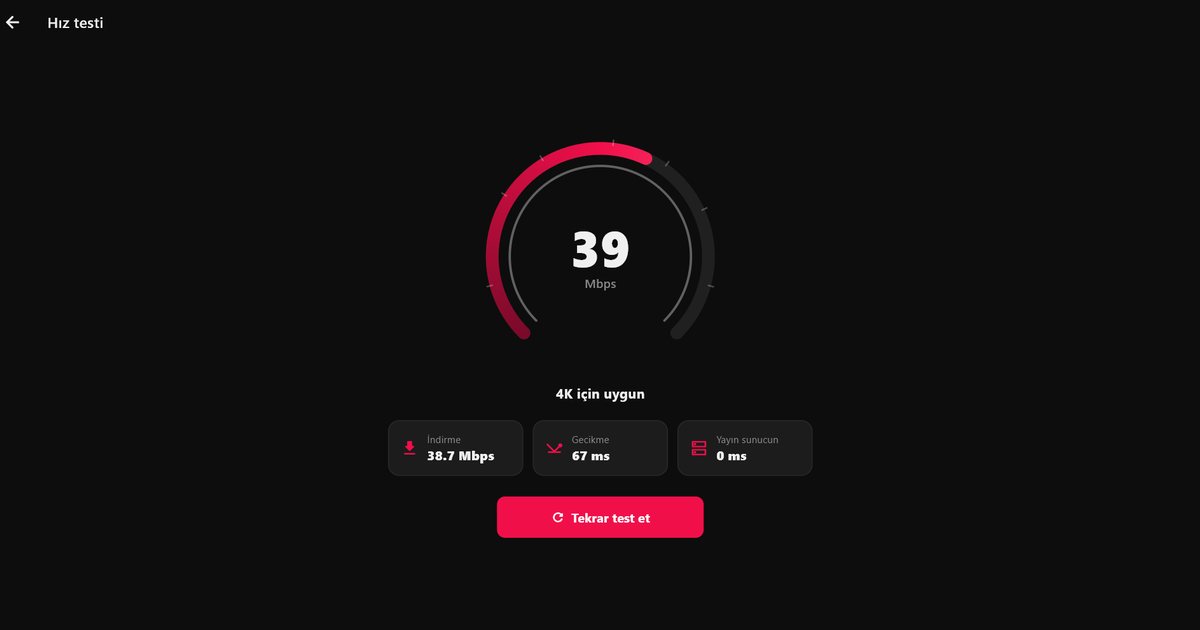
As a rough guide, SD needs a few Mbps, HD roughly 8 to 10 Mbps and 4K 25 Mbps or more, and the figure must be sustained, not just a peak. The article on IPTV internet speed explains how to read a speed test, and the buffering fixes list the other usual suspects such as a busy router or an overloaded server.
Keeping the box tidy over time
A TV box that has been running for months collects cached data and forgotten apps. Once in a while, uninstall apps you no longer use and clear the cache of the heavy ones. Keep the system software updated, since player apps are tested against current versions. If you move the box to another room, check the connection again, because a different Wi-Fi spot can change the result completely.
Related devices
Using an Amazon stick instead? Read the Fire TV guide. For Chromecast with Google TV, see the Google TV guide. For Android phones and tablets, see the Android IPTV player article, and for every platform in one place, the all-devices overview.
Note: QwertyPlayer provides no content. Use it only with streams you have the right to watch.
Frequently asked questions
How do I install an IPTV player on an Android TV box?
Install the app from the Play Store or the download page, then enter the code shown on the TV at the Connect to TV page to send your playlist from a phone or computer.
Does it work on Nvidia Shield and Xiaomi Mi Box?
Yes, on devices running Android TV or Google TV, where the Play Store version can be installed.
Do I have to type a long password with the remote?
No. Send the playlist details from your phone or computer through the Connect to TV page.
Channels freeze on my TV box. What should I do?
Use a wired connection if possible, restart the box, check free storage and speed, and follow the buffering troubleshooting guide.
Try it with QwertyPlayer
Download with a free trial for Android, Android TV, Fire TV, Huawei and Windows.