IPTV buffering and freezing usually come from one of three places: your home internet, the streaming server or the device you use. Try the steps below in order; in most cases the first three solve it.
1. Measure your connection speed
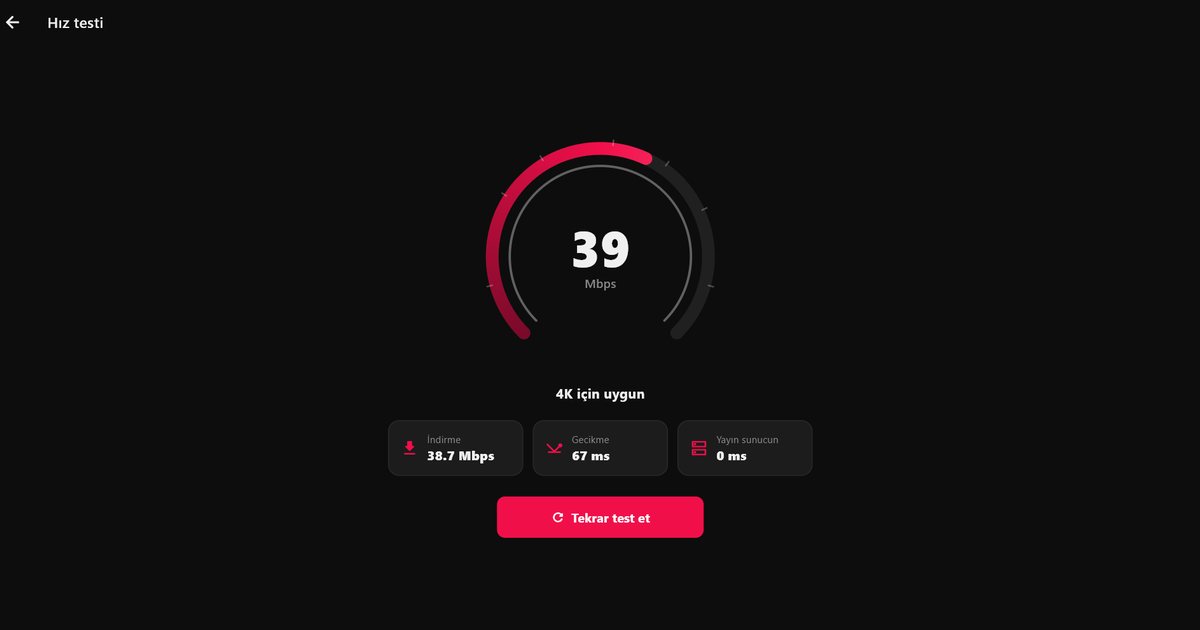
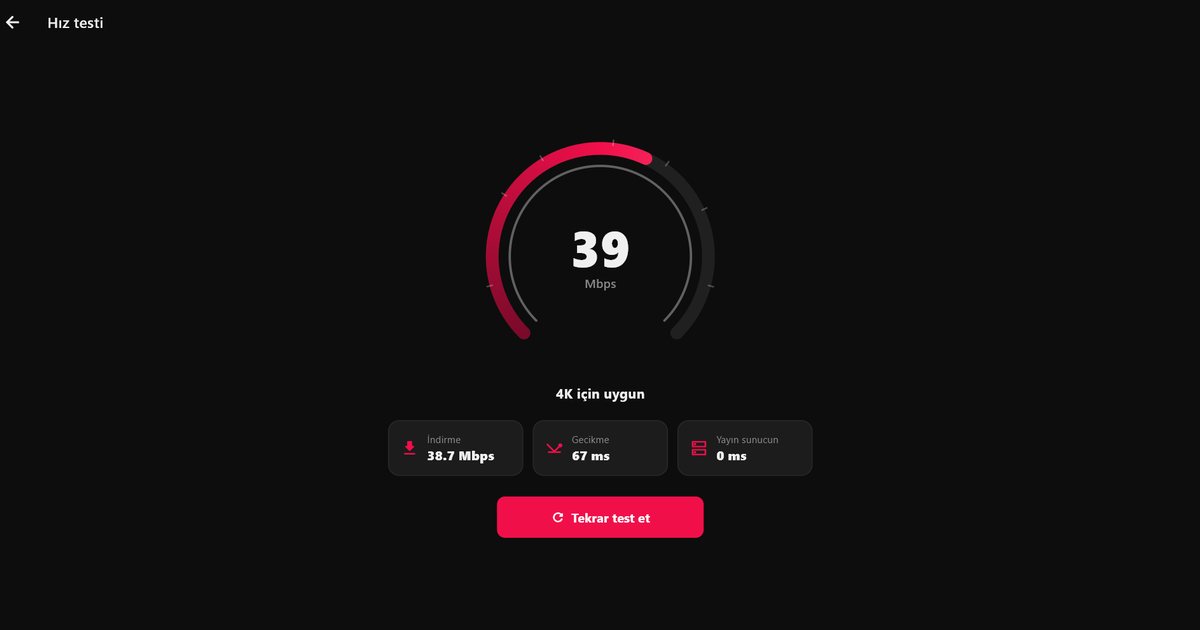
HD streams need at least 10 Mbps of real speed and 4K needs 25 Mbps. The speed test in QwertyPlayer measures the real speed of the device you are streaming on; a result from your phone does not tell you the speed on your TV.
2. Use a cable or 5 GHz Wi-Fi
If the TV or Fire TV Stick is far from the router, 2.4 GHz Wi-Fi may not be enough. Use an Ethernet cable if you can; otherwise connect to the 5 GHz network.
3. Close the same account on other devices
Most services allow one connection. A stream left open on another device causes stalls or stops channels opening on the new one.
4. Restart the router and the device
Routers and TV boxes slow down when left on for a long time. Switch both off for a few minutes and back on.
5. Try another quality of the channel
If your list has HD, FHD and 4K versions of a channel, choose a lower one. If only one channel has the problem, the cause is most likely the streaming server.
6. Check your VPN
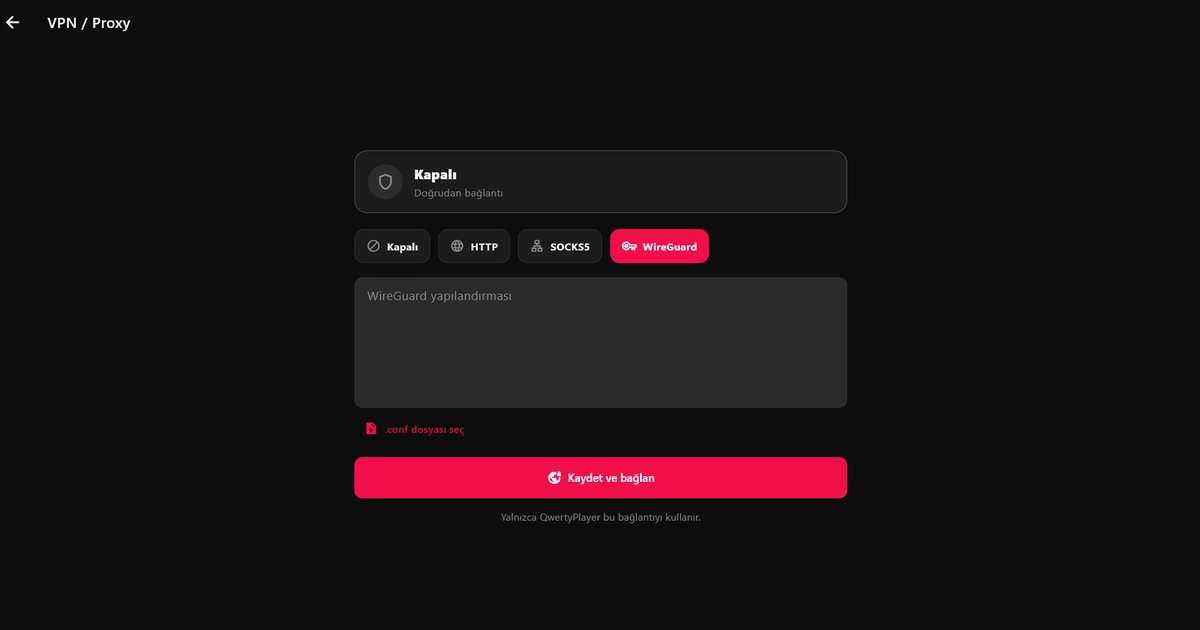
Some internet providers throttle IPTV traffic, and a VPN can raise the speed. On the other hand, a distant VPN server adds delay. Try both and compare.
7. Keep the app up to date
Recent versions of QwertyPlayer buffer further ahead in movies and series and reconnect automatically when the connection drops. Check your store for updates.
8. Report it to your provider
If none of this helps and the problem is the same on every device, the source is the server. Report it to your provider with the channel name and time.
To make sure your list is added correctly, see the M3U and Xtream Codes guide; for choosing a device, read the IPTV player guide. Still stuck? Contact us.
Try it with QwertyPlayer
Download with a free trial for Android, Android TV, Fire TV, Huawei and Windows.