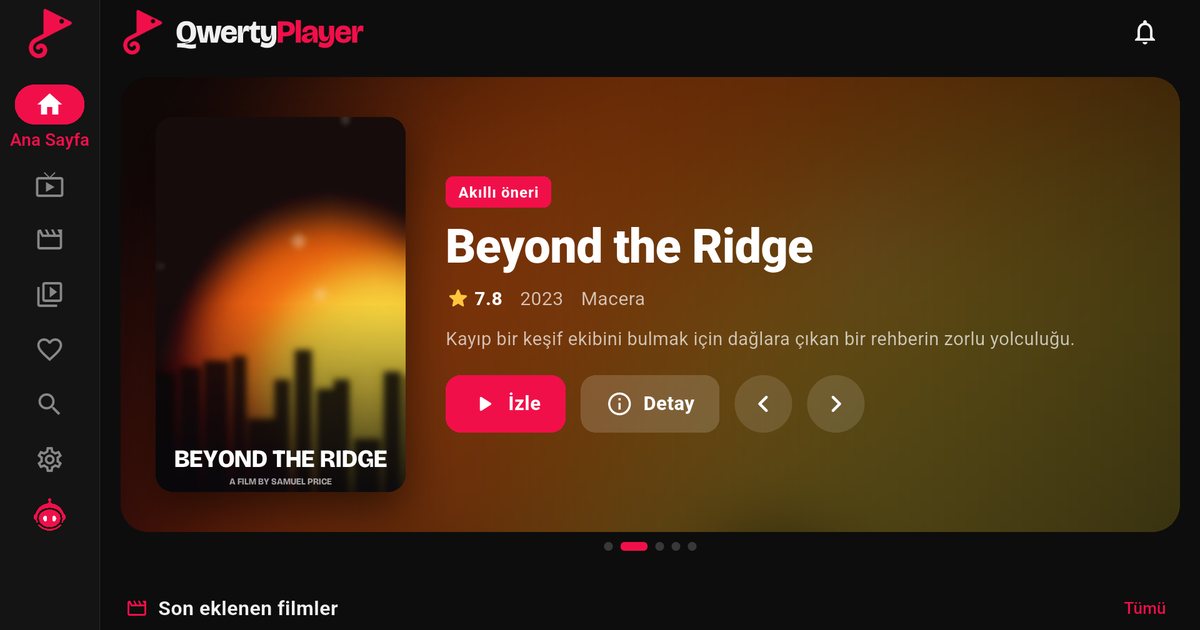
Titan OS is a smart TV operating system that appears on televisions from several brands, and it is the reason many owners cannot find the apps they expect. If you are looking for an IPTV player for a Titan OS TV, this overview explains which brands use the system, how to tell whether yours does, and how to install an app from the Titan OS store.
Which brands use Titan OS?
- Philips: many recent models, such as the PUS and PML families and The One, run Titan OS. Philips OLED televisions have stayed on Google TV, so you need to check the model. Details are in the guide on Philips Titan OS versus Google TV.
- AOC: AOC televisions are made under the same group as Philips (TP Vision). See the AOC TV guide.
- JVC: selected models use Titan OS; others use a different system, and plans and years can change. See the JVC TV guide.
Brand lines change from year to year, so a brand name never settles the question. The system is decided by the exact model.
How to tell whether your TV runs Titan OS
- Look at the box, the manual or the product page for the words Titan OS.
- Open the settings and look for the system or software information. The location and wording differ by model.
- Compare the home screen. A Google TV home screen has the Google layout with a Play Store, while a Titan OS home screen has its own layout with its own app store.
If your set shows Google Play, you are on Google TV or Android TV, and the Android TV brands overview applies.
Install the player from the Titan OS store
- Open the app store from the home screen.
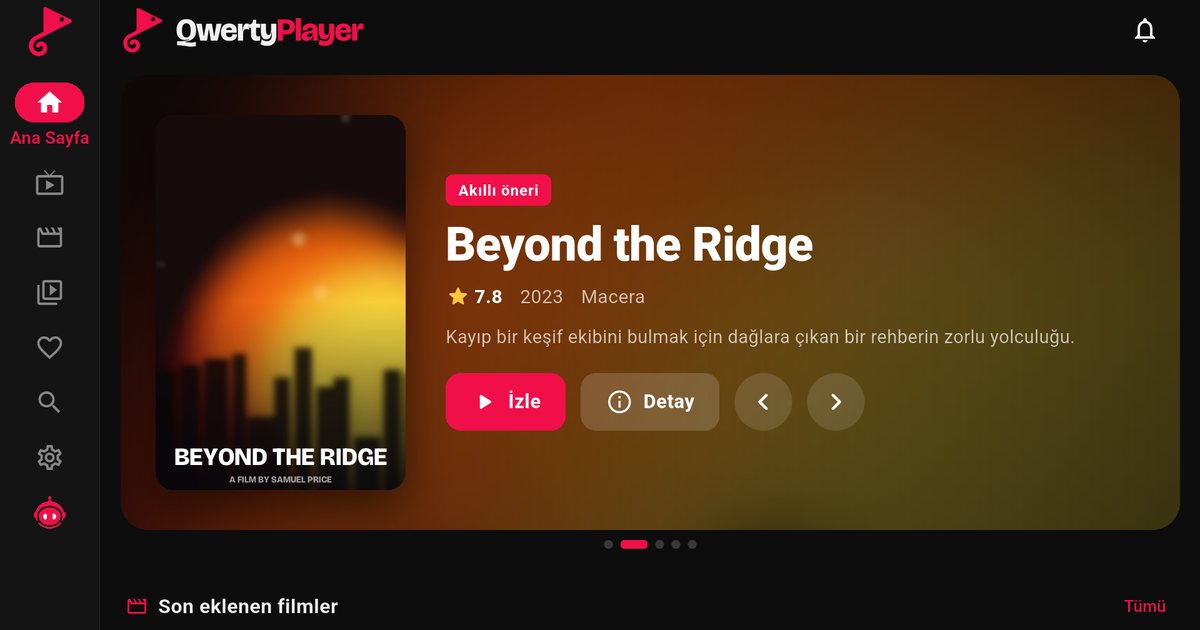
- Search for "QwertyPlayer".
- Install it and open it. The app shows an address and a single-use code.
- Open the Connect to TV page on a phone or computer, enter the code and add your M3U link or Xtream Codes details. The playlist is sent to the television.
You can browse the public catalogue at partners.titanos.tv/appstore. QwertyPlayer is listed there for Titan OS. Search inside a TV store is sometimes limited, and what you see can depend on region and software version.
Making the most of it
- Use an Ethernet cable when the set has a port. It removes most buffering problems, and the buffering guide covers the rest.
- Keep the television software up to date, since the store and the apps update through the system.
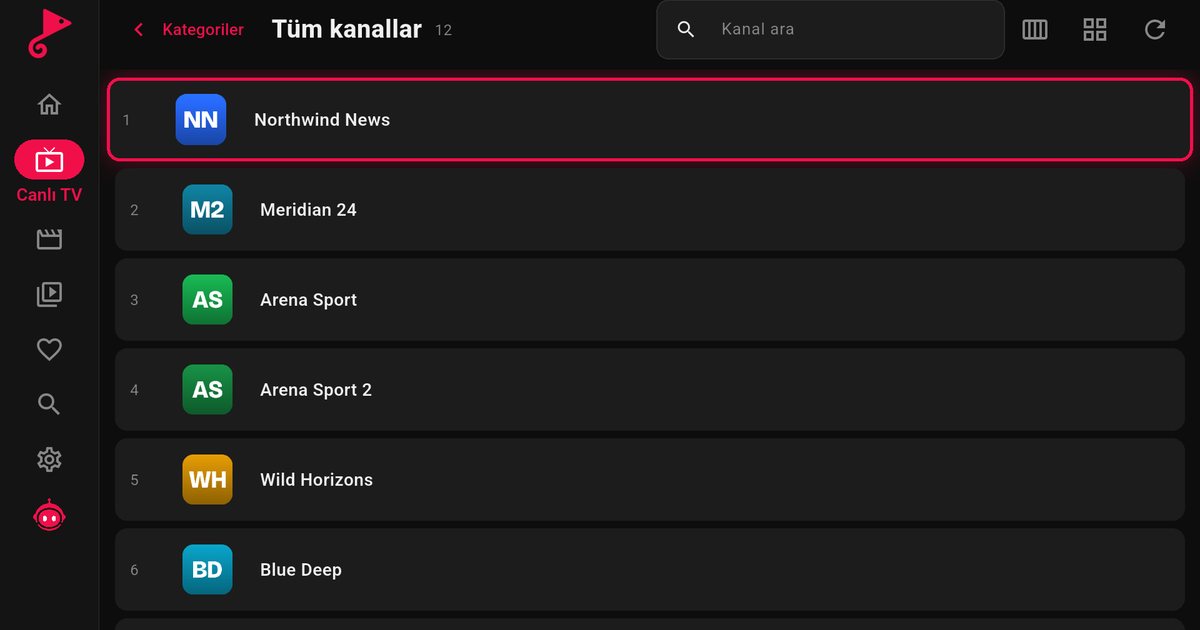
- Xtream Codes accounts usually bring EPG data automatically, while M3U lists may need an XMLTV address from the provider: see the EPG guide.
- Set a PIN for parental controls if children use the TV.
If the app is not available on your model
If the store does not list the app for your television, you can use an external device. A Fire TV Stick, an Android TV box or a Chromecast with Google TV runs the player independently of the set's own system: compare the Fire TV guide and the Chromecast guide. The Philips TV guide has a shorter walkthrough for Philips owners.
Note: QwertyPlayer is only a player and does not provide channels, films or playlists. Use it with content you are entitled to watch.
Frequently asked questions
Which TV brands use Titan OS?
Titan OS appears on Philips and AOC televisions, and on selected JVC models. Which system a set uses depends on the exact model and year.
Do all Philips TVs run Titan OS?
No. Many newer models do, but Philips OLED televisions have remained on Google TV. Check your model.
Where is the Titan OS app catalogue?
The public catalogue is at partners.titanos.tv/appstore. The store on the TV itself is where you install apps.
How do I add a playlist without typing it?
Open the app, note the code on screen and enter it on the Connect to TV page from a phone or computer.
Try it with QwertyPlayer
Download with a free trial for Android, Android TV, Fire TV, Huawei and Windows.