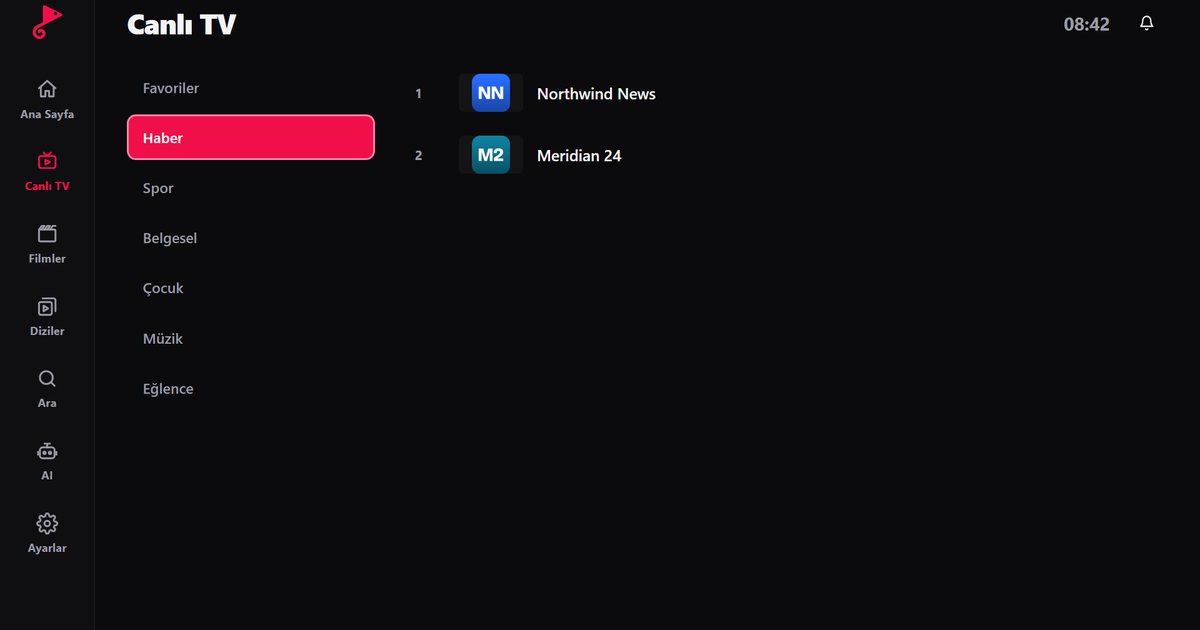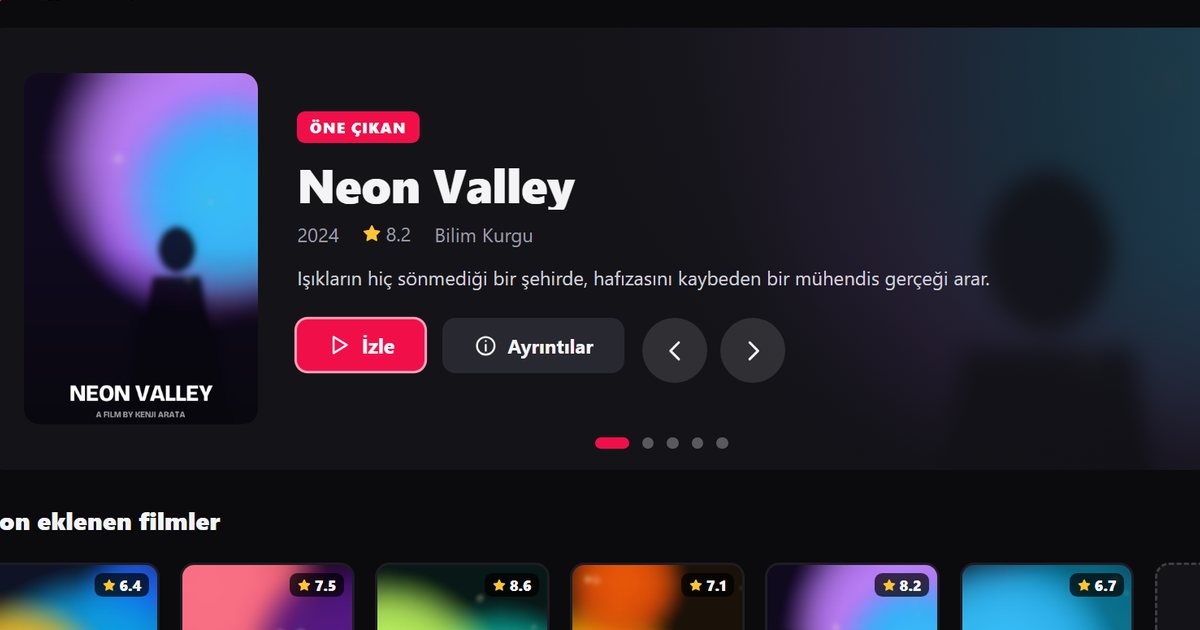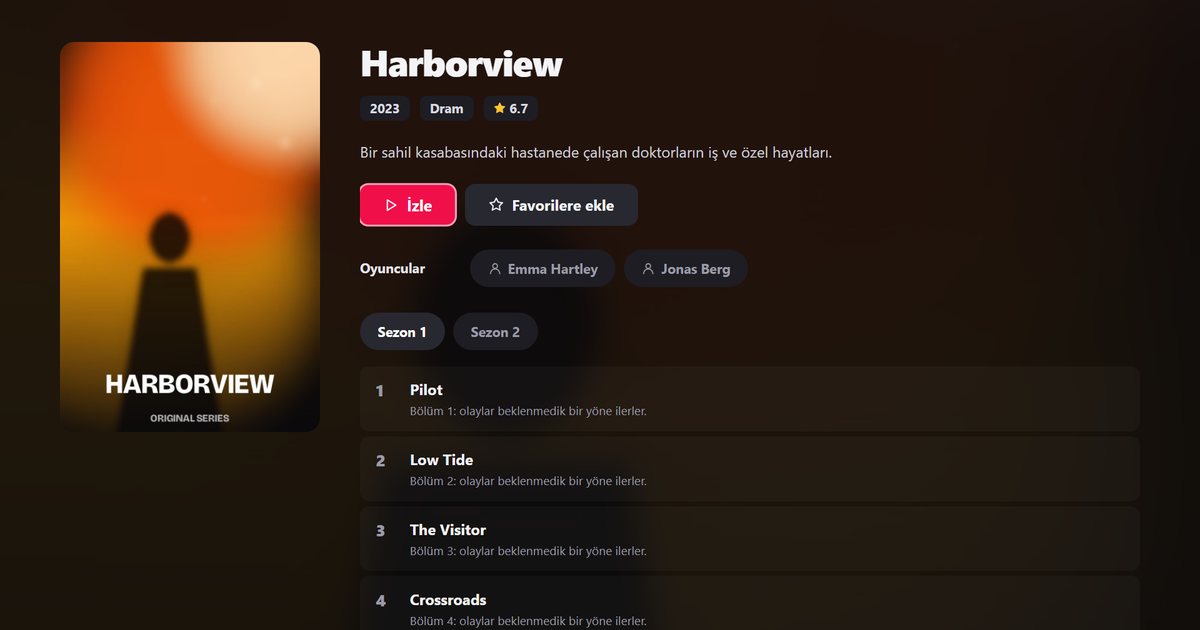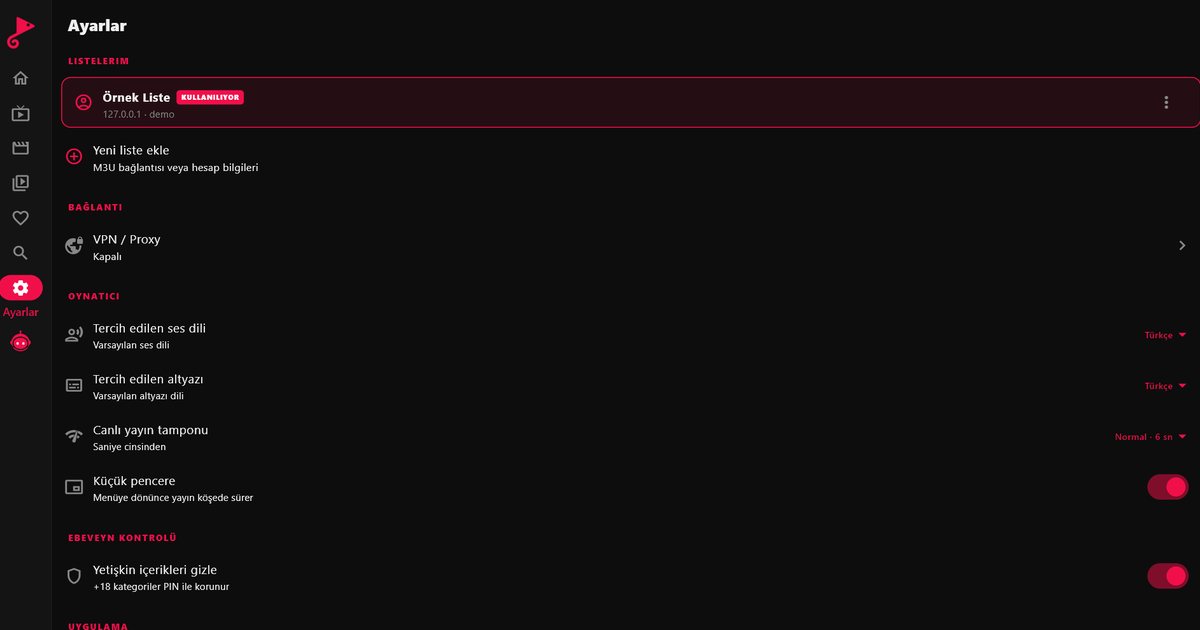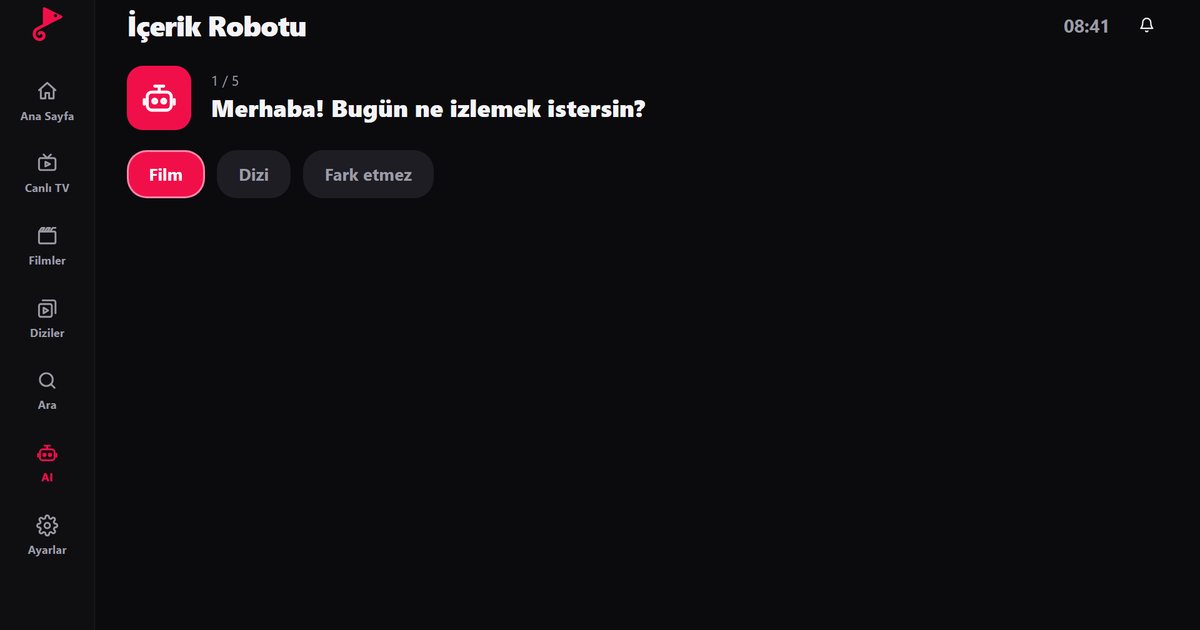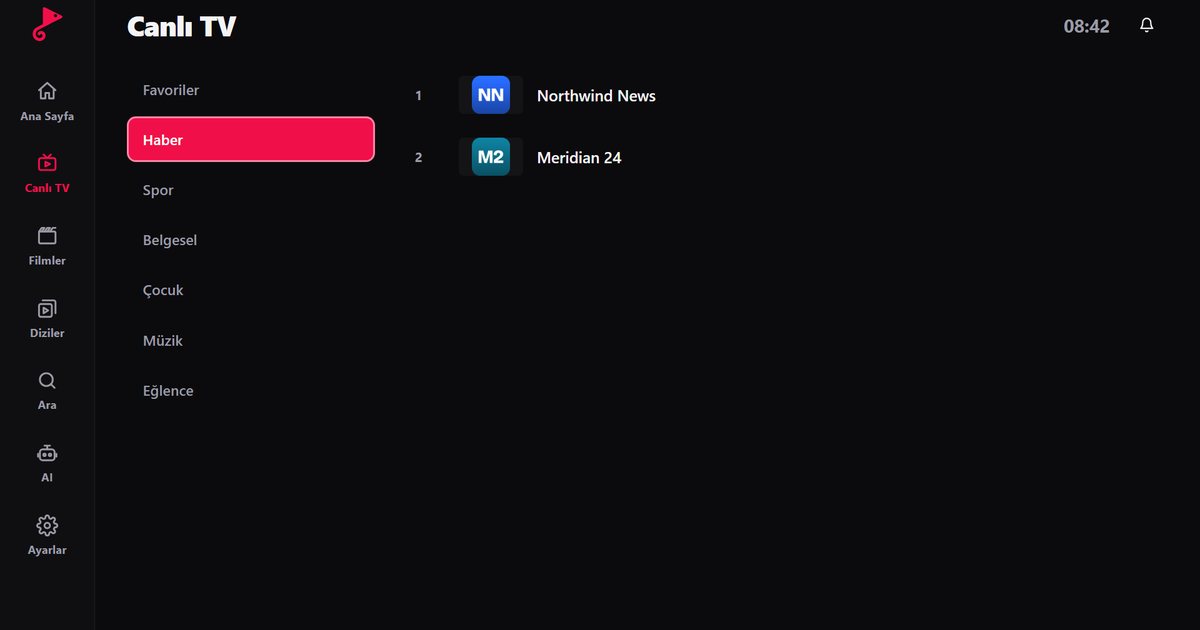
If you are searching for a webOS IPTV app, you are probably holding the remote of an LG television or of a brand that licenses LG's platform. webOS is the smart TV system developed by LG, and since 2021 LG has offered it to other manufacturers. This page explains which televisions use webOS, how to confirm yours, and how to look for an IPTV player in the store. It also links to our guides for specific LG series.
Which brands use webOS
Every LG smart TV runs webOS. LG has also announced licensing agreements with other manufacturers. Brands mentioned in that announcement include Sunny, Polaroid, RCA, Ayonz, Konka, Linsar, Makena, Hyundai and Aiwa. The list can change and not every model from those brands runs webOS, so the safe rule is: if the box, the manual or the settings menu of your TV says webOS, you have it. Otherwise assume you do not.
How to check that your TV is webOS
- Press the Home button. webOS shows a launcher bar along the bottom of the screen with app tiles that you can scroll through.
- Press the Settings button on an LG remote, or find the gear icon, and open All Settings, then General, then About This TV. The screen shows the model name and the webOS version.
- Read the model label on the back. For LG sets, the model code also tells you the year (see the guide to finding your webOS version).
For licensed brands the menu path may differ slightly, but the home launcher and the store name are usually the same.
Finding the app in the LG Content Store
- On the launcher, open LG Content Store.
- Choose Apps and use the search icon in the top corner.
- Type "QwertyPlayer". If the app appears in the results, your model is supported. If it does not appear, update the TV software, restart and search again.
We do not state a minimum webOS version because we cannot guarantee one; the store listing is the reliable test. On a licensed brand, check the store on the TV itself before buying anything else.
Adding your playlist on the TV
The Magic Remote makes pointing easy but typing a long link remains slow. Use the Connect to TV page: the TV shows an address and a short-lived, single-use code, you enter the code on your phone or computer, and the playlist arrives on the TV. If you need background on formats, read about the M3U and Xtream Codes differences.
Guides for individual series and brands
- LG OLED IPTV player: C, G and B series, plus screen care tips.
- LG QNED, NanoCell and UHD: lower-priced series and speed tips.
- webOS version and model year: how to read your TV's age.
- Sunny TV IPTV player and other licensed webOS brands.
- The general LG webOS guide.
If your TV has no store entry
An older or unsupported webOS model may not list the app. In that case use a Fire TV Stick or Google TV device on an HDMI port; the Fire TV Stick guide and the Google TV article cover both. Televisions that do not run webOS at all, such as VIDAA models, need the same kind of external device.
Good practice
- Keep the TV software updated under Settings and Support or General, then About This TV.
- Prefer a network cable. If you must use Wi-Fi, keep the TV close to the router.
- Do not install apps from unofficial sources on your TV.
QwertyPlayer is only a player and does not provide or sell content. You bring your own M3U link or Xtream Codes account and you are responsible for the right to watch what you add.
Frequently asked questions
What is webOS?
webOS is the smart TV operating system developed by LG. Some other manufacturers use it under licence.
How do I know whether my TV runs webOS?
Look for a launcher bar with app tiles on the home screen, and check Settings, General, About This TV for the webOS version.
Where do I find the IPTV player on an LG TV?
Open the LG Content Store from the home screen, choose Apps and search for QwertyPlayer. If it is listed, your model is supported.
Do all models of licensed brands have webOS?
No. Only some models of each brand use webOS. Check your own TV's settings and manual.
What if the app is not in the store?
Use a Fire TV Stick or a Google TV device connected by HDMI, or watch on a phone, tablet or computer.
Try it with QwertyPlayer
Download with a free trial for Android, Android TV, Fire TV, Huawei and Windows.