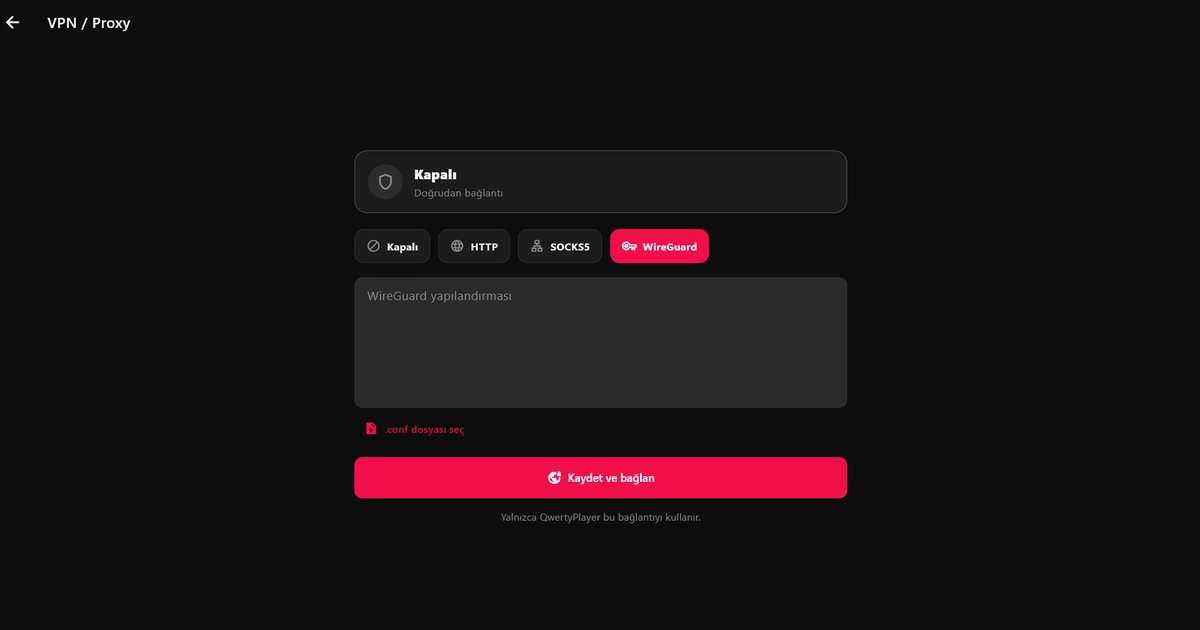
Some viewers want a VPN or proxy for IPTV: to change the route their traffic takes, to get around a poor connection to a provider's server, or to keep their activity more private on a shared network. QwertyPlayer has a Settings, then VPN / Proxy section for exactly this. It is important to understand what it is. QwertyPlayer does not sell or operate a VPN service. You enter the details of a WireGuard configuration or proxy that you already have from your own provider.
What you can configure
- WireGuard: Enter your own WireGuard configuration to create a tunnel.
- SOCKS5 proxy: Enter the server, the port and, if your proxy needs it, a username and password.
- HTTP proxy: The same details, for a standard HTTP proxy.
The connection applies only to QwertyPlayer. Other apps on the same phone, computer or television carry on using the normal connection, so a browser, a banking app or a video call is not affected.
Setting it up
- Get the WireGuard configuration or the proxy details from your VPN or proxy provider.
- In QwertyPlayer, open Settings and go to VPN / Proxy.
- Choose the type: WireGuard, SOCKS5 or HTTP.
- Enter the details exactly as supplied and save.
- Open a channel to test. If nothing plays, check the entries first and then try with the setting switched off to confirm the list itself works.
On a television, entering long keys with a remote is difficult. Have the values ready to copy from your provider, and use the Connect to TV page to send your list to the television so that it is one less thing to type.
WireGuard or proxy: which one?
A WireGuard tunnel encrypts all of QwertyPlayer's traffic between your device and the VPN server, which also hides what you are doing from the local network. A SOCKS5 or HTTP proxy only forwards traffic and does not by itself encrypt it. If privacy on a public or shared network is your goal, WireGuard is the more suitable option. If you only need a different route to a server, a proxy can be enough and is often lighter.
When it can help
- Your internet provider's route to the stream server is slow or congested at certain hours.
- You see regular stalls that a speed test does not explain.
- You use public Wi-Fi or a shared network and want the app's traffic kept private.
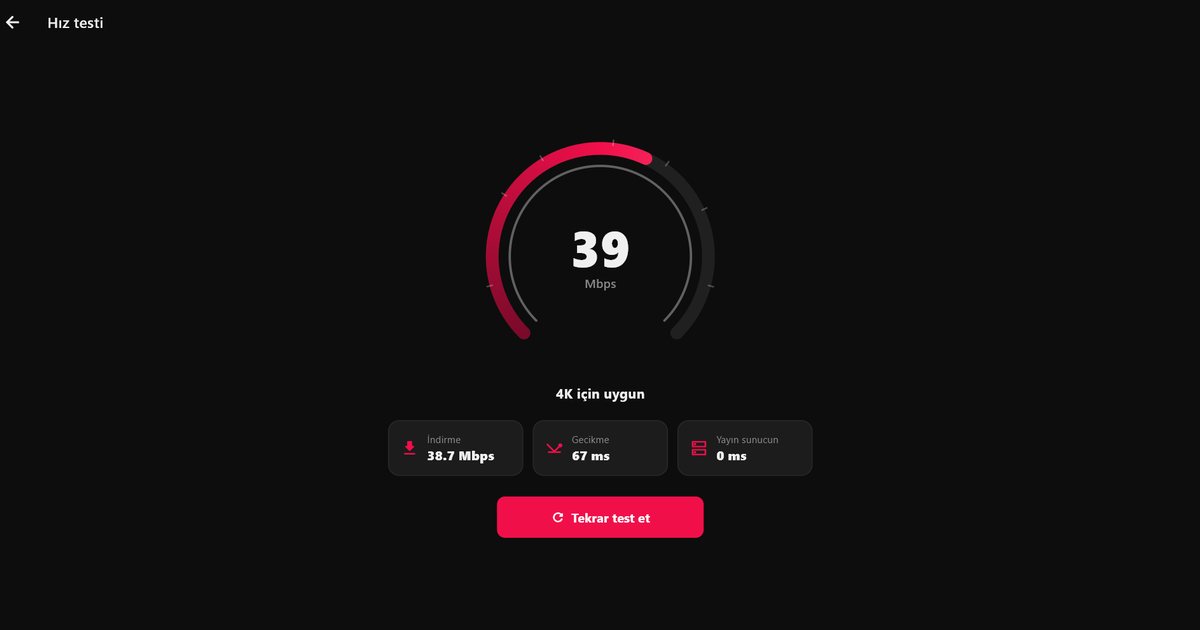
It does not always help. A VPN adds an extra hop, so the connection can become slower, and a distant server adds delay. The reliable approach is to measure: run the in-app speed test with and without it, and watch a busy-hour channel in both cases. Before changing anything, make sure your line meets the requirements in how many Mbps IPTV needs and have a look at the buffering fixes.
Testing the result
After saving the settings, compare three things: how long a channel takes to start, whether playback stays steady over fifteen minutes, and the result of the in-app speed test. Then switch the setting off and repeat. Choose a VPN server close to your own location or to the stream server, because distance adds delay. If you see authentication errors, the cause is nearly always a mistyped key, a wrong port or a proxy that requires a username when none was entered. Re-enter the values rather than guessing.
Points to keep in mind
- A VPN does not change your responsibilities. Only watch content you have the right to watch. See legal and safe IPTV use.
- Choose a provider you trust. A free VPN or proxy may log or resell your data.
- Treat configuration files and proxy passwords like account passwords. Do not post or share them.
For platform notes, see the Windows IPTV player and Android guides.
Frequently asked questions
Can I use a VPN with an IPTV player?
In QwertyPlayer, go to Settings, VPN / Proxy and enter your own WireGuard configuration, or the details of a SOCKS5 or HTTP proxy.
Does QwertyPlayer provide a VPN?
No. The details come from your own VPN or proxy provider.
Will the VPN affect my other apps?
No. The connection is used only for QwertyPlayer.
Does a VPN make IPTV faster?
Not always. It can improve a poor route in some cases and add delay in others, so test with and without it.
Try it with QwertyPlayer
Download with a free trial for Android, Android TV, Fire TV, Huawei and Windows.