
HTTPS everywhere
The site and the app only talk to our server over encrypted connections.
 QwertyPlayer
AI-assisted IPTV player
QwertyPlayer is an AI-assisted, cross-platform media player that plays your M3U and Xtream Codes playlists with a fast, clean interface. Built-in VPN, personal picks and the Content Robot: add your playlist and pick up right where you left off.
Platforms
Nothing it shouldn't.
Pre-buffered streams and hardware decoding — channels switch the moment you press.
Movies and series remember your position; next episode is one press away.
Multiple audio and subtitle tracks; your preferred language is picked automatically.
Search by title, actor, director or genre with typo tolerance. Use the microphone on your TV remote to search by voice.
Adult categories are hidden by default and unlocked with a PIN.
Keep watching in a small corner window while you browse the menu.
Enter your own WireGuard, SOCKS5 or HTTP connection; only QwertyPlayer's traffic goes through it.
Measure download speed and latency right in the app and see which quality you can stream.
Answer a few questions and the robot picks movies and series from your own playlist that match your mood. On phones you can answer by voice. The home screen also adapts to what you watch.

AI
Can't decide what to watch? Ask the bot. A few quick questions and it picks films and series for you from your own playlist.
Security
The site and the app only talk to our server over encrypted connections.
Playlist passwords added from your phone are encrypted with AES-256 and sent only to your TV.
TV pairing codes change after each use; failed attempts are rate-limited.
Playlists and account details are stored on your device; our server only receives what the app needs to work. No advertising or analytics tools.
QwertyPlayer Connect
No more typing long URLs with a remote. Open Settings → Manage from phone on your TV and scan the QR code, or enter the device address and code.
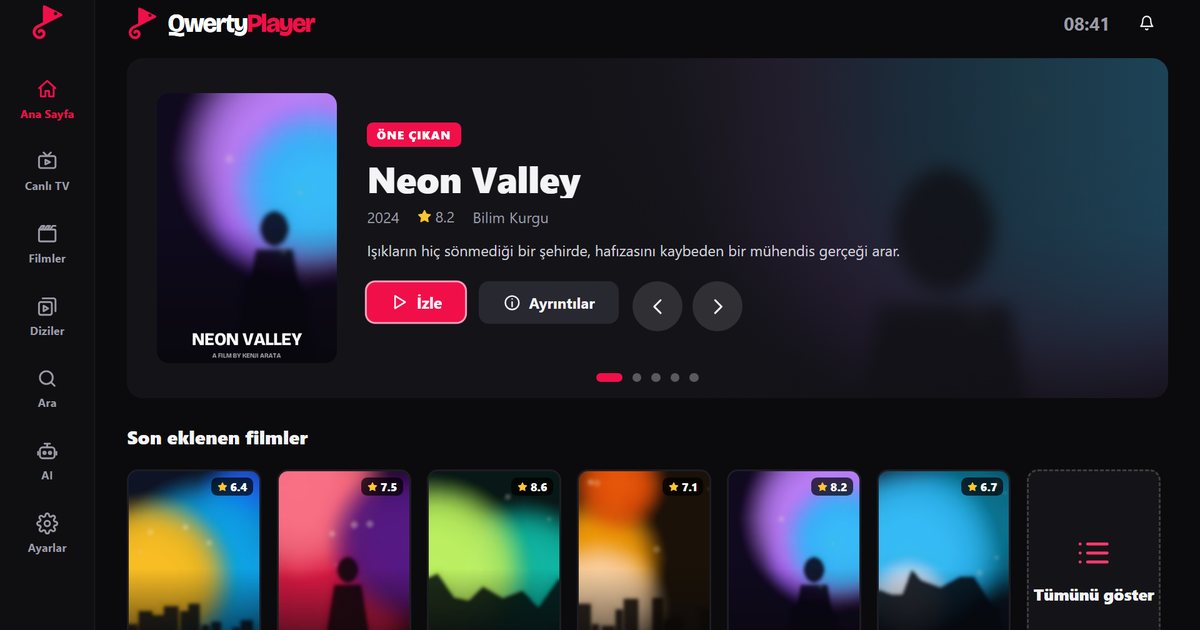
One IPTV player for iPhone, Android, Smart TV, Fire TV Stick, Windows and Mac. Add your M3U or Xtream Codes playlist once and find a setup guide for every screen.
Read the guide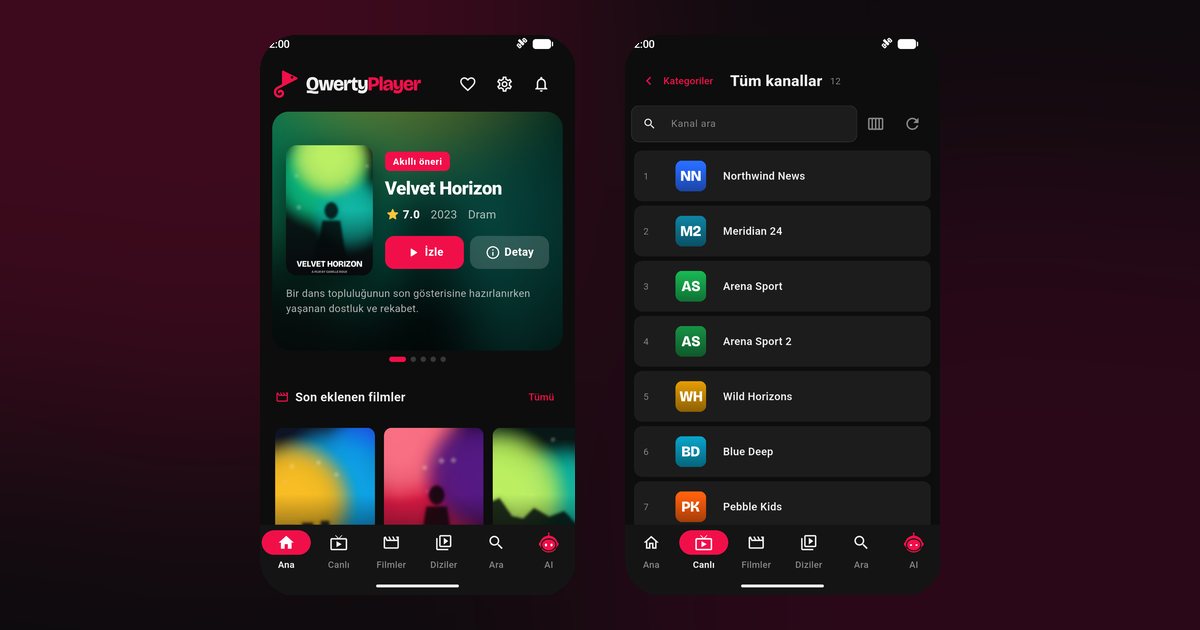
How to choose an IPTV player for iPhone and add an M3U or Xtream Codes playlist on iOS. Live TV, films and series with QwertyPlayer, step by step.
Read the guide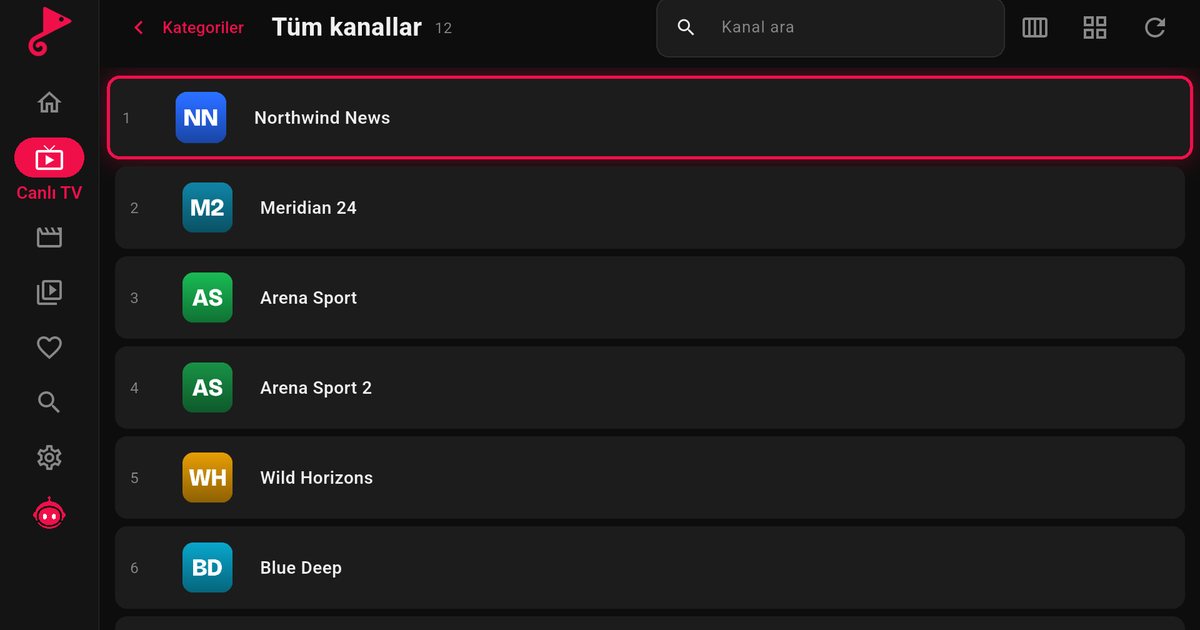
Install an IPTV player on Amazon Fire TV Stick and Fire TV from the Amazon Appstore and add your playlist, step by step.
Read the guideCan't find what you're looking for? Write to us.
QwertyPlayer is a media player for M3U and Xtream Codes playlists. You add your own playlist and watch live channels, movies and series in a fast, clean interface.
No. QwertyPlayer is only a player; it does not sell or provide any content, channels, playlists or subscriptions. You are responsible for the content you play and your right to access it.
Android phones, tablets and Android TV / TV boxes. It also runs on Windows 10 and 11 PCs. The same app recognises your device: use the remote on TV and touch on phones. iOS, Samsung (Tizen), LG (webOS) and web versions are coming soon.
Windows shows this for new programs that have not been widely downloaded yet. Click "More info" and then "Run anyway" to continue. Only download the installer from qwertypro.xyz.
Enter your server address, username and password, or an M3U link in the app. If you don't want to type with a remote, open Settings → Manage from phone on your TV, scan the QR code and add your playlist on this site.
If your provider gave you an address, username and password, adding it as an "account" is recommended: live TV, movies and series arrive separately and categorised. M3U links are supported too; Xtream-style links are converted to an account automatically.