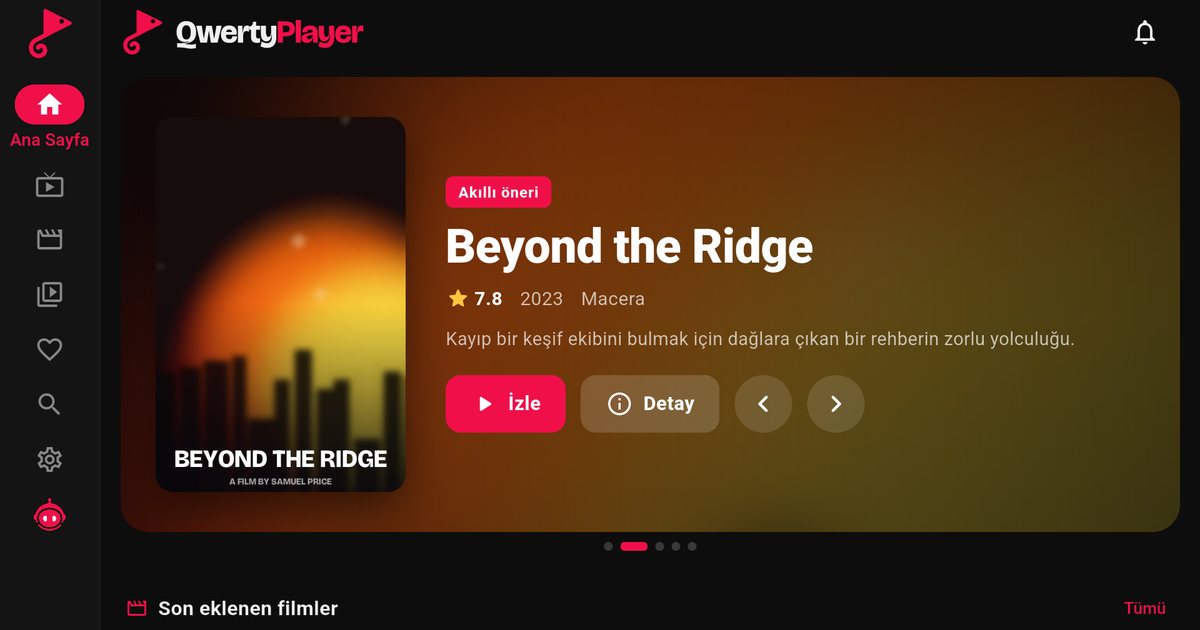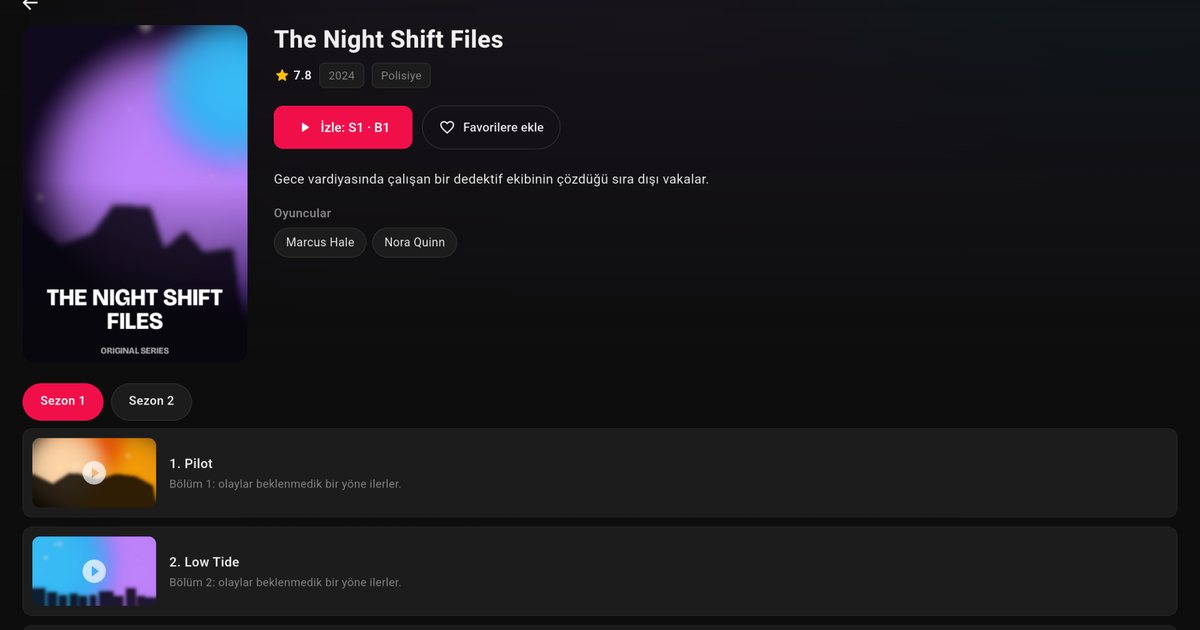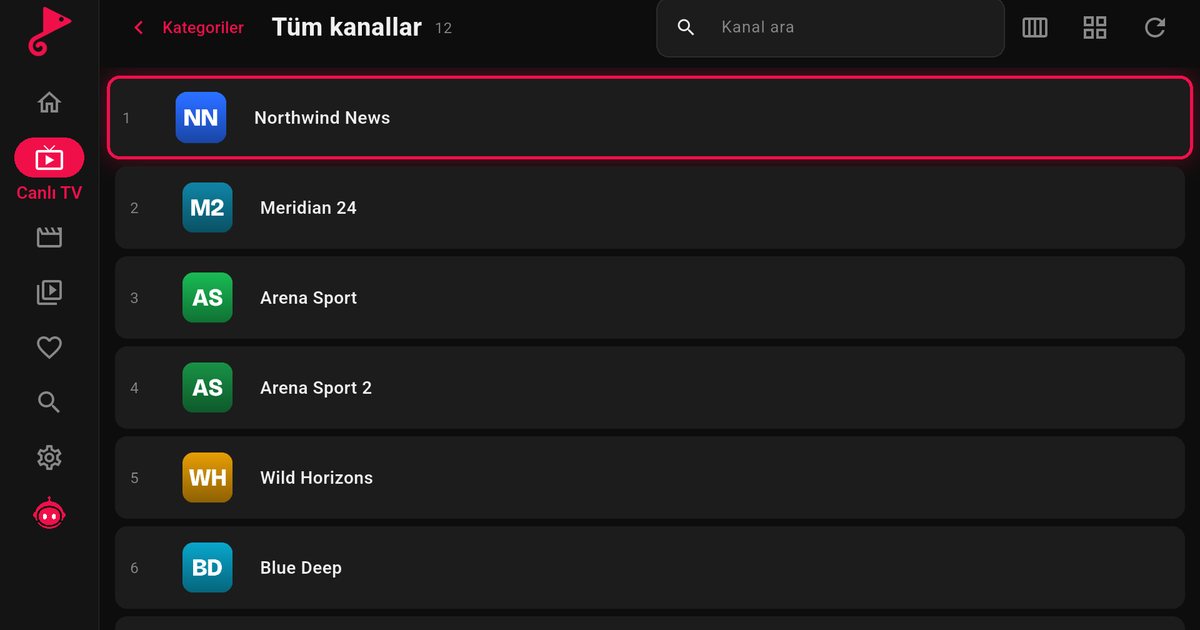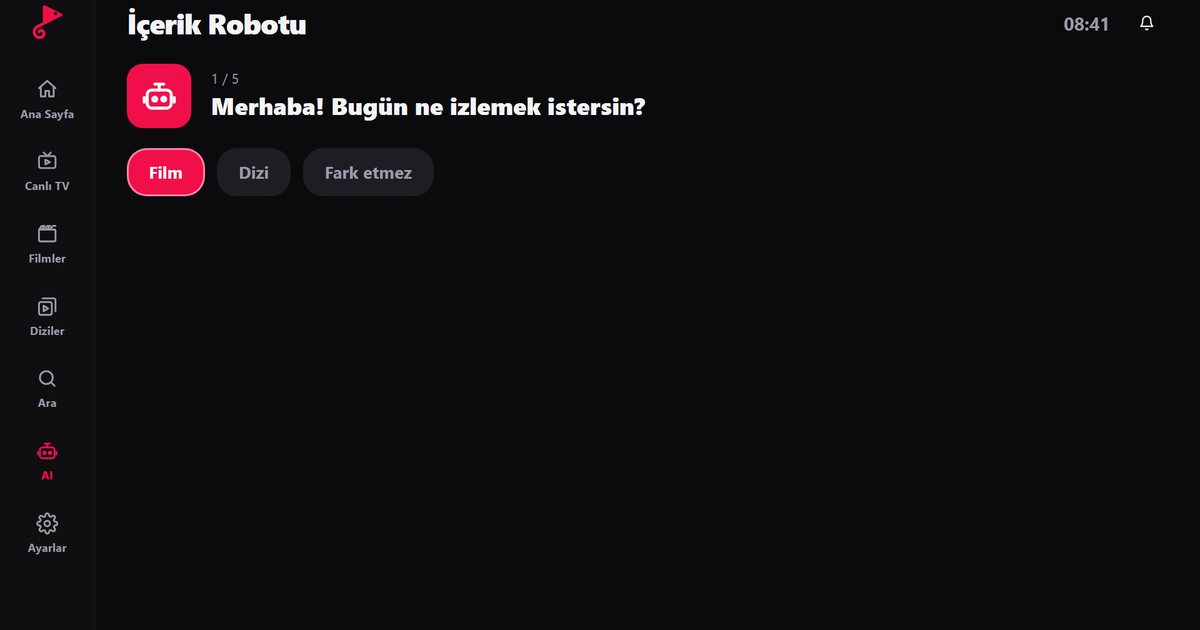
Hisense is one of the largest TV makers in the world, and many owners search for an IPTV player for Hisense TV without knowing that the answer depends on the operating system. Most Hisense sets run VIDAA, Hisense's own platform, while some higher-range models run Google TV. The two cases are completely different, so this page starts with the check and is direct about what is and is not possible.
How to find out what your Hisense runs
Look at the home screen and the settings. A Hisense with Google TV has tabs such as For you and Apps, a Google account sign-in and the Google Play store. A Hisense with VIDAA shows a launcher of app tiles with its own app store, and no Google account. Go to the settings and open the system or support information; the version and platform name are listed there. The model label on the back of the set and the manual also name the platform, and models in the same range can differ between markets.
Case 1: your Hisense runs VIDAA
QwertyPlayer does not have a VIDAA app, so it cannot be installed on a VIDAA-based Hisense. Downloading files from websites and loading them onto the TV does not change this, and we do not recommend trying. The practical solution is to add an external device to the set. All of these plug into a free HDMI port:
- Fire TV Stick: a low-cost stick with the Amazon Appstore. See the Fire TV guide.
- Chromecast with Google TV or a similar device: installs from Google Play. See the Google TV and Chromecast guide.
- Android TV box: a small box with Ethernet. See the Android TV box guide.
After you plug one in, use the TV input button to switch to that HDMI source. You continue to use the Hisense as the display and its speakers or soundbar as before. You can also watch with the app on a phone, tablet or computer. Our overview IPTV player for every device lists the options.
Case 2: your Hisense runs Google TV
- Open the Apps tab and select Google Play.
- Search for QwertyPlayer and choose Install. If it appears, your model is supported.
- Start the app and select M3U or Xtream Codes.
- Enter your provider details, or send them from your phone with the Connect to TV page by typing the code shown on the TV.
The Connect to TV code is short-lived and works once, and playlist passwords are stored encrypted. For a closer look at the platform, the comparison Google TV vs Android TV explains its menus.
Tips for either setup
- When you use an external stick, Ethernet or a good 5 GHz Wi-Fi signal does more for smooth playback than any picture setting. Our internet speed guide explains what to check.
- Enable HDMI-CEC in the TV settings if you want the TV remote to control the stick. The setting is named differently on different TVs, so look for CEC or a similar term.
- If the picture looks soft, check the same channel on another device. The quality depends on the stream, not the display.
- Keep the stick on a power adapter rather than the TV USB port if it restarts.
Why we are not more specific
Hisense changes its software between series and markets, and the company can change what a platform supports over time. We cannot promise a VIDAA version, and we do not want you to waste time searching for one. If you buy a new Hisense mainly to run apps like this, choose a Google TV model, or budget for an external stick. Other makers with a similar split are covered in Sharp, Toshiba and Skyworth, and the full list is in the Android TV brands overview.
QwertyPlayer is only a player and contains no channels. You add a playlist from a provider you are entitled to use and you are responsible for having the right to watch it.
Frequently asked questions
Is there a QwertyPlayer app for Hisense VIDAA?
No. There is no VIDAA version. On a VIDAA Hisense, use an external device such as a Fire TV Stick or a Google TV device.
How do I check if my Hisense runs Google TV?
Google TV shows an Apps tab, Google Play and a Google account sign-in. VIDAA shows its own tile launcher and app store.
Can I install the app by copying a file to the Hisense?
That does not work for VIDAA, and we do not recommend it. Use an external device that has an app store.
Which external device is easiest for a Hisense?
A Fire TV Stick or a Chromecast with Google TV. Both plug into HDMI and need no changes to the TV.
Does the same playlist work on the stick and on my phone?
Yes. You can enter the same details on each device, subject to the connection limit set by your provider.
Try it with QwertyPlayer
Download with a free trial for Android, Android TV, Fire TV, Huawei and Windows.