Two Philips televisions that look almost identical can run different operating systems, and that decides where you find apps. If you are trying to set up an IPTV player on a Philips TV, start by working out whether you have Titan OS or Google TV. The rest of the process follows from that answer.
The short version
| Titan OS | Google TV | |
|---|---|---|
| App store | Titan OS app store | Google Play |
| Typical Philips models | Many recent PUS and PML models and The One; check the model | Philips OLED lines; some other models |
| How you add the app | Search the Titan OS store | Apps, then Search, then Google Play |
| Guide | This page and the Titan OS brands overview | The Google TV versus Android TV guide |
The table gives families, not guarantees. Philips changes its lineup every year, so always confirm on your own set.
How to tell which system you have
- Look at the product information. The box, the manual or the shop listing usually names the platform.
- Look at the home screen. Google TV has the Google layout, with recommendation rows and a Google Play store. Titan OS has a different layout with its own app store.
- Look at the remote. A Google TV remote typically has a Google Assistant button. This is only a hint, so confirm it with the home screen.
- Check the settings. The system or software information screen names the platform. Wording differs by model.
Set-up if you have Titan OS
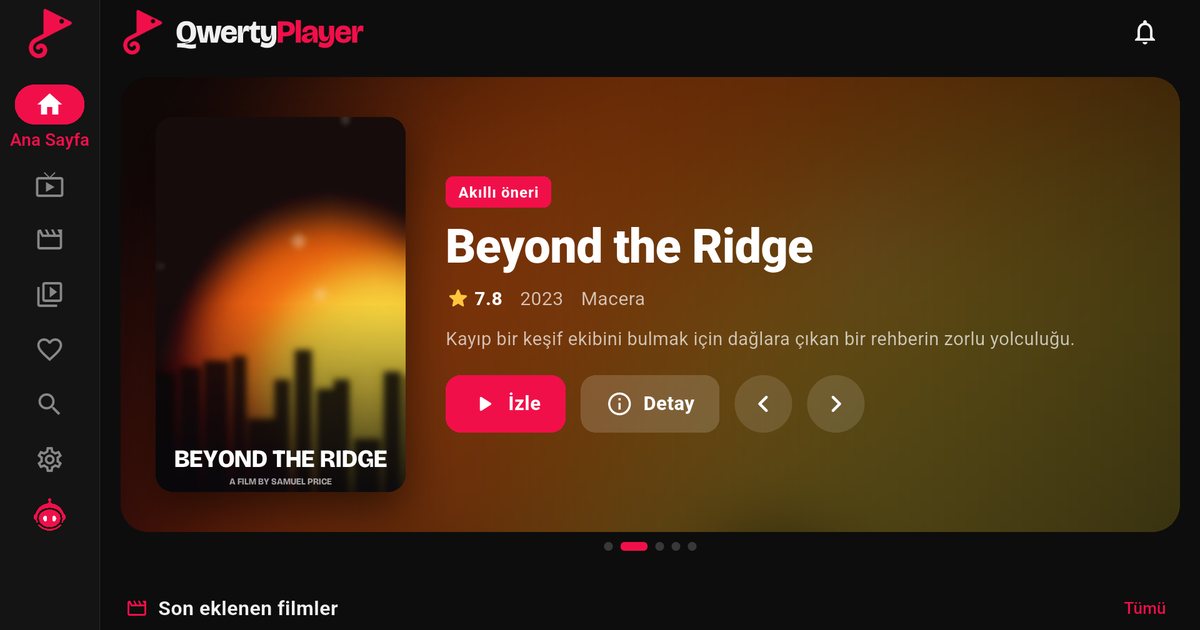
- Open the app store from the home screen and search for "QwertyPlayer".
- Install the app and open it to see an address and a single-use code.
- On a phone or computer, open the Connect to TV page, enter the code and add your M3U link or Xtream Codes details.
The Titan OS app catalogue is public at partners.titanos.tv/appstore. Search for QwertyPlayer in the store and install it. Update the television software if search does not return the app.
Set-up if you have Google TV
- Open Apps, choose Search and look in Google Play for "QwertyPlayer".
- Install the Android TV version and open it.
- Add your playlist from a phone or computer through the Connect to TV page, or enter the details with the remote.
Everything else about Google TV, including the home-screen recommendations, is explained in Google TV versus Android TV. If you have an older Philips with Android TV, the Android TV guide also applies.
Which is better for IPTV?
For this purpose both work if the app is available for them, and the viewing experience is the same: live channels, films and series in separate sections, search, favourites and a programme guide where your provider supplies EPG data. The practical difference is the app catalogue. Google Play is larger, while the Titan OS store is smaller and its listings depend on the region. Do not choose a television only for this reason, but if you already own one with a smaller catalogue, an external device is always an option.
Using an external device
A Fire TV Stick, an Android TV box or a Chromecast with Google TV can be connected to the HDMI port of either type of Philips set. See the Fire TV guide for an inexpensive route. For the full Philips walkthrough, read the Philips TV guide.
Note: QwertyPlayer is only a player and does not provide, sell or recommend content. Use it with streams you have the right to watch.
Frequently asked questions
How do I know if my Philips TV has Titan OS or Google TV?
Check the box or product page, compare the home screen (Google TV has Google Play, Titan OS has its own store) and look at the system information in the settings.
Do Philips OLED TVs use Titan OS?
Philips OLED televisions have stayed on Google TV. Many newer non-OLED models use Titan OS, but check your exact model.
Where do I install an IPTV player on a Philips TV?
On Titan OS, search the Titan OS app store. On Google TV, search Google Play.
Is Google TV better than Titan OS for IPTV?
Both work when the app is available. Google Play has a larger catalogue, but the viewing experience in the player is the same.
Try it with QwertyPlayer
Download with a free trial for Android, Android TV, Fire TV, Huawei and Windows.