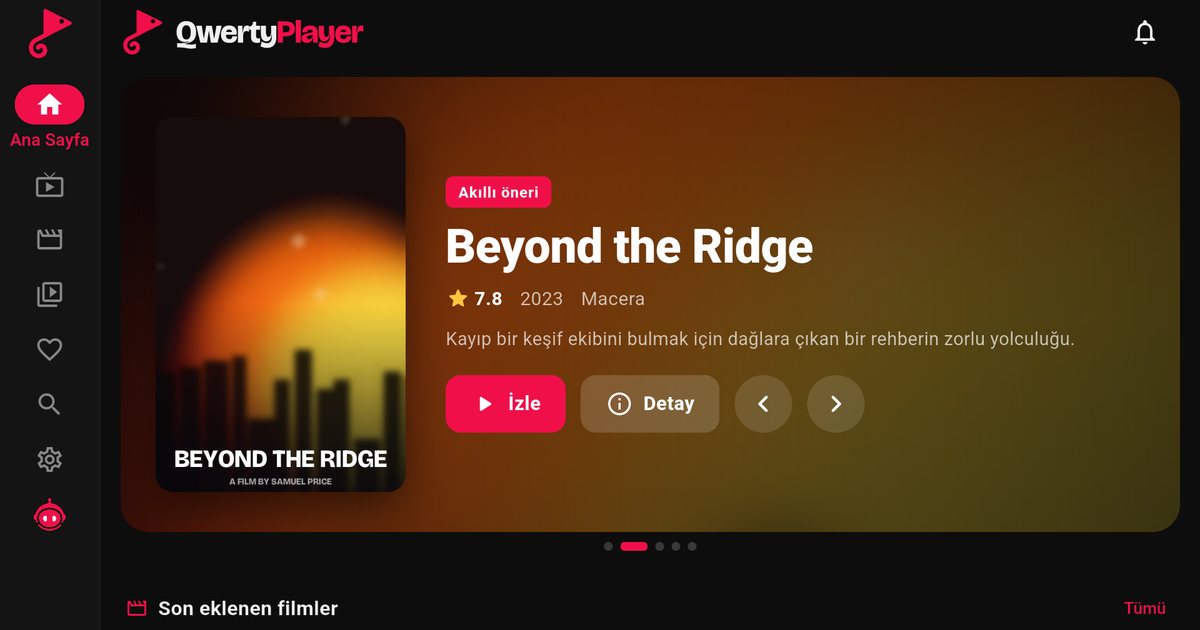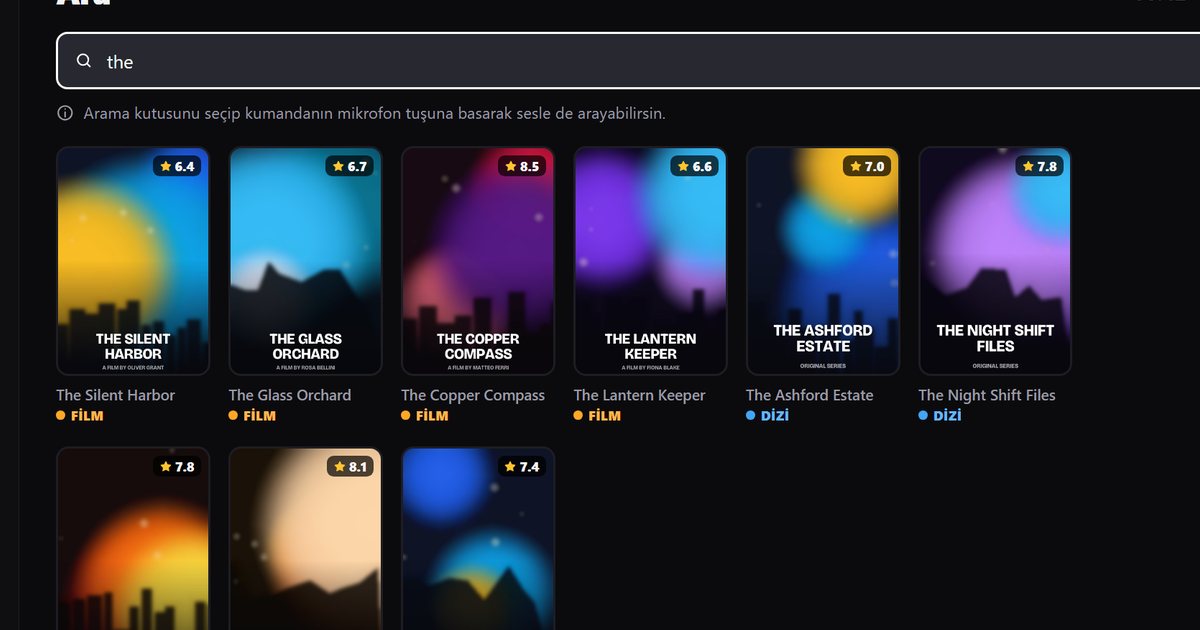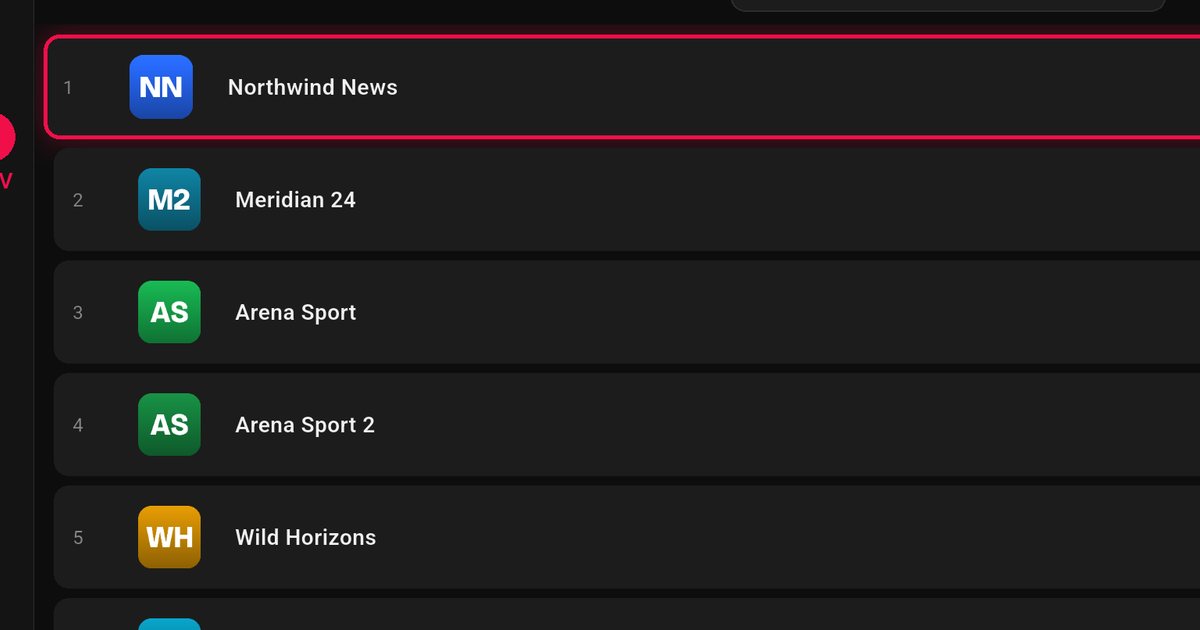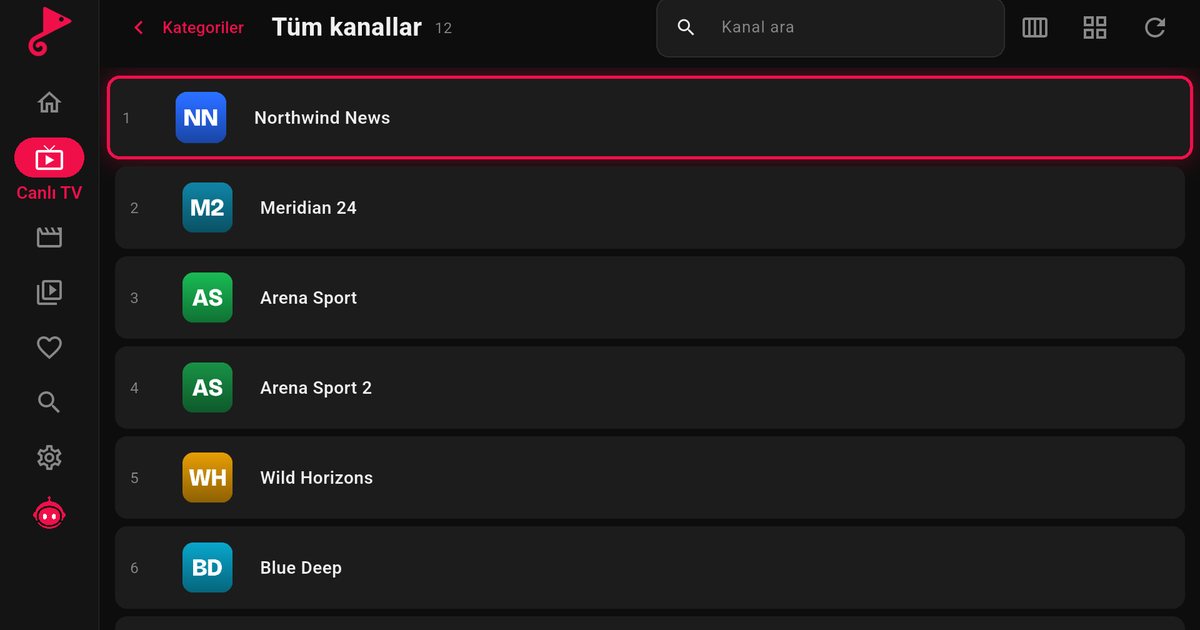
Sharp (Aquos), Toshiba and Skyworth do not follow one rule. A Sharp TV bought in one country may run Google TV, another may be a Fire TV edition, and a budget model may use VIDAA. If you are looking for an IPTV player for a Sharp, Toshiba or Skyworth TV, start by checking the system on your own screen, because that decides everything that follows. This guide covers each case and tells you plainly where QwertyPlayer works and where it does not.
How to identify the system
Take your remote and press Home. Then compare what you see:
- Google TV or Android TV: a Google Play Store tile, a Google Assistant button on the remote, and a Settings entry for Device Preferences or About with an Android version.
- Fire TV edition: the Amazon Fire TV home screen with the Amazon Appstore and an Alexa button on the remote.
- VIDAA: a platform-specific home screen with no Google Play Store or Amazon Appstore.
Also check Settings and then About or Support. Names and menu positions vary by model, so look for anything that shows the platform name. The packaging and the manual help too. Toshiba and some Sharp models are produced under licence, so the badge says little about the software inside.
If your TV is Android TV or Google TV
Open Google Play, search for "QwertyPlayer" and install it. If it appears in the store, your model is supported. Our Android TV guide covers the first launch and remote navigation. Then add your playlist using the Connect to TV page, which avoids typing a long link with arrow keys.
If your TV is a Fire TV edition
Open the Amazon Appstore from the Fire TV home screen, search for the app and download it. The Fire TV IPTV player article explains the steps and adding an M3U playlist on Fire TV shows how to enter the link.
If your TV runs VIDAA or another proprietary system
QwertyPlayer has no app for VIDAA or for most closed platforms, and we do not promise one. You have these realistic options:
- Connect a Fire TV Stick to an HDMI port.
- Connect a Google TV device or a Chromecast with Google TV, covered in the Chromecast guide.
- Use an Android TV box.
- Watch on a phone, tablet or computer with the matching QwertyPlayer app.
An external device is usually the cleanest answer. It adds its own processor and storage, receives updates independently of the TV, and can be moved to another television if you replace yours.
Summary table
| System on the TV | QwertyPlayer on the TV | Where to get it |
|---|---|---|
| Google TV / Android TV | Yes, if listed in the store | Google Play |
| Fire TV edition | Yes, if listed in the store | Amazon Appstore |
| VIDAA or another closed system | No | Add an external device |
Skyworth, Toshiba and Sharp specifics
Skyworth sells televisions in many regions, and the software differs by market. Check the model label on the back or the box for the series name, then compare with what you see on screen. Toshiba-branded televisions in Europe have been made by a licensee, so features can differ from older Toshiba sets that you may remember. The Hisense article describes the same VIDAA-or-Google decision.
Tips whatever the system
- Use a network cable where possible. See the internet speed guide for what your connection needs.
- Keep the playlist link in a note on your phone so you can resend it after a reset.
- If a player stutters only in the evening, the cause is usually the network or the provider, not the TV.
QwertyPlayer is only a player. It does not provide channels, films or series, and you are responsible for having the right to watch what you add. For the wider picture of brands, see the list of brands that use Android TV.
Frequently asked questions
Does QwertyPlayer work on a Sharp TV?
Yes, if your Sharp model runs Google TV, Android TV or Fire TV and the app is listed in its store. Sharp models on VIDAA have no app.
Is there an IPTV app for Toshiba TVs?
Toshiba models with Google TV or Android TV can install QwertyPlayer from Google Play. Check the home screen and the store of your own TV first.
Can I install the app on a Skyworth TV?
If your Skyworth TV runs Google TV or Android TV and the app is listed in Google Play, yes. Otherwise use an external device.
What is VIDAA?
VIDAA is a smart TV platform used on some Hisense and other televisions. QwertyPlayer does not have a VIDAA app, so an external streaming device is the practical solution.
Which external device should I buy?
A Fire TV Stick, a Chromecast with Google TV or an Android TV box all work. Choose the one with the interface you prefer.
Try it with QwertyPlayer
Download with a free trial for Android, Android TV, Fire TV, Huawei and Windows.