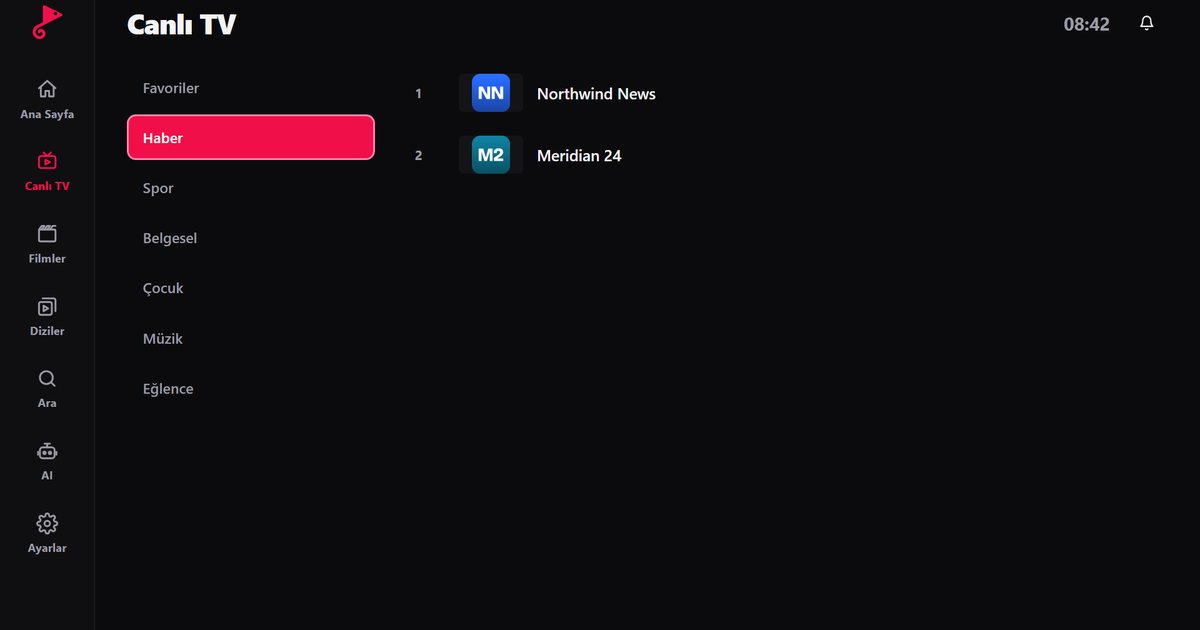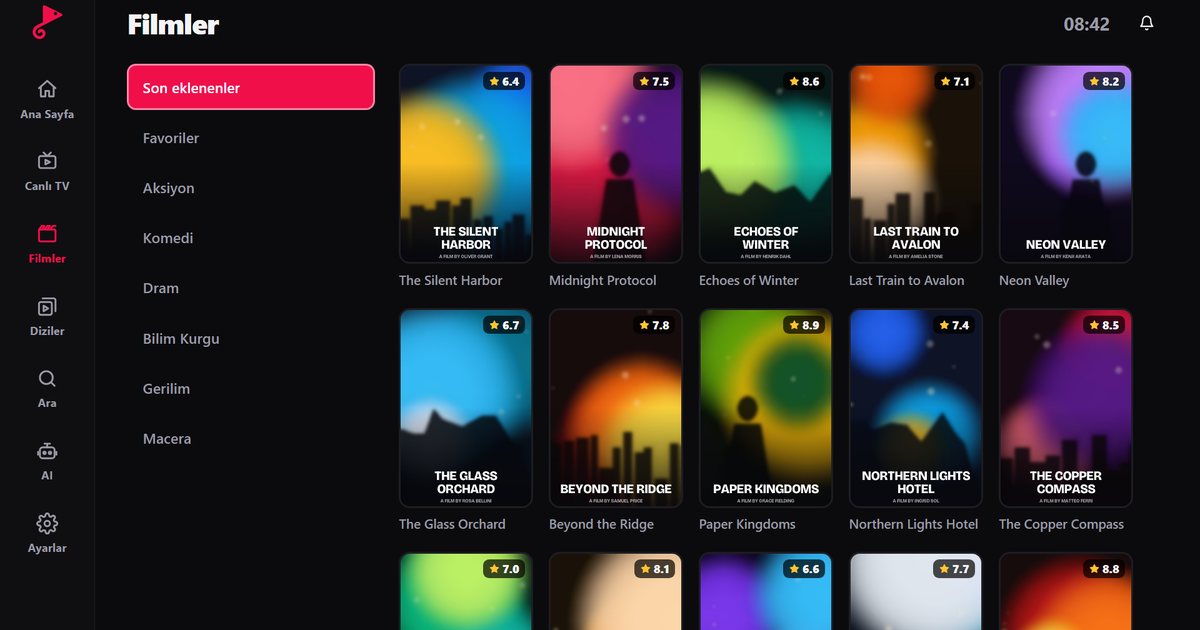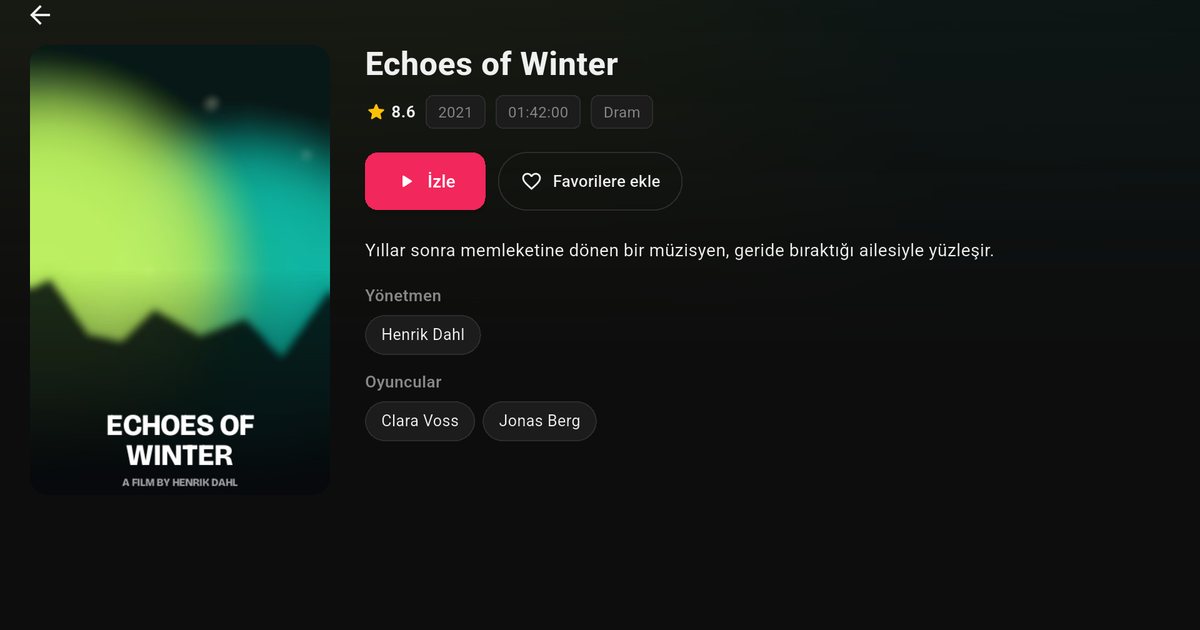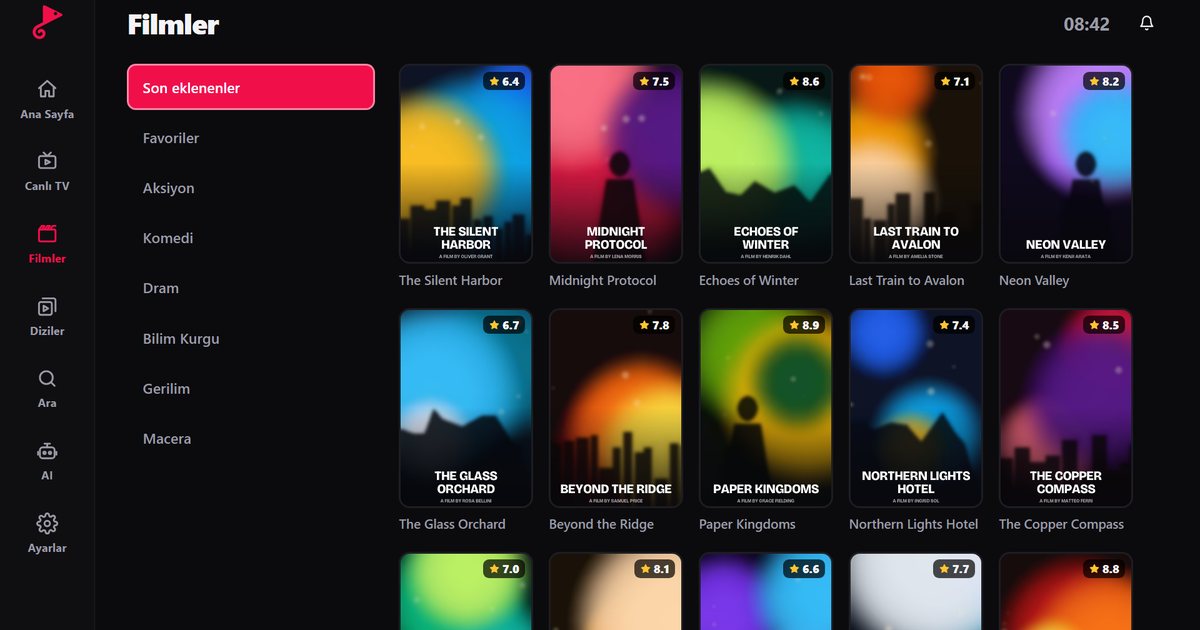
The Amazon Fire TV Stick turns any television into a smart TV over HDMI and is one of the most practical ways to watch IPTV. QwertyPlayer is available on the Amazon Appstore, so there are no extra settings and no sideloading.
Installation steps
- On the Fire TV home screen, go to Find (the magnifier).
- Type "QwertyPlayer" and select the app.
- Press Get or Download.
- When it finishes, press Open.
You can also find the app through the Amazon Appstore link on the download page.
Add your playlist
When the app opens, a code appears on screen. Enter it on the connect your TV page on your phone or PC and add your M3U link or Xtream Codes details there. If you prefer the remote, follow the guide to adding M3U and Xtream Codes.
Using it on Fire TV
- Hold the fast-forward or rewind key to seek faster; release it and playback continues from that point.
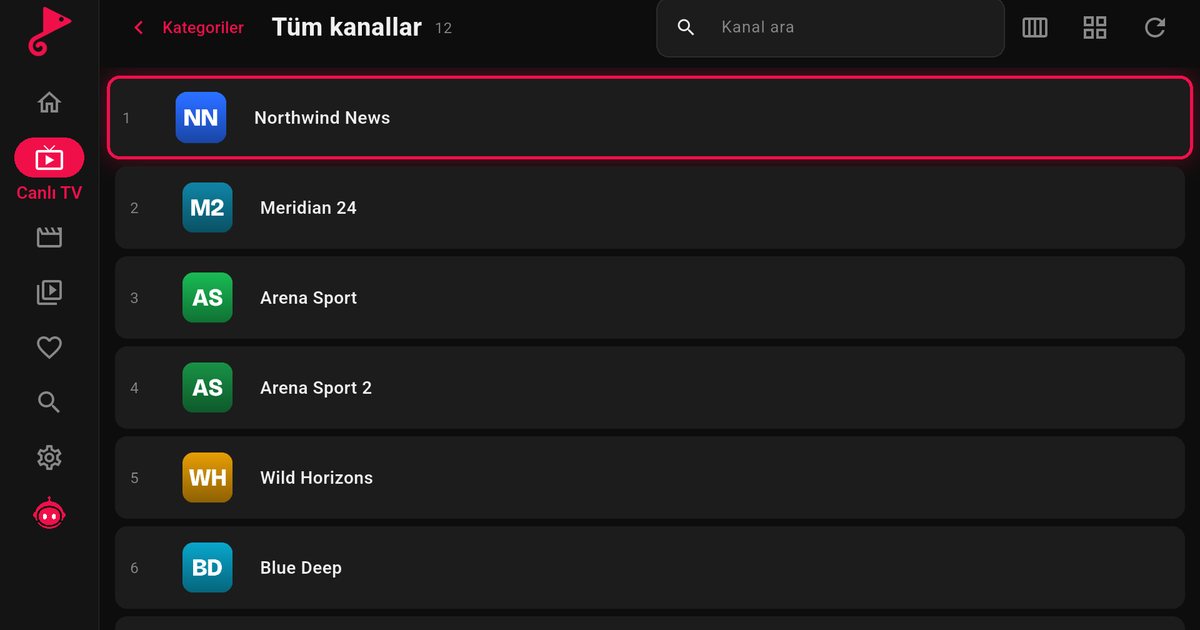
- In Live TV, pause on a channel to start the preview on the right; press OK for full screen.
- Connect the Fire TV Stick to the 5 GHz Wi-Fi network, or use Amazon's Ethernet adapter if you can.
If something goes wrong
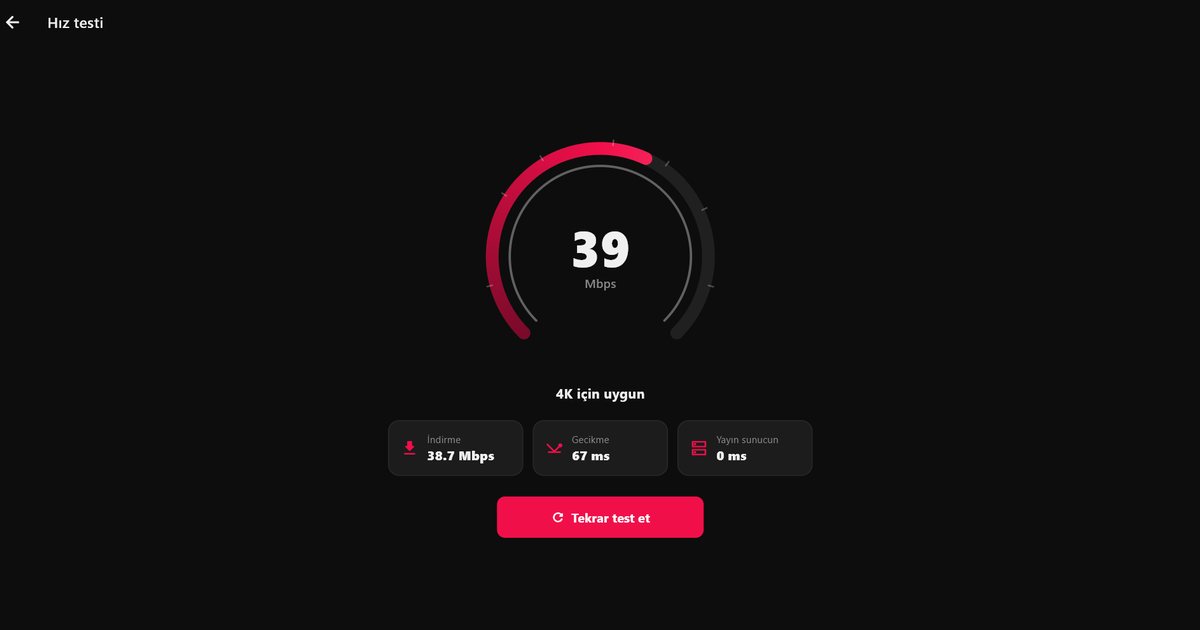
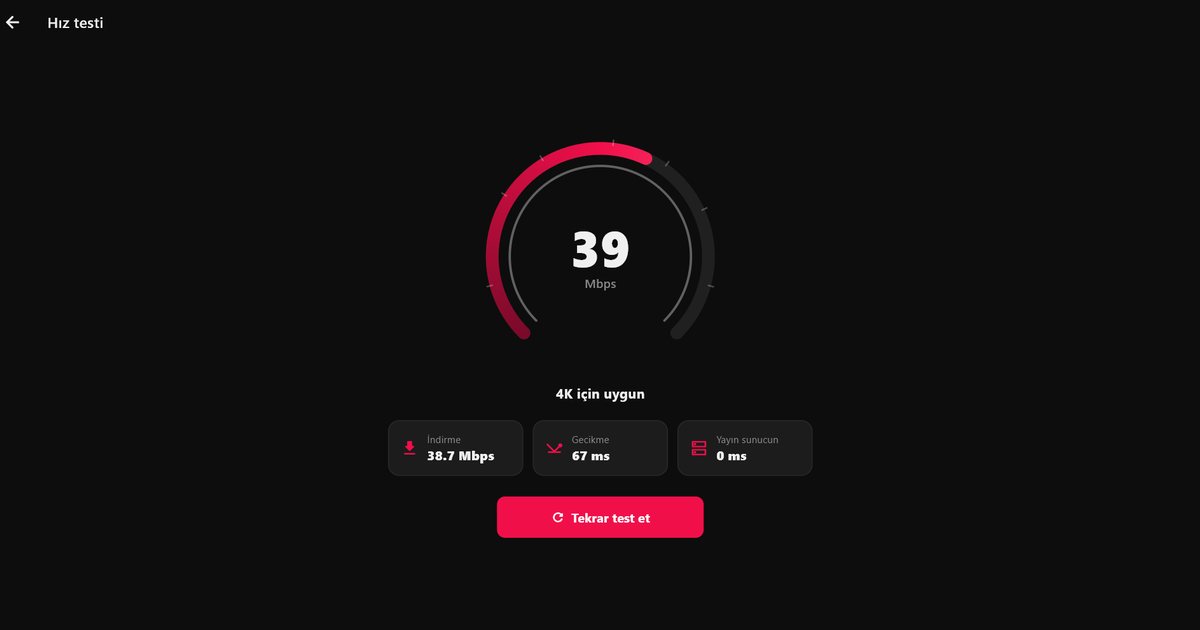
If streams stall, see how to fix IPTV buffering. For other TVs, read IPTV player for Smart TV.
Try it with QwertyPlayer
Download with a free trial for Android, Android TV, Fire TV, Huawei and Windows.