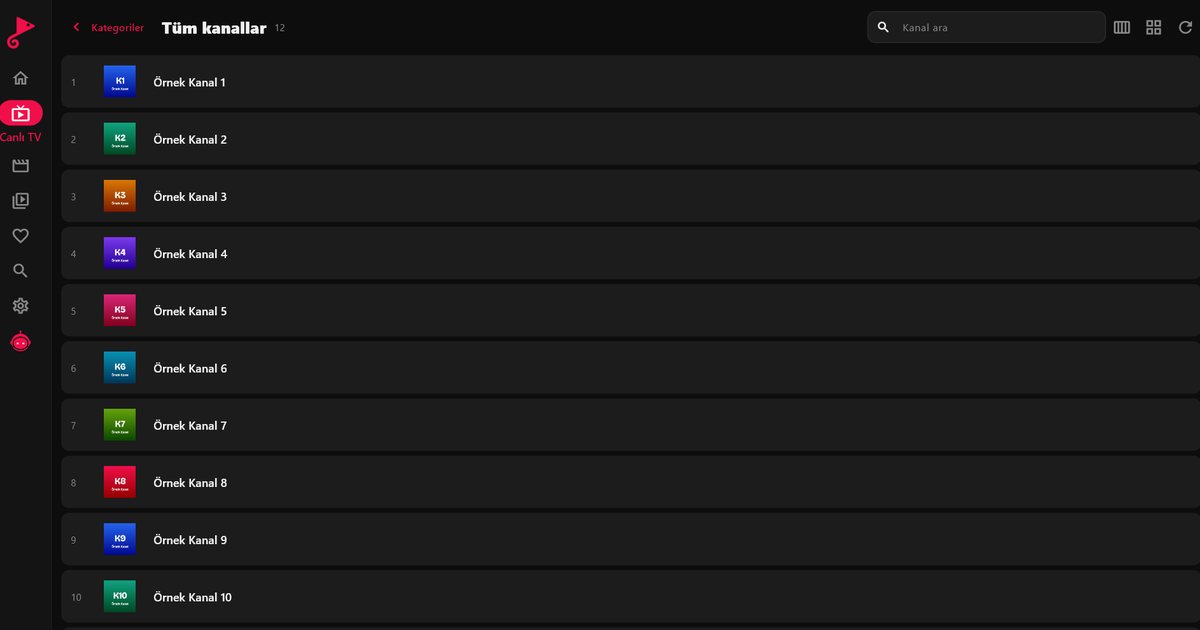
If you use IPTV, you will meet the file extensions M3U and M3U8 sooner or later. They look almost identical, yet people often ask what M3U8 actually is and whether it matters which one they have. This article explains both formats in plain terms, shows what is inside a playlist, and covers how to add one to a player and what to do when it does not load.
What is an M3U file?
M3U is a plain-text playlist. It was created for lists of audio files and later became the standard way to describe a list of streams. Each entry holds a name, optional details such as a logo or group, and the address of the stream. In IPTV, an "M3U link" is simply a web address that returns such a file from your provider's server.
What is an M3U8 file?
M3U8 is the same playlist format saved with UTF-8 text encoding. That matters whenever names contain characters beyond basic English letters, such as accents, umlauts, Cyrillic or Arabic script. A UTF-8 file displays them correctly, while a file in an older encoding may show garbled symbols.
The extension has a second meaning. In HLS (HTTP Live Streaming), a stream is cut into short segments, and an .m3u8 file tells the player which segments to fetch and in what order. So the same extension appears in two roles:
- Channel list: one file naming many channels, which you load into an IPTV player.
- HLS stream file: one file describing the segments of a single live or on-demand stream.
Most IPTV playlists you receive are the first type, and the individual channels inside them often point to HLS streams of the second type.
What a playlist looks like inside
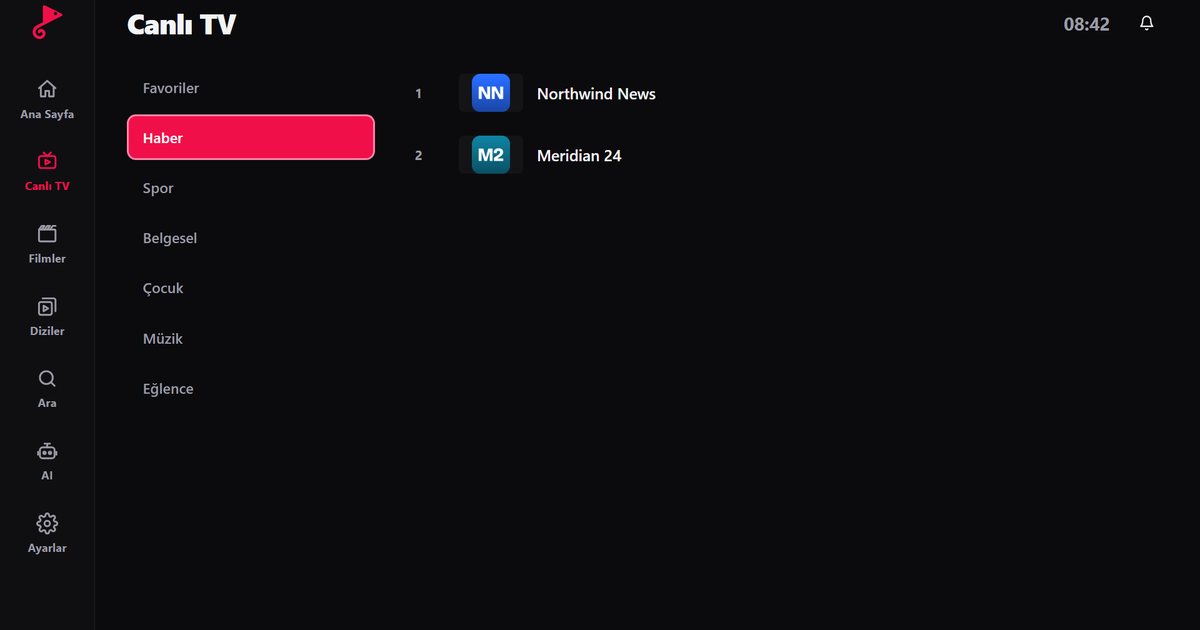
You can open the file in any text editor. The first line is #EXTM3U. After that, every channel takes two lines: an #EXTINF line with the display name and attributes, followed by the stream address on the next line. You never need to edit this by hand. The player reads it and builds categories and the channel list for you.
Adding an M3U or M3U8 link to QwertyPlayer
- Open the app and go to the screen for adding a list.
- Paste your M3U or M3U8 link exactly as your provider gave it.
- Save and wait. Channels load and are grouped into categories.
If typing the link on a television is awkward, send it from another device using the Connect to TV page, or follow the remote-entry method in the Fire TV Stick M3U guide.
Common problems
- The list is empty: The link may have expired, been copied with a missing character or belong to a suspended account.
- Characters look broken: The file may not be UTF-8. This is a provider-side issue, not something you can fix in the player.
- Some channels will not open: The individual stream may be offline. Ask your provider whether the channel is still active.
- Playback stutters: Check your connection and the buffering fixes.
M3U or Xtream Codes?
A single M3U link is the simplest option. Xtream Codes uses a server address, username and password and usually gives cleaner categories, separate movie and series sections and automatic programme data. Compare them in M3U versus Xtream Codes, then follow the Xtream Codes guide if that is what you have.
Frequently asked questions
What is the difference between M3U and M3U8?
M3U8 is M3U saved in UTF-8 encoding, which shows special characters correctly. The extension is also used for HLS stream files.
How do I open an M3U8 file?
Add the link or file to an IPTV player such as QwertyPlayer. Because it is plain text, you can also read it in any text editor.
Why does my M3U link return an empty list?
The link may have expired, been copied incorrectly or be tied to an account that is no longer active. Check it with your provider.
Is an M3U8 playlist legal?
The file format itself is legal. Whether a particular list is legitimate depends on where its content comes from and whether you have the right to watch it.
Try it with QwertyPlayer
Download with a free trial for Android, Android TV, Fire TV, Huawei and Windows.