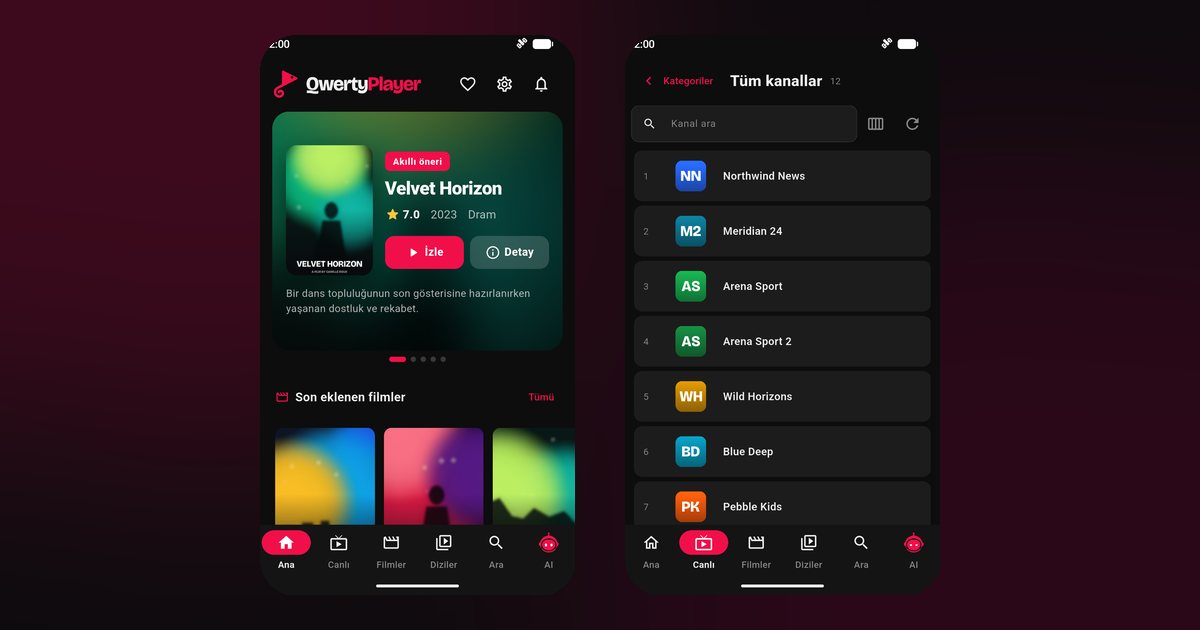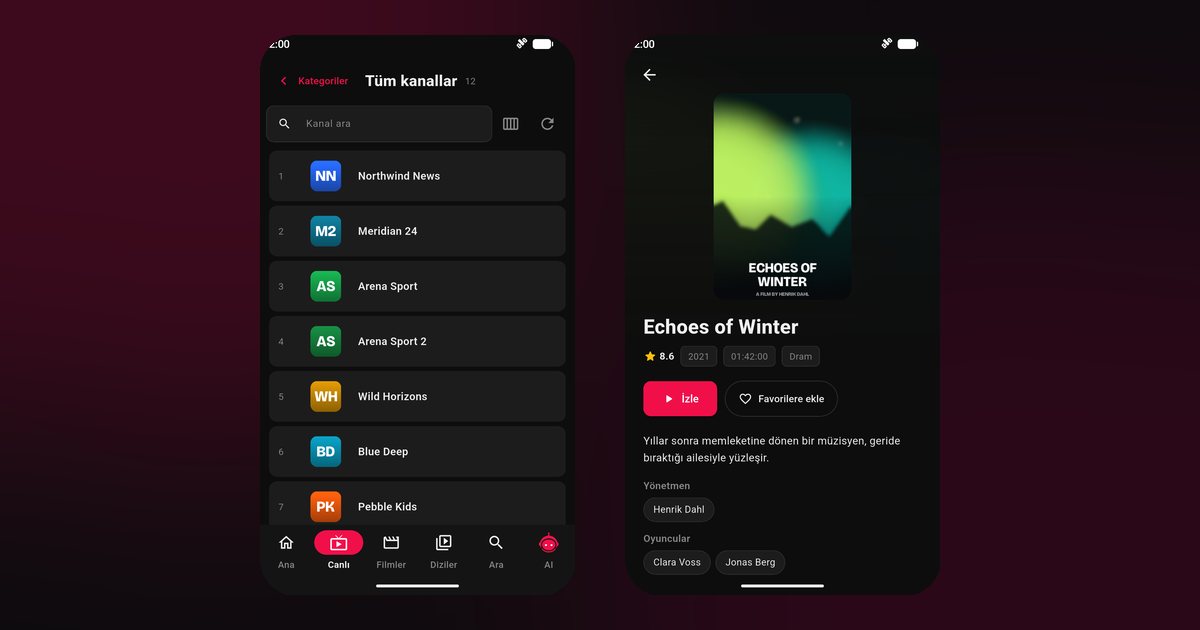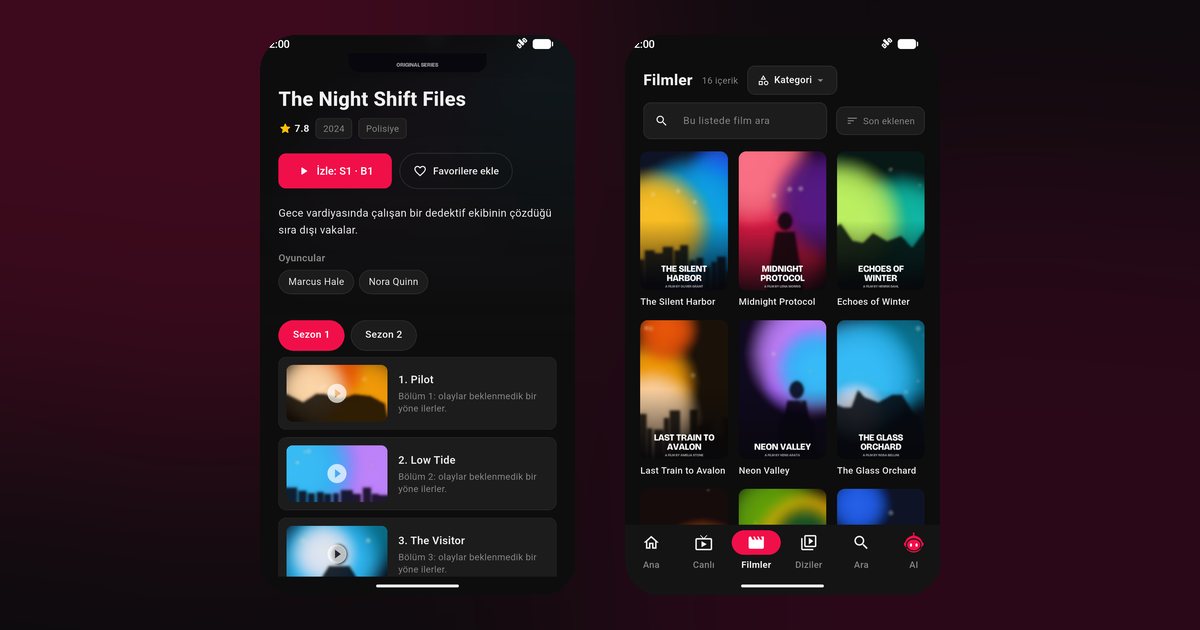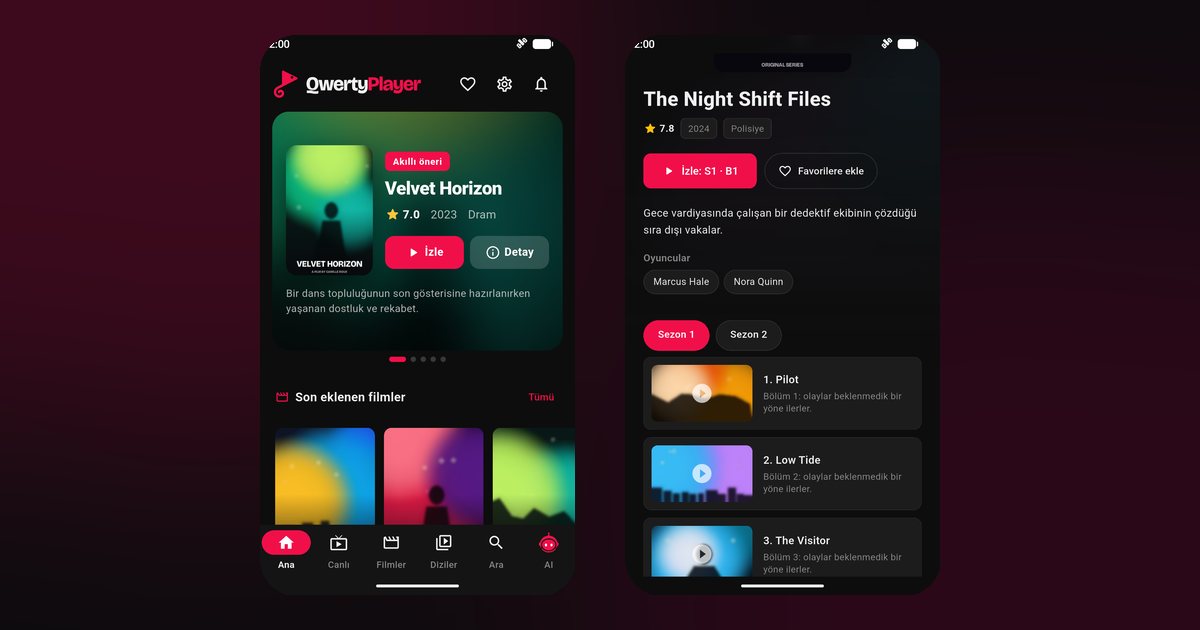
An Oppo IPTV player needs surprisingly little: Google Play, a playlist from your provider and a few ColorOS options. Oppo phones, from the Find flagships to the Reno and A lines, run a smooth Android layer called ColorOS. It also manages background apps firmly, so a video app you are not touching can be closed. The steps below get a film or live channel to keep going.
Which Oppo phones are covered
Oppo organises its range into three lines. Find is the premium family, with the Find X7, Find X7 Ultra, Find X6 Pro and the foldable Find N3 Flip. Reno is the style-focused middle line, including the Reno 11, Reno 10 and Reno 12. The A series covers affordable handsets such as the Oppo A78, A58 and A98. All of them use ColorOS and Google Play, so one guide serves them all.
Getting the app onto the phone
- Open Google Play, not the Oppo App Market, unless your region lacks Google services.
- Search for QwertyPlayer, install it and open it.
- Accept the permissions requested; notifications matter most, as they keep the playback session visible.
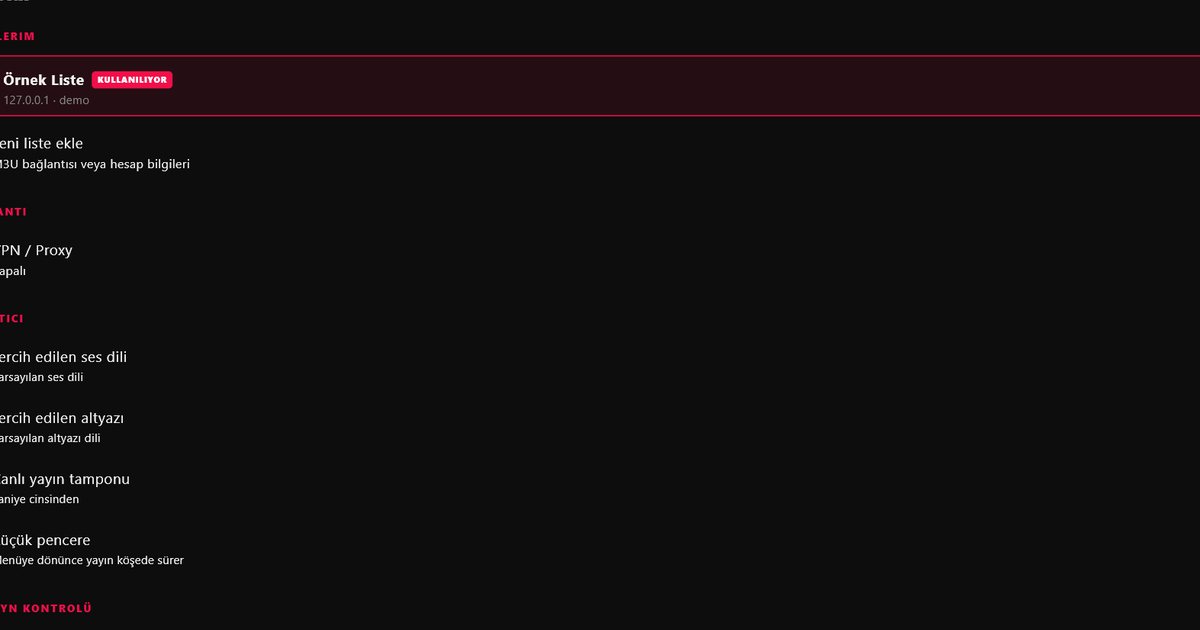
- Choose M3U or Xtream Codes and enter the data from your provider.
Long M3U links are best pasted from an email or note rather than typed. If the two formats confuse you, look at the M3U and Xtream Codes guide.
ColorOS: three places to look
Names change across ColorOS versions; use Settings search if needed.
App-level battery usage
Go to Settings > Apps > App management > QwertyPlayer > Battery usage (it may be called Energy saver) and pick the choice that allows background activity. If the info page offers Allow auto launch, switch it on.
Battery optimisation list
In the Battery section, find the list of apps that are optimised and make sure QwertyPlayer is excluded. Otherwise ColorOS shuts it soon after the screen turns off.
System power mode
Power saving modes limit background work for every app. Use normal mode during viewing.
Recent apps lock
Use the lock icon on the app card so clean-up does not clear it.
A cross-brand comparison appears in the Android background playback guide.
Oppo, Realme and OnePlus are cousins
Menus on these three brands often look alike because of shared software history, but headings differ. Owners of the other two can read the Realme phone guide and the OnePlus guide.
Symptoms and answers
- Closes when the screen turns off: recheck battery usage and auto launch, then reboot, because some versions apply changes only after a restart.
- Sound disappears after switching apps: pause and resume; if that fails, lower and raise the media volume once.
- Buffering on mobile data: try Wi-Fi first; for a slow link see the internet speed guide.
- Picture looks dull: check eye comfort and auto brightness in the display menu.
Better on the big screen
An Oppo phone is a handy remote for setup, yet a small screen for long viewing. Install the app on your television and send your playlist from the phone with the Connect to TV page. The TV displays an address and a one-time code, you enter it, and the list arrives. Other makers are in IPTV players on Android phones.
Content responsibility
The app carries no channels of its own; you bring a source you may legally use. It is free at present.
Frequently asked questions
Will it work on an Oppo Reno 11 and on an Oppo A58?
Yes. Both run ColorOS and install the app from Google Play.
Why does my Oppo close the app with the screen off?
ColorOS may be restricting background activity. Allow background running and exclude the app from battery optimisation.
Do I need the Oppo App Market?
No. Google Play is the recommended source.
Is the Find N3 Flip any different?
It uses the same installation. Open the phone and use the main display for the best video layout.
Can I send my playlist to a TV?
Yes. Use the Connect to TV page at qwertypro.xyz with the address and code shown on the television.
Try it with QwertyPlayer
Download with a free trial for Android, Android TV, Fire TV, Huawei and Windows.