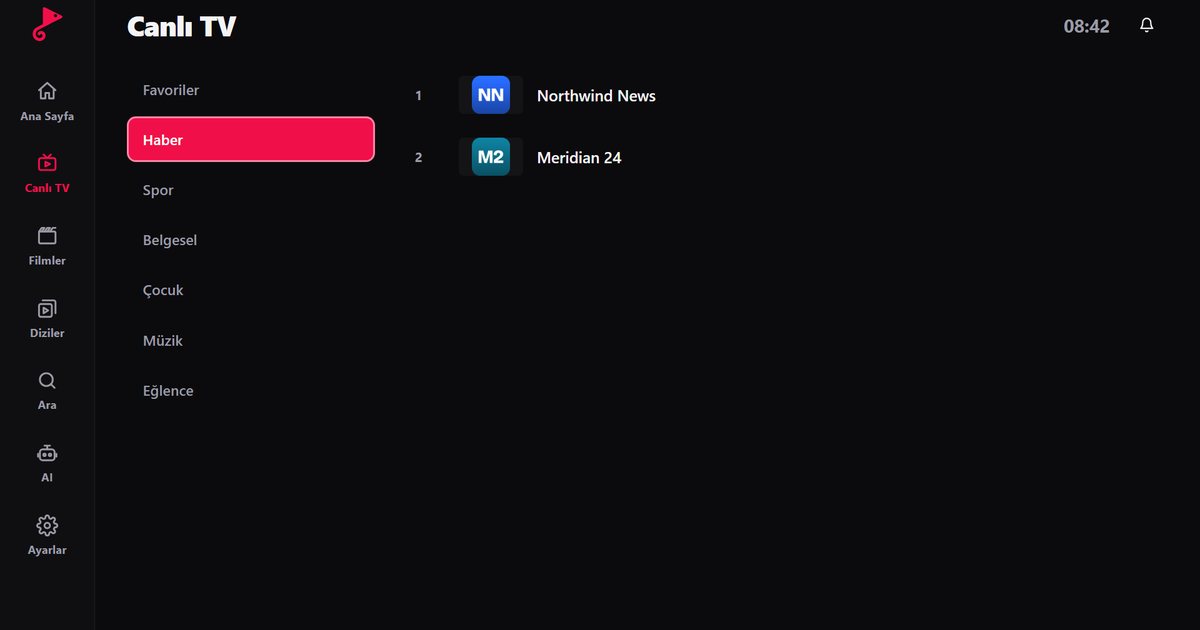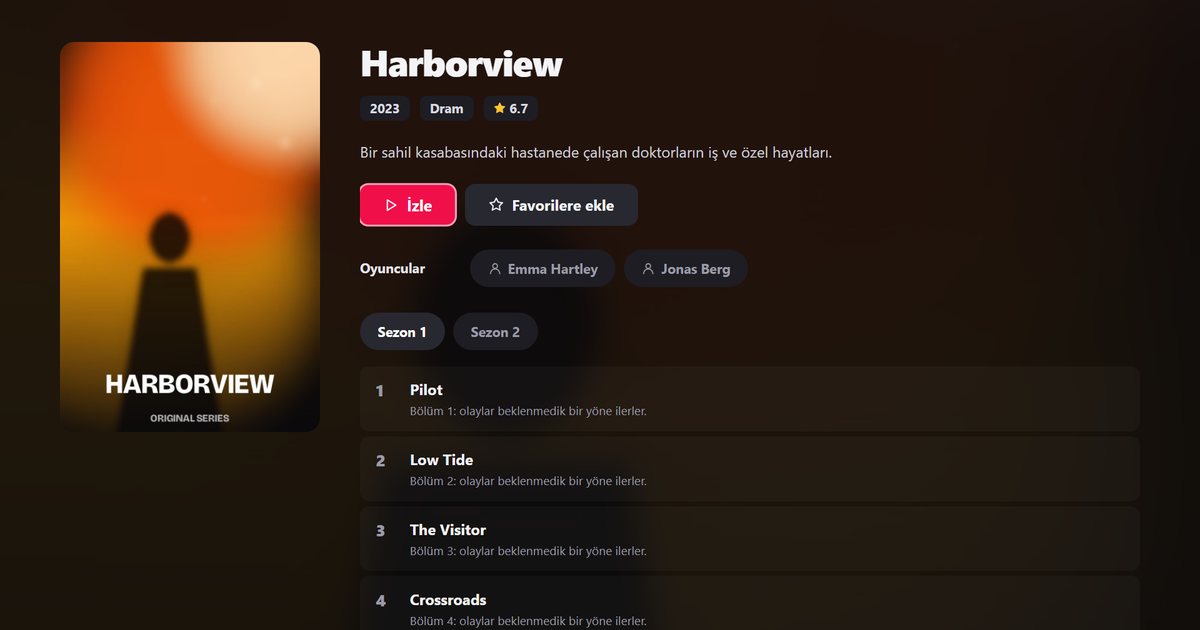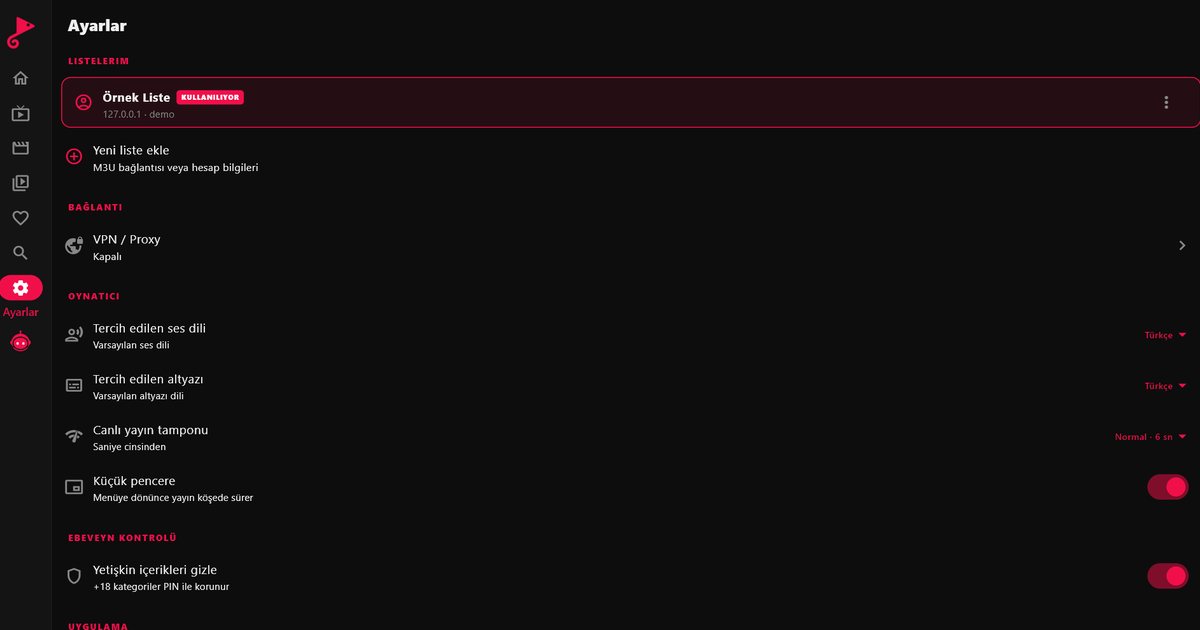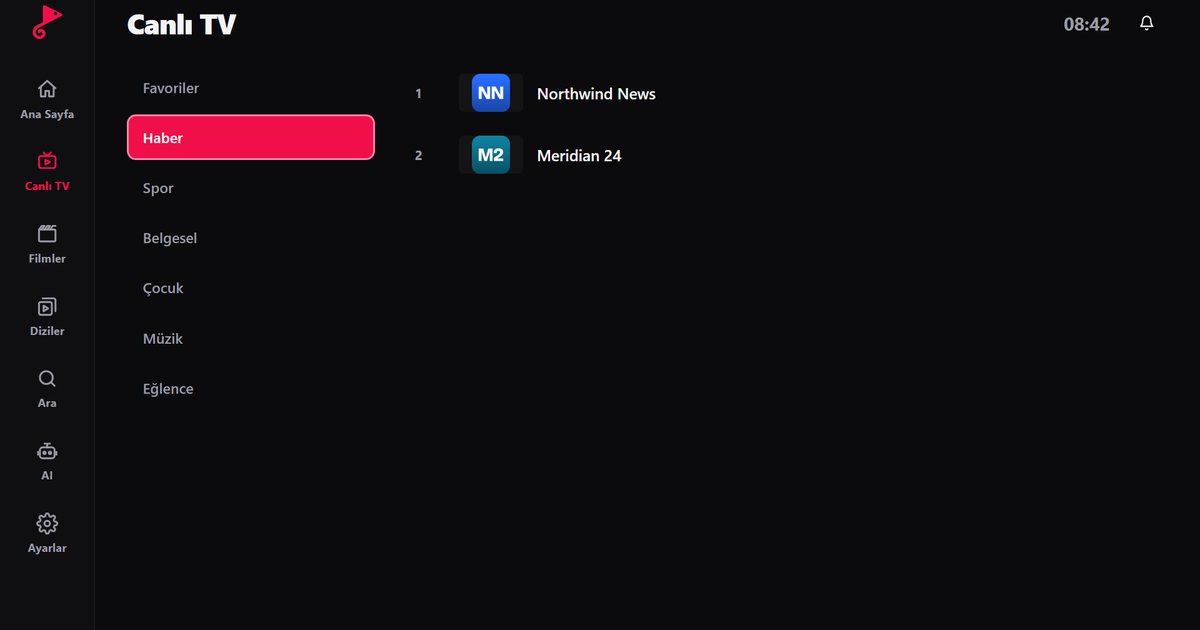
LG OLED televisions are popular for film and series, so it is no surprise that people search for an IPTV player for LG OLED. Every LG OLED runs webOS, the system built by LG itself, which means the app comes from the LG Content Store and not from Google Play or the Amazon Appstore. This guide shows how to confirm your webOS version, find the app, add a playlist without typing it with the remote, and keep the panel in good condition during long viewing.
Which OLED do you have?
LG sells several OLED families. The C series is the mainstream choice, the G series is the gallery design, the B series is the entry model, and Z and M lines have appeared as top or wireless models in some years. The line-up changes from year to year, so do not rely on a series letter alone. In the model code, such as OLED55C2, the digit after the series letter tells you the year for 2021 onwards: C1 is 2021, C2 is 2022, C3 is 2023 and C4 is 2024.
The year matters because it sets the webOS release. The webOS version guide contains the full table, and the short version is: 2021 sets run webOS 6.0, then 2022 runs webOS 22, 2023 webOS 23, 2024 webOS 24 and 2025 webOS 25. You can also read it directly: press the Settings button, open All Settings, then General and About This TV.
Installing the app
- Press Home on the Magic Remote and open LG Content Store.
- Go to Apps and use the search field.
- Type "QwertyPlayer". If the app is listed, your OLED is supported. Choose Install.
- Open it from the launcher bar.
Open the LG Content Store, search for QwertyPlayer and install it. If the search comes back empty, update the TV software first and try again. A Fire TV Stick or a Google TV device on an HDMI port is another way to get the same app on an OLED screen.
Add your playlist from your phone
Typing an M3U link or an Xtream Codes server address with a pointer remote is slow. Open the Connect to TV page instead. The TV shows an address and a short-lived, single-use code. You enter the code on your phone or computer, paste your link or your Xtream details and send them to the TV. If you are not sure what you were given, the M3U versus Xtream Codes guide explains both.
Looking after an OLED panel
OLED pixels emit their own light, and any panel can show uneven wear if the same bright image stays on screen for a very long time. Live TV makes this relevant, because channel logos and a fixed clock sit in the same corner for hours. Sensible habits are enough for most people, and they do not require special settings:
- Do not leave a paused picture or a static menu on screen when you leave the room.
- Use the TV's own screen saver and automatic power-off options, found in the General and Picture settings.
- Keep brightness at a comfortable level in a dim room. High peak brightness all day is not needed.
- Vary what you watch. A mix of films, series and channels spreads the load.
These are general care tips, not a promise about how any individual panel will age. The TV's manual and LG's support pages are the authority for warranty questions.
Getting the best picture from a stream
An OLED shows flaws in a poor source very clearly, so a low-quality stream will look worse here than on a basic TV. The picture quality you get depends on what your provider sends, on your connection and on the stream's own resolution. Use the in-app speed test and read our internet speed guide. A network cable is generally steadier than Wi-Fi. For frozen or stuttering playback see the buffering troubleshooting article.
Other LG pages
The webOS overview covers every brand that uses the system, the QNED, NanoCell and UHD guide covers the other LG series, and the original LG webOS IPTV page has general setup notes.
QwertyPlayer is only a player. It does not provide or sell channels, films or series. You add an M3U link or an Xtream Codes account from a provider you are entitled to use, and you are responsible for the right to watch that content.
Frequently asked questions
Does QwertyPlayer work on an LG OLED?
LG OLED televisions run webOS. Open the LG Content Store and search for QwertyPlayer. Select it and install it.
How do I find out which year my OLED is from?
In a code such as OLED55C2 the digit after the series letter is the year for 2021 onwards (C2 is 2022). You can also check Settings, All Settings, General, About This TV.
Can IPTV cause burn-in on an OLED?
Any static image shown for very long periods can cause uneven wear on an OLED panel. Avoid leaving paused pictures on screen and use the screen saver and auto power-off options.
How do I add my playlist without typing it?
Use the Connect to TV page at qwertypro.xyz. The TV displays a short-lived, single-use code and you send the playlist from your phone or computer.
What if the app is not in the LG Content Store?
Use a Fire TV Stick, a Google TV device or an Android TV box on an HDMI port, or watch on a phone or computer with the matching app.
Try it with QwertyPlayer
Download with a free trial for Android, Android TV, Fire TV, Huawei and Windows.