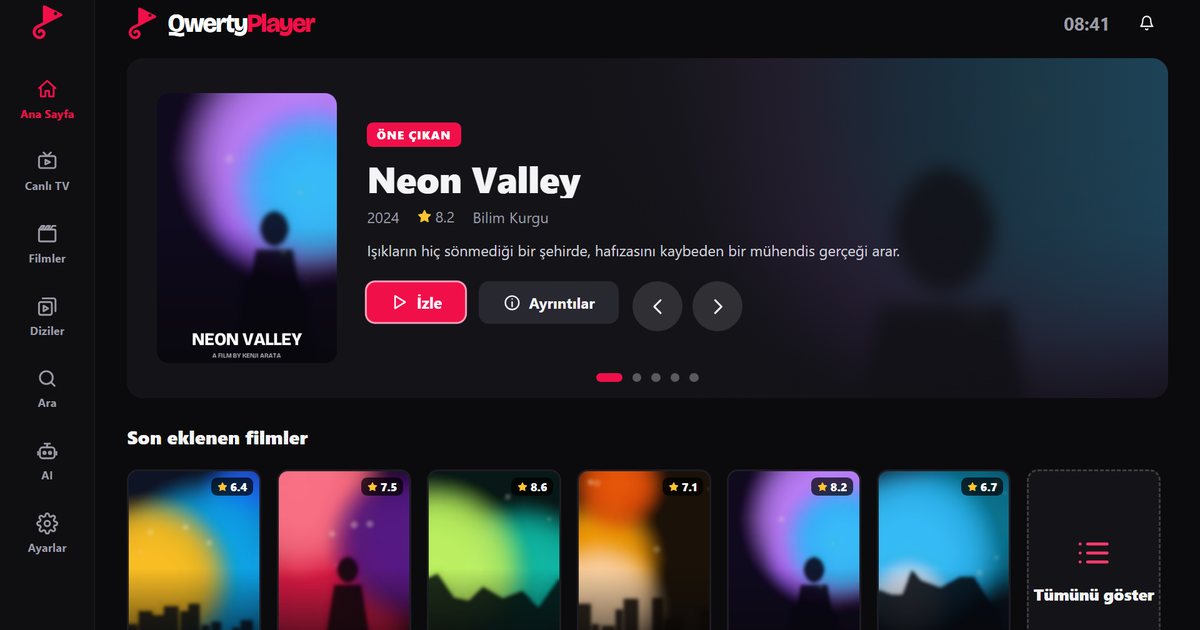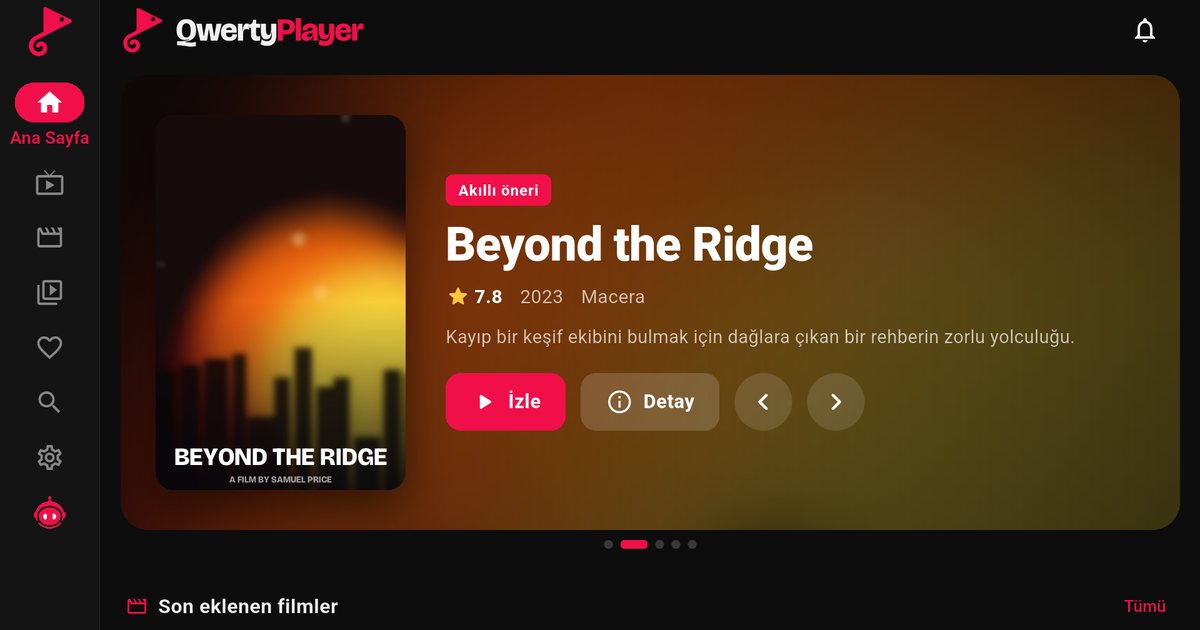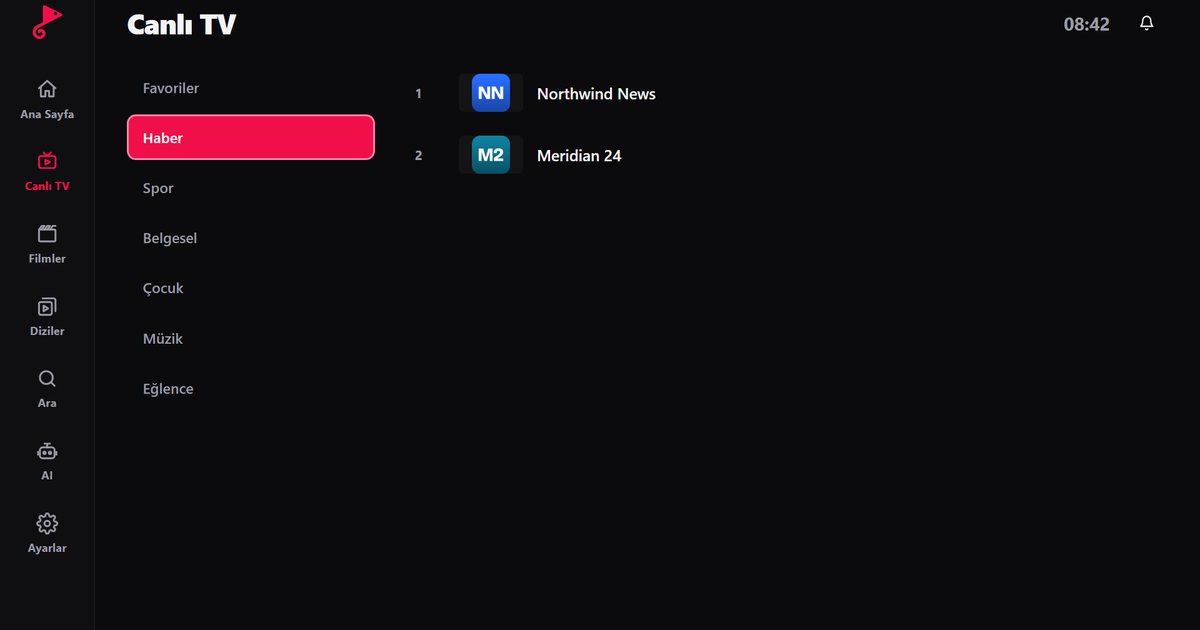
LG televisions run webOS, and the Magic Remote makes menus easy to move through. For an IPTV player for LG TV the useful questions are whether the app works well with the pointer and the arrow keys, whether it opens a large playlist quickly, and how simple it is to add the playlist in the first place. The QwertyPlayer app for LG webOS is designed around those three points.
Installing on an LG TV
- Press the Home button and open the LG Content Store.
- Search for "QwertyPlayer". Open the app page and install it.
- Install it and open it. A web address and a code are displayed.
- Enter the code at the Connect to TV page from a phone or computer, type your playlist details there and send them to the TV.
Sending the playlist this way means you never need the on-screen keyboard for a long link or password. The code is short-lived and works once.
Magic Remote tips
With the Magic Remote you can point at items on screen and click, or switch to the arrow keys and the wheel if you prefer. If the pointer disappears, shake the remote or press a direction key to bring it back. Use the on-screen search field inside the app to look for a channel, film or series by name.
What you get on LG
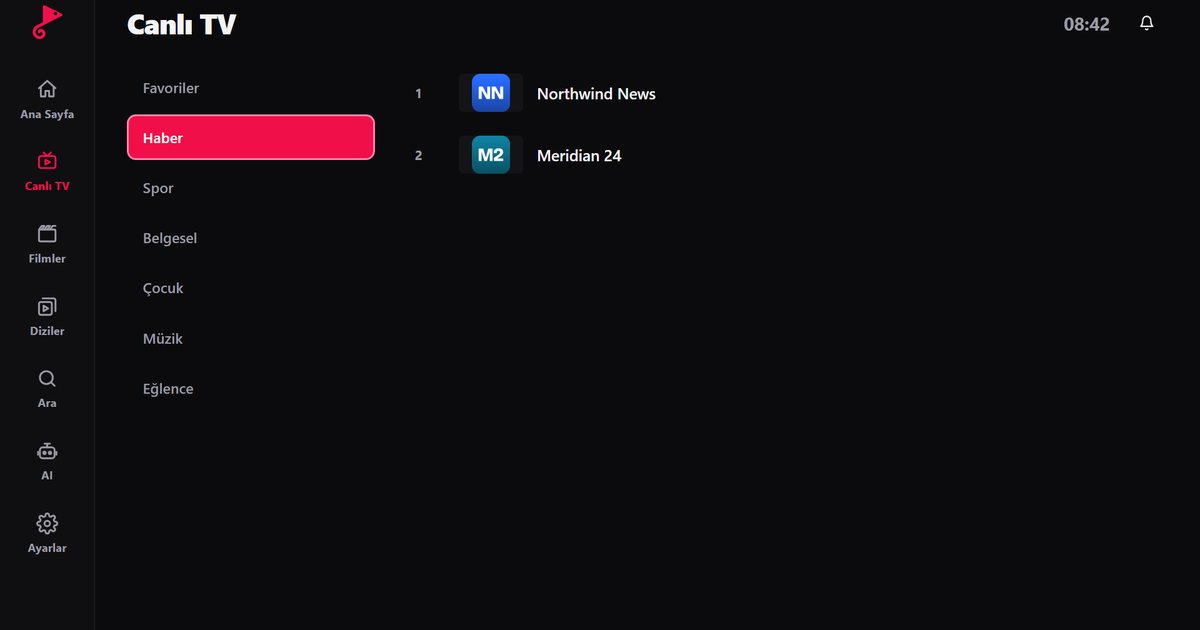
- Live TV with the category list and channel list on the same screen, so switching channels is quick.
- A programme guide when the playlist includes EPG data. Xtream Codes accounts usually include it; for M3U you may need an XMLTV address from your provider. See how to set up EPG.
- Audio and subtitle language choice during playback when the stream carries several tracks: audio and subtitle guide.
- Adult categories hidden by default and unlocked with a PIN, useful in a shared living room: parental controls.
- Resume where you stopped and a favourites list for regular channels.
Choosing the right quality
If your playlist offers the same channel in several qualities, pick the one that matches your connection rather than the highest. A stable HD stream looks better than a 4K stream that keeps pausing. Film and series streams are usually less sensitive than live sport, because the player can buffer a little ahead, so test live channels when you judge your connection.
If playback stutters
On LG sets the usual cause of freezing is the network, not the TV. A few quick checks:
- Connect with an Ethernet cable if the TV is near the router. This removes Wi-Fi interference from the equation.
- If you must use Wi-Fi, choose the 5 GHz band and keep the router in line of sight.
- Restart the TV and the router once, then test again.
- Check that the connection is fast enough for the quality you are playing. The article on IPTV internet speed gives rough targets, and the buffering troubleshooting guide covers the rest.
Keep the TV software up to date, as app compatibility depends on the webOS version and your region.
Getting the picture right
Set the picture mode to a standard or cinema preset and switch off motion smoothing if live sport looks unnatural. If the sound is out of step with the picture, check the audio output settings and any soundbar delay option before blaming the player. If only one channel stutters while others play normally, the fault is with that stream, not with your network.
Other brands
See the guides for Samsung Tizen and Philips Titan OS, the overview of IPTV players for Smart TVs, and the all-devices guide.
Note: QwertyPlayer is only a player and does not provide or sell content.
Frequently asked questions
How do I install an IPTV app on an LG TV?
Search the LG Content Store for the app, install it, and add your M3U link or Xtream Codes details.
Does it work with the Magic Remote?
Yes. You can navigate with the pointer or the arrow keys.
How do I add my playlist on an LG TV?
Enter the code shown on the TV at the Connect to TV page and send the playlist from a phone or computer.
Which LG TVs are supported?
Models running webOS are the target. Availability in the store depends on the model year and region, so keep the TV software updated.
Try it with QwertyPlayer
Download with a free trial for Android, Android TV, Fire TV, Huawei and Windows.