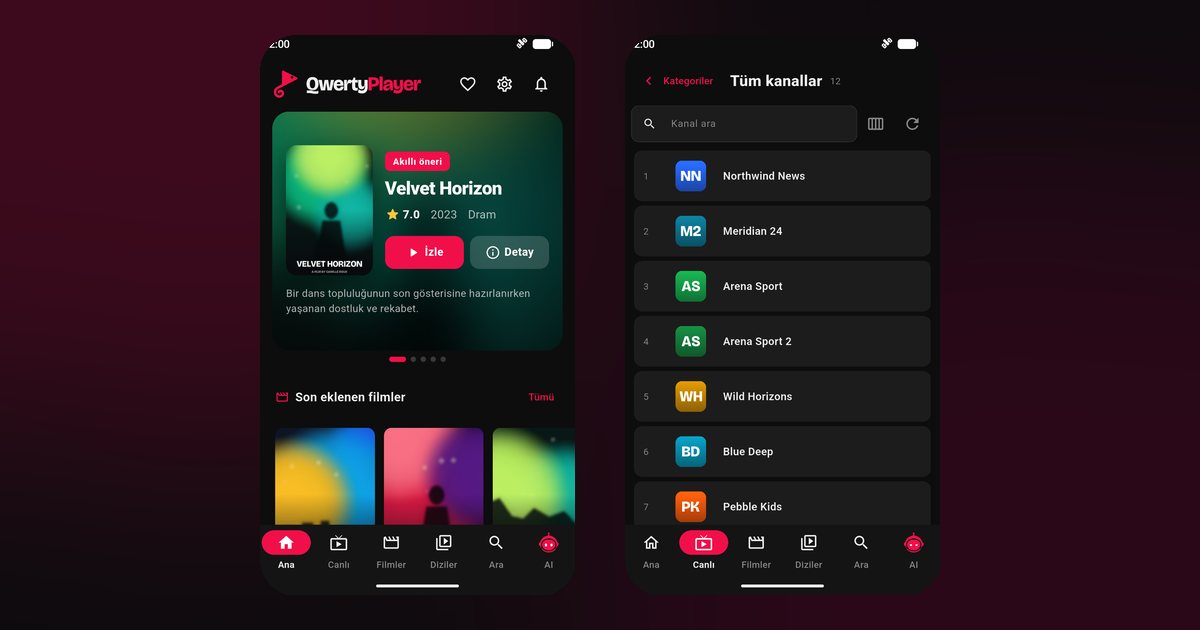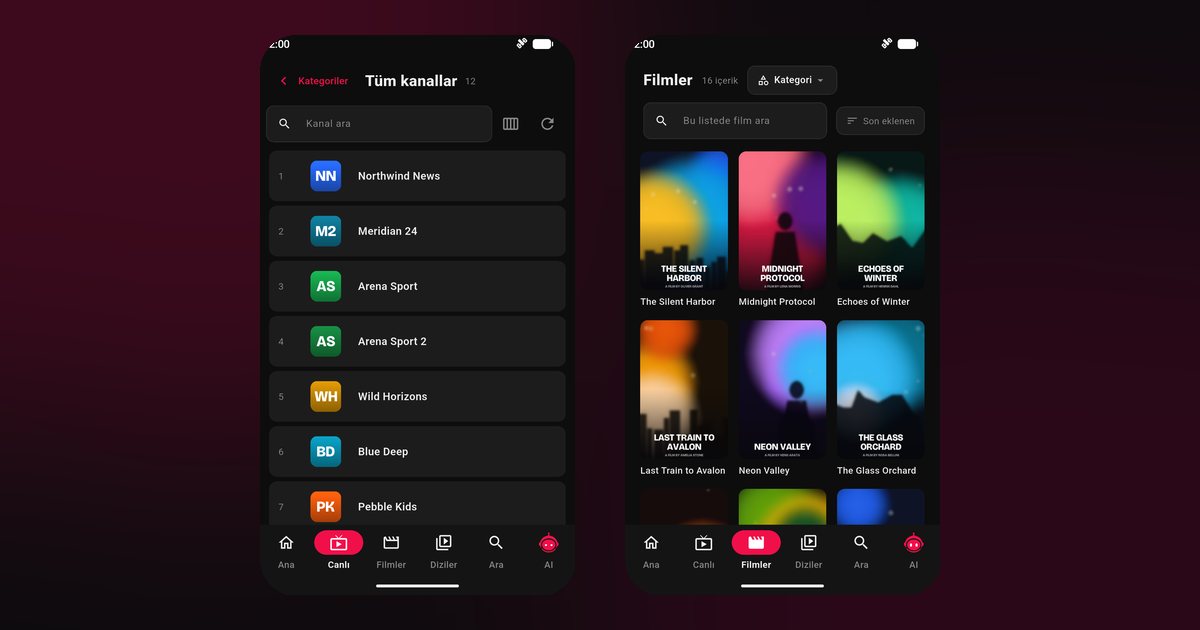
If you own a Galaxy, finding a good IPTV player for Samsung Galaxy phones is rarely about hardware. A Galaxy S24 Ultra or a Galaxy A55 has more than enough power to play live TV. The usual trouble is a stream that runs for twenty minutes and then stops, because One UI, Samsung's software layer, puts apps to sleep to save battery. Here is how to install the player and adjust the right settings once.
Models that follow this guide
Samsung sells phones in several families, and all of them run Android with One UI and Google Play. Typical examples are the Galaxy S24 Ultra, Galaxy S23 and Galaxy S23 FE at the upper end, the Galaxy A55, Galaxy A35 and Galaxy A15 in the middle and lower ranges, and the foldable Galaxy Z Flip5, Galaxy Z Fold5 and their successors. For tablets there is the Galaxy Tab S9, Tab S9 FE and Tab A9. You do not need to look up your exact model: if Google Play shows QwertyPlayer, the device is supported.
Install through Play Store, not Galaxy Store
- Open Play Store and search for QwertyPlayer.
- Install it and open it.
- Choose M3U and paste your link, or choose Xtream Codes and fill in server address, username and password.
- Give a large playlist a moment to load the first time.
This is a normal app, so there is no need to use the Samsung Internet browser. For help telling your two formats apart, see the M3U and Xtream Codes guide.
Where One UI hides the sleep switches
Names shift between One UI versions, so type "battery" into the Settings search bar if a path does not match.
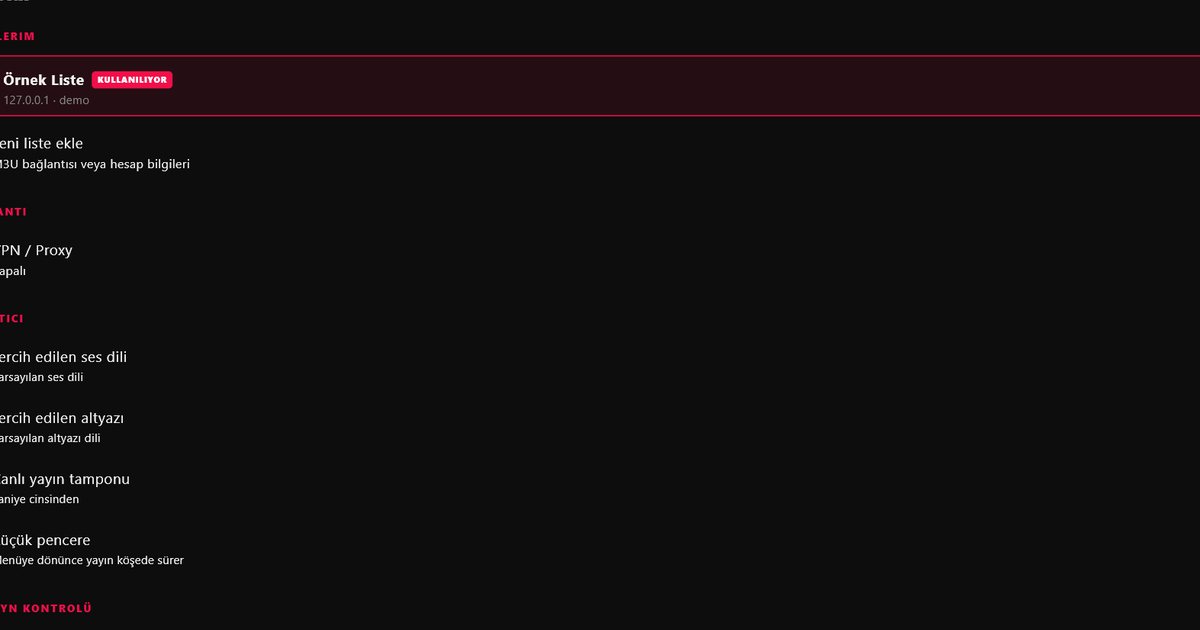
- Background usage limits: in the Battery area, open the limits list and check that QwertyPlayer is not under sleeping or deep sleeping apps. Turn off the option that puts unused apps to sleep automatically if you often leave the app idle.
- Per-app battery: Settings > Apps > QwertyPlayer > Battery, then pick the unrestricted choice.
- Power saving: turn it off while watching.
- Notifications: allow them so playback controls stay on the lock screen.
Other brands handle this differently; the background playback article compares them.
Mirroring versus using the TV app
Galaxy owners often ask if they should cast the screen to a television. Mirroring sends whatever your phone shows, which keeps it awake and warm. Installing the player on the TV gives a more stable picture and frees the phone. Samsung televisions are covered in the Samsung Tizen models guide, and the Connect to TV page lets you type the playlist on the phone and send it.
Foldables and tablets
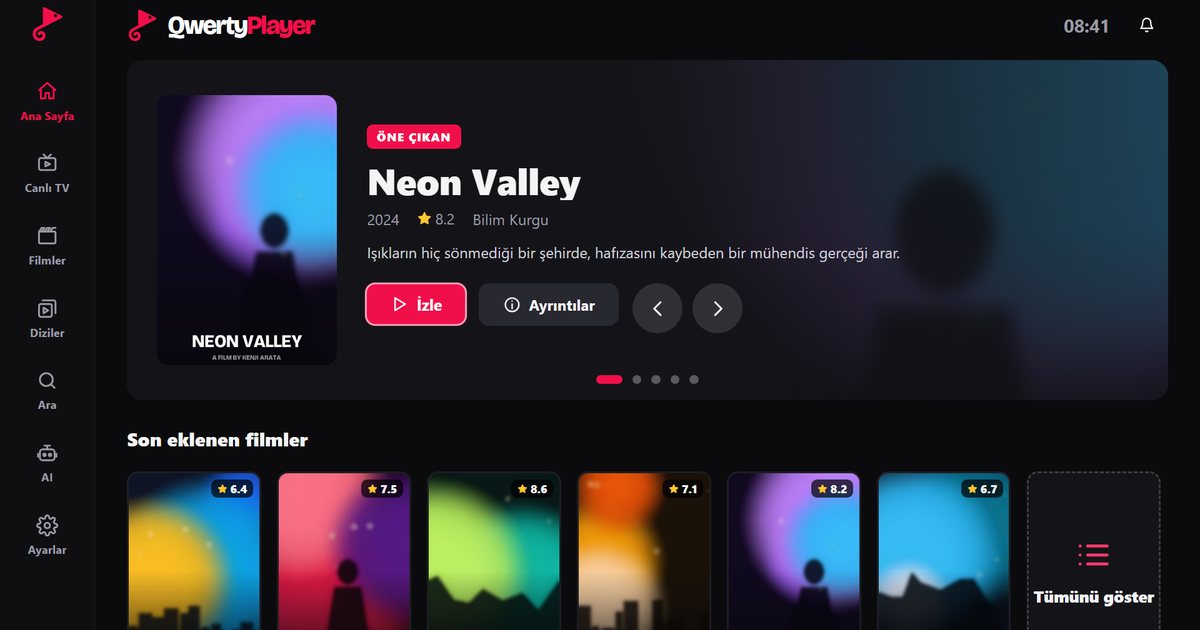
On a Galaxy Z Fold the inner display gives a tablet-sized layout; on a Z Flip, the cover screen is not meant for video, so open the phone. Video apps work best full screen, since split-screen can cost frames. A Galaxy Tab shows more posters at once, and tips for tablets from several makers are in the Android tablet guide.
When it still misbehaves
- Stops after minutes: recheck the sleeping apps list first, since it explains most cases.
- Buffers on Wi-Fi: move to a 5 GHz band, pause other downloads, then follow the buffering fix guide.
- Black screen with sound: close the app from recent apps, open it again and select the stream anew.
- Storage warnings: keep a few gigabytes free for cache.
Relatives with other phones can find their brand in the overview of Android phone brands.
Scope of the app
QwertyPlayer plays your own M3U or Xtream source and offers no content, and the app is currently free.
Frequently asked questions
Does the app run on a Galaxy S24 Ultra and on a budget Galaxy A15 alike?
Yes. Both install from Google Play, and the same One UI battery settings apply to each.
Should I use Galaxy Store or Play Store?
Play Store is the recommended place to find QwertyPlayer on a Galaxy device.
Why does One UI stop playback after a while?
It can put apps to sleep. Remove QwertyPlayer from the sleeping apps list and set its battery usage to unrestricted.
Is a Galaxy Tab S9 better than a phone for this?
The larger screen shows more posters and a wider guide, but the installation and battery settings are the same.
Is mirroring to a TV the same as running the app on it?
No. Mirroring copies your phone screen, while the TV app plays by itself and leaves the phone free.
Try it with QwertyPlayer
Download with a free trial for Android, Android TV, Fire TV, Huawei and Windows.