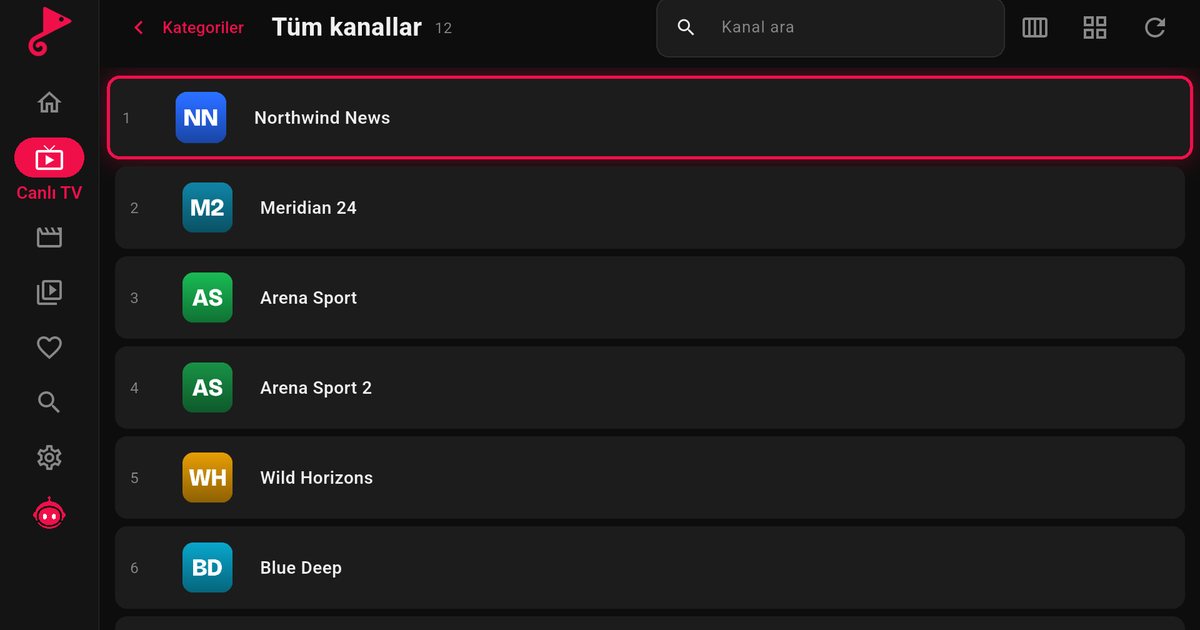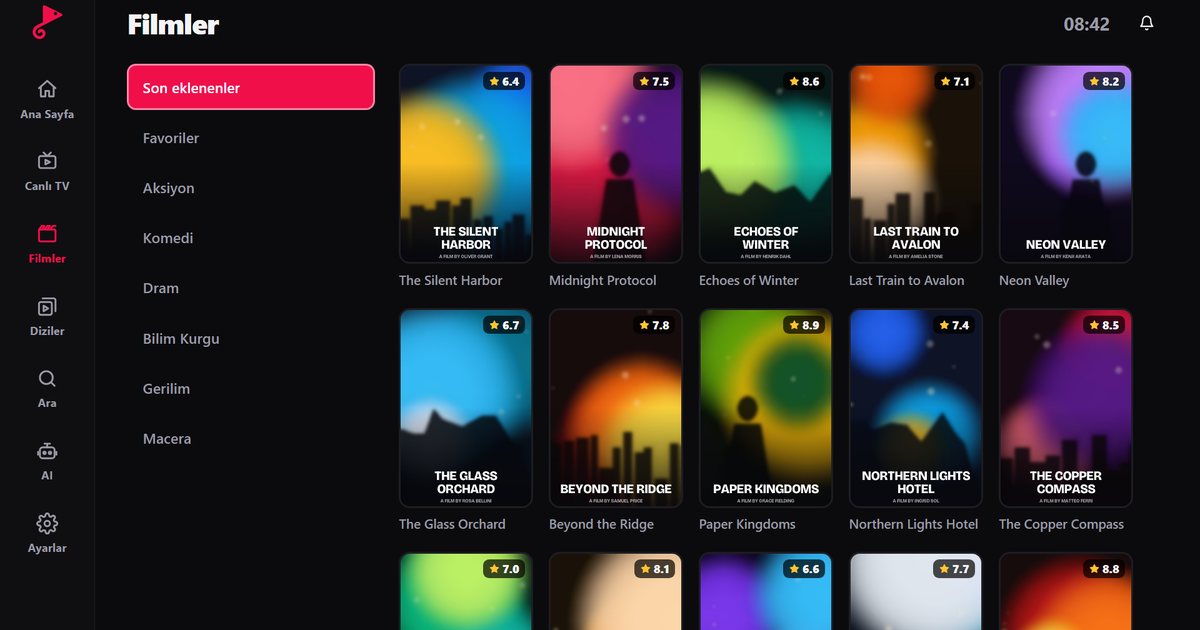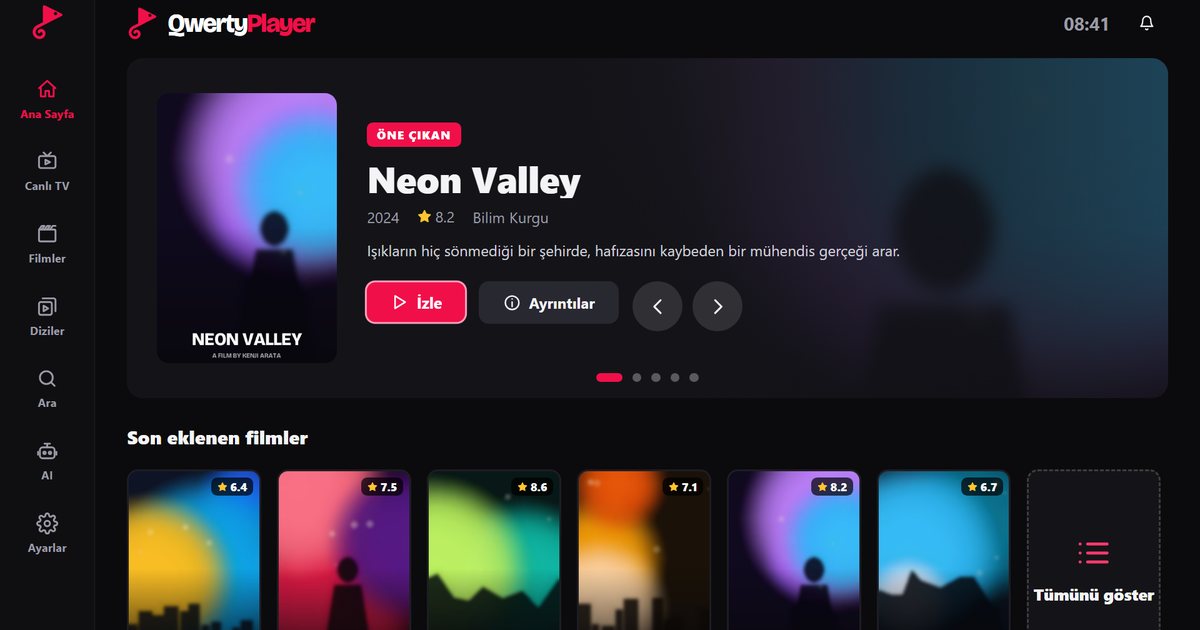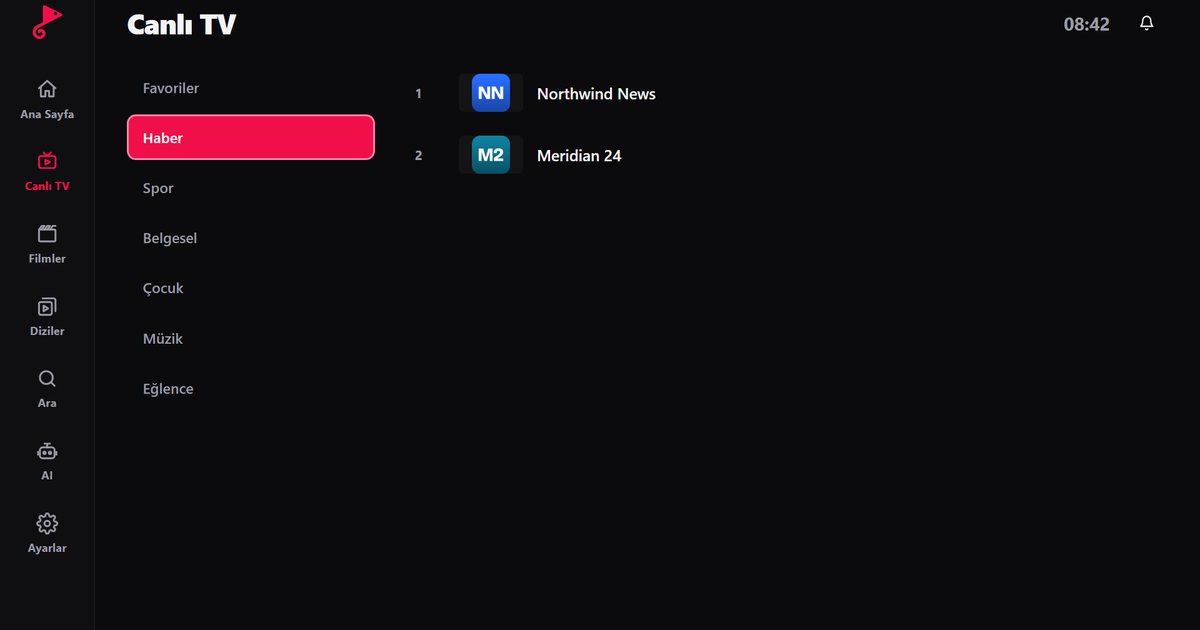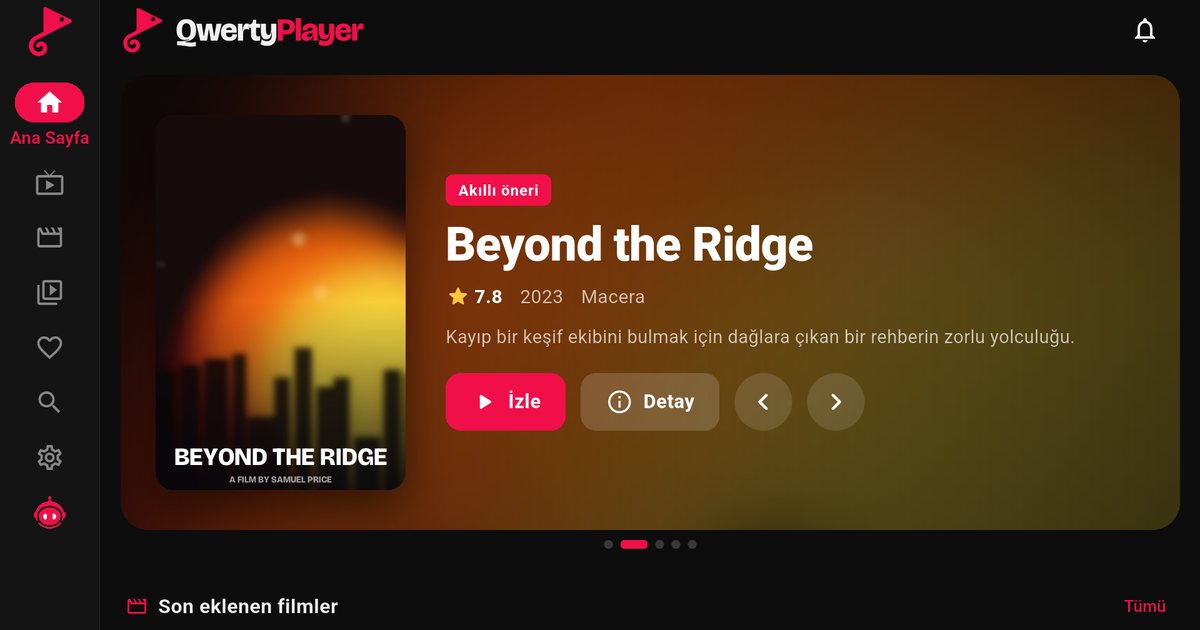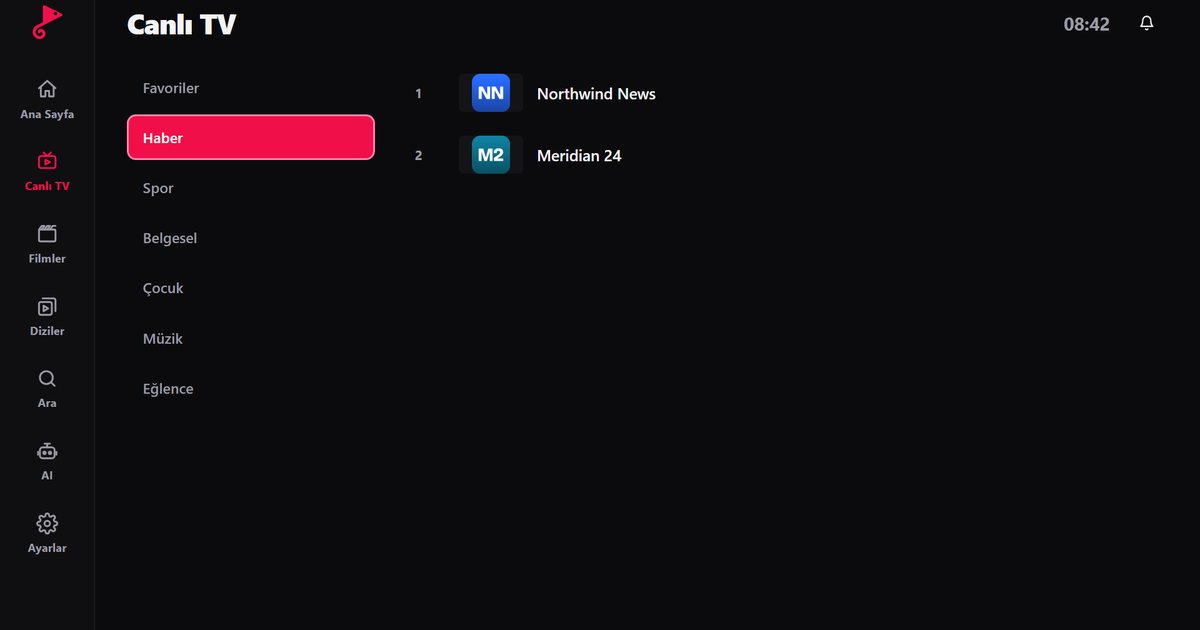
To watch IPTV on a television you need an IPTV player built for the TV's operating system. Setup depends on whether your TV runs Android TV, Samsung Tizen or LG webOS.
Android TV and Google TV
- Open the Google Play Store on your TV.
- Search for "QwertyPlayer" and install it.
- Open the app and enter the code on screen on the connect your TV page to add your playlist from your phone or PC.
Sony, Philips, TCL, Hisense (Android TV models), Xiaomi TV and Google TV devices belong to this group. On Android TV the Live TV screen is built for the remote: categories on the left, channels in the middle and a live preview on the right. The colour keys add favourites, change the picture size and open audio and subtitle options.
Samsung Smart TV (Tizen)
Samsung TVs run Tizen and apps are installed from Samsung's own store. You can install the Samsung version of QwertyPlayer by searching for "QwertyPlayer" in Smart Hub; install options are also listed on the download page.
LG Smart TV (webOS)
On LG TVs apps are installed from the LG Content Store. You can install the webOS version of QwertyPlayer by searching for "QwertyPlayer" in the LG Content Store; install options are also listed on the download page.
If your TV is not supported
On an older or unsupported TV, the easiest option is a streaming stick that plugs into HDMI. Installing an IPTV player on Fire TV Stick takes a few minutes.
Tips for better viewing on TV
- Connect the TV to the router with a cable if you can; on Wi-Fi, use the 5 GHz network.
- Use the connect your TV page instead of typing the playlist with the remote.
- If streams stall, try the steps in how to fix IPTV buffering.
Try it with QwertyPlayer
Download with a free trial for Android, Android TV, Fire TV, Huawei and Windows.