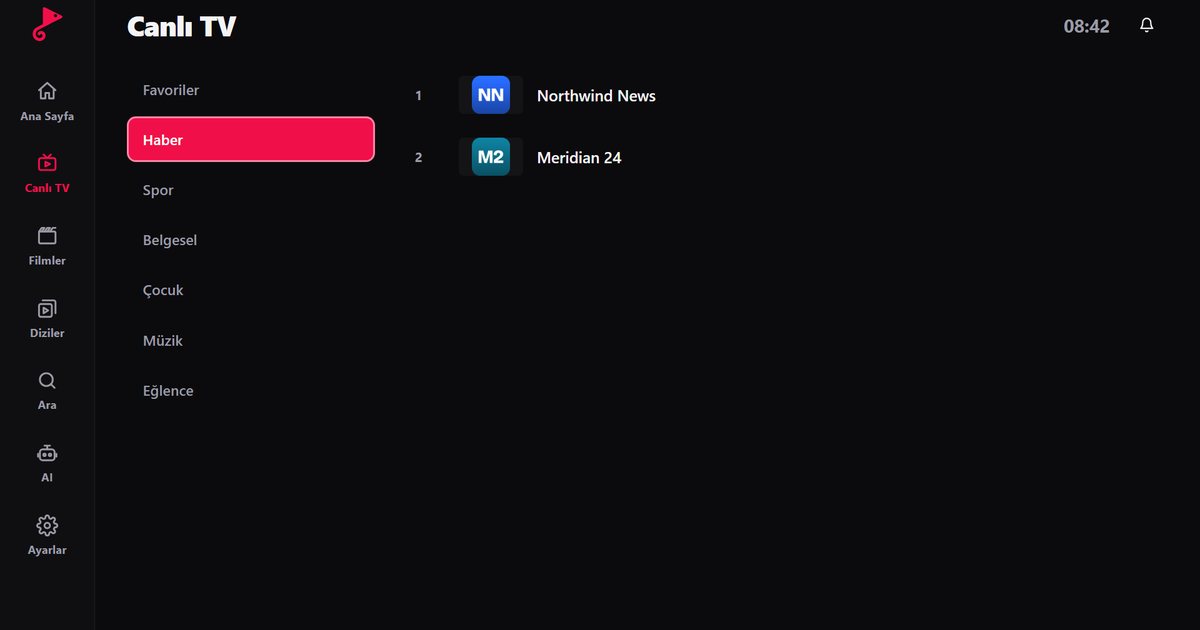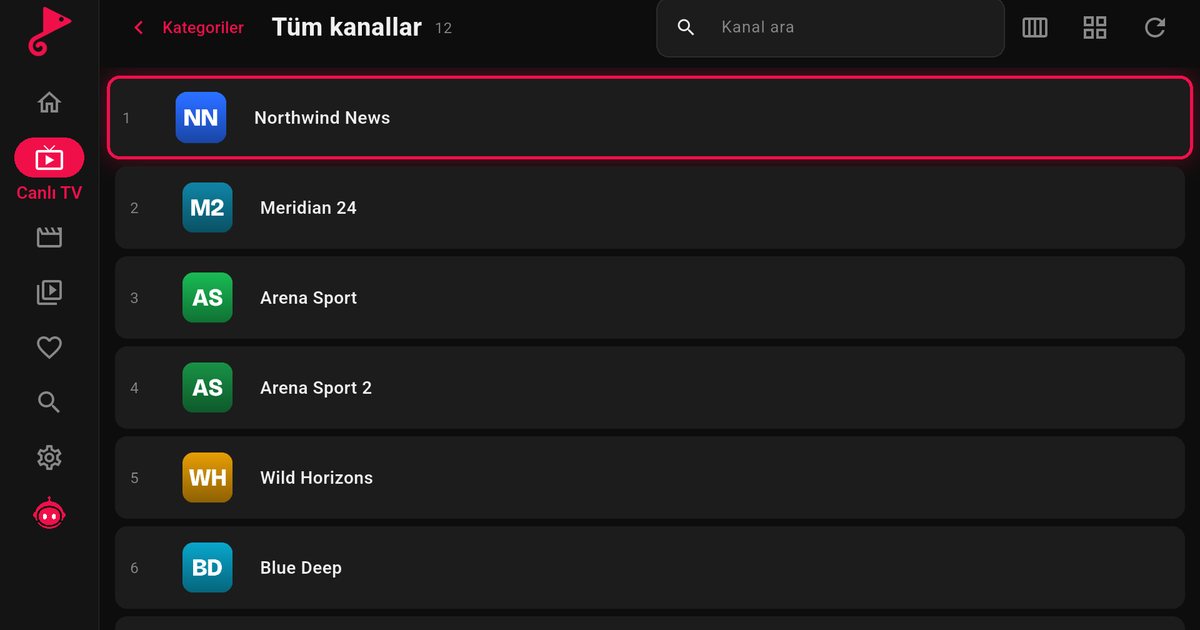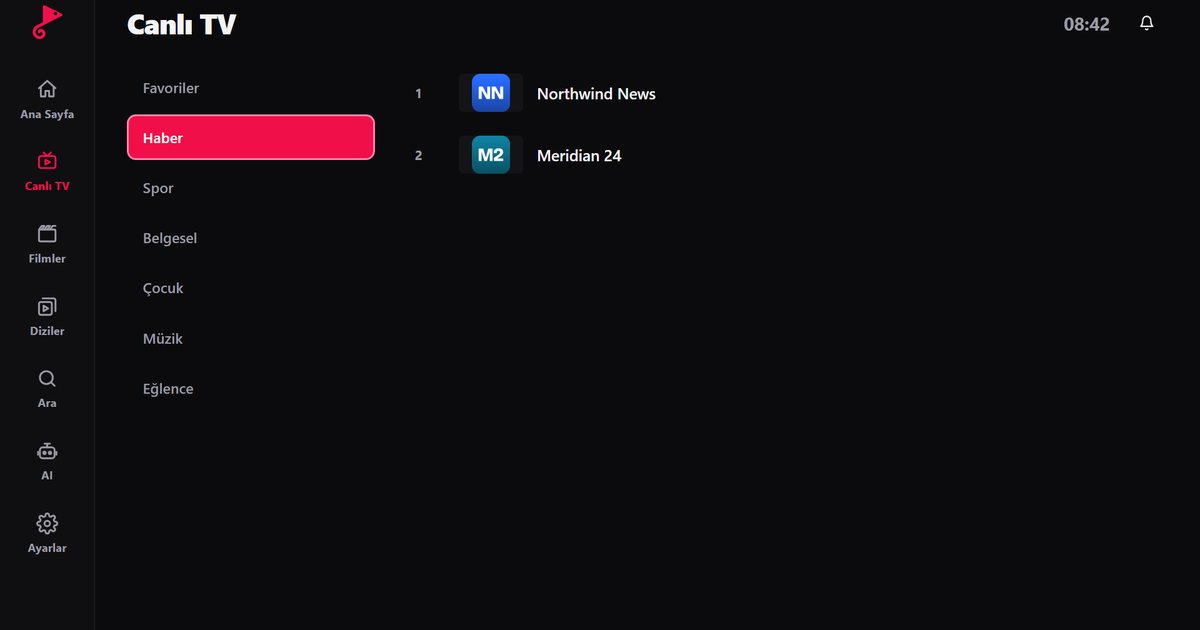
Sunny is a television brand that appears among the manufacturers licensed to use LG's webOS. That makes Sunny TV IPTV player a reasonable search, but it comes with a warning: licensing does not mean every Sunny TV runs webOS. Some sets use a different smart platform and some are not smart at all. The first job is therefore to check what your television actually is, and then follow the matching path below.
Step 1: is your Sunny TV a webOS TV?
- Press the Home button. A launcher bar along the bottom of the screen with app tiles that you scroll horizontally is typical for webOS.
- Look for the LG Content Store among the apps. A Sunny TV with webOS will have it. A set without it does not run webOS.
- Open Settings and search for About This TV or About. On a webOS set you should see a webOS version in the system information.
- Check the box, the manual and the label on the back for the words "webOS". If they are absent, do not assume it.
Our guide on finding the webOS version shows the menu path and a table of releases by year. The path may be slightly different on a Sunny remote, so use the settings search if one is offered.
If it is webOS: install from the LG Content Store
- Open LG Content Store.
- Choose Apps and open the search.
- Type "QwertyPlayer". If it is listed, your Sunny model is supported and you can install it.
- Open the app from the launcher.
Search for QwertyPlayer in the LG Content Store and install it. If the search is empty, update the TV and try again, or use an external device as described below.
Once the app is open, send your playlist from a phone with the Connect to TV page. The TV shows an address and a short-lived, single-use code; you enter it on the phone and the playlist is delivered to the TV, with no remote typing. For help with formats, see the M3U and Xtream Codes comparison.
If it is not webOS
A Sunny TV with another platform, or a basic non-smart set, does not have QwertyPlayer. The simplest remedy is an external device on an HDMI input:
- Fire TV Stick. Install the app from the Amazon Appstore. See the Fire TV guide.
- Google TV or Android TV device. Install it from Google Play. See the Android TV box guide.
- Phone, tablet or computer. Use the matching QwertyPlayer app and, where your hardware allows it, connect it to the TV with a cable.
The smart TV overview compares these routes for brands we do not cover individually.
Tips for smaller or budget sets
- Memory is limited, so close other apps and restart the TV from time to time.
- Use a network cable if the TV has an Ethernet socket.
- Keep a copy of your playlist link in a note on your phone.
- If streams buffer, read the buffering fix guide before changing settings.
Other webOS brands
The same checks apply to every licensed brand. The licensed webOS brands page covers the others, and the webOS overview links to the LG series guides.
QwertyPlayer is only a player. It does not provide or sell channels, films or series, and you are responsible for the right to watch the content you add.
Frequently asked questions
Do Sunny TVs run webOS?
Sunny is listed among the manufacturers licensed to use LG webOS, but not every Sunny model has it. Check for the LG Content Store and the About screen on your own TV.
Where do I find the IPTV player on a Sunny webOS TV?
Open the LG Content Store, go to Apps and search for QwertyPlayer. If it is listed, you can install it.
What if my Sunny TV does not have webOS?
Use a Fire TV Stick, a Google TV device or an Android TV box on an HDMI port, or watch on a phone or computer.
Can I add the playlist without typing it?
Yes. Use the Connect to TV page at qwertypro.xyz with the code shown on the TV.
Is QwertyPlayer free on a Sunny TV?
It is currently free to download and use. You need your own M3U link or Xtream Codes account from a provider.
Try it with QwertyPlayer
Download with a free trial for Android, Android TV, Fire TV, Huawei and Windows.