Vestel, Arçelik, Beko, Grundig and Telefunken are among the most common television brands in Turkey and across Europe, and many readers ask the same thing: which IPTV player works on a Vestel or Beko TV? The honest answer is that it depends on the model and the year, not on the brand name. Some of these televisions run Android TV or Google TV, while others use the manufacturer's own smart platform. This guide shows you how to tell them apart and what to do in each case.
Step 1: find out which system your TV runs
Do not rely on the logo on the front. Check three things instead:
- Press the Home button on the remote. A home screen with rows of recommended content, a Google Assistant or microphone button, and a Google Play Store tile points to Android TV or Google TV.
- Open Settings and look for About, Device information or System. Android-based TVs show an Android version number and often a device name.
- Look at the box or the manual. Phrases such as "Google TV", "Android TV" or "Chromecast built-in" confirm it. If the manual only mentions the brand's own smart platform, you probably have a proprietary system.
Some brands share manufacturers and platforms (Toshiba-branded sets made by Vestel are one example), so two TVs with different logos can run the same software. Check the screen rather than the badge.
If your TV runs Android TV or Google TV
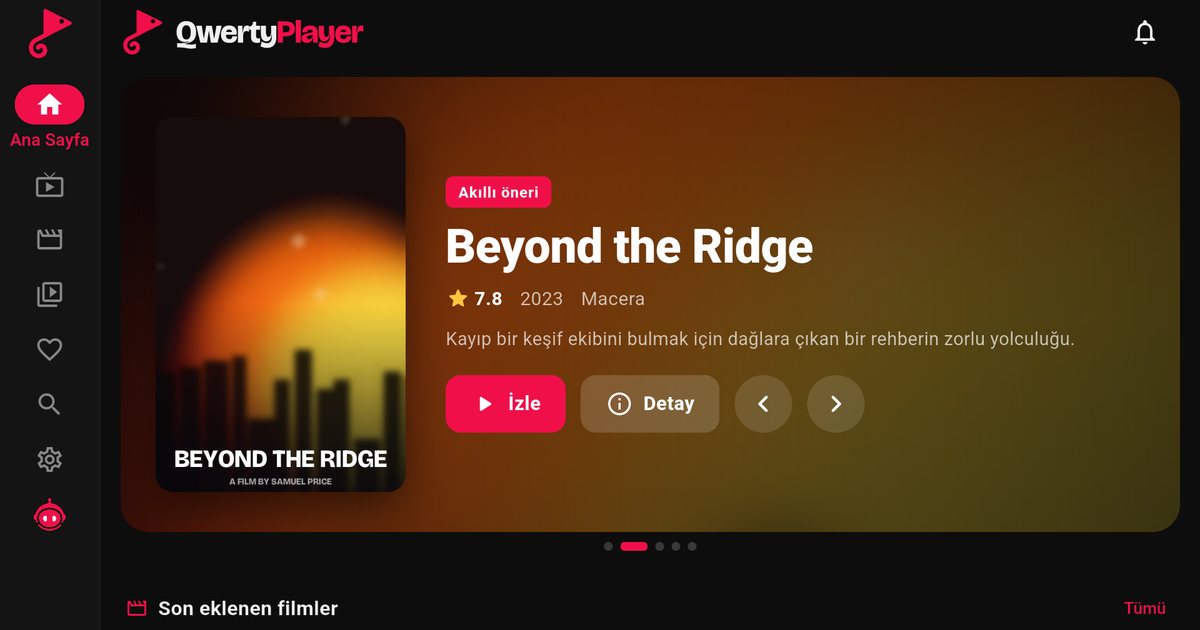
This is the easy case. Open the Google Play Store on the TV, use Search and type "QwertyPlayer". If the app appears, your model is supported and you can install it like any other app. The Android TV IPTV player guide walks through the first launch, and the Google TV article explains the newer interface, where apps may be pinned to the home screen row.
Once the app is open, add your playlist. Typing a long address with the arrow keys of a remote is slow, so use the Connect to TV page instead: the TV shows an address and a short-lived, single-use code, and you send the playlist from your phone or computer. Your provider gives you either an M3U link or Xtream Codes details; the M3U versus Xtream Codes comparison explains which one you hold.
If your TV uses the manufacturer's own system
Older and entry-level models often have a closed app store with a limited list of applications. QwertyPlayer has no app for these proprietary platforms. You have three practical options:
- Plug in a Fire TV Stick. It costs little and works with any TV that has an HDMI port.
- Use an Android TV box or a Chromecast with Google TV (see the Chromecast guide).
- Play the content on a phone, tablet or computer with the matching QwertyPlayer app.
An external device also helps if your TV is Android-based but old and sluggish. A current streaming stick usually has more memory than a ten-year-old television.
Quick reference
| What you see | Likely system | What to do |
|---|---|---|
| Play Store tile, Google Assistant button | Android TV or Google TV | Search for the app in Google Play |
| Closed app list, no Play Store | Manufacturer's own platform | Add a Fire TV Stick or Google TV device |
| Amazon Fire TV home screen | Fire TV edition | Use the Amazon Appstore |
Common problems on these TVs
- The app is not in the store. Check that the TV is connected, signed in to a Google account and has the latest system update. If it still does not show, the model is not supported.
- Playback stutters. Use a network cable if the TV has a socket, and read the buffering troubleshooting guide.
- The remote cannot type the link. Use the Connect to TV page, or pair a phone as a keyboard if the system offers it.
Before you add a playlist
QwertyPlayer is only a player. It does not supply channels, films or series, and it does not sell playlists. You add an M3U link or Xtream Codes account from a provider you are entitled to use, and you are responsible for the right to watch that content. The smart TV overview collects the other brands, and our article on safe and legal IPTV use covers the basics.
Frequently asked questions
Is there an IPTV player for Vestel TVs?
Vestel models running Android TV or Google TV can install QwertyPlayer from Google Play. Models with the manufacturer's own system have no app, so use a Fire TV Stick or a Google TV device.
Do Beko, Grundig and Telefunken TVs all run the same system?
Not necessarily. Some are built by the same manufacturer and share software, but the system depends on the model and year. Check Settings and the home screen of your own TV.
How do I know whether my TV has Google Play?
Look for a Play Store tile on the home screen or in the apps list. If you can search for apps there, the TV runs Android TV or Google TV.
What if the app does not appear in Google Play?
Update the TV software and sign in to your Google account. If the app is still missing, your model is not supported and an external streaming device is the practical solution.
Is QwertyPlayer free on these TVs?
It is currently free to download and use. You still need your own M3U link or Xtream Codes account from a provider.
Try it with QwertyPlayer
Download with a free trial for Android, Android TV, Fire TV, Huawei and Windows.