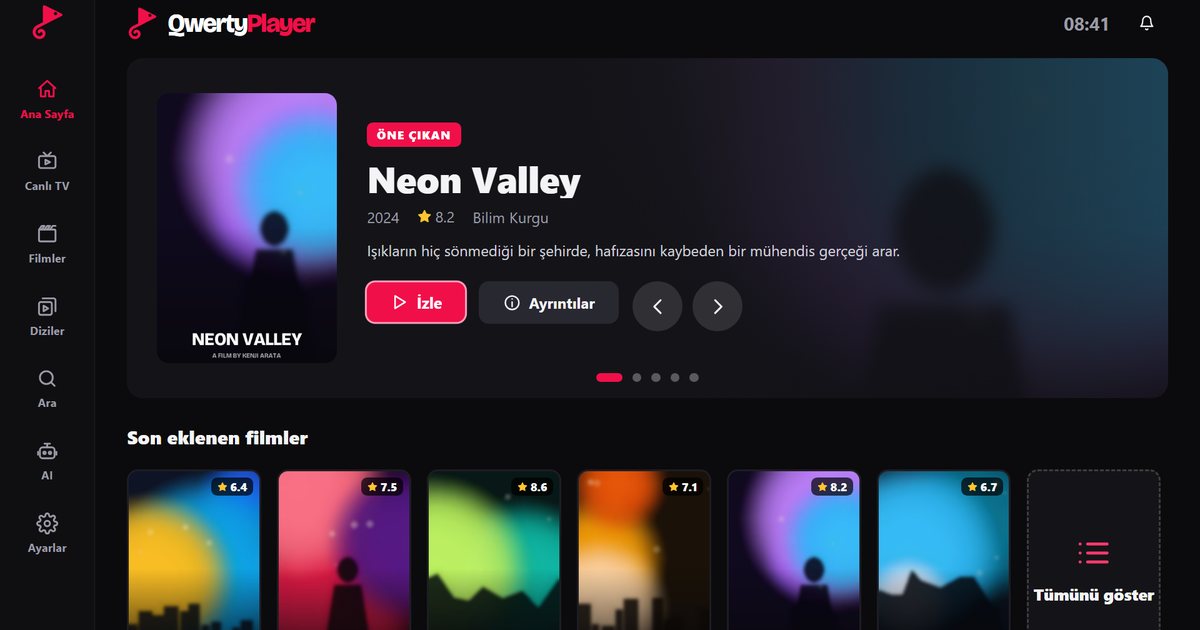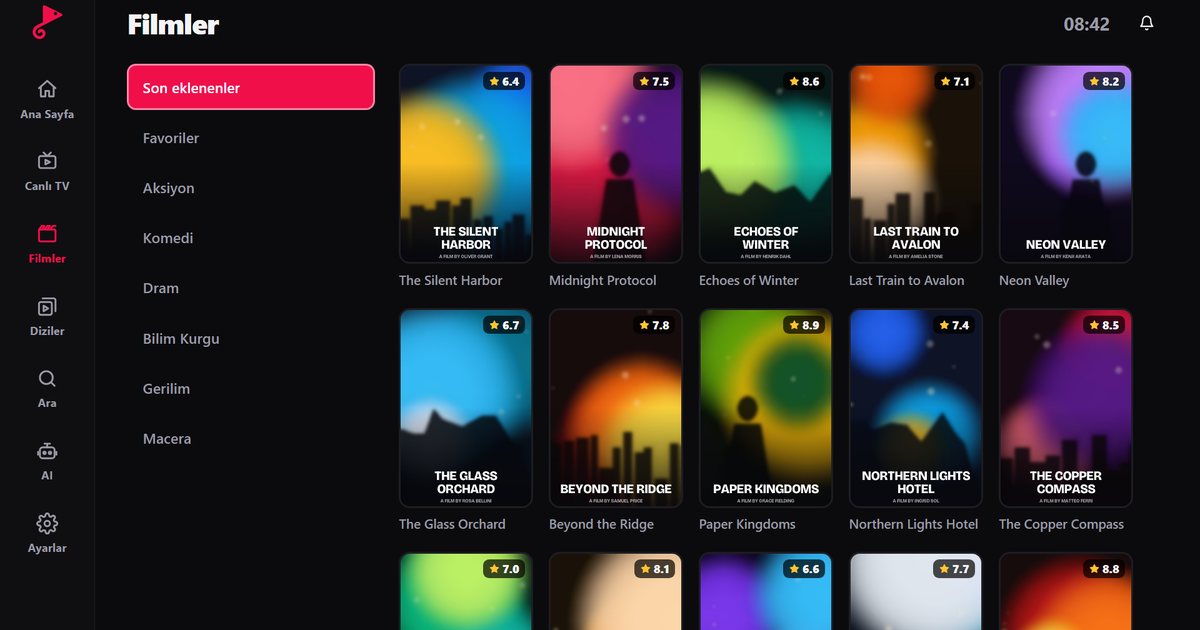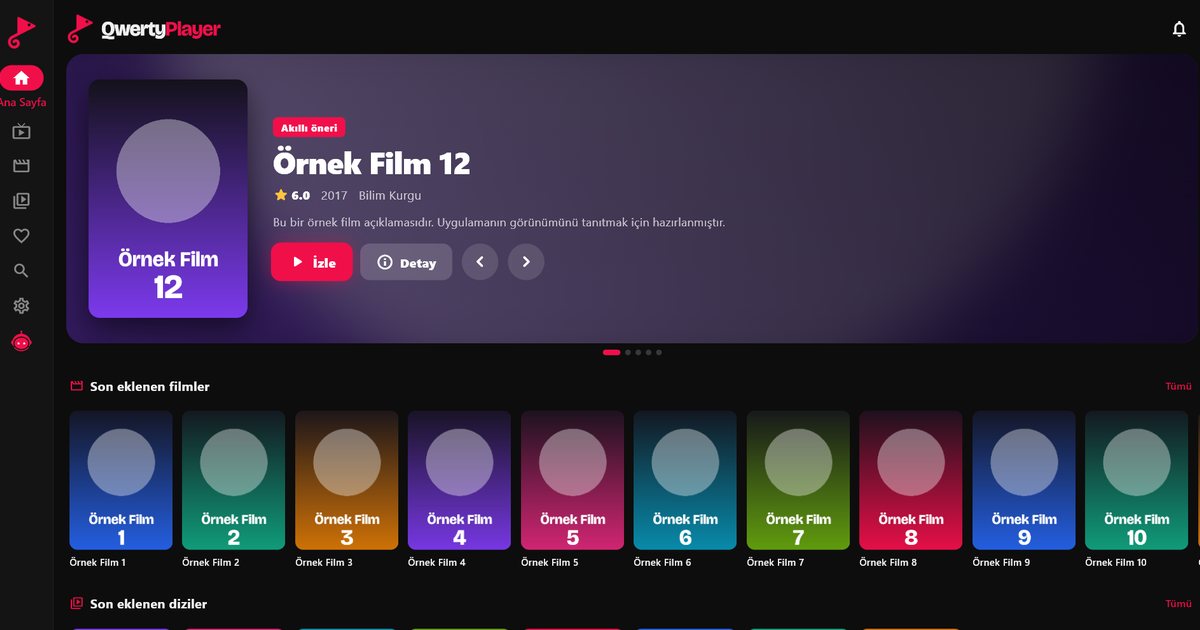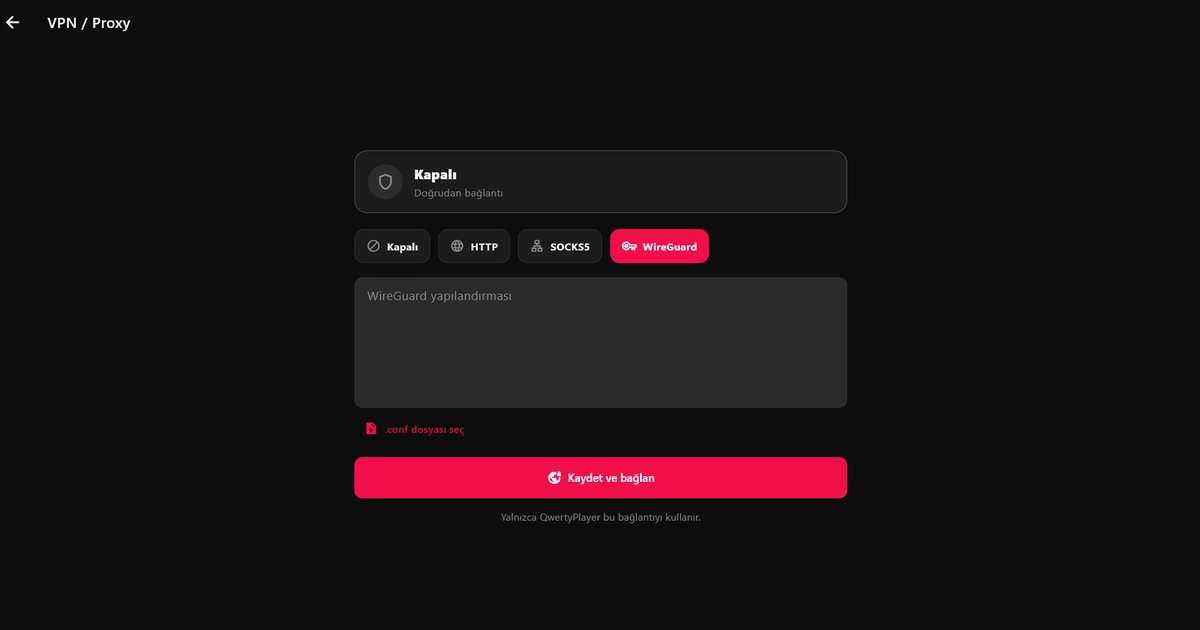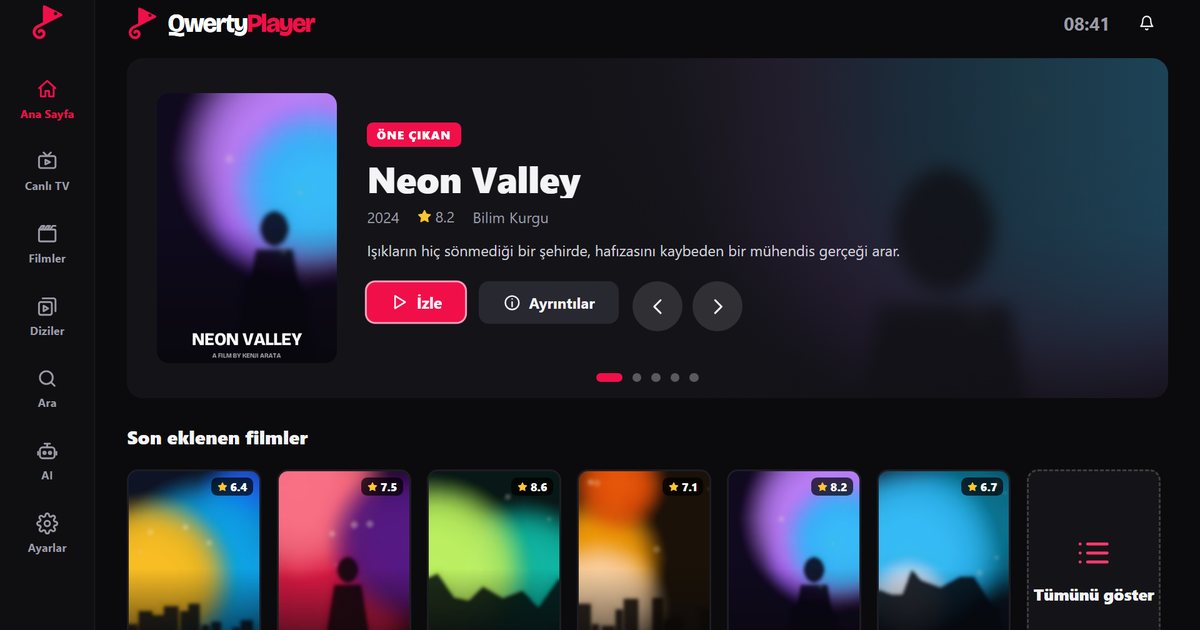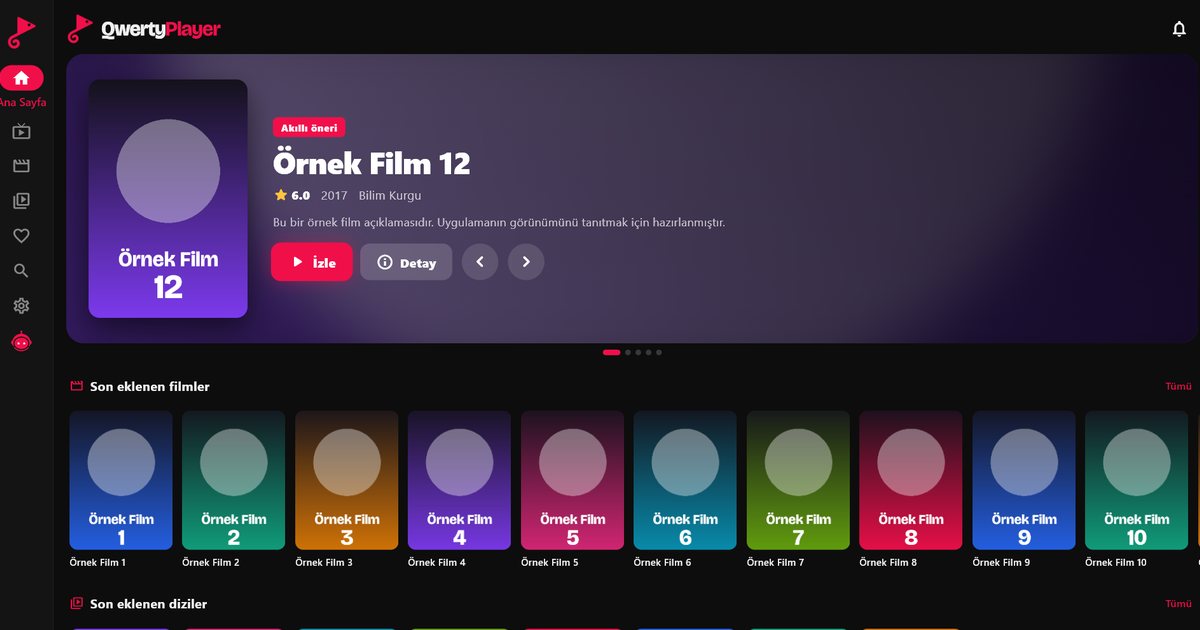
On a PC, a dedicated Windows IPTV player is faster and tidier than browser extensions or complicated media player settings. QwertyPlayer is available on the Microsoft Store for Windows 10 and Windows 11.
Installation
- Open the Microsoft Store link on the download page, or search the Microsoft Store for "QwertyPlayer".
- Click Install. Updates arrive automatically through the Microsoft Store.
- Open the app and enter your M3U link or Xtream Codes details. See the playlist guide for details.
Using it on a PC
- The Live TV screen shows categories on the left, channels in the middle and a live preview on the right. Click a channel once to preview it, click again for full screen.
- In movies and series, the Categories button at the top shows every category in a large window.
- Search returns results as you type, even across thousands of titles.
Sending a playlist from your PC to your TV
You do not even need the app to manage your TV's playlist from the PC: enter the TV's code on the connect your TV page and add the playlist.
For better performance
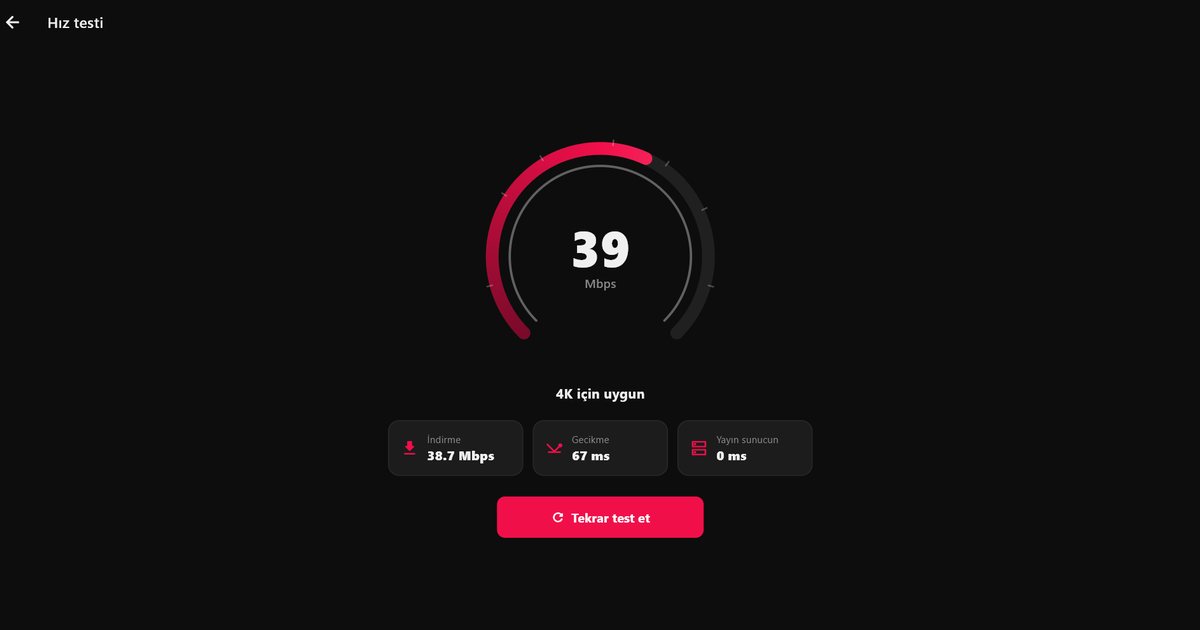
- If streams stall, run the speed test in the app first; it shows whether your connection is fast enough.
- Close VPNs or download programs and try again.
- For more fixes, read how to fix IPTV buffering.
Try it with QwertyPlayer
Download with a free trial for Android, Android TV, Fire TV, Huawei and Windows.