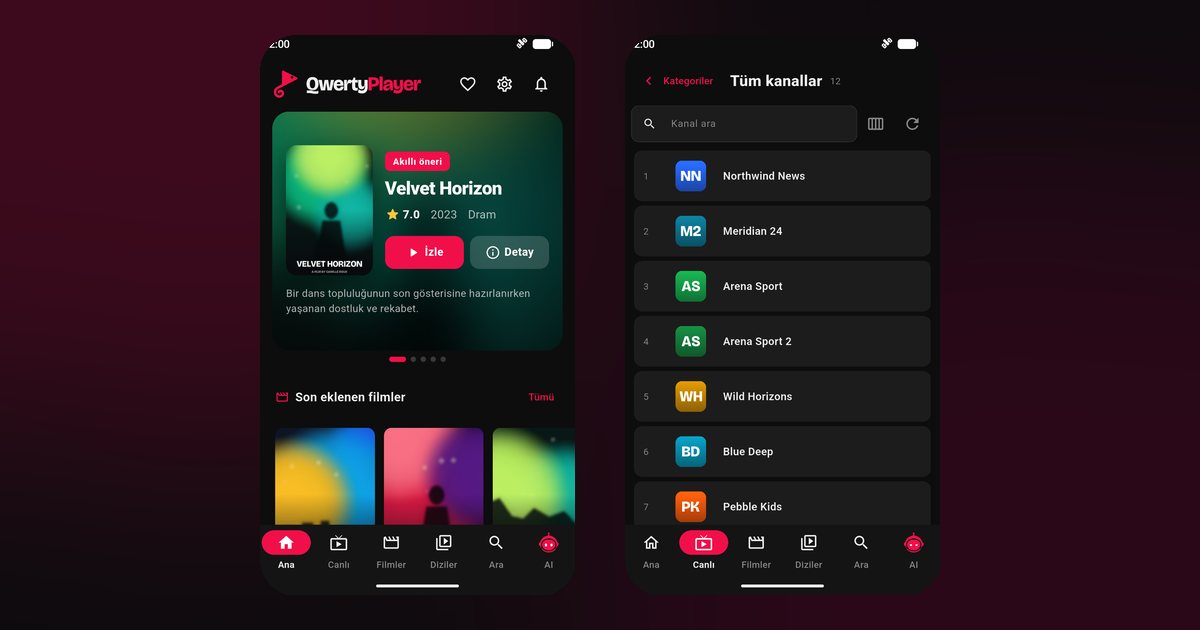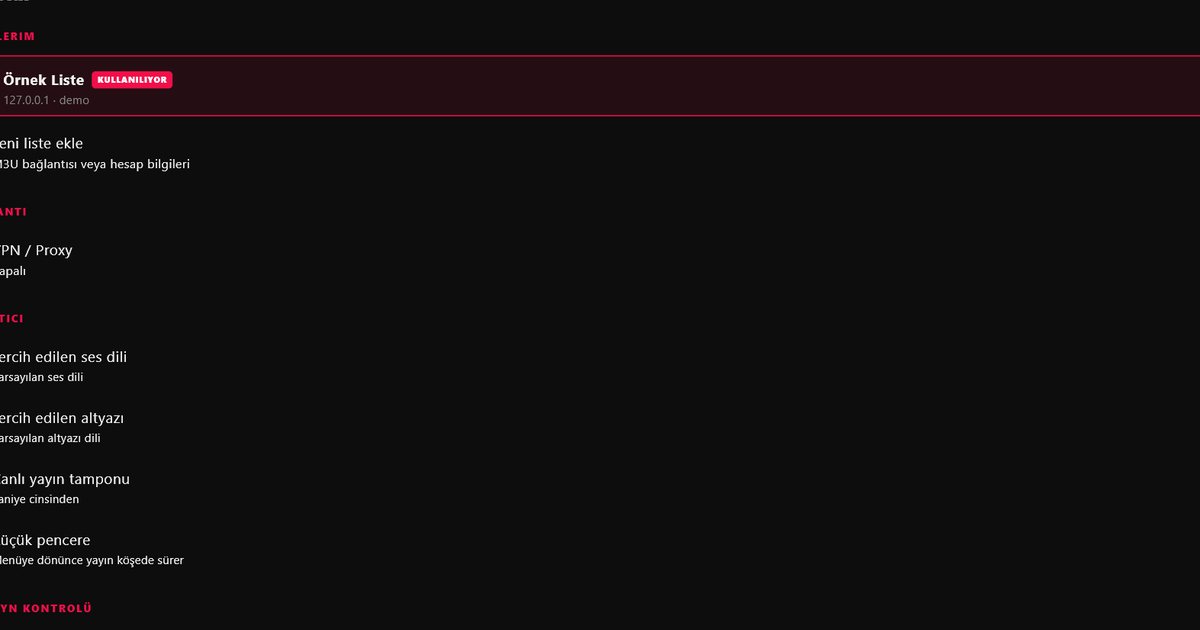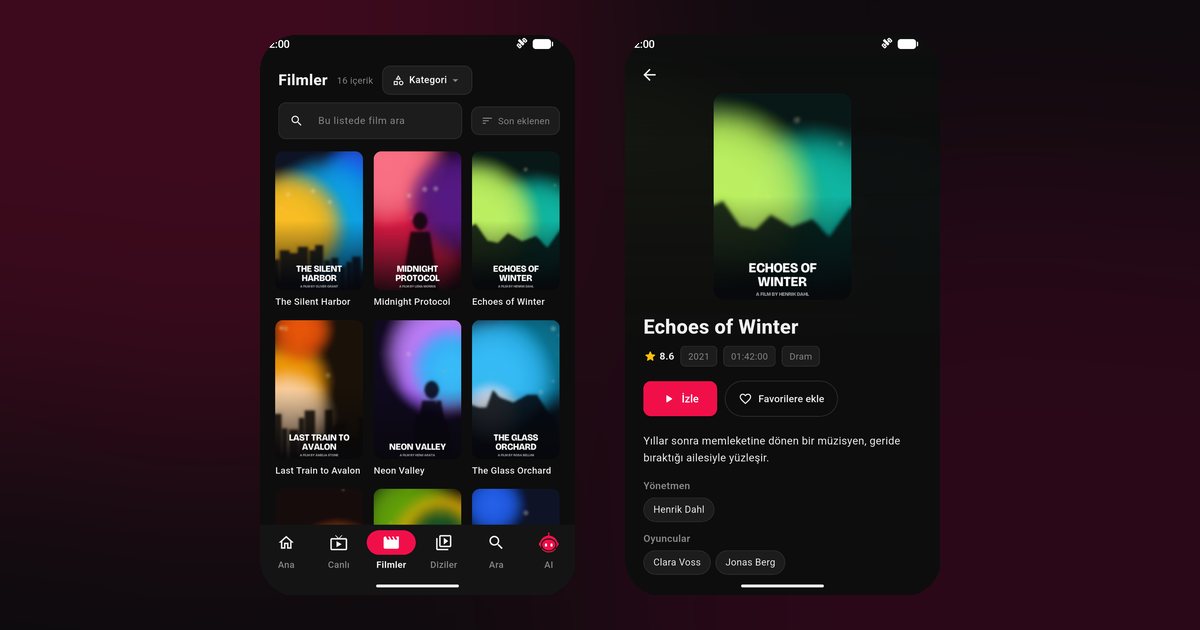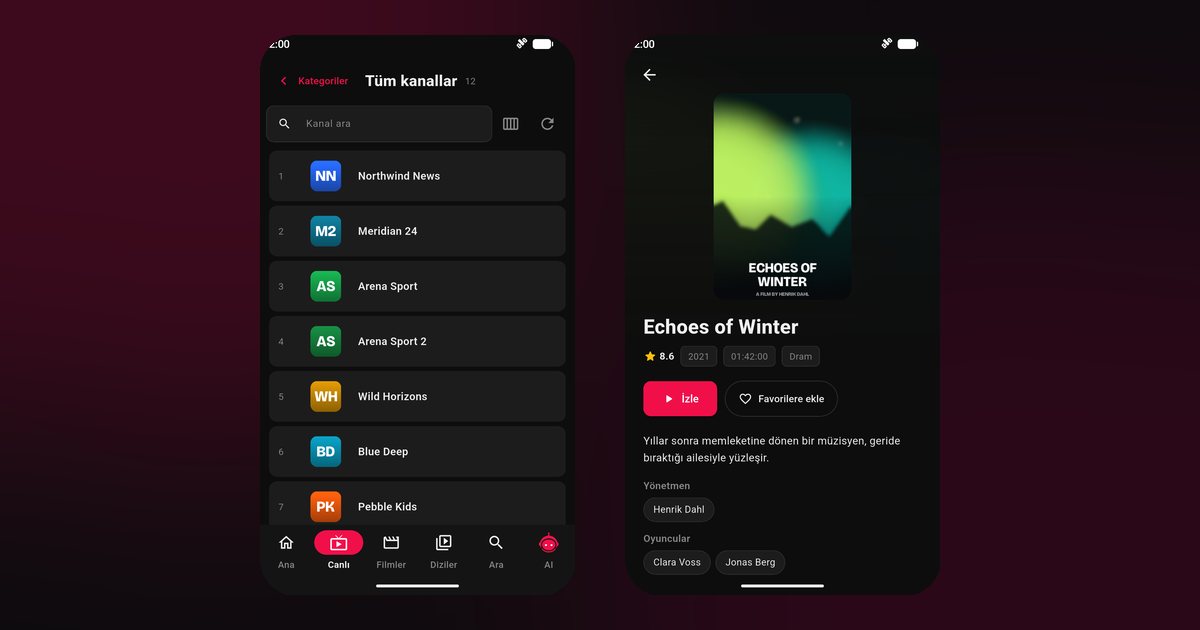
Many people who look for a Xiaomi IPTV app hit the same wall: the app installs, the stream starts, and a few minutes later it goes quiet. Xiaomi phones manage power more aggressively than most, and the software layer, MIUI on older devices and HyperOS on newer ones, closes background apps quickly. A few switches solve it. This article covers installation, the store question and each setting worth checking.
One system, three names
Xiaomi sells phones as Xiaomi, Redmi and POCO. The Xiaomi line includes flagships such as the Xiaomi 14, Xiaomi 13T Pro and Xiaomi 13. Redmi covers everyday phones like the Redmi Note 13 Pro, Redmi Note 12, Redmi 13C and Redmi 12. POCO aims at performance, with models like the POCO F6, POCO X6 Pro, POCO F5 and POCO M6. Tablets such as the Xiaomi Pad 6 and Redmi Pad use the same software, so the steps below apply to all of them.
Google Play or GetApps
These phones often carry two stores. We suggest Google Play whenever your phone has it, since updates then arrive with all your other apps. Search for QwertyPlayer, install it and open it. Without Google services, try GetApps, or take the installation file from the download page. Avoid files from random websites.
Entering the playlist
- Start the app and pick M3U or Xtream Codes.
- Paste the link, or type the Xtream address, username and password.
- Wait until live channels, films and series appear.
The M3U and Xtream Codes guide helps if you are unsure which one you have.
Five settings for MIUI and HyperOS
Wording varies by version; use the search bar in Settings when a path differs.
- Autostart. Under Apps > Manage apps > QwertyPlayer, or in the Security app, enable Autostart.
- Battery saver for the app. In the same app info page choose No restrictions. The default setting limits background activity and is the usual culprit.
- Lock in recent apps. Press and hold the app card and choose the lock option, so one-tap cleaning skips it.
- Notifications. Allow them to keep the controls on the lock screen.
- Global battery saver. Switch it off for long viewing.
The same logic for other brands is laid out in the background playback guide.
Using it with a Xiaomi TV
A Xiaomi TV, Mi Box or Mi TV Stick installs through Google Play on the television itself; see the Xiaomi TV guide. Rather than typing on a remote, send the playlist from your phone through the Connect to TV page.
These models too
If your phone is not named above, the same instructions apply to the Redmi Note 11 family, Redmi A series, POCO X5, POCO C series and older Mi phones, as long as Google Play or GetApps lists the app. Realme phones share part of this approach, covered in the Realme phone guide.
Fixing common faults
- Stops when the screen goes off: repeat settings 1 to 3 and restart the phone.
- Buffers on Wi-Fi: use 5 GHz and read the buffering fix guide.
- Adverts in system apps: these belong to Xiaomi apps, not to QwertyPlayer, and can usually be turned off in their settings.
- App missing after a system update: reinstall and add your details again.
More makers are listed under Android phone brands.
What the app does not do
It provides no content; you add your own source, and it costs nothing right now.
Frequently asked questions
Is the Xiaomi 14 handled differently from a Redmi Note 13 Pro?
No. They share HyperOS or MIUI, so the same Autostart and battery settings apply to both.
Which store is better on a POCO F6?
Google Play is preferred when present. GetApps is a fallback if Google services are missing.
What does Autostart do?
It allows the app to be started by the system in the background, which keeps playback services from being cut off.
Does this work on a Xiaomi Pad 6 tablet?
Yes. The installation and the settings are the same as on the phones.
Do I need the playlist details again after reinstalling?
Yes. Enter your M3U link or Xtream account again from your provider information.
Try it with QwertyPlayer
Download with a free trial for Android, Android TV, Fire TV, Huawei and Windows.