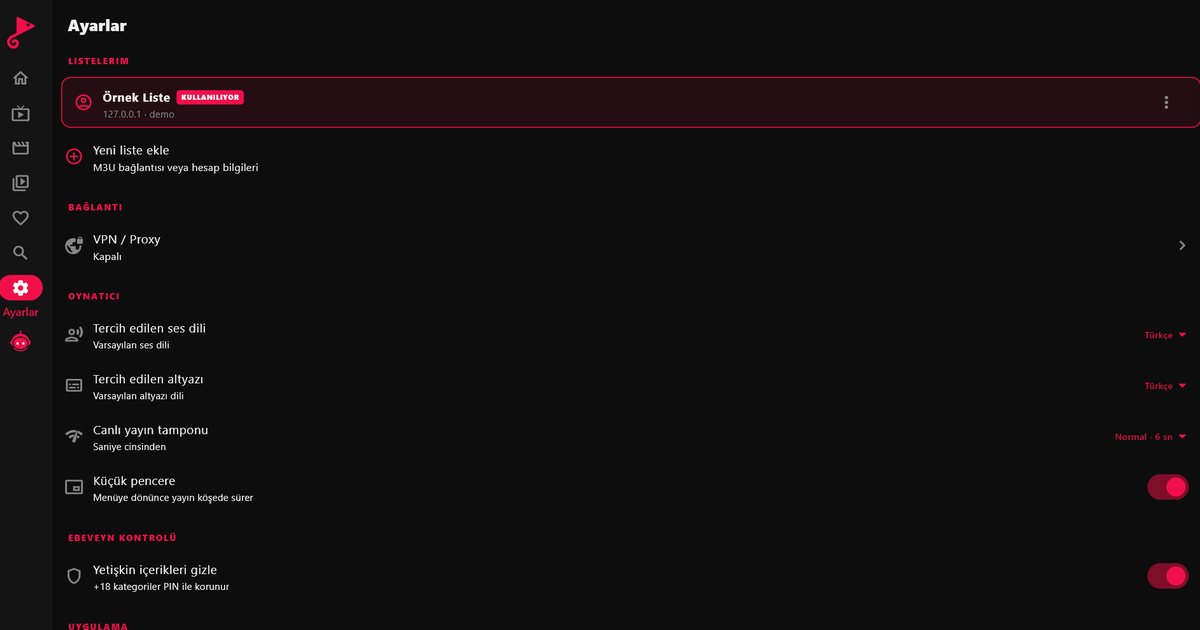
An IPTV list can contain thousands of channels, films and series, and some of that material is not meant for children. If a television, tablet or phone is shared with younger family members, IPTV parental controls are worth setting up before the first viewing session, not after a surprise. In QwertyPlayer, adult categories are hidden by default and only appear after you enter a PIN that you choose. This guide explains how that works and how to build a sensible setup around it.
How the controls work
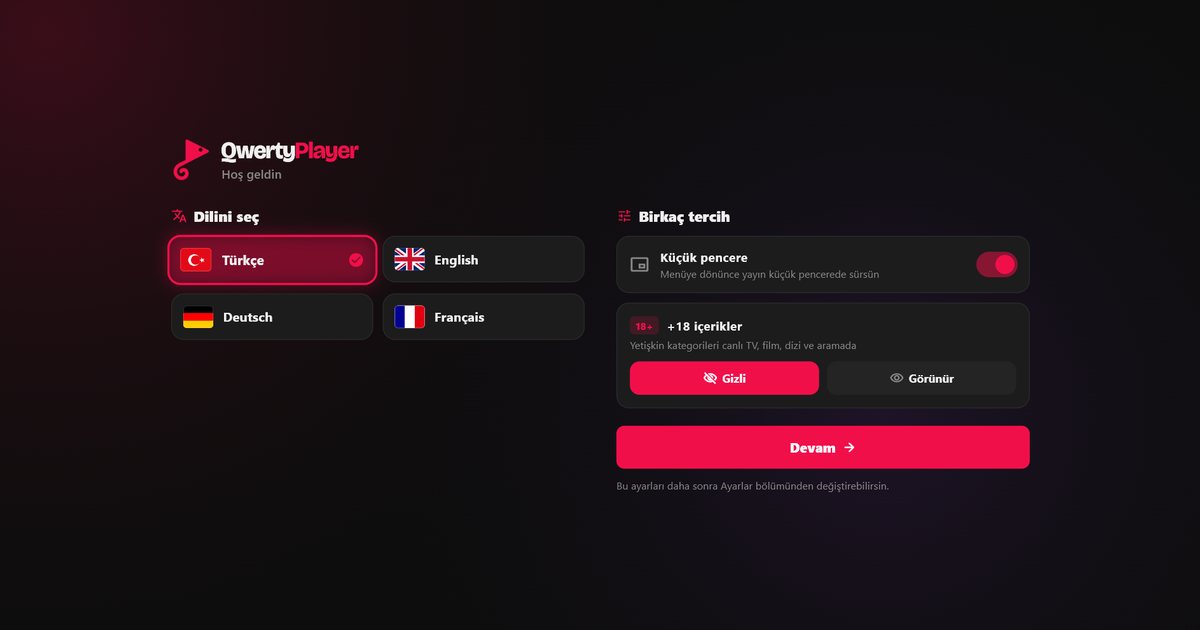
- Adult categories are hidden by default. They do not show in the category list until you unlock them.
- To show them, you need the PIN that you set under Settings, then Parental controls.
- Anyone who does not know the PIN keeps seeing the filtered list.
The filter works with the category information in your list, so it cannot judge content that a provider has filed under an ordinary category.
Setting your PIN
- Open Settings in the app.
- Go to Parental controls.
- Choose a PIN that is not obvious. Avoid sequences like 1234, repeated digits, birth years and the code of your phone or bank card.
- Keep the PIN to yourself, and write it down somewhere safe so that you do not lock yourself out.
A practical setup for family devices
- Use separate devices where possible. A tablet that belongs to a child should not hold your main account details.
- Curate favourites. Fill the favourites list with channels you have checked, so younger viewers have an easy starting point.
- Use the device's own tools. Screen-time limits and app locks on the phone, tablet or TV complement what the player does.
- Protect the account. Do not leave the username, password or list link where children can read them. Anyone who can read them can load the same list on another device.
- Talk about it. Controls help, but a conversation about what to do if something unsuitable appears helps more.
Talking to children about it
Technical limits work best alongside simple house rules. Agree which rooms and times are suitable for watching, ask older children to tell you if something upsetting appears, and explain why the PIN exists so that it does not feel like a punishment. For younger children, watching together is the safest approach, and it lets you build a favourites list of channels you have already seen. Review the setup now and then, especially after adding a new list or changing providers, because categories can change.
What the controls cannot do
QwertyPlayer is a player. It does not provide content and does not control what a service puts in its list. That means PIN protection is one layer of protection, not a replacement for supervision. It also means the appropriateness of non-adult categories, such as films with violent scenes, is not rated by the app. The app is not intended for children under 13, and the privacy policy describes how age limits are handled. For responsible use more widely, read the guide to legal and safe IPTV use.
Next steps
If you are still choosing hardware, the device guides cover installation for each platform, and using IPTV on an iPad is a common choice for shared family tablets. Parental controls are also one point on the checklist for choosing an IPTV player, so you can compare apps on this basis too.
Frequently asked questions
Does IPTV have parental controls?
In QwertyPlayer, adult categories are hidden by default. You need the PIN that you set under Settings, Parental controls, to show them.
What if I forget my PIN?
Choose a PIN you can remember and keep a note of it somewhere safe. If you are locked out, contact us through the details on the website.
Can children have their own list?
Yes. You can use a separate list that holds only suitable content, or a favourites setup limited to approved channels.
Is QwertyPlayer suitable for children under 13?
No. The app is not aimed at children under 13. On shared devices, use the parental controls and supervise viewing.
Try it with QwertyPlayer
Download with a free trial for Android, Android TV, Fire TV, Huawei and Windows.