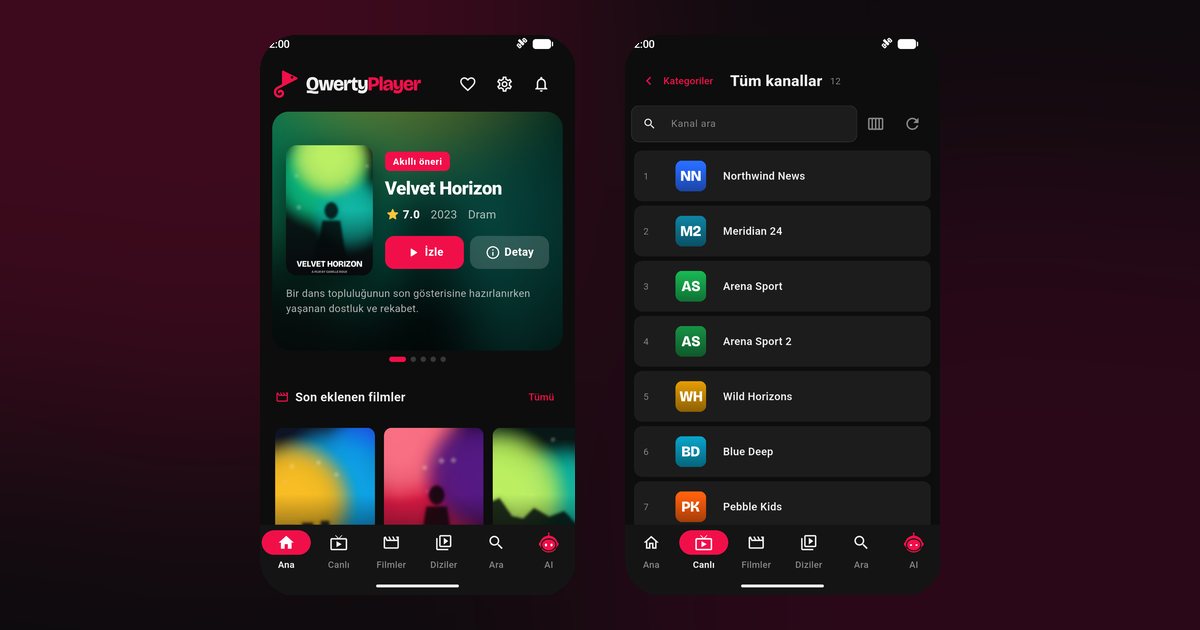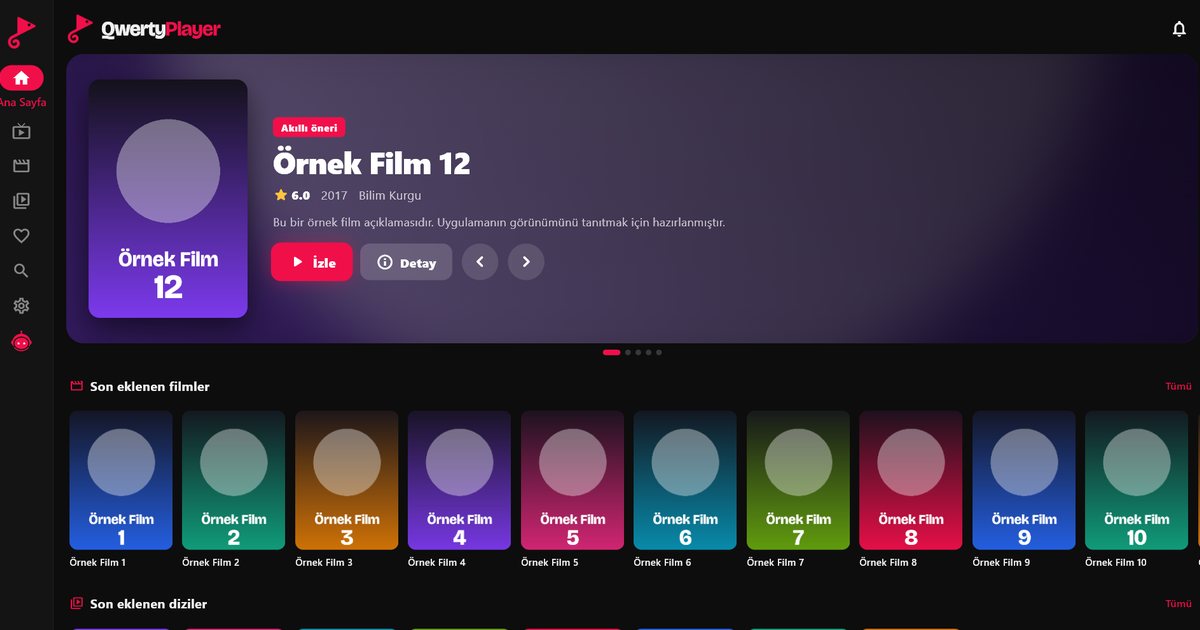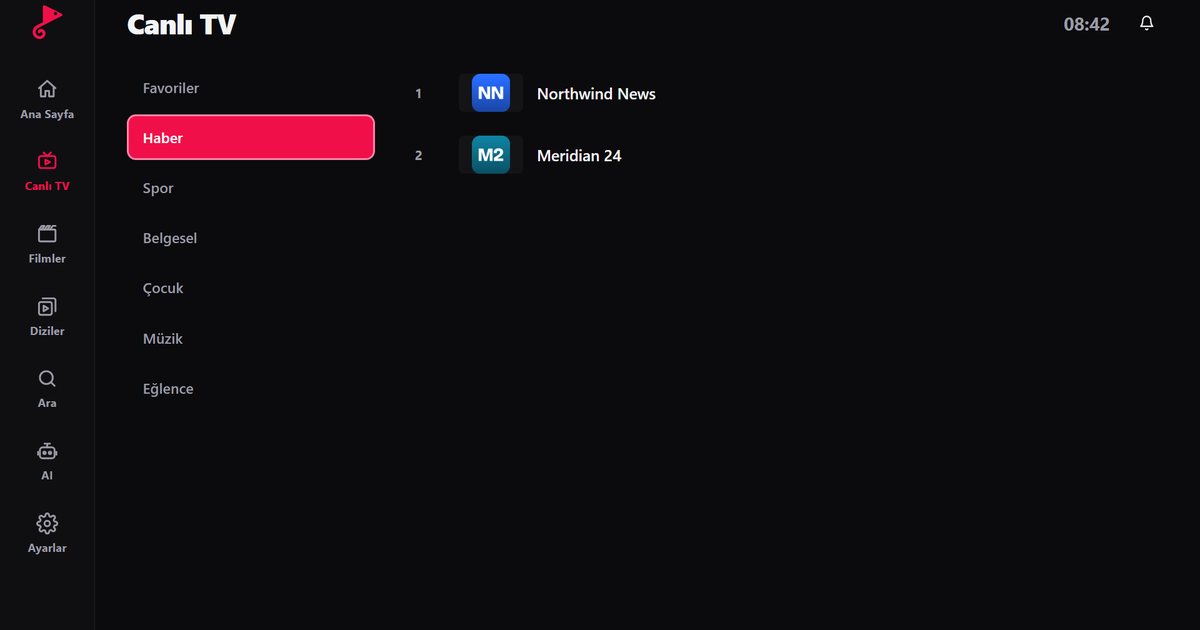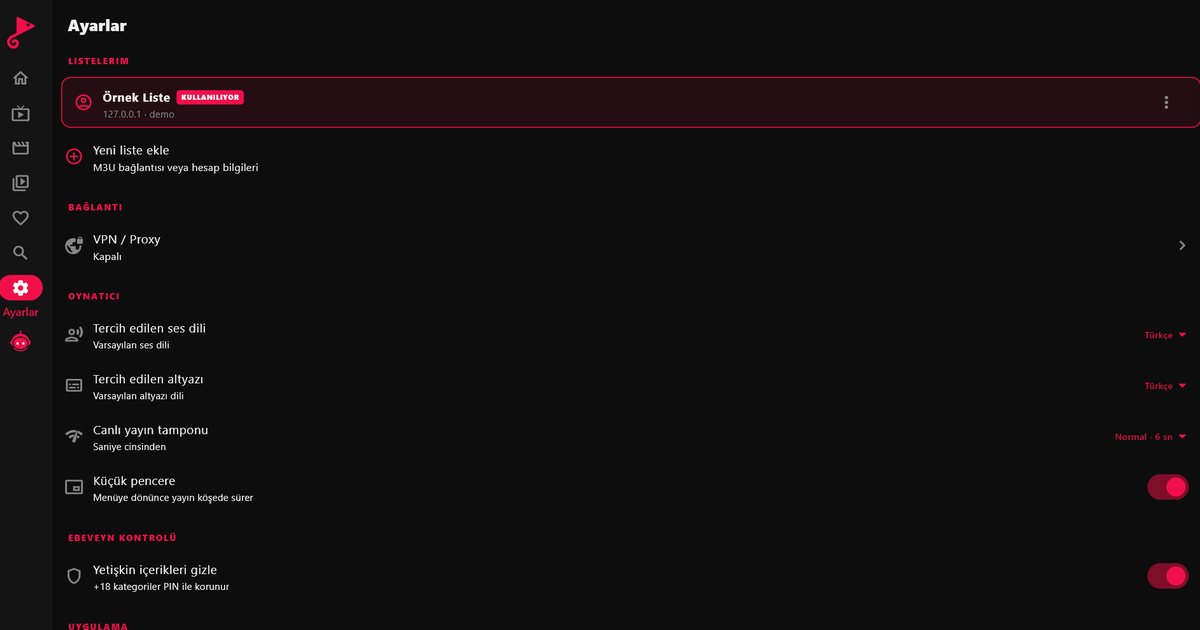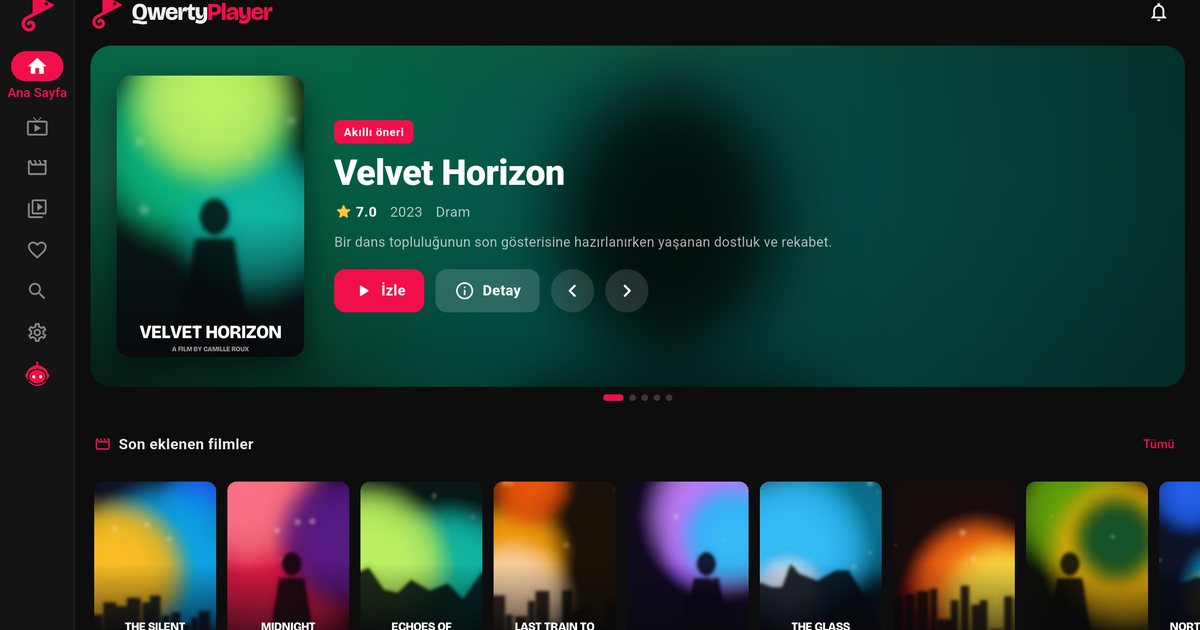
An iPad is a good second television: the screen is large enough for films, it is easy to move between rooms, and it does not need a separate box. When you pick an IPTV player for iPad, three things matter most: a layout that actually uses the tablet screen, a programme guide that is easy to read, and a channel list that opens fast. QwertyPlayer runs on iPad with the same app as on iPhone, with a layout adapted to the larger display.
Install the app and add a playlist
- Search for "QwertyPlayer" in the App Store and download the app.
- Open it and go to the add-playlist screen.
- Enter your M3U link or your Xtream Codes details (server, username, password).
- Save and wait for the first load. Live channels, films and series open in separate sections.
If you already watch on an iPhone, you can enter the same details here. The phone steps are in the iPhone IPTV player guide. Whether two devices may play at the same moment is a rule set by your provider, so check your subscription terms if the second stream is refused.
Why the larger screen helps
- Programme guide: channels and time slots fit on one screen, so you can see what is on now and next without scrolling much. The guide appears when your provider supplies EPG data; see how EPG works.
- Films and series: poster, summary, seasons and episodes are visible together, which makes picking an episode quicker.
- Audio and subtitles: switch language from the player when the stream offers several. Audio and subtitle guide
- Shared tablet: if children also use the iPad, keep adult categories locked. They are hidden by default and open only with the PIN you set. Parental controls explained
Getting a smooth picture on an iPad
Most iPads are used on Wi-Fi, and Wi-Fi is the usual cause of stuttering. A few habits make a clear difference:
- Sit within a reasonable distance of the router, or use the 5 GHz network if your router offers one.
- Pause large downloads and cloud backups while you watch.
- Run the in-app speed test before you blame the playlist. It measures the connection the app actually uses.
- For HD, aim for a stable connection rather than a high peak figure. Rough targets by quality are in the article on IPTV internet speed.
If the picture still freezes, work through the buffering troubleshooting guide from the simplest cause to the most complex one.
Handy ways to use the tablet
Because an iPad is shared more easily than a phone, it helps to agree a few rules. Set a PIN before handing the tablet to a child. Mark the channels the household watches together as favourites. Use the tablet to choose what to watch, then continue on the television. A stand or a case with a fold-out back lets you watch hands-free in the kitchen or on a desk, and keeping a charger within reach avoids a flat battery halfway through a long film.
Using the iPad with other devices
The same playlist can run on a television, a phone or a computer. The guide to IPTV players for every device links to each platform. If you own a Mac, the Mac IPTV player guide shows how the app behaves on macOS. For a television, use the Connect to TV page to send the playlist from the iPad.
Note: QwertyPlayer does not provide content. Add only streams you are entitled to watch.
Frequently asked questions
How do I watch IPTV on an iPad?
Install an IPTV player, then add the M3U link or the Xtream Codes details your provider gave you.
Can an iPad and an iPhone use the same playlist?
Yes, you can enter the same details on both. How many devices may stream at once depends on your provider.
Can I choose subtitles on iPad?
If the stream includes subtitles or extra audio tracks, you can pick the language in the player.
The stream keeps freezing on my iPad. What should I do?
Check the Wi-Fi signal and your internet speed first, then follow the steps in the buffering troubleshooting guide.
Try it with QwertyPlayer
Download with a free trial for Android, Android TV, Fire TV, Huawei and Windows.