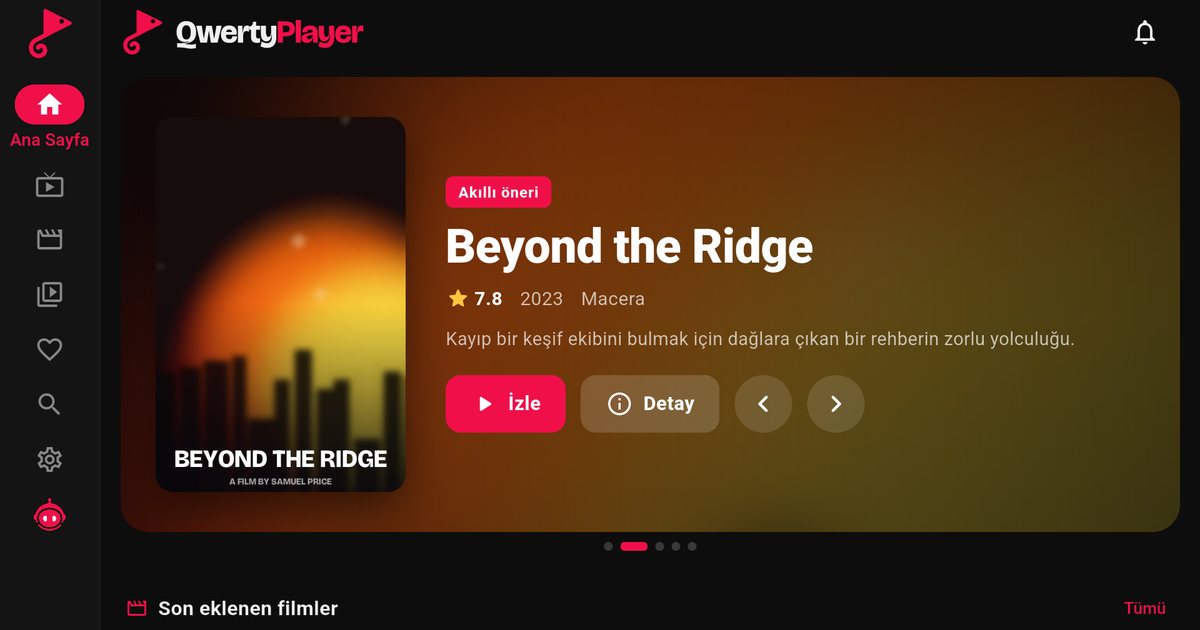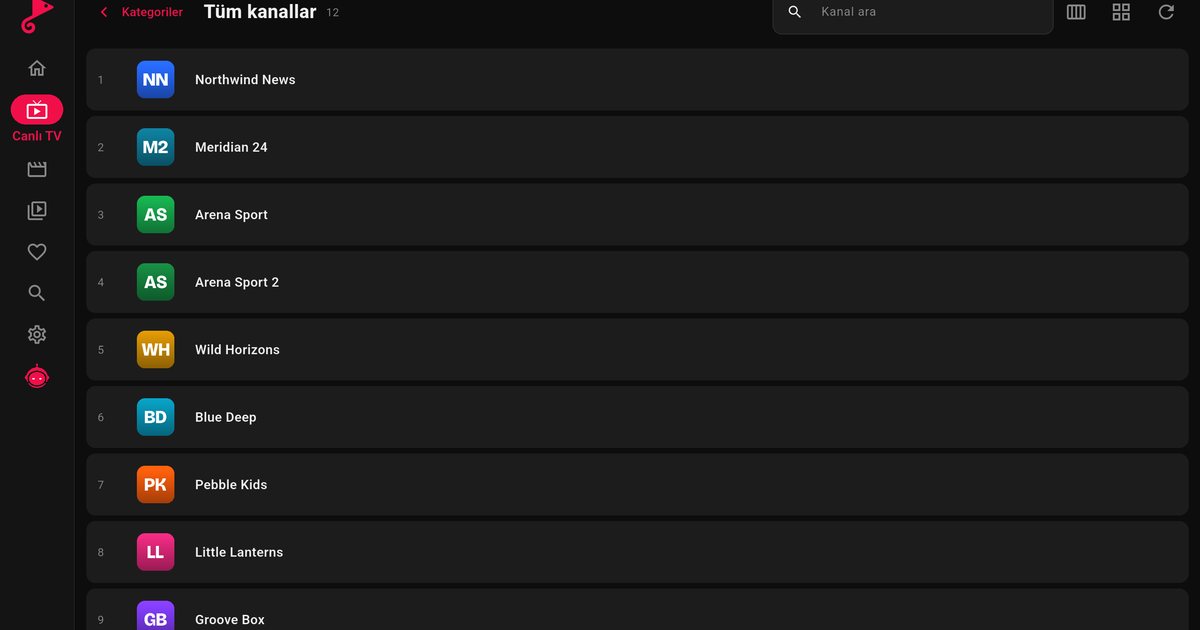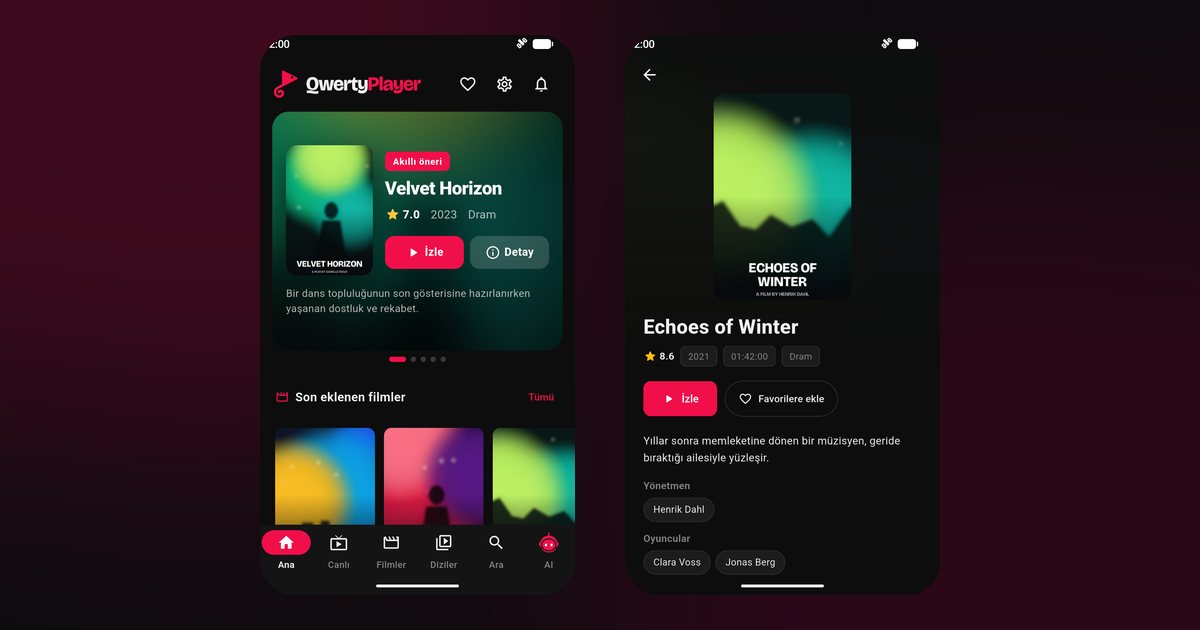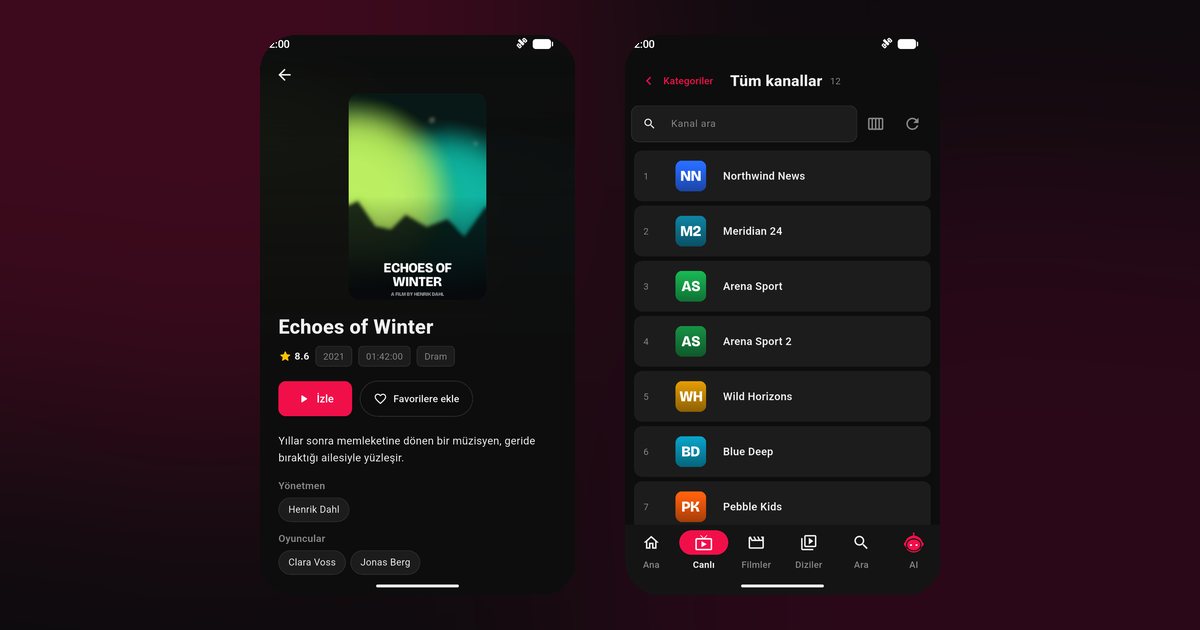
Nokia and Motorola are known for phones, yet both names also appear on televisions. These sets are made by partner companies under licence, so what you can do with an IPTV player on a Nokia or Motorola TV comes down to the software on your particular model. Availability also varies a lot between countries. Many of these televisions use Android TV or Google TV, which is good news, but verify before you start.
Not the phone you are thinking of
If you landed here by searching for the phone, those have separate pages: Nokia and HMD phones and Motorola phones. A TV is a different product with a different operating system, even though the badge is the same.
Checking what your television runs
- Remote control: a Google Assistant button suggests Android TV or Google TV.
- Home screen: app rows and a recommendation feed hint at the same, and a Google Play icon confirms it.
- Settings: the about page names the system and its version. Note it down.
- Casting: if your phone offers to cast to the TV straight away without extra apps, the set probably has Chromecast built in, a feature of Android-based TVs.
If the set does not show any of these, see the closing section.
Installation walkthrough
- Open the Google Play Store from the home screen.
- Type or speak "QwertyPlayer" into the search field and open the result.
- Choose Install, wait for it to finish, then press Open.
- Add your M3U link or your Xtream Codes server address, username and password.
You can skip the typing by showing the code on the TV and visiting the Connect to TV page on your phone. A long address typed with arrow keys is a common source of mistakes.
Google TV or Android TV on your set?
Either one works for installation, and the Play Store is the same. The newer name mainly changes the home screen layout. If you want the details, read Google TV against Android TV and the list of brands that use them.
Voice search and software updates
Speaking the app name into the remote is faster than typing it with arrow keys. Keep the TV software up to date through the settings menu, because updates carry fixes for the store and for video playback. After a large update, restart the set once and allow a few minutes before judging performance.
A word on licensed TV brands
Nokia and Motorola television sets are produced by partner manufacturers, and the same set may be sold in some countries and absent in others. Support, warranty and software updates therefore come from the seller or the manufacturer named in the manual, so keep that document handy if you need to ask about an update.
What to do if things go wrong
| Problem | Try this |
|---|---|
| App not found in the store | Check the country setting, update the TV software and search again |
| Interface sluggish | Clear the player cache, free storage, restart fully |
| Picture freezes | Use Ethernet and follow the buffering guide |
| Link will not load | Check for a stray space or missing characters and test on another device |
When the TV is not Android-based
Should your Nokia or Motorola TV run something else, add a streaming device. A Fire TV Stick, a Google TV box or a Chromecast with Google TV plugged into HDMI gives you the store you need. Compare them in choosing a device for IPTV on a TV.
QwertyPlayer is only a player. The playlist comes from your own provider, and you are responsible for the right to watch it.
Frequently asked questions
Do Nokia and Motorola TVs support IPTV apps?
Models running Android TV or Google TV do, through the Play Store. Check your model.
How can I tell if my TV is Android-based?
Look for the Google Play Store, a Google Assistant button on the remote and the system name on the about page.
Is the phone app the same as the TV app?
The apps are built for each platform. On the TV you install the Android TV version from the Play Store.
What if my TV has no Play Store?
Connect a Fire TV Stick or a Google TV streamer to an HDMI port.
Try it with QwertyPlayer
Download with a free trial for Android, Android TV, Fire TV, Huawei and Windows.