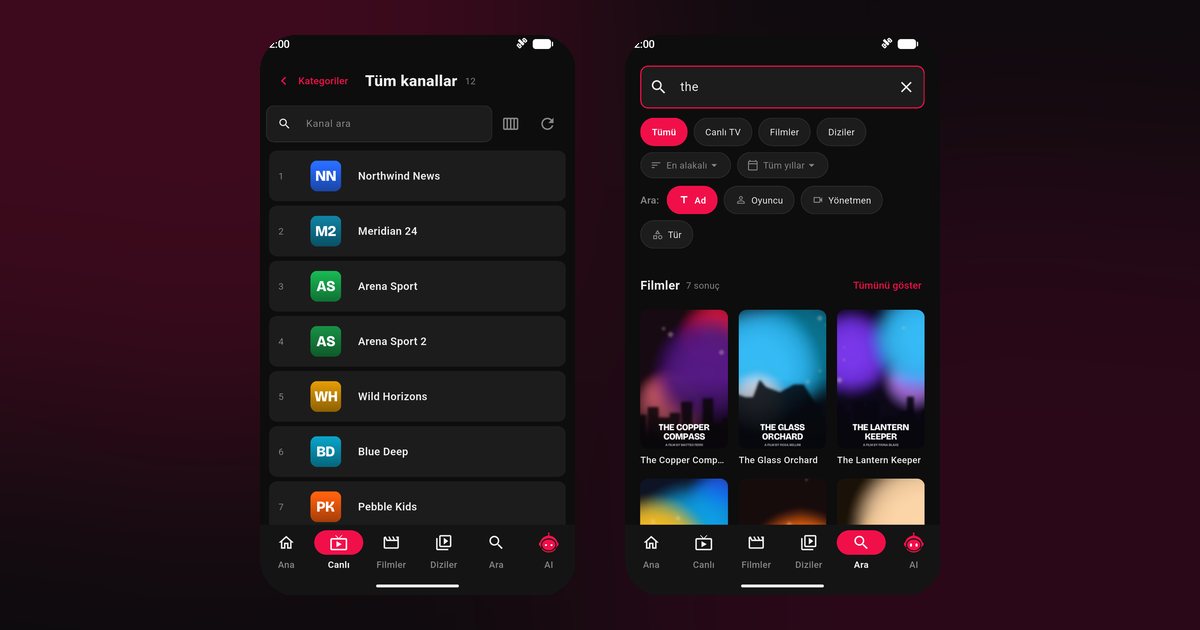
Sony Xperia phones have a loyal following among people who care about screens and sound, which makes them a natural fit for anyone searching for a Sony Xperia IPTV player. The displays are tall and narrow, the audio hardware is good, and the Android software is close to stock. The two things that deserve attention are Sony battery care features such as Stamina mode, and how a tall screen shows a standard video.
Xperia models in scope
The advice fits the premium Xperia 1 line, including the Xperia 1 VI, Xperia 1 V and Xperia 1 IV, the compact Xperia 5 V and Xperia 5 IV, and the mid-range Xperia 10 VI and Xperia 10 V. All of them take their apps from Google Play.
Steps to get going
- Open Google Play and install QwertyPlayer.
- Open the app and allow notifications.
- Choose your source type: an M3U link, or Xtream Codes with server address, username and password.
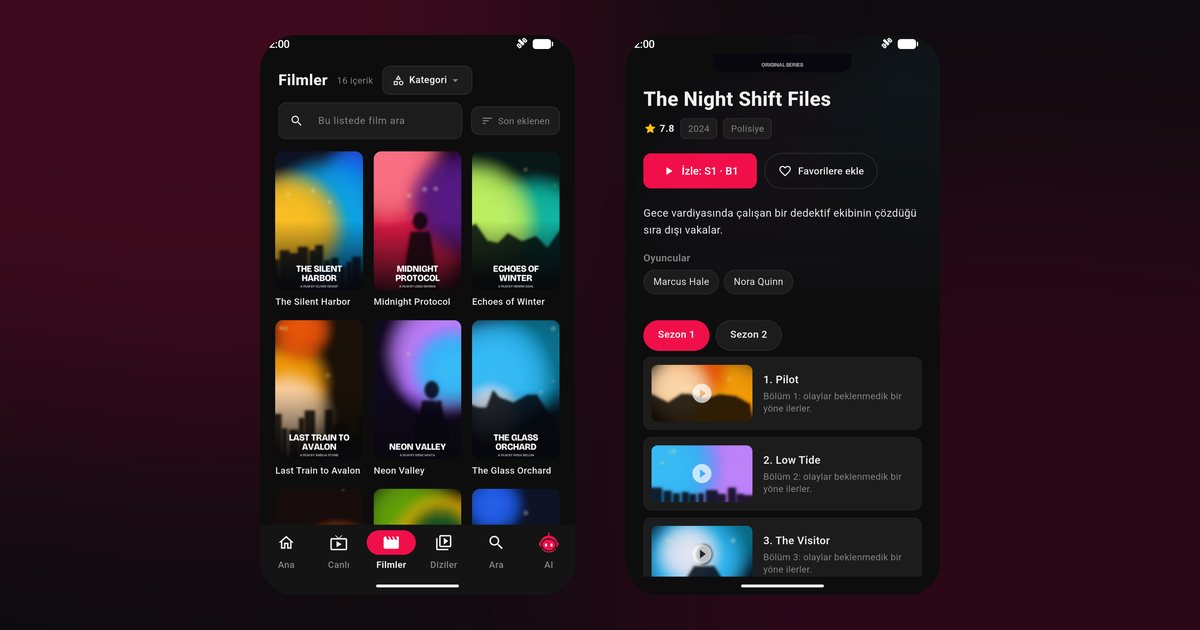
- Wait while live channels, films and series load.
The M3U and Xtream Codes guide shows what each format looks like if you are unsure.
Stamina mode and battery care
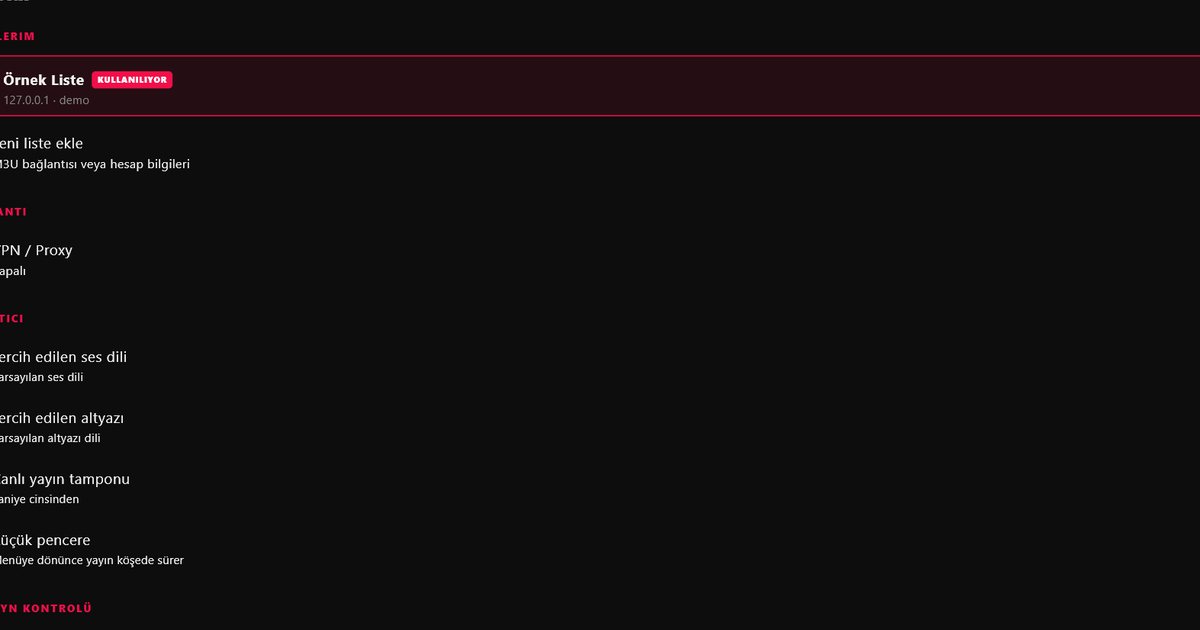
Sony includes Stamina mode, a power saving option that restricts background activity and reduces performance when the battery runs low. Leave it off during long viewing sessions, or set it to activate at a low threshold only. Xperia phones also offer Battery care, which stops charging at a set level to protect the battery; that is helpful if the phone sits on a charger while streaming. Check Settings > Battery for Adaptive Battery and open the app info page for QwertyPlayer to pick the unrestricted battery option. The background playback guide compares the same controls on other brands.
The tall screen question
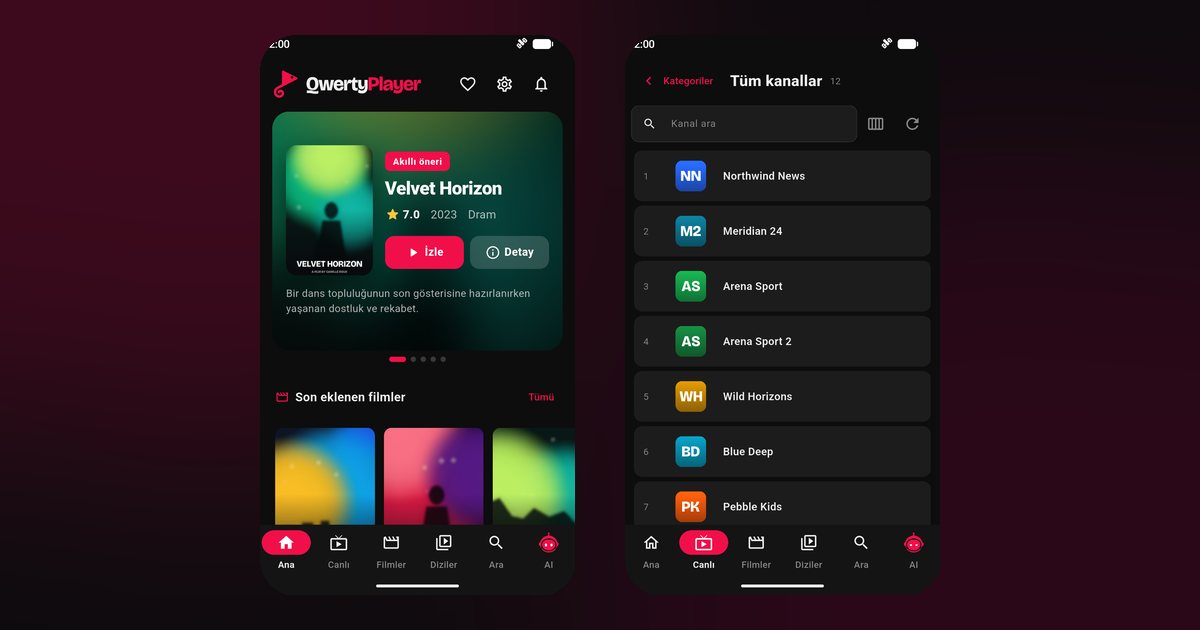
Several Xperia models, the Xperia 1 V, 5 V and 10 V among them, use a 21:9 display. A normal 16:9 video will show black bars at the sides in landscape. This is not a fault. You can zoom to fill the screen inside the player, but doing so crops the picture slightly, so choose whichever feels better. In portrait mode, the poster lists and EPG fit nicely on tall displays.
Audio on Xperia
Sony adds audio enhancements and often keeps a headphone jack on its phones. Wired headphones avoid Bluetooth delay, which can make speech look out of sync with lips. If you use Bluetooth earbuds and notice a lag, try wired ones or check whether your headset offers a low-latency mode.
From Xperia to a Bravia television
People who own both a Sony phone and a Sony TV often assume they work as a pair. They are separate installs: the television runs Google TV or Android TV and gets the app from its own store, as the Sony Bravia IPTV player guide explains. Your phone is useful for typing the playlist, which you then send with the Connect to TV page.
Fixing common problems
- Stream ends with the screen off: turn off Stamina mode and set the app battery usage to unrestricted.
- Stutter or freezing: test another Wi-Fi band and see the buffering fix guide.
- Phone warms up: lower brightness and avoid gaming in the background.
Pixel owners can look at the Pixel guide for a similar stock approach, and the Android phone brands page links the other makers.
Final word
QwertyPlayer has no content of its own, so connect a lawful source. It costs nothing at the moment.
Frequently asked questions
Do the Xperia 1 V and Xperia 10 V use the same steps?
Yes. They install from Google Play and share the same battery and background settings.
What does Stamina mode do?
It restricts background activity to save power. Keep it off while streaming for long periods.
Why are there black bars on my Xperia?
Its tall display is wider than a standard video. Use the zoom option inside the player if you prefer a filled screen.
Will Bluetooth headphones delay the sound?
They can add delay. Wired headphones or a low-latency headset avoid it.
Is my Sony TV set up the same way?
No. A Bravia television installs the app from its own store, as described in the Bravia guide.
Try it with QwertyPlayer
Download with a free trial for Android, Android TV, Fire TV, Huawei and Windows.