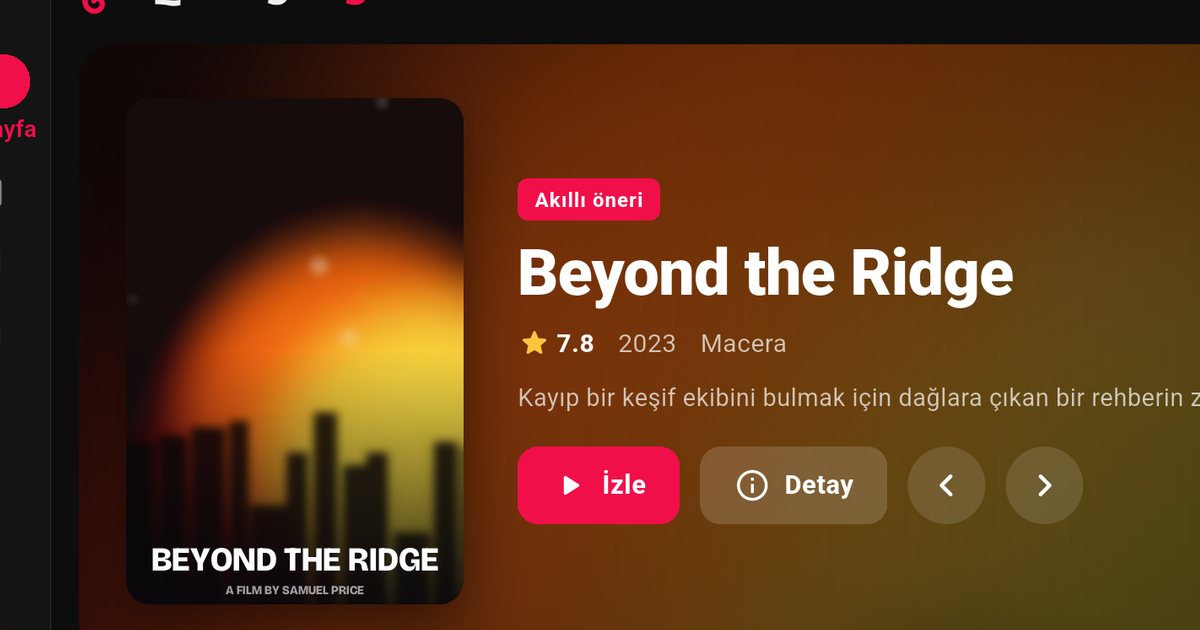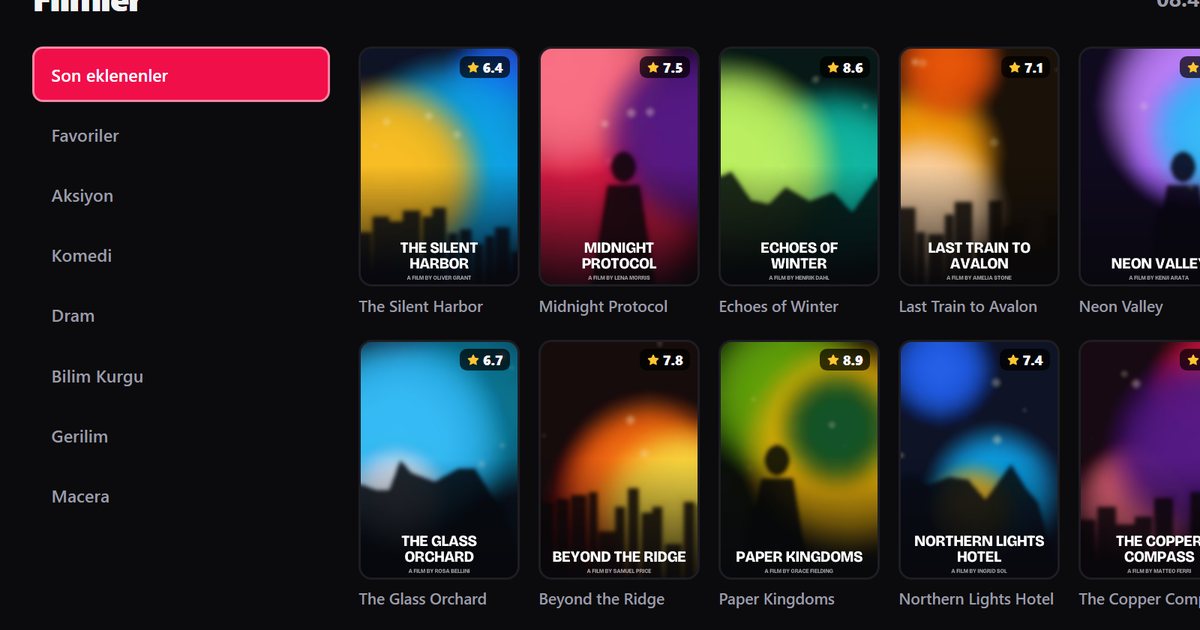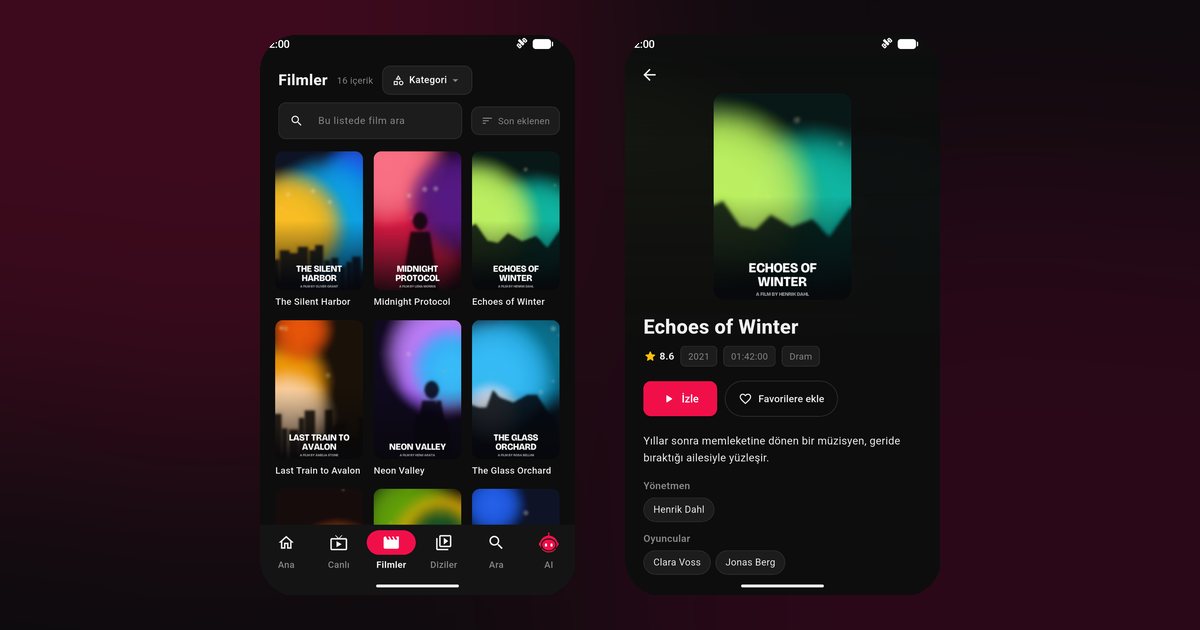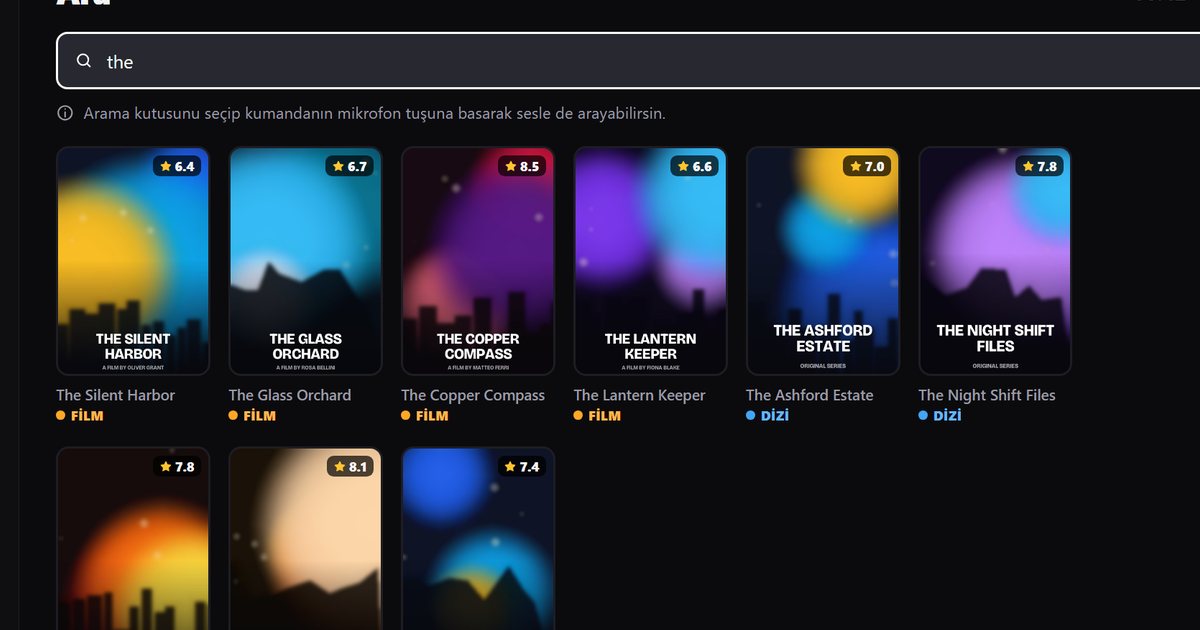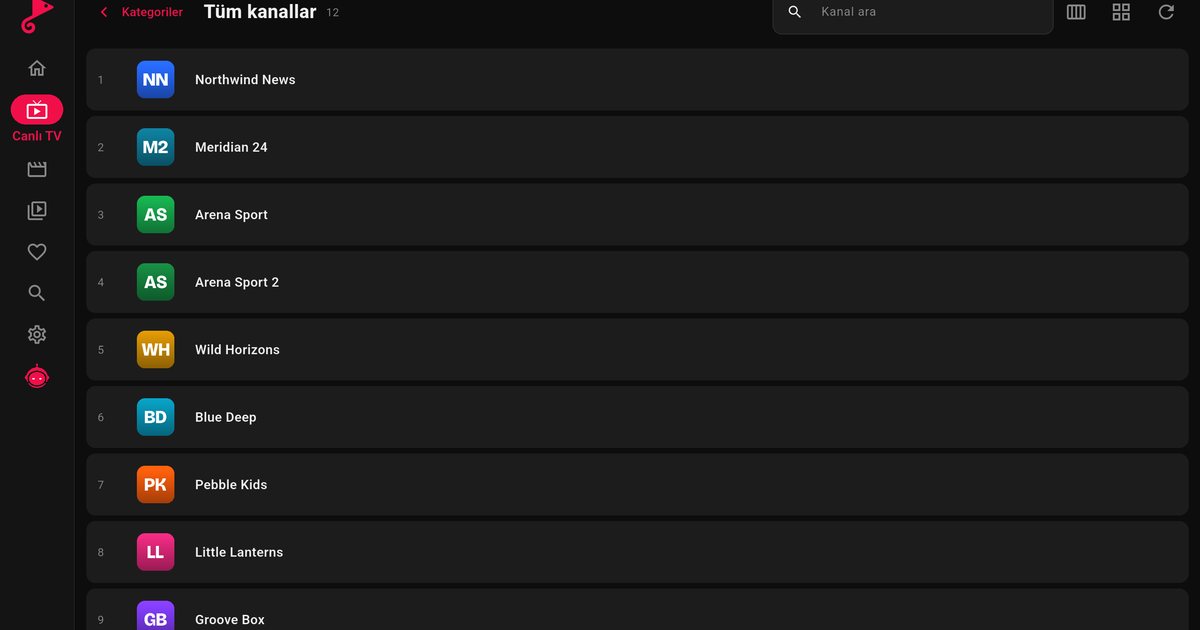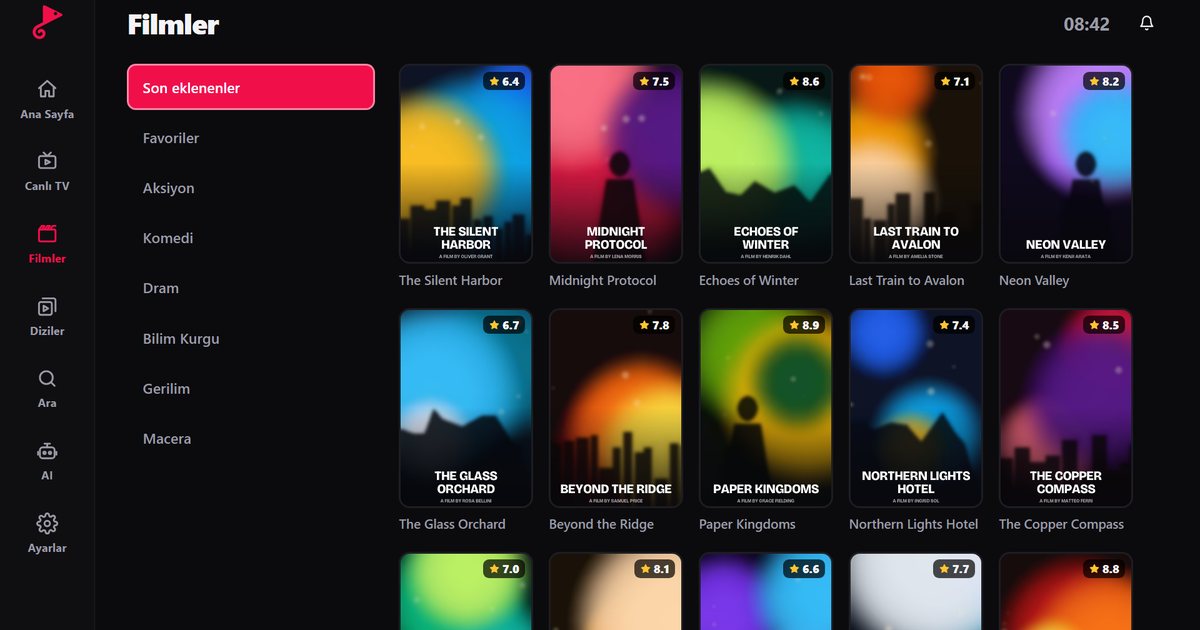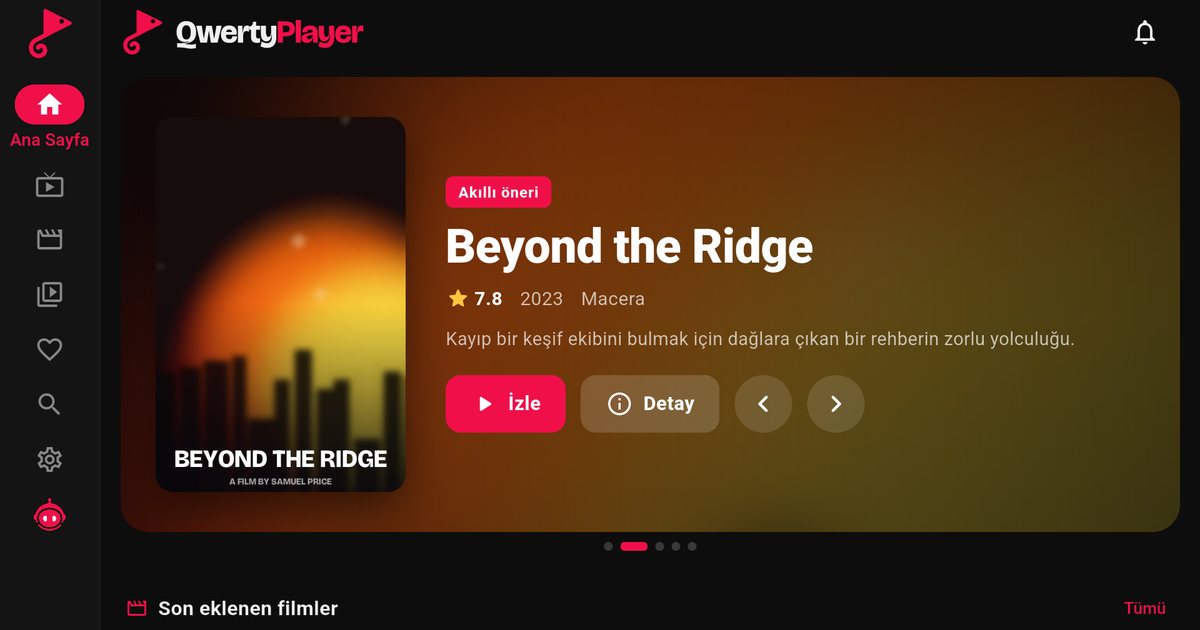
Searching for an IPTV player for Android TV usually starts with a brand name: Sony, TCL, Xiaomi, Philips or one of the many others. The brand alone does not settle the question, though. Television makers pick an operating system model by model, and the same company can sell Google TV sets, Fire TV sets and sets with a built-in system of its own. This page works as a map. It shows how to find out what your TV actually runs and where to go next for your brand.
Step one: find out which system your TV runs
Open the TV settings and look for About, Device preferences or System information. Android TV and Google TV sets show an Android version and a Google account entry. You can also judge by the home screen: Google TV shows rows of recommendations and an Apps tab, while older Android TV shows a row of app icons with a Play Store tile. If the home screen looks different, or the settings never mention Android, you have a different system and the table below will tell you what to do.
Install from Google Play
On any Android TV or Google TV set, the route is the same. Open Google Play from the Apps row, search for QwertyPlayer, install it, then add your M3U link or Xtream Codes account. Because typing on a remote is slow, send the playlist from your phone with the Connect to TV page. The TV shows an address and a short-lived, single-use code, and you enter that code on your phone or computer. The Android TV box guide walks through the same steps with extra detail on using the remote.
Brand by brand
| Brand | Typical system | What to do |
|---|---|---|
| Sony Bravia | Google TV or Android TV | Install from Google Play: Sony Bravia guide |
| TCL | Many models Google TV; some markets Roku TV or Fire TV | Check first: TCL guide |
| Xiaomi, Mi Box, Mi TV Stick | Google TV or Android TV | Xiaomi guide |
| Hisense | Mostly VIDAA, some upper-range Google TV | VIDAA has no app: Hisense guide |
| Panasonic | Android TV, Google TV, Fire TV or its own system | Panasonic guide |
| Sharp, Toshiba, Skyworth | Android TV, Google TV, Fire TV or VIDAA by model | Sharp, Toshiba and Skyworth guide |
| Vestel, Arcelik, Beko, Grundig | Android TV, Google TV or a proprietary system by model | Vestel family guide |
| Realme, OnePlus | Android TV or Google TV | Realme and OnePlus guide |
| Nvidia Shield | Android TV | Shield guide |
| Philips | Titan OS on many newer models, Google TV on the OLED line | Check by model: Philips guide |
Other names such as Nokia, Motorola and Thomson have also sold Android TV or Google TV models in some regions. The rule is the same for all of them: read the system information first, then open the store.
If the store does not show the app
If you search Google Play on the TV and QwertyPlayer does not appear, do not install files from random websites. First update the TV software and restart it, then search again. If the store itself is missing or your set runs a system without one of the supported stores, the clean fix is an external device. A Fire TV Stick (Fire TV guide) or a box or Chromecast with Google TV (Google TV and Chromecast guide) plugs into any free HDMI input and works the same way on every brand.
Google TV or Android TV: does it matter?
Google TV is the newer look of the same platform, and apps install from Google Play on both. The differences are in the home screen, not in the player. Our comparison Google TV vs Android TV explains which parts change.
Good habits on every brand
- Use Ethernet where you can. If you need to stay on Wi-Fi, test the connection with the speed test inside the app; how much speed IPTV needs explains what the result means.
- Keep the TV software up to date, since store and system fixes arrive through updates.
- Clear the app cache from the TV settings if the app becomes slow after weeks of use.
- Remember that the number of screens that can play at once is set by your provider, not by the player.
Important note
QwertyPlayer is only a player. It does not provide, sell or recommend channels, films or playlists. You add content from a provider you are entitled to use and you are responsible for having the right to watch it. We do not give legal advice.
Frequently asked questions
How do I know whether my TV runs Android TV?
Open Settings and look under About or Device preferences. If you see an Android version, a Google account entry and a Google Play app, it is Android TV or Google TV.
Does every Sony, TCL or Xiaomi TV support apps from Google Play?
Not every model. Many of their sets run Google TV or Android TV, but some run other systems depending on the model and the market. Check the system information on your own TV.
Where do I install QwertyPlayer on these TVs?
Open Google Play on the TV, search for QwertyPlayer and install it. If you can see it in the store, your model is supported.
What if my TV has no supported app store?
Plug a Fire TV Stick, a Google TV device or an Android TV box into an HDMI port and install the player there.
Is QwertyPlayer free on Android TV?
It is currently free to download and use. It does not include any channels, so you add your own playlist.
Try it with QwertyPlayer
Download with a free trial for Android, Android TV, Fire TV, Huawei and Windows.