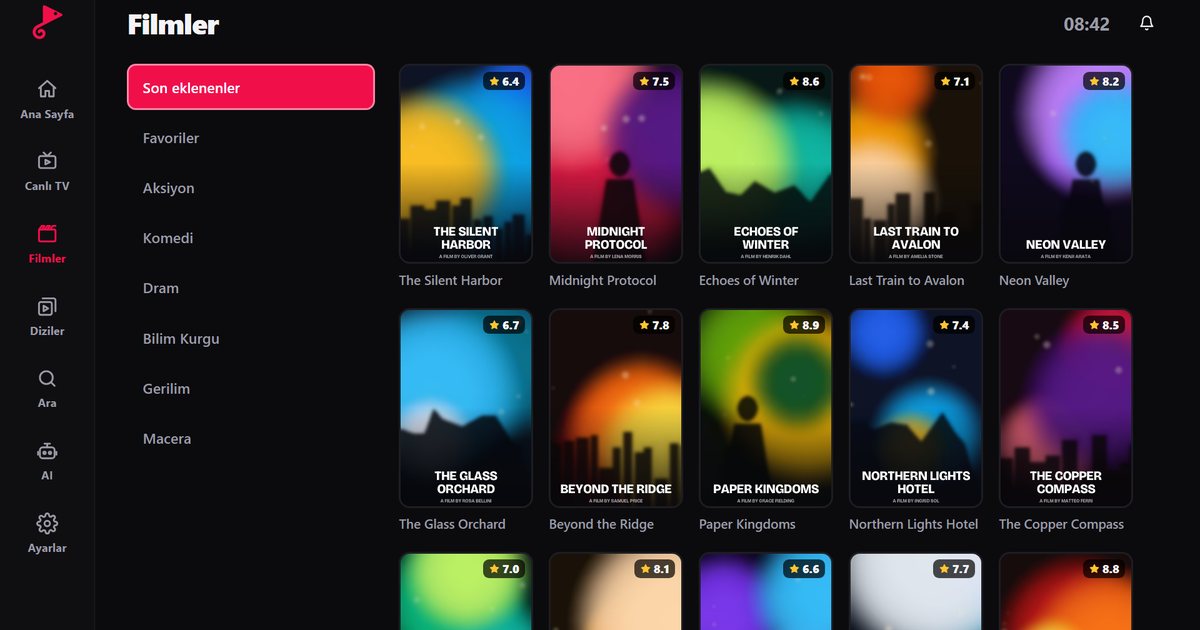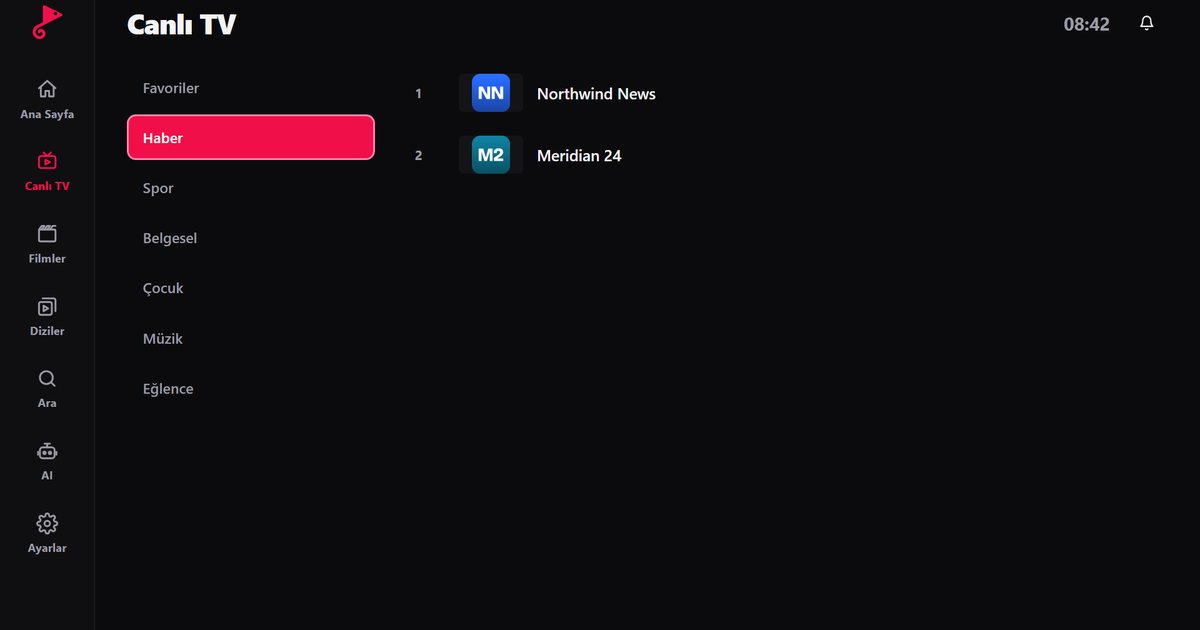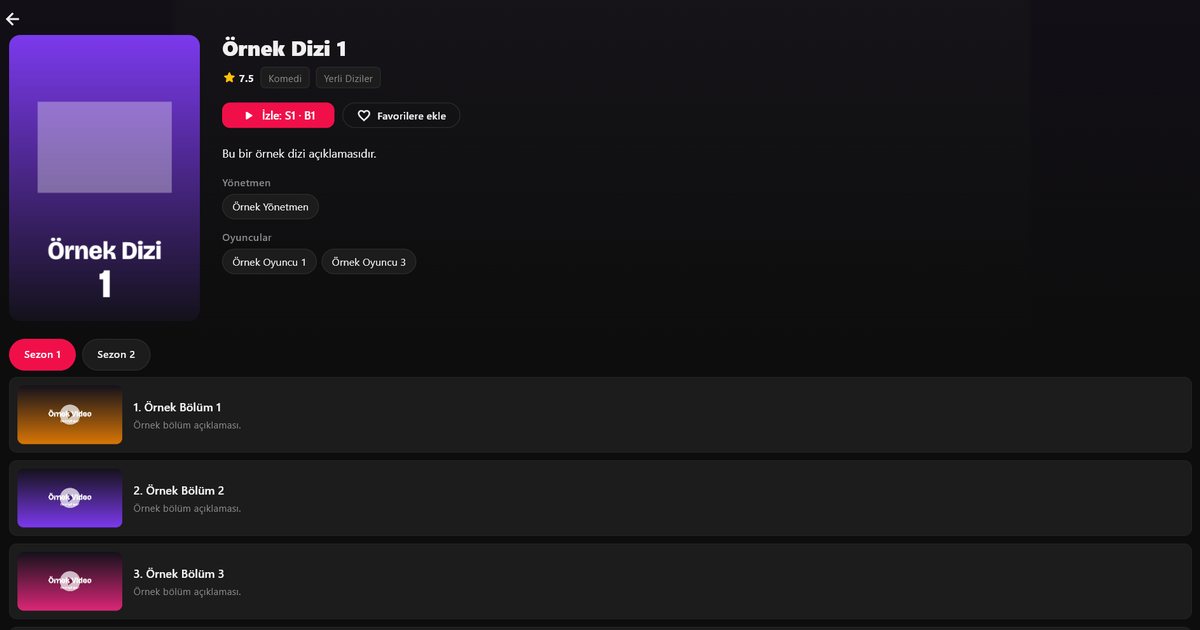
Chromecast with Google TV and televisions running Google TV use the same app store as Android TV. That makes installing a Google TV IPTV player straightforward: you download the app, add your playlist and start watching. The one point that causes confusion is the older, plain Chromecast, which only receives casts from a phone and cannot run apps at all. This guide applies to the models that can.
Which Chromecast do you have?
The model that can install apps is Chromecast with Google TV, which comes with its own remote and a home screen with an Apps row. If you have the earlier Chromecast without a remote, you can only cast from a compatible app on your phone, and you cannot install a player on the device itself. If the label on your television says Google TV or Android TV, you can install apps directly.
Installation steps
- On the Google TV home screen go to the Apps tab, or use the search field, and look for "QwertyPlayer".
- Install the app and open it. An address and a code are displayed.
- Open the Connect to TV page on your phone or computer, enter the code and add your playlist there.
- Live TV, films and series then load on the television, and the programme guide appears if your playlist includes EPG data.
Google TV specifics
- Search: the search on the Google TV home screen looks across the apps and services it knows about. To search your own playlist, use the search field inside the player.
- Picture quality follows the network: 4K streams need a fast and stable connection, and Chromecast with Google TV has no Ethernet port unless you add an adapter. See how many Mbps IPTV needs.
- Programme guide: Xtream Codes accounts usually provide EPG data automatically, while an M3U playlist may need a separate XMLTV address from your provider. The EPG guide walks through both cases.
- Login errors: the Xtream Codes guide lists the usual causes, such as a wrong port or a stray space.
A note on the small dongle
The Chromecast dongle is small and runs warm. Keep it where air can circulate, and avoid plugging it into a USB port on the back of the TV that cannot supply enough power, because unstable power can make the device restart or stutter. Using the original power adapter in a wall socket is the safest arrangement.
Practical tips for Google TV
Keep the remote batteries fresh, because a weak remote can make the interface feel laggy. Give the dongle a minute after switching on, as it loads the home screen and the app in the background. If you watch mostly in the evening, test the connection at that time, since neighbourhood Wi-Fi traffic is heaviest then. Add the channels you use every day to favourites so you can jump to them without scrolling the whole list, and use the resume feature for films so a long evening can be split across two sessions.
Compared with other platforms
The setup logic is the same on every Android-based device, only the store and the remote differ. For a box with Ethernet and more memory, read the Android TV box guide. For a general look at televisions, see IPTV players for Smart TVs. The all-devices overview links to every platform.
Note: QwertyPlayer is only a player and does not provide or sell content.
Frequently asked questions
Can I watch IPTV on a Chromecast?
On Chromecast with Google TV, yes, because it can install apps. The older Chromecast that only receives casts cannot run an IPTV player.
Where do I find the app on Google TV?
In the Apps tab on the home screen, or by typing the app name in the search field.
How do I add my playlist on the TV?
Enter the code shown on screen at the Connect to TV page, then send your playlist details from a phone or computer.
Does the programme guide work on Google TV?
It appears on the live TV screen when your provider supplies EPG data.
Try it with QwertyPlayer
Download with a free trial for Android, Android TV, Fire TV, Huawei and Windows.