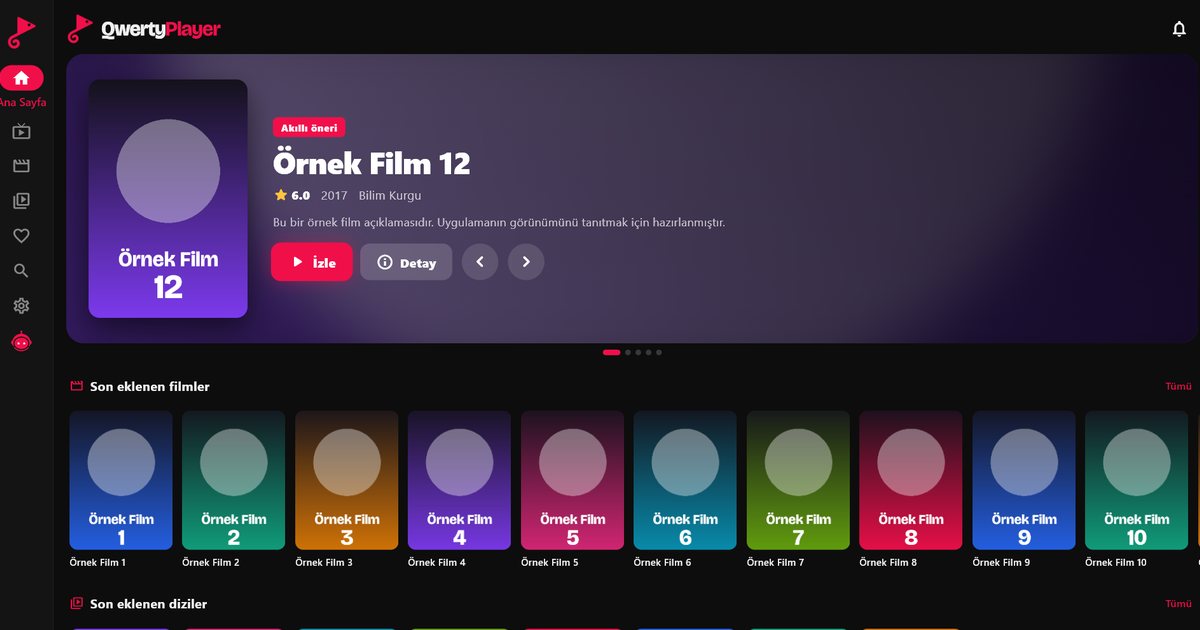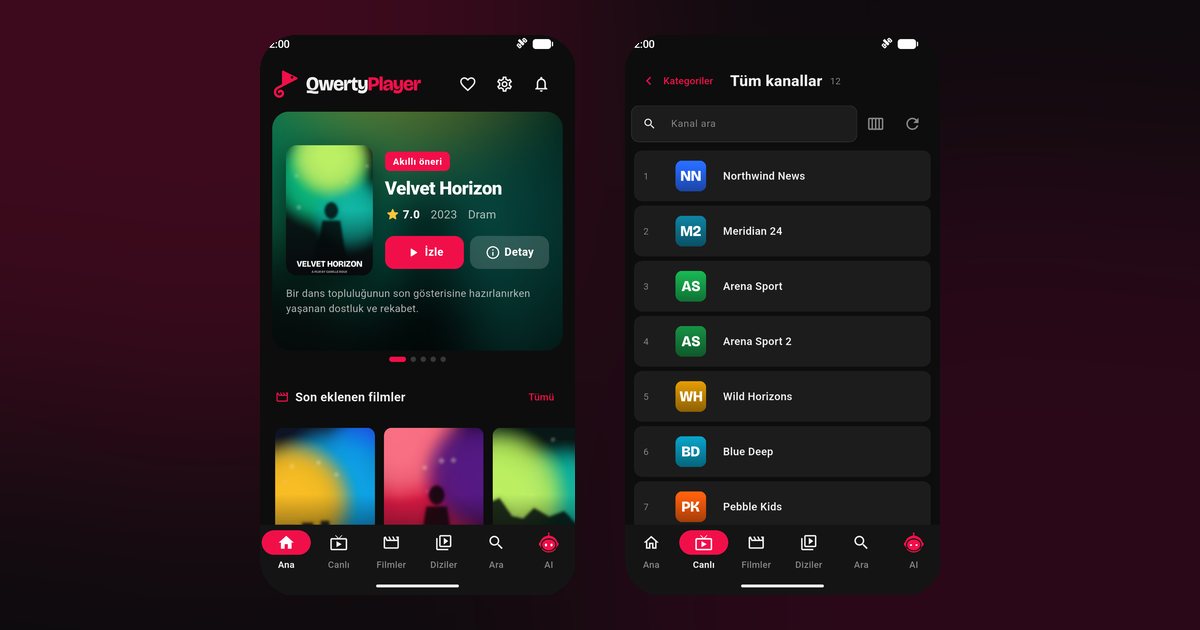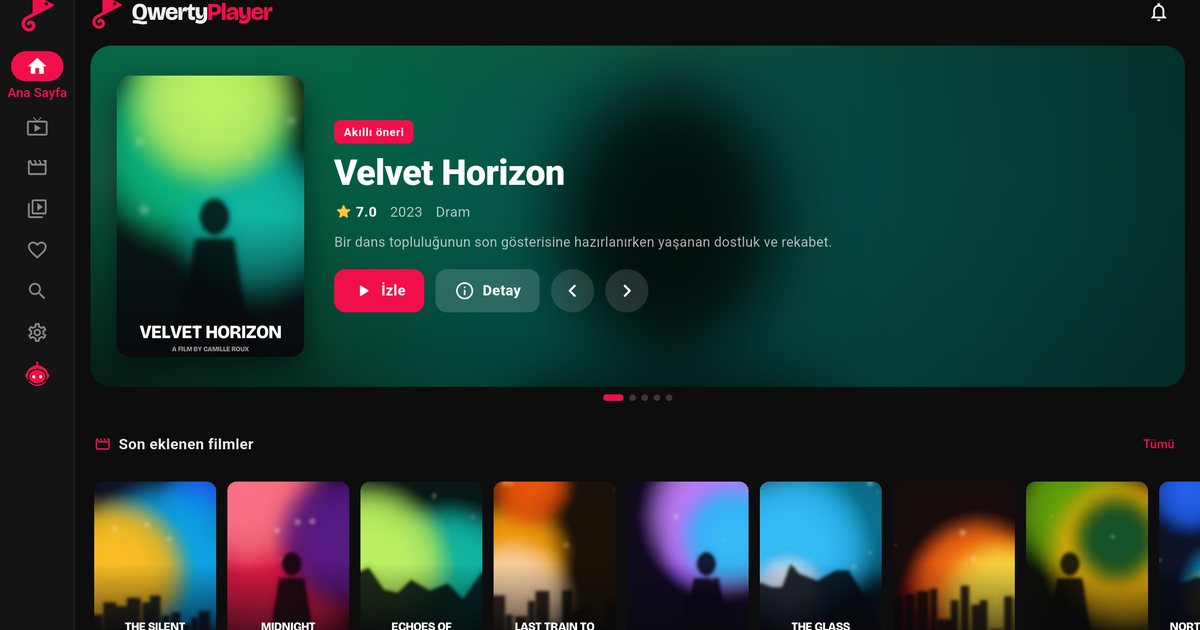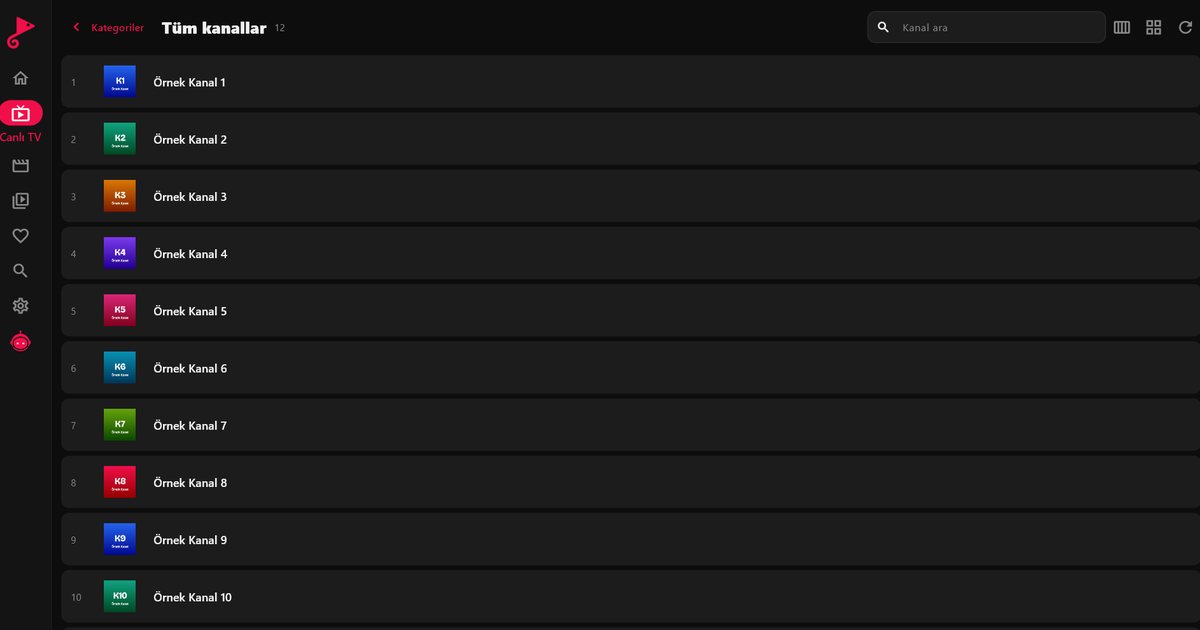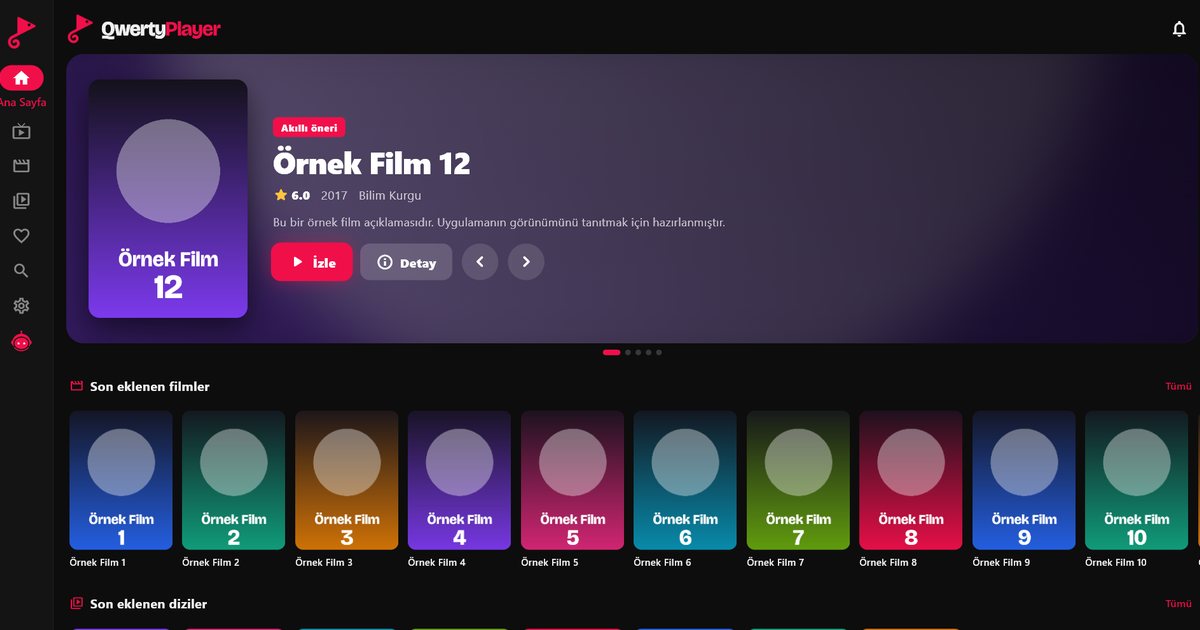
Watching IPTV on a Mac often means a browser tab or an old player that is no longer updated. As a Mac IPTV player, QwertyPlayer is a native macOS app: it opens M3U links and Xtream Codes accounts and shows live TV, films and series in an organised interface designed for a keyboard, a trackpad and a large display.
Install and add a playlist
- Open the Mac App Store and search for "QwertyPlayer". The app needs macOS 12 or later.
- Download and open it.
- On the add-playlist screen paste your M3U link, or choose Xtream Codes and fill in the server address, username and password.
- Save. When the categories have loaded, start watching.
The Mac is the easiest place to paste a long link, so it is also a good device to prepare the playlist for your television: enter the code shown on the TV at the Connect to TV page and send the playlist from your computer. If you are unsure which format you have, the M3U versus Xtream Codes guide explains it.
M3U file or link?
Some providers give a link, others a downloadable file. A link is easier: paste it and the app fetches the list. For background on what such a file contains, such as the #EXTINF lines that describe each channel, read the M3U8 playlist explainer. If the link is long, copy it from the provider's page with the copy button instead of selecting it by hand, so no characters are lost at the edges.
Working on a Mac
- Search by typing the channel or title; the keyboard is much faster than a TV remote.
- A large screen makes the programme guide readable. See how to set up EPG.
- Several audio and subtitle tracks can be selected when the stream carries them: audio and subtitles.
- Resume and favourites let you return to what you were watching.
- If other people use the Mac, keep adult categories hidden behind a PIN: they are hidden by default.
Keyboard and trackpad tips
Use the full-screen mode for films and the windowed mode while you work. Because the Mac has plenty of memory, large playlists load without trouble, but a very big M3U file can still take a moment on first load, so be patient and do not keep re-adding it. If you have two displays, keep the programme guide on one and the video on the other.
Use it together with an iPhone or Windows PC
The same playlist can run on your other devices. The iPhone IPTV player and iPad IPTV player guides cover Apple mobile devices, and the Windows IPTV player article covers PCs. How many of them can stream at the same moment is decided by your provider.
Smooth playback
Wi-Fi is fine for most laptops, but an Ethernet adapter helps if you stream HD or 4K for hours. Rough targets for each quality are in IPTV internet speed, and stuttering is handled in the buffering fixes. Close heavy apps such as video editors while you watch, and keep the laptop plugged in so the system does not reduce performance to save power.
Note: QwertyPlayer provides no content. Use it only with streams you have the right to watch. See also the all-devices overview.
Frequently asked questions
Is there a free IPTV player for Mac?
QwertyPlayer is currently free to download and use. It does not include content, so you add your own M3U link or Xtream Codes account.
How do I open an M3U playlist on a Mac?
On the add-playlist screen choose the M3U option and paste the link from your provider.
Which macOS version is required?
macOS 12 or later.
Does EPG show up on Mac?
Yes, on the live TV screen, when your provider supplies programme data.
Try it with QwertyPlayer
Download with a free trial for Android, Android TV, Fire TV, Huawei and Windows.