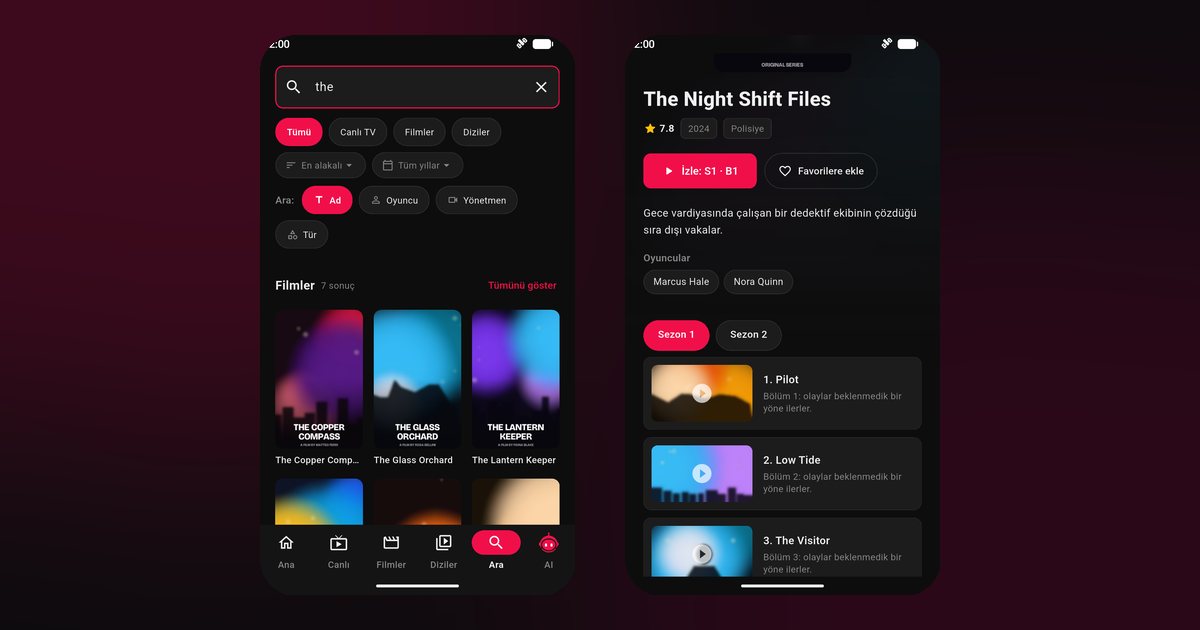
Realme and OnePlus entered the television market with phone-style products: slim bezels, a clean interface and Android under the hood. If you own one and want an IPTV player for a Realme TV or OnePlus TV, the good news is that both brands build on Android TV, and newer models use Google TV. That means the app comes from the Google Play Store, the same way as on a phone, and there is no need for workarounds.
Confirm your system first
Realme and OnePlus have sold several generations of TVs, and the home screen differs between them. To check yours:
- Press the Home button on the remote and look at the layout. A row of apps with recommendation shelves is typical for Android TV; a profile icon, tabs such as For you, Movies and Apps, and a Google Assistant prompt point to Google TV.
- Open Settings and go to Device Preferences or System, then About. You will see the Android version and the build.
- Look for the Google Play Store among your apps. If it is there, you can install QwertyPlayer from it.
If you are comparing the two interfaces, the article on Google TV versus Android TV explains what changes for IPTV (very little) and what does not.
Install QwertyPlayer
- Connect the TV to your Wi-Fi network or a network cable.
- Open Google Play Store from the home screen. On Google TV use Apps and then Search for apps.
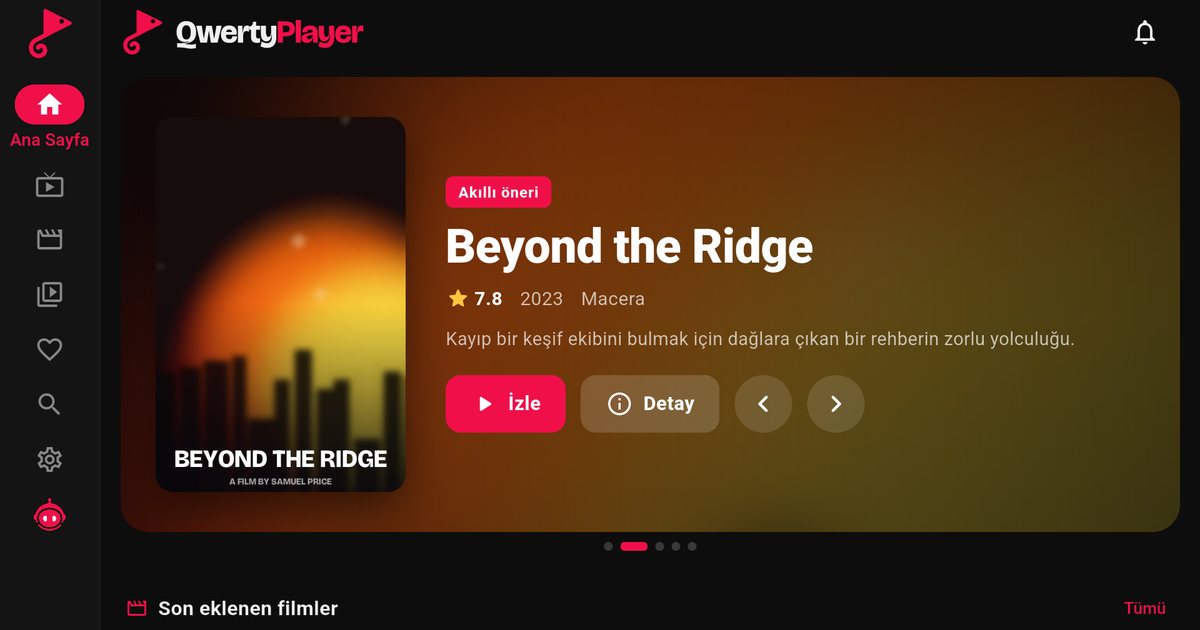
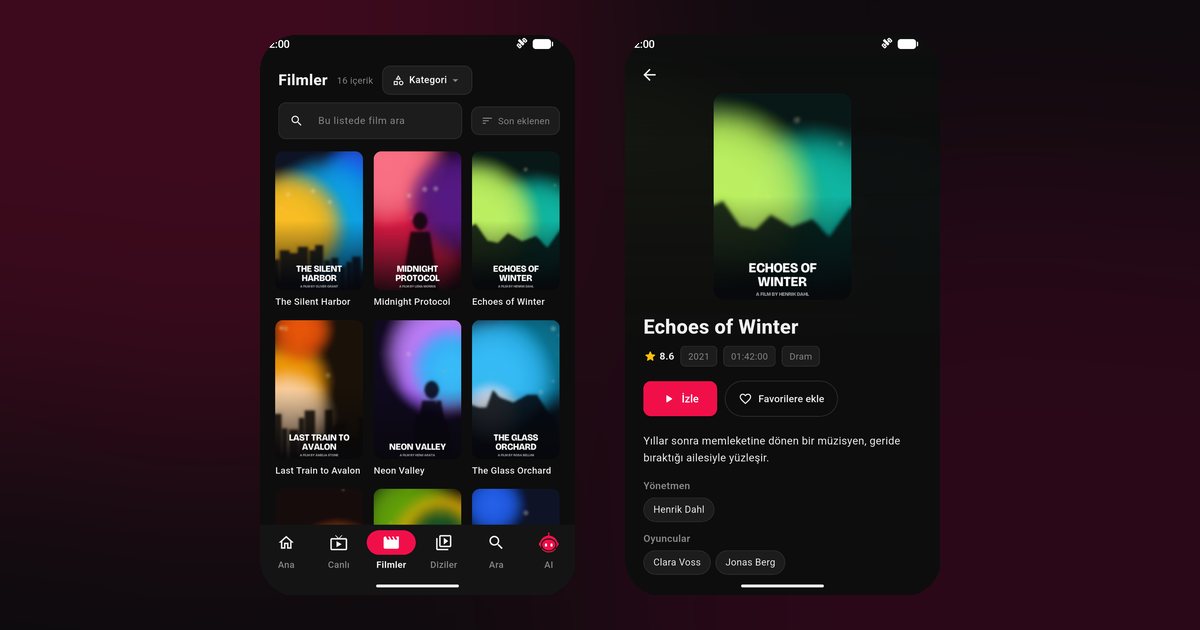
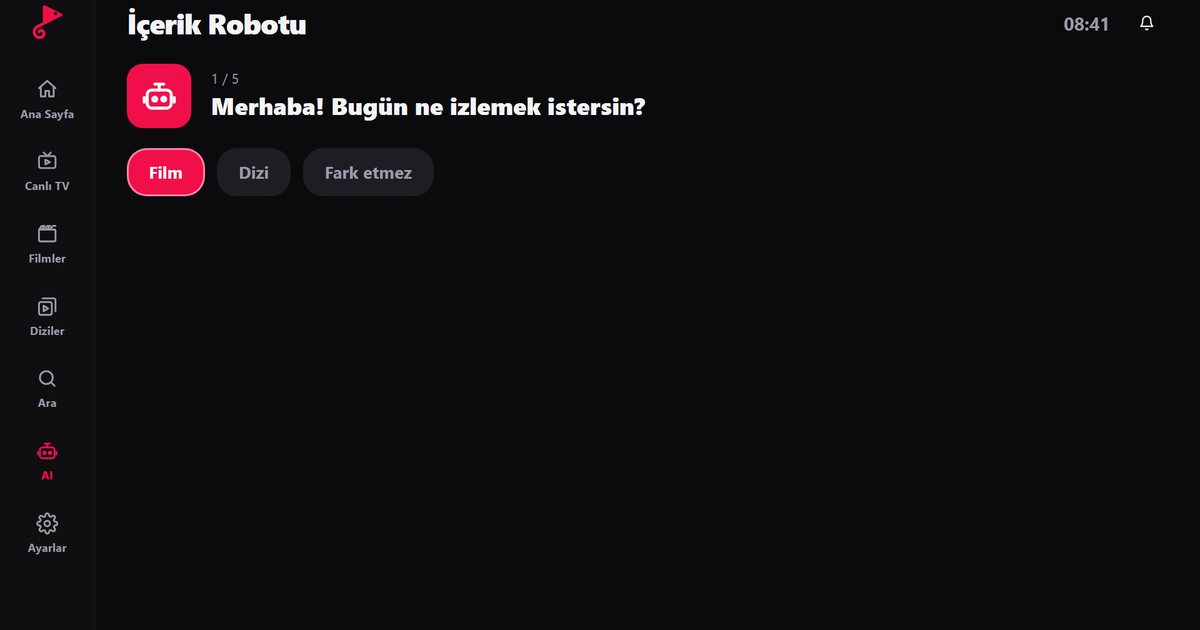
- Type "QwertyPlayer" and select the app. If it is listed, your model is supported. Choose Install.
- Open the app. Pin it to the home screen row if your interface offers that option.
The first thing to do on a new TV is not to type the playlist with the remote. Instead open the Connect to TV page on your phone: the TV shows an address and a short-lived, single-use code, you enter the code, and the playlist is delivered to the TV. If you prefer to type it yourself, the Xtream Codes guide lists the usual mistakes with server addresses, ports and passwords.
About Chromecast built-in
Realme and OnePlus TVs advertise Chromecast built-in. This lets compatible phone apps send video to the TV screen. It is a separate feature from running an app on the TV. QwertyPlayer runs directly on the television, so you do not need to cast anything; just open the app and use the remote. Casting from a phone can be useful for other purposes, but a native app is generally steadier for long viewing sessions because the TV streams directly instead of relaying through your phone.
Practical settings for smoother playback
- Use Ethernet if the TV has a socket or you have a USB adapter. Wi-Fi in a crowded flat is the most common cause of freezing.
- Keep the TV software updated under System update.
- Clear space. Open Settings, go to Apps, select QwertyPlayer and clear the cache if the app slows down after weeks of use.
- Check your connection with the speed test in the app; our internet speed guide explains how to read the result.
Using the same account on other devices
If you also watch on a Xiaomi TV or an Android phone, you can enter the same provider details there. See the Xiaomi TV guide and the Android phone guide. How many screens can stream at once depends on your provider, not on the player.
If something goes wrong
When the app does not appear in Google Play, update the TV and sign in to your Google account. When channels fail to load, copy the playlist link again and check it for a trailing space. When the picture freezes, read the buffering fix article before changing player settings.
QwertyPlayer is only a player. It does not provide or sell channels, films or series, and it does not recommend sources. You add content from a provider you are entitled to use and you are responsible for the right to watch it.
Frequently asked questions
Does the Realme TV run Android TV?
Realme TVs are built on Android TV, and the Google Play Store is available on them. Open the store and search for QwertyPlayer to see whether it is listed for your model.
Is the OnePlus TV a Google TV?
It depends on the model and year. Some OnePlus TVs use Android TV and newer ones use Google TV. The installation steps are the same for both.
Do I need to cast from my phone?
No. QwertyPlayer runs on the TV itself. Chromecast built-in is a separate feature for sending content from a phone.
The app is missing in the store. What can I do?
Check the system update and your Google account. If it is still not listed, use a Fire TV Stick or a Google TV streaming device.
Can I add my playlist without a keyboard?
Yes. Use the Connect to TV page at qwertypro.xyz and send the playlist from your phone or computer.
Try it with QwertyPlayer
Download with a free trial for Android, Android TV, Fire TV, Huawei and Windows.