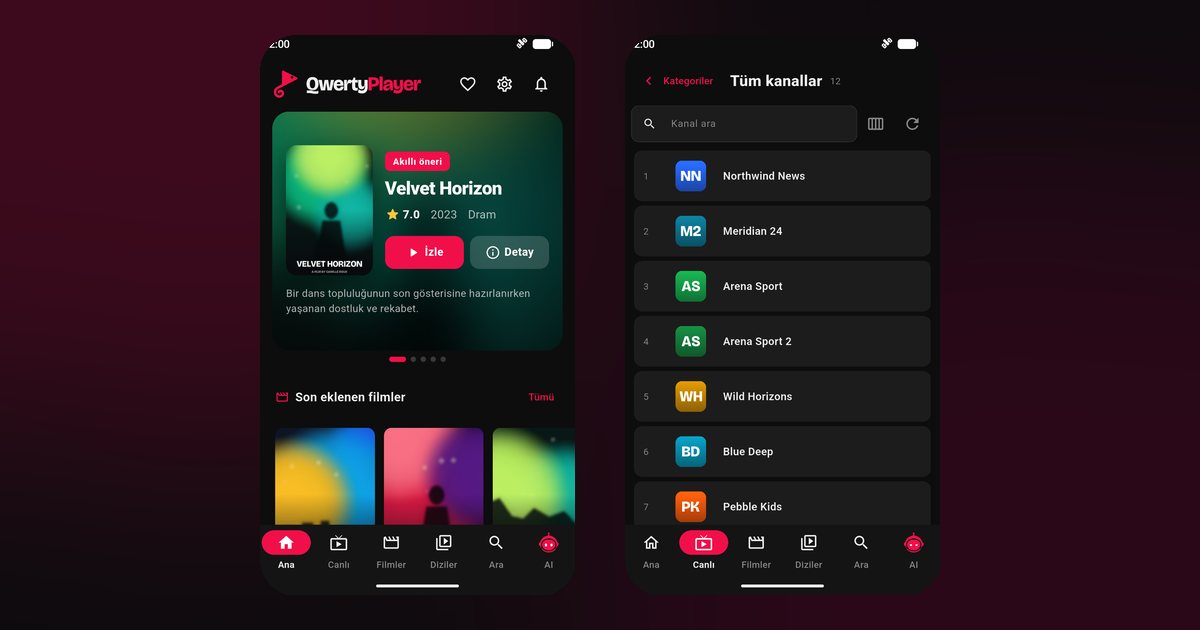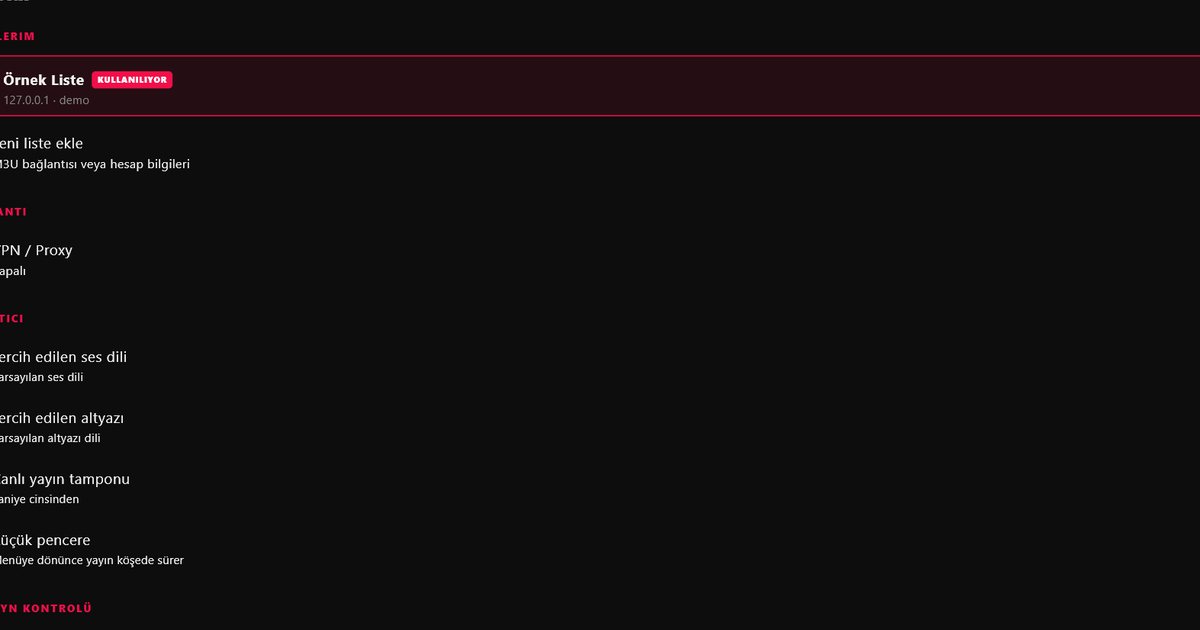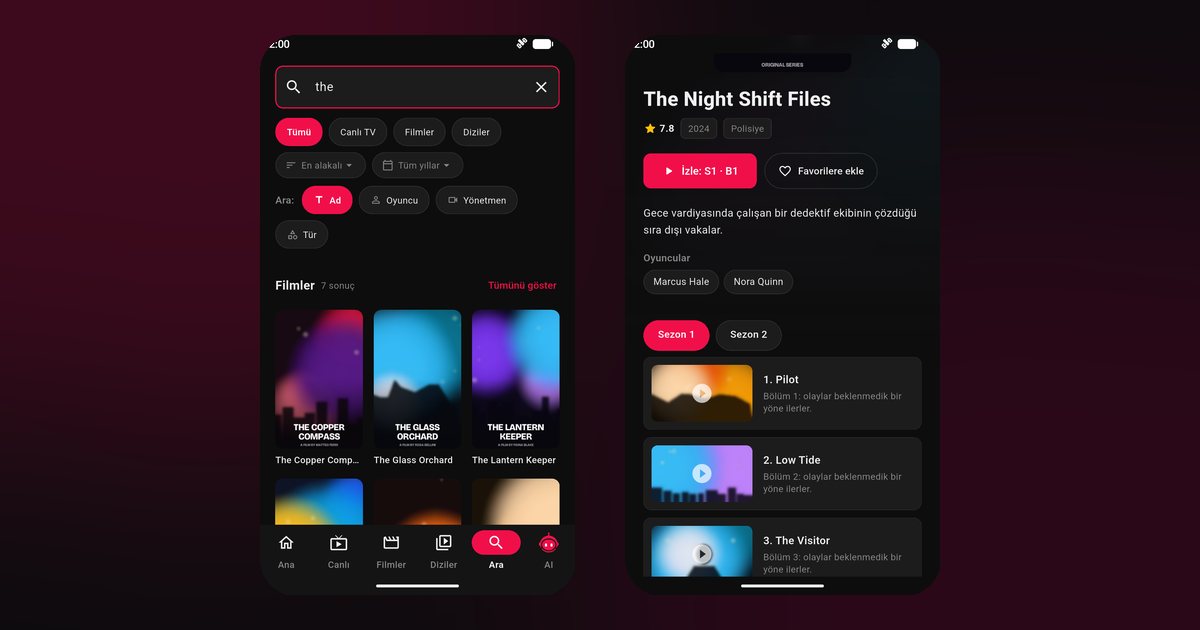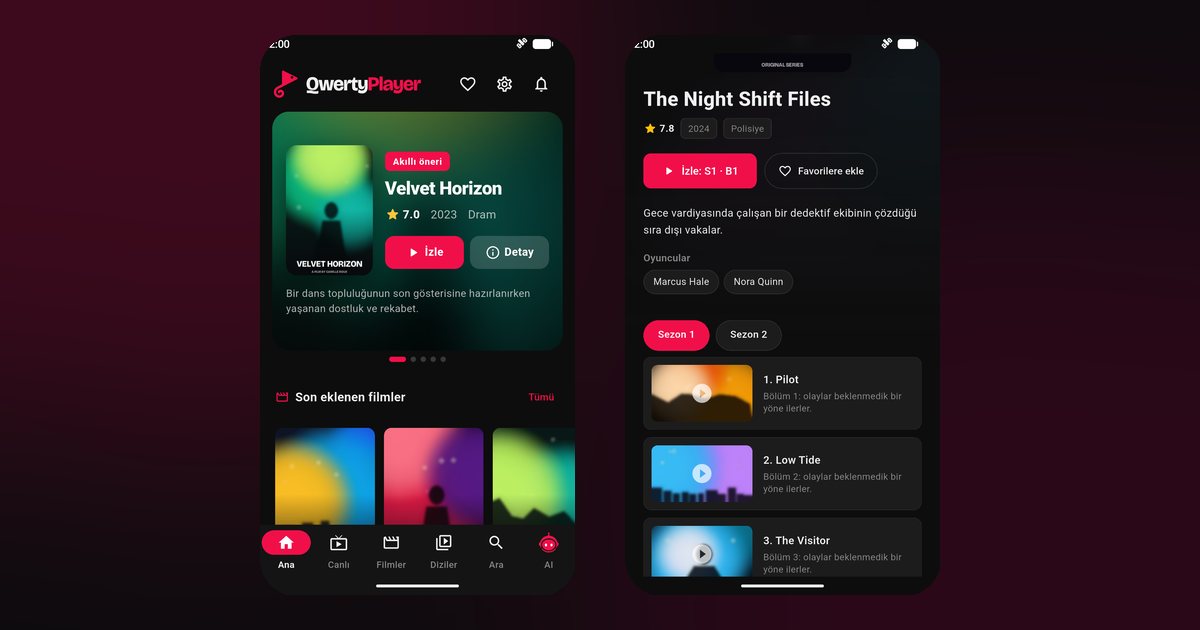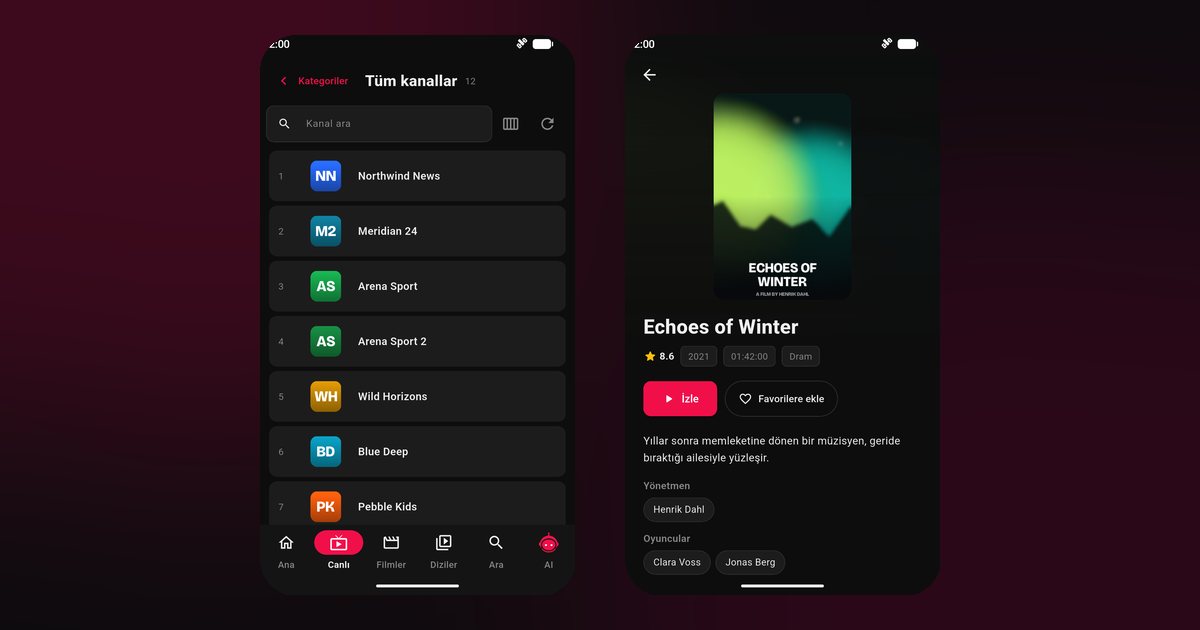
Realme built its reputation on strong specifications at friendly prices, and it is no surprise that owners look for a Realme phone IPTV player to turn that screen into a pocket television. The good news is that the app installs like any other. The part worth reading is how Realme UI treats background apps, because a stream that dies when the screen dims is the most common complaint, and it takes about two minutes to prevent.
The Realme range in brief
Realme sorts its phones into a few lines. The GT series, with models like the Realme GT 6 and GT 5 Pro, is the performance family. The number series, including the Realme 12 Pro, 12 Pro+, 12+ and 11 Pro, covers the mainstream. Narzo, for example the Realme Narzo 70, and the C series such as the Realme C55 target tighter budgets. All of them run Realme UI on Android with Google Play, which is why one set of steps works across the whole catalogue.
Set it up
- Open Google Play, search QwertyPlayer and tap Install.
- When the app opens, decide between an M3U link and Xtream Codes.
- For M3U, paste the link; for Xtream, enter server address, username and password.
- Browse Live TV, then try Movies or Series once the lists are loaded.
If you only have a long link, copy it from a message and paste it instead of typing. The M3U and Xtream Codes guide explains the layout of each.
Realme UI battery rules that matter
Because Realme UI grew out of the same code family as ColorOS, the wording is close to the Oppo IPTV player article, but a few names differ. Menus vary by version, so use the Settings search.
- Allow background activity: in Settings > Battery > More settings (or the app info page), pick the unrestricted or allow background option for QwertyPlayer.
- Optimise battery usage: make sure the app is set to Don't optimise in the battery optimisation list.
- Auto start: allow it in the app permissions page if listed.
- Power saving mode: keep it off during long sessions.
The overview of all brands lives in the Android background playback article.
Fast screens and high refresh rates
Many Realme models offer a high refresh rate display. Video does not need it, and some people notice slightly better battery life with the standard rate while watching. Try both and keep what feels best. The same goes for the screen colour mode: the natural setting is usually kinder for films than a vivid one.
Realme TVs are a separate story
Realme also made televisions, which have their own guide: Realme and OnePlus TV IPTV player. A phone and a TV from the same brand do not share an installation; each uses its own store. Your phone remains the simplest way to type a playlist for the TV through the Connect to TV page.
Problems and what usually fixes them
- The player closes in the background: repeat the battery steps and reboot the phone.
- Lag when changing channels: a slow connection or a heavy provider server is more likely than the phone; try the internet speed guide.
- Phone heats up: lower brightness, remove a thick case during playback and avoid charging while streaming for hours.
- Storage nearly full: free some space so the cache works properly.
Cousins with similar menus are covered in the OnePlus guide, and every maker is listed under Android phone brands.
About the content
No channels come with the app. You bring a legitimate source, and for now the app costs nothing.
Frequently asked questions
Do the steps differ for a Realme GT 6 and a Realme C55?
No. All Realme phones use Realme UI and Google Play, so installation and battery settings follow the same pattern.
What is the most important Realme setting?
Allowing background activity and excluding QwertyPlayer from battery optimisation.
Is a Realme phone good for IPTV?
It is capable for the job. Stable playback depends more on your Wi-Fi and your provider than on the model.
Can the Realme 12 Pro send a playlist to my TV?
Yes. Use the Connect to TV page with the address and one-time code the TV shows.
Is the Realme TV app the same as the phone app?
The player is the same product, but a TV installs from its own store, so follow the TV guide for that.
Try it with QwertyPlayer
Download with a free trial for Android, Android TV, Fire TV, Huawei and Windows.