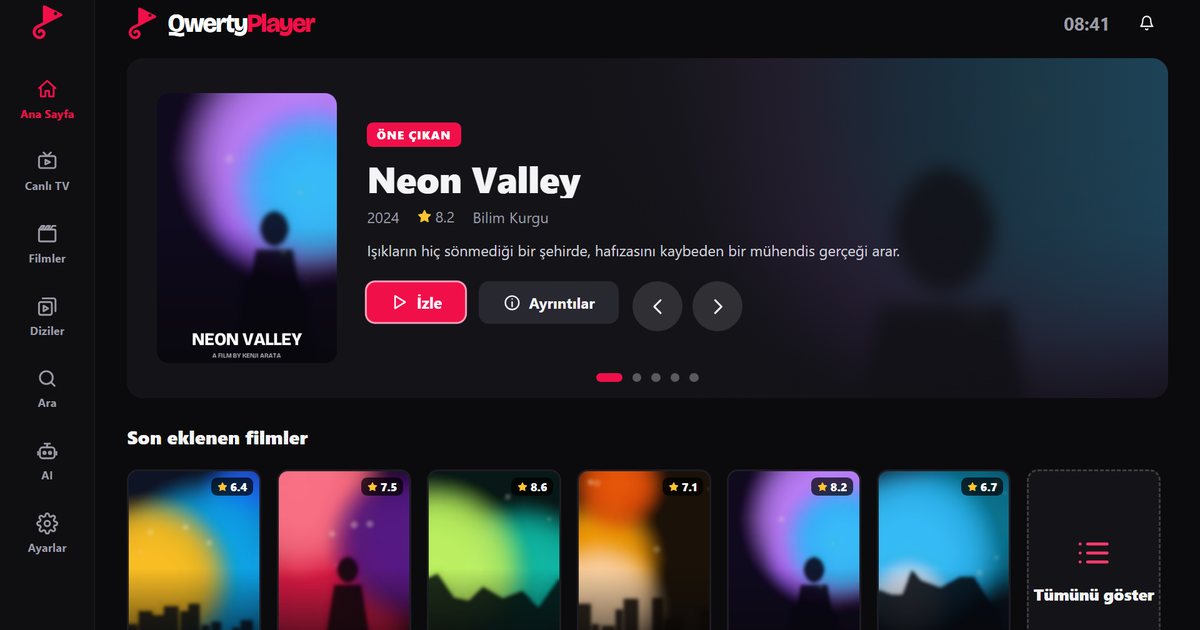
Samsung Smart TVs run Tizen, and anyone looking for an IPTV player for Samsung TV asks the same two questions: where do I find the app, and how do I enter my playlist with the remote? QwertyPlayer for Samsung TV answers the second question by letting you send the playlist from a phone or computer, so you never have to type a long link with the arrow keys.
Installing on a Samsung TV
- Press the Home button on the remote and open the Apps section of Smart Hub.
- Select the search icon and type "QwertyPlayer". Open the app page and install it.
- Choose Install and open the app.
- An address and a code are displayed. Enter the code on the Connect to TV page from your phone or computer and send your playlist.
If you do not find an Apps section or the search returns nothing, update the TV software first: Settings, then Support, then Software Update. App availability also depends on the model year and your region.
Which Samsung TVs work?
Recent Tizen-based Samsung televisions are the target. Very old models use older versions of the platform, and not every app supports them. If your TV is a few years old and the app does not appear, the software update usually decides it. If it still does not appear, an inexpensive streaming stick or a TV box plugged into the HDMI port is a practical alternative: see the Fire TV guide or the Android TV box guide.
Everyday use
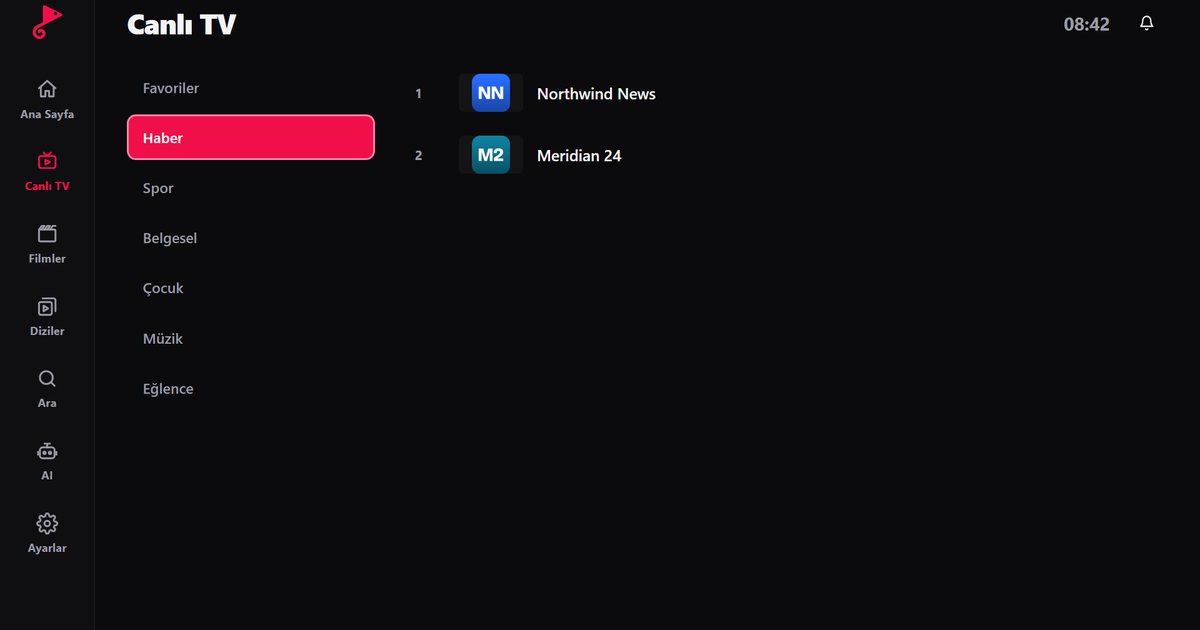
- Categories and channels are listed side by side, and the arrow keys and the OK button are enough to reach everything.
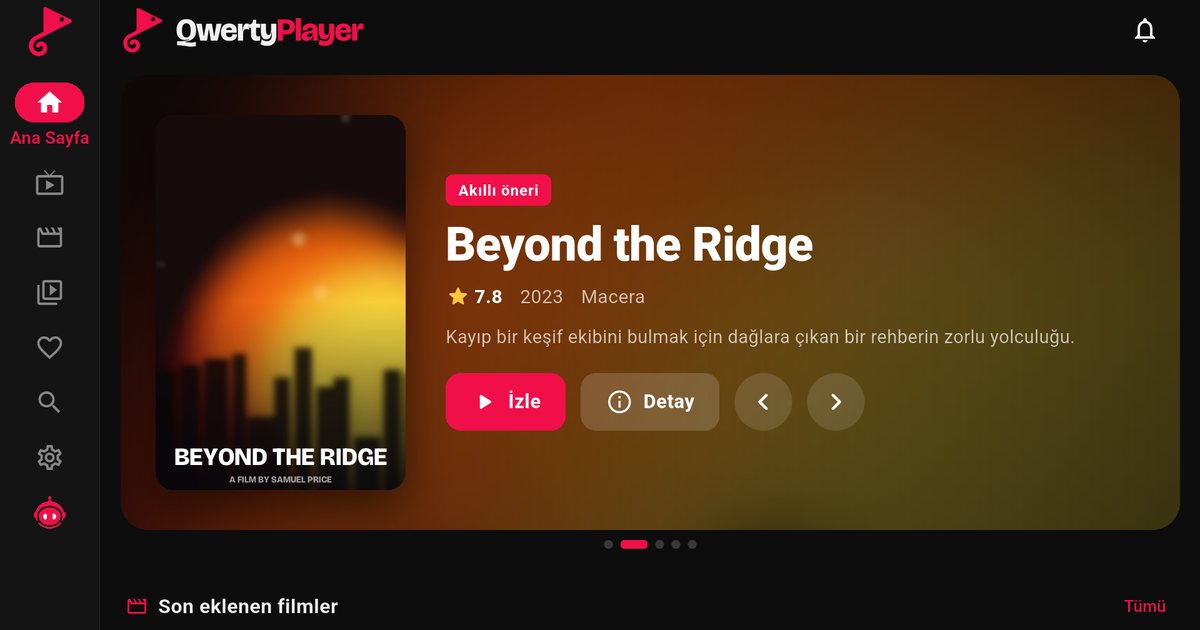
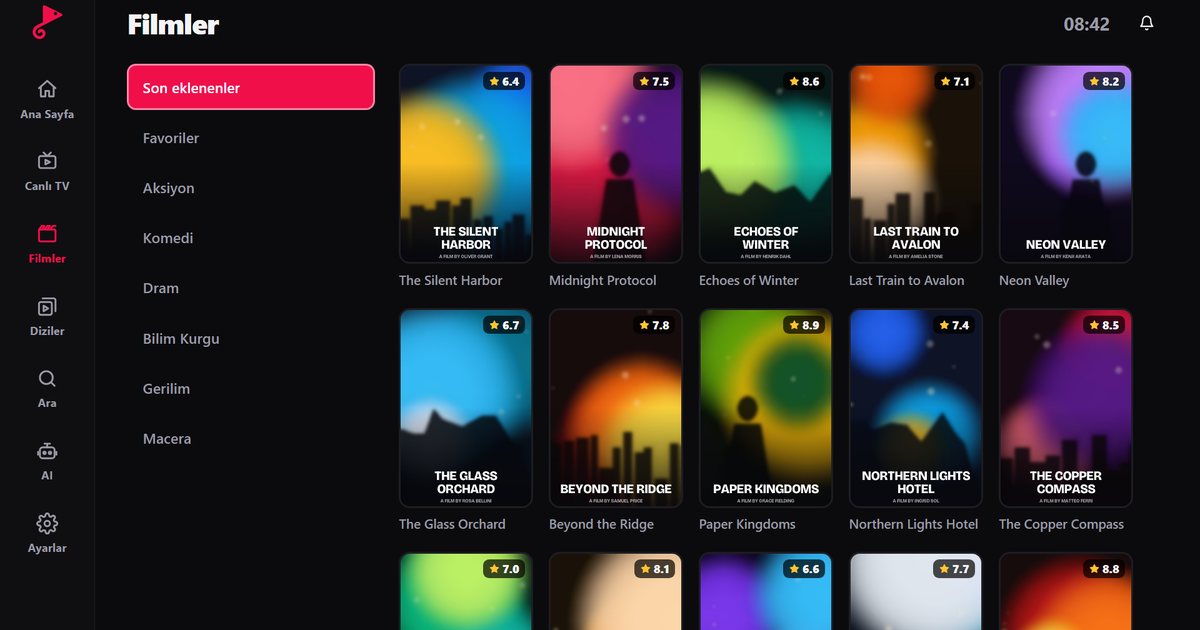
- Film and series pages show the poster, summary and season list, and the app remembers where you stopped.
- Favourites keep your regular channels in one list.
- The programme guide shows current and upcoming programmes when EPG data is available: EPG setup.
- Audio and subtitle language can be changed during playback when the stream offers more than one: audio and subtitles.
Before you add the playlist
Have your provider's details ready on the phone or computer you will use. Check that the TV clock and date are correct, as wrong system time can cause secure connections to fail on some apps. Make sure the TV is connected to the internet and that the connection test in the network settings passes. These checks take a minute and rule out the most common reasons for a first load that never finishes.
Troubleshooting on Samsung TVs
| Symptom | Likely cause | What to try |
|---|---|---|
| Picture freezes every few minutes | Weak Wi-Fi | Use an Ethernet cable or move the router closer |
| Playlist will not load | Damaged or expired link | Check for a trailing space and ask your provider for a current link |
| App not found | Old software or region | Update the TV software, then search again |
| Long start-up | Very large playlist | Use Xtream Codes if your provider offers it |
For speed targets and further steps, read IPTV internet speed and the buffering fixes.
Television settings that help
Switch the picture mode to a standard or cinema preset, and turn off motion smoothing if live sport looks unnatural. If the sound is out of sync with the picture, check the audio output setting and any soundbar delay options rather than the player. After the TV has been in standby for a long time, restart the app before assuming the playlist is at fault.
Other television brands
We have separate guides for LG webOS and Philips Titan OS, a general piece on IPTV players for Smart TVs, and an all-devices overview.
Note: QwertyPlayer is only a player and does not provide channels or playlists.
Frequently asked questions
How do I watch IPTV on a Samsung Smart TV?
Install an IPTV player from the Apps section, then add the M3U link or Xtream Codes details from your provider.
Do I need to type the playlist with the remote?
No. Enter the on-screen code at the Connect to TV page and send the playlist from your phone or computer.
I cannot find the app on my TV. What now?
Update the TV software and search again in Apps. Restart the TV after the update and search for QwertyPlayer again.
The stream freezes on my Samsung TV. What helps?
Use a cable connection, check your Wi-Fi signal and speed, and follow the buffering troubleshooting guide.
Try it with QwertyPlayer
Download with a free trial for Android, Android TV, Fire TV, Huawei and Windows.