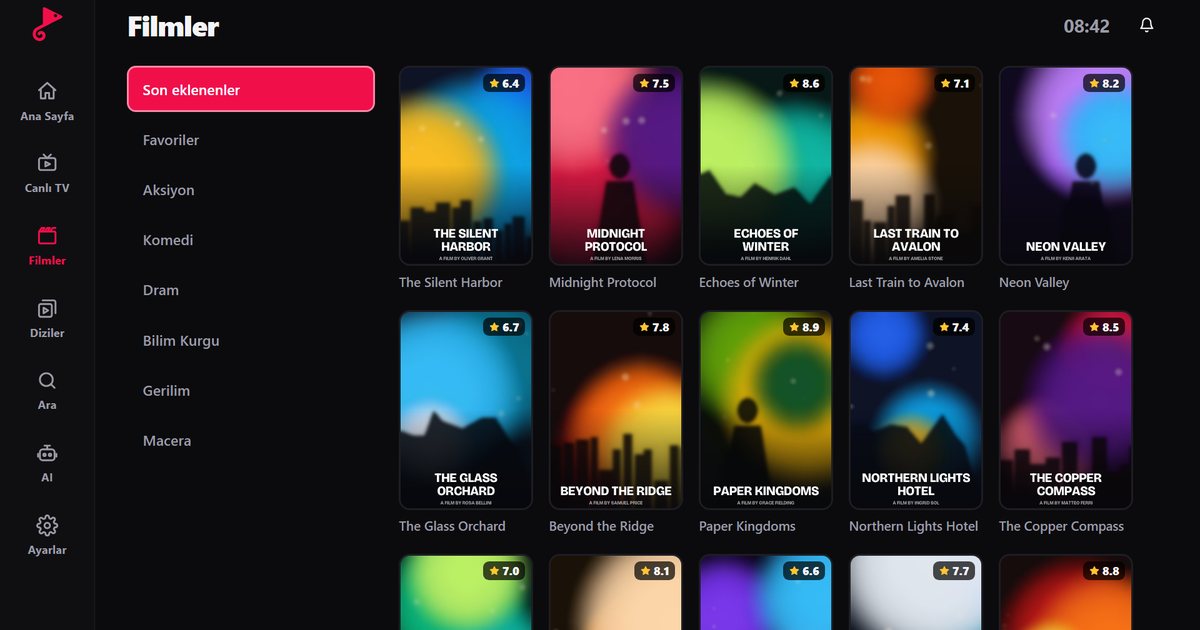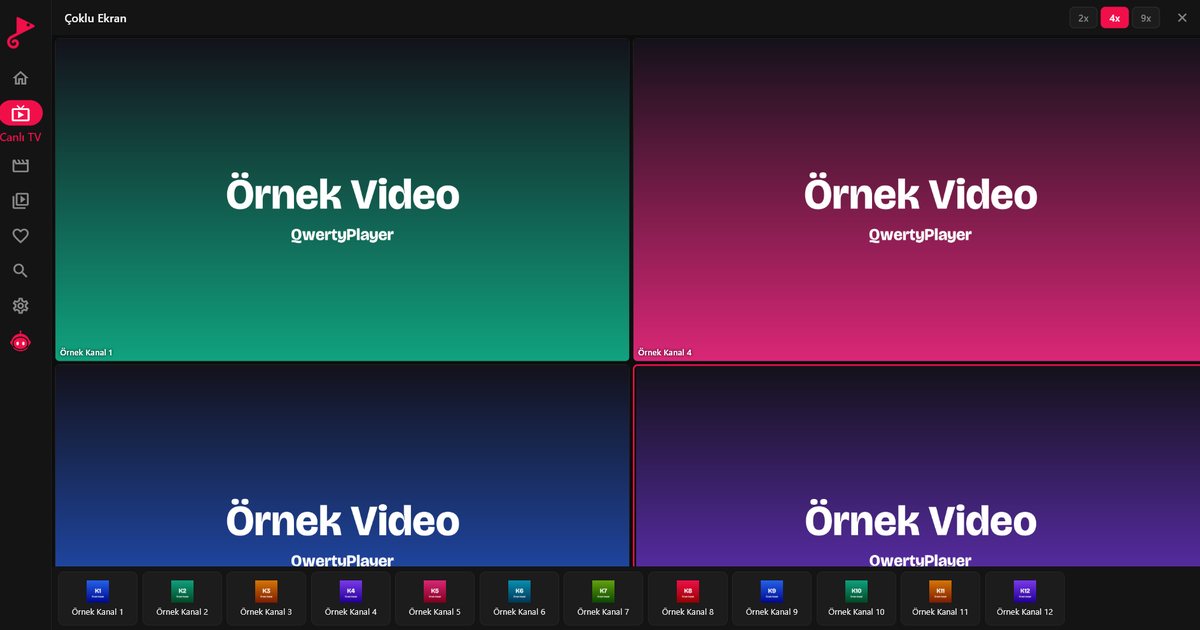
You open the store on your television, type the name of an IPTV player and get nothing back. Before you assume the TV is broken, remember that a store only shows apps built for that exact system, region and software version. This article lists the reasons an IPTV app is missing from a Smart TV app store in the order you should check them, from the quickest to the most decisive.
Check 1: search the right way
Type the name of the app without extra words, for example only QwertyPlayer, and try variants of the spelling if the store search is strict. Some stores search only inside a category such as Apps, Entertainment or Video, so open the main apps section rather than a themed row. Voice search is often less accurate than the on-screen keyboard for unusual names.
Check 2: confirm the TV's system
The logo on the TV does not decide which store you have. A Hisense, Sharp, Toshiba, Vestel, Arçelik, Beko, Regal, Dijitsu, Axen, Awox, Woon, Finlux, Seg, Next, Altus, Profilo or Onvo set can run different systems depending on the model. Find the platform name in the settings under About, Support or Device information.
| If the TV runs | Open | Further reading |
|---|---|---|
| Google TV or Android TV | Google Play | Android TV brands |
| Samsung Tizen | Smart Hub, Apps | Samsung Tizen models |
| LG webOS | LG Content Store | webOS TV brands |
| Titan OS | Titan OS app store | Titan OS brands |
| Anything else, including VIDAA and Roku | Not applicable | VIDAA TV |
Check 3: region and country setting
Many TV stores filter apps by the country selected in the system settings. If you bought the TV abroad, moved house or changed the country during setup, the catalogue may differ from the one your neighbours see. Look for a Country, Region or Location option in the general or support settings and select the country where you live. Note that on some systems the store reloads only after a restart.
Check 4: date, time and network
A TV with the wrong date, an expired network profile or a blocked DNS server sometimes opens an empty store. Set the date and time to automatic, confirm the TV has working internet by opening any other online app, and reconnect to the network. If the store still loads slowly, try a cable or another network briefly, such as a phone hotspot, to rule out your router.
Check 5: update the software
An old system version may have a store that no longer syncs. Look under Support or About for a software update option and install whatever is offered, then restart the TV. If your model gets no further updates, you have reached the end of what the TV can do, which leads to the last check.
Check 6: add an external streaming device
When the store really does not list the app for your system, the cleanest solution is an HDMI streaming device. A Fire TV Stick, an Android TV or Google TV box, or Chromecast with Google TV all provide the store that has QwertyPlayer. The article on the best device for IPTV on a TV compares them, and the guide to IPTV on an old Smart TV shows the connection steps. Avoid installing unofficial copies from websites: they can be unsafe and may stop working after an update.
After you find the app
Install it and add your playlist. The Smart TV install guide walks through the first launch, and the phone-to-TV method in Connect to TV avoids typing with the remote.
The app does not include any channels; they come from your provider.
Frequently asked questions
Why can I not find QwertyPlayer in my TV store?
The store may be limited to another region, the TV software may be outdated, or the TV may run a system for which no version exists, such as VIDAA or Roku.
Does changing the country setting really change the app list?
On many systems, yes. The catalogue follows the selected country, so set it to where you live and restart the TV.
Should I download the app from a website instead?
We advise against unofficial copies. Use the official store of your system, or an HDMI streaming device if the store lacks the app.
My Turkish-brand TV store is empty. Is that normal?
Brand-specific systems often have small catalogues. Check whether the model runs Android TV or Google TV, otherwise add an external device.
Which external device should I buy?
Any of Fire TV Stick, Android TV or Google TV box, or Chromecast with Google TV will run QwertyPlayer. Pick by interface and network options.
Try it with QwertyPlayer
Download with a free trial for Android, Android TV, Fire TV, Huawei and Windows.