webOS is best known as the system on LG televisions, but LG also licenses it to other manufacturers. If you own one of those sets and you are looking for an IPTV player for a webOS TV, the first job is not installing anything. It is finding out whether your particular television really runs webOS, because a brand name alone does not tell you.
Which brands use webOS?
When LG announced the licensing programme in 2021, the third-party brands named included Sunny, Polaroid, RCA, Ayonz, Konka, Linsar, Makena, Hyundai and Aiwa. That list can change over time, and a brand that uses webOS on one model may sell other models with a different system. Treat the list as a starting point, and look at your own set. Owners of a Sunny television can also read the dedicated Sunny TV guide.
Check that your TV really runs webOS
Any one of these checks is usually enough, and two together settle it.
- Box, manual or spec sheet: look for the webOS name or logo. Retail listings often state the smart platform in the feature list.
- Home screen: webOS shows a launcher bar of app tiles along the bottom of the screen, and one of the tiles opens the LG Content Store.
- Settings: open the general or about section of the settings and look for a webOS version. The guide to finding your webOS version explains where it is and how to read it.
| What you see | What it means | What to do |
|---|---|---|
| Launcher bar with a Content Store tile | The set runs webOS | Search the store for the app |
| Home screen of large app rows with a Google Play store | Android TV or Google TV | Follow the Google TV guide |
| Amazon-style home screen | Fire TV | Follow the Fire TV guide |
| Anything else, or no app store at all | Own or limited system | Use an external device, see below |
Install the app on a webOS set
- Press the home button and open the LG Content Store.
- Use the search icon and type "QwertyPlayer".
- If the app is listed, open it and choose install. If you can see the app in the store, your model is supported.
- Start the app. It shows an address and a short-lived, single-use code.
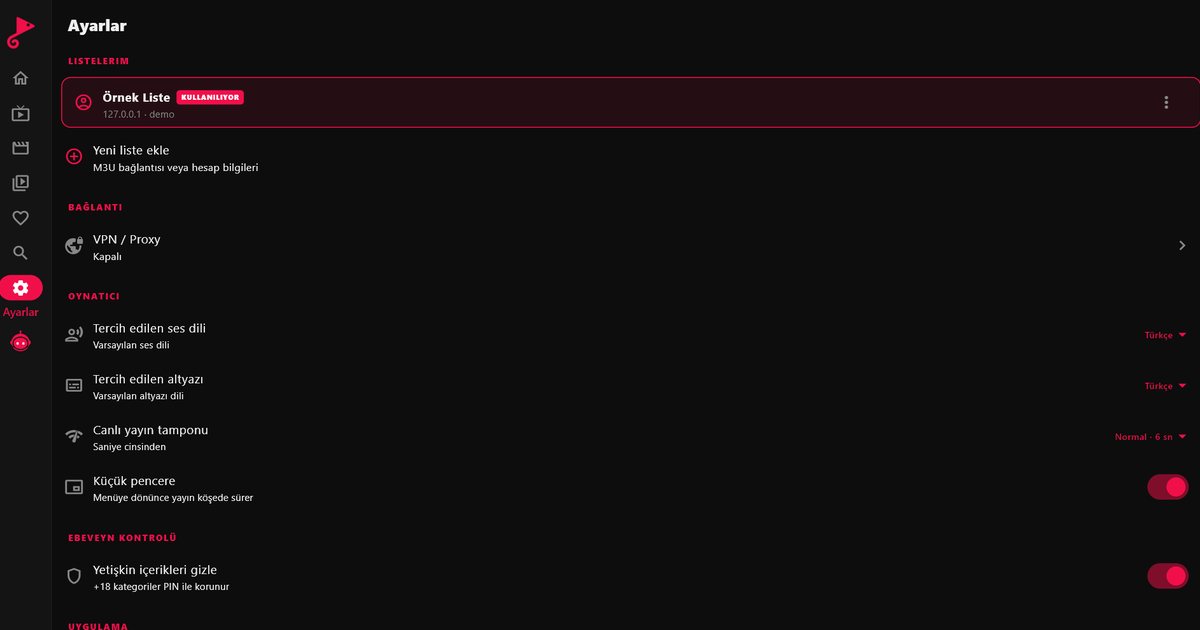
- On a phone or computer, open the Connect to TV page, enter the code and add your M3U link or Xtream Codes details. The playlist is sent to the television, so there is nothing to type with the remote.
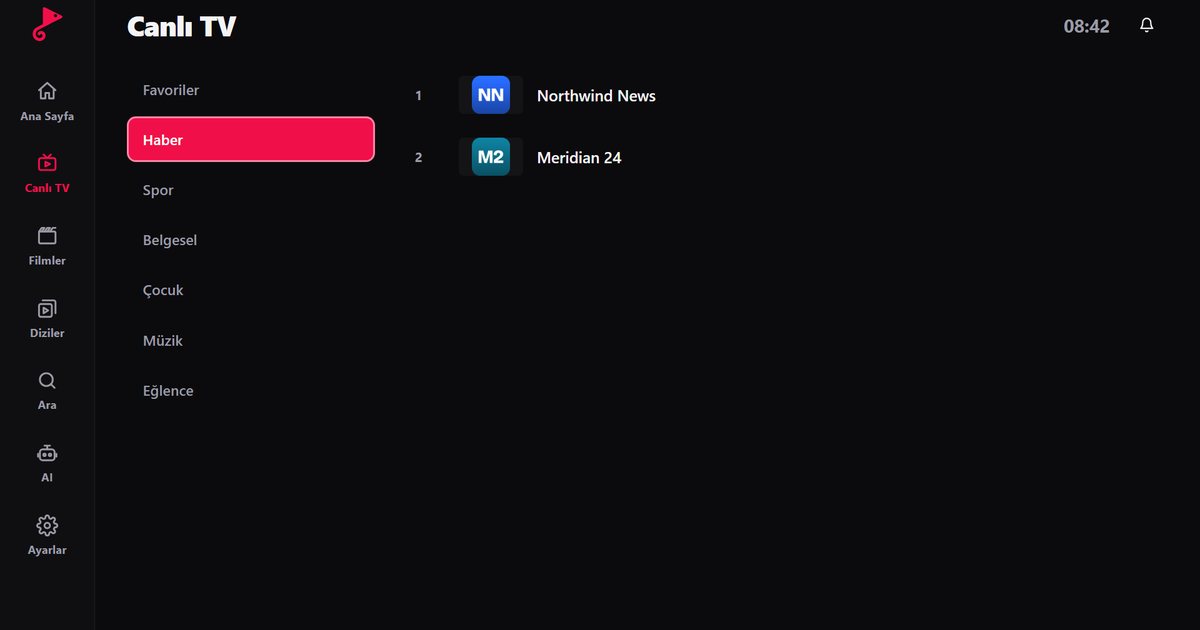
Open the LG Content Store, search for QwertyPlayer and install it.
If the app does not appear in the store
Work through these points in order before drawing a conclusion:
- Update the television software, then restart it and search again.
- Check that the date, time and country in the settings are correct, since stores filter by region.
- Try a shorter search such as "Qwerty".
- If nothing appears, update the TV software and search again.
In that case the television still works as a screen. A Fire TV Stick, an Android TV box or a Chromecast with Google TV plugged into an HDMI port runs the app independently of the set's own system. The Fire TV guide, the Android TV box guide and the Chromecast guide compare these options. Whichever device you choose, you keep the same playlist and the same interface.
Getting a stable picture on a budget set
Licensed brands are often chosen for value, and lower-priced sets usually have modest processors and memory. A few habits keep them responsive:
- Use an Ethernet cable when the TV has a port. It avoids most Wi-Fi problems.
- Remove apps you never open, and restart the television now and then.
- Mark the channels you use as favourites, so you do not scroll through a very large list on a slow remote.
- If the picture freezes, follow the buffering fixes from the simplest cause to the most complex.
More about webOS television brands
The overview of webOS TV brands places LG and the licensed makers side by side, and the LG webOS guide covers the original platform in detail. For other systems, see IPTV players for Smart TVs.
Note: QwertyPlayer is only a player. It does not provide, sell or recommend channels, films or playlists. You add content from a provider you are entitled to use.
Frequently asked questions
Which TV brands use webOS besides LG?
LG licenses webOS to other makers. The 2021 announcement named Sunny, Polaroid, RCA, Ayonz, Konka, Linsar, Makena, Hyundai and Aiwa, but the list can change and not every model of those brands runs webOS.
How do I know if my Polaroid or RCA TV runs webOS?
Look for the webOS name on the box or spec sheet, check for a launcher bar with an LG Content Store tile, or find a webOS version in the settings.
I cannot find the app in the LG Content Store. What now?
Update the software, check the region and date settings and search again. If it is still missing, plug in a Fire TV Stick, an Android TV box or a Chromecast with Google TV.
Does a licensed webOS TV get the same apps as an LG?
The store is the same system, but the apps offered can differ by model, software version and region. Search for the app on your own set.
Do I need to type my playlist with the remote?
No. Use the code shown by the app at the Connect to TV page and send the playlist from your phone or computer.
Try it with QwertyPlayer
Download with a free trial for Android, Android TV, Fire TV, Huawei and Windows.