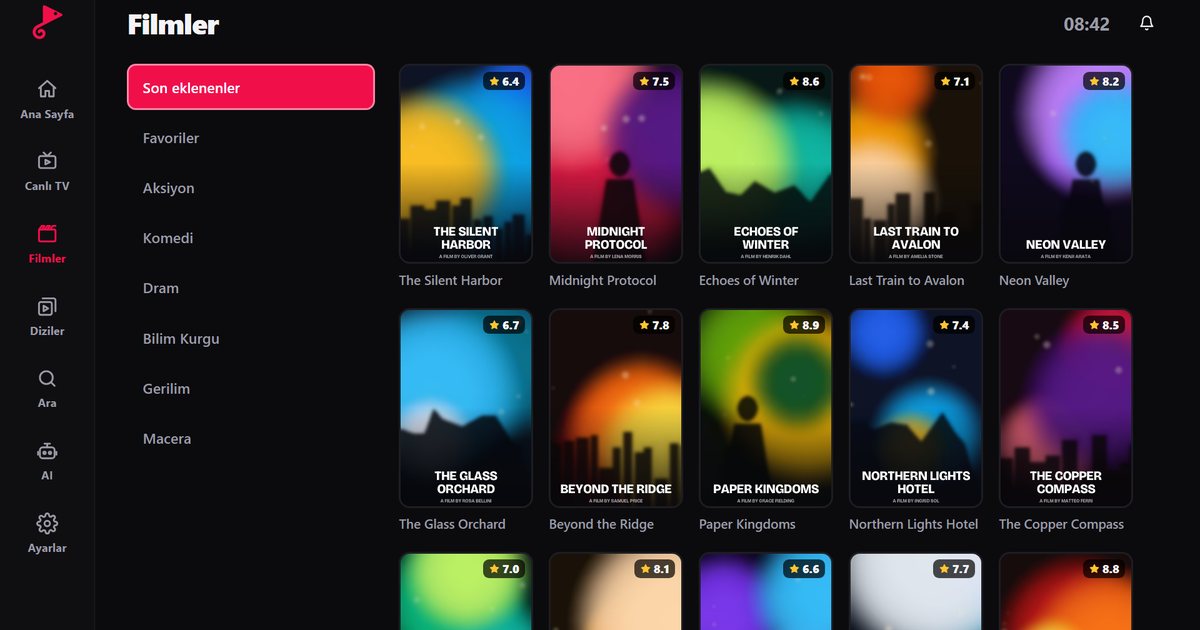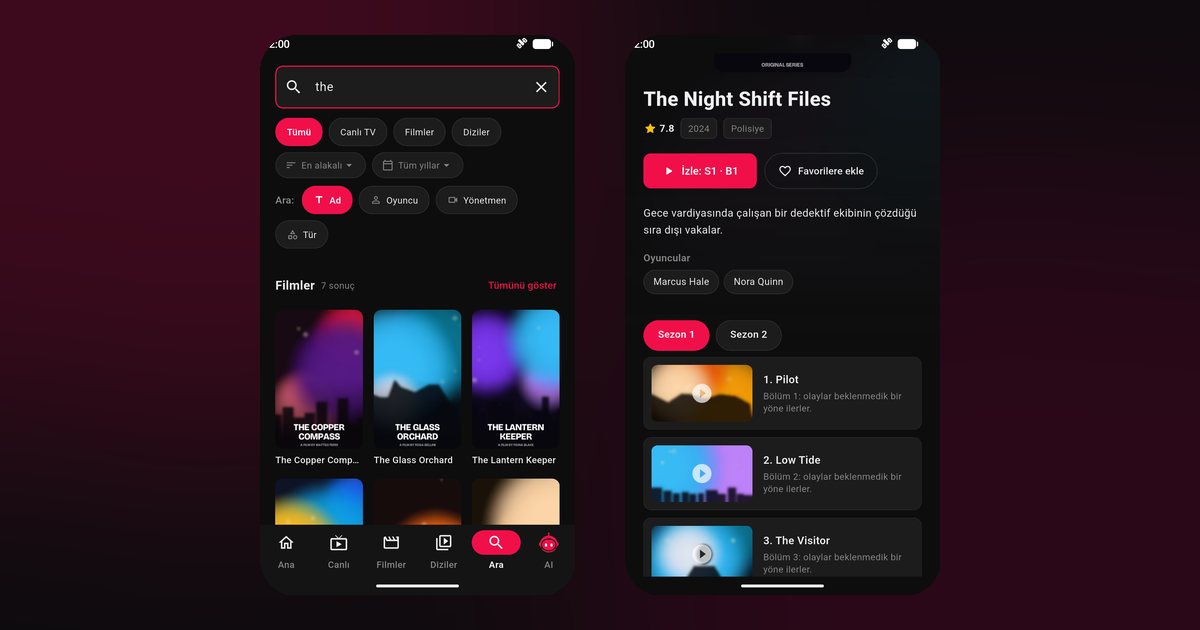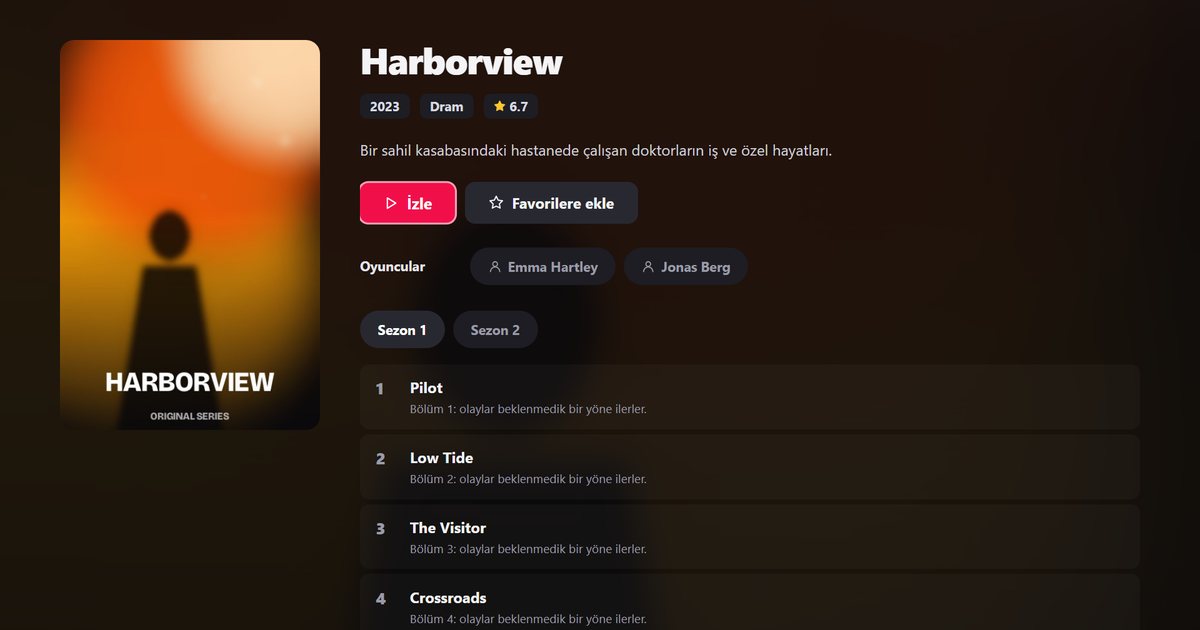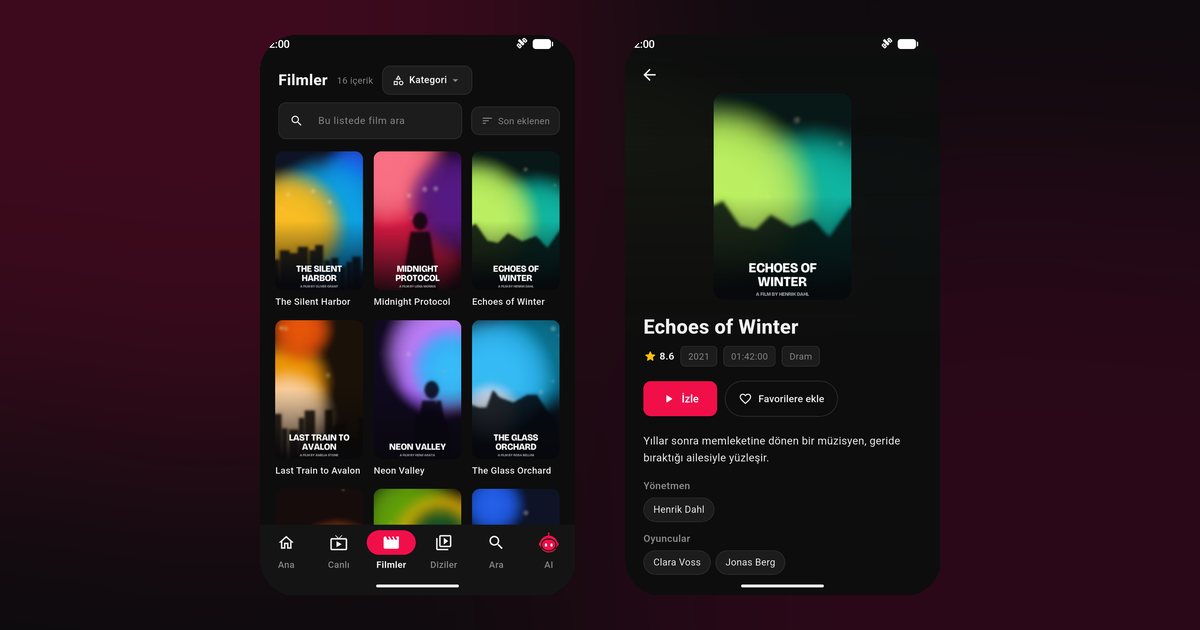
Android phones and tablets are among the easiest devices for IPTV: there are plenty of apps, the screens are big, and installing takes a minute. A good Android IPTV player should open large playlists without freezing, show a programme guide, let you pick audio and subtitle languages, and recover when the connection drops for a moment. QwertyPlayer was built around those requirements.
Install and add a playlist
- Search for "QwertyPlayer" in Google Play, or use the links on the download page.
- Open the app and go to the add-playlist screen.
- Paste your M3U link, or enter the Xtream Codes server address, username and password.
- Save. When the playlist has loaded, the categories appear.
Phones without Google services, such as recent Huawei models, install from a different store; the Huawei AppGallery guide covers that case.
M3U or Xtream Codes on Android
On a phone, pasting a link is easy, so either format works. Xtream Codes tends to load faster with very large libraries and gives cleaner categories, artwork and programme data, while an M3U link is simpler when you only have one URL. If a link will not load, check the end of the text for a stray space, make sure it was copied completely, and ask your provider whether it has expired. The Xtream Codes guide and the M3U8 playlist explainer go into detail.
Features worth setting up
- Multi-screen viewing: keep more than one stream in view when your device and playlist allow it.
- Proxy and VPN settings: in Settings you can enter your own WireGuard configuration or a SOCKS5 or HTTP proxy. This applies only to QwertyPlayer's own traffic, and we do not provide a VPN service. See the proxy and VPN guide.
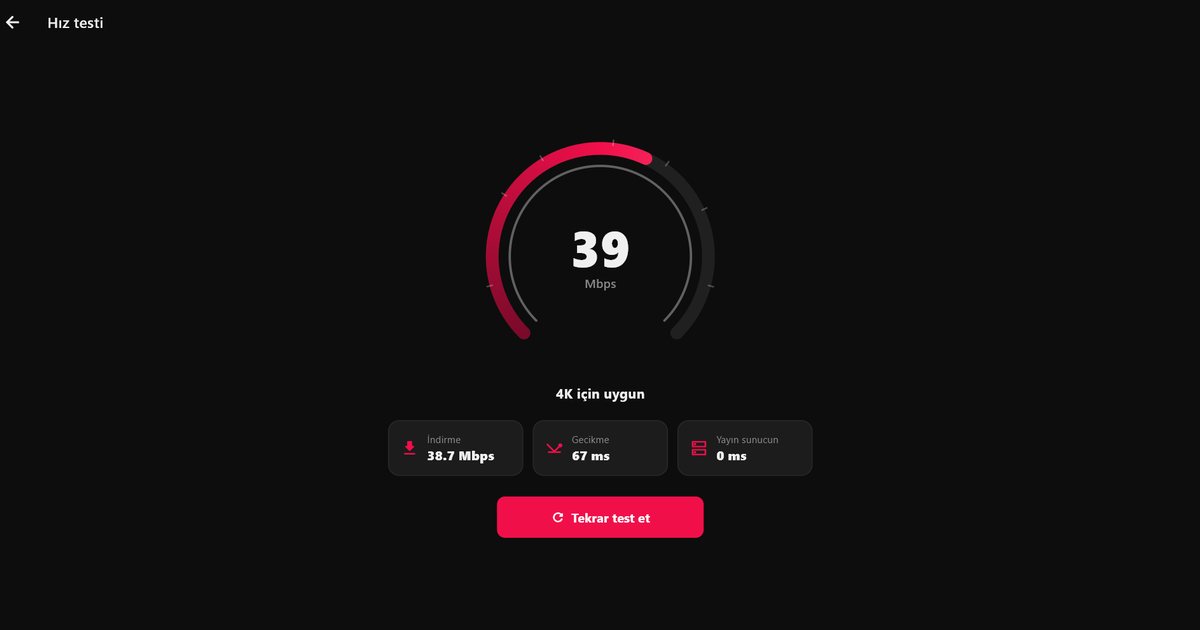
- Speed test: measure the connection from inside the app. The article on how many Mbps you need helps you read the result.
- EPG and search: follow the EPG setup guide to see what is on now and next.
- Favourites and resume: return to your channels and episodes quickly.
Keep playback stable
Battery saver modes are a common hidden cause of interrupted playback. If a stream stops when you lock the screen or switch apps, open the phone's battery settings and remove restrictions for the app. For buffering, switch from mobile data to Wi-Fi or move closer to the router, then work through the buffering fixes in order. If a playlist does not load at all, test the link on another device to find out whether the problem is the link or the phone.
Phone or tablet?
On a phone, hold the device in landscape and let the video use the full screen. On a tablet, use the extra width to see the programme guide and the channel list together. Keep Android and the app updated, because updates often contain playback fixes. If a particular channel fails while others work, the problem is usually that one stream, so try another before changing any settings.
From phone to television
If you also watch on a TV, enter the code shown on the television at the Connect to TV page and send the same playlist from your phone. For Android-based televisions, read the Android TV box guide. Every platform is listed in the all-devices overview.
Note: QwertyPlayer is only a player and does not provide or sell any content. Use it with streams you have the right to watch.
Frequently asked questions
What is the best free IPTV player for Android?
Choose an app that is free to download, explains the permissions it asks for, and supports EPG and search. Our guide to free IPTV players lists what to check.
How do I add an M3U playlist on Android?
On the add-playlist screen choose the M3U option, paste the link and save.
Which APK or store should I use?
Use Google Play when you can. Only install from sources you trust, and use the download page links if Google Play is not available on your device.
Can I use a VPN or proxy on Android?
Yes. Settings has options for your own WireGuard configuration and for SOCKS5 or HTTP proxies. They apply to the app's own connection only.
Why does the stream stop when the screen is off?
Battery saver settings may be restricting the app. Remove the restriction for QwertyPlayer in the phone's battery settings.
Try it with QwertyPlayer
Download with a free trial for Android, Android TV, Fire TV, Huawei and Windows.