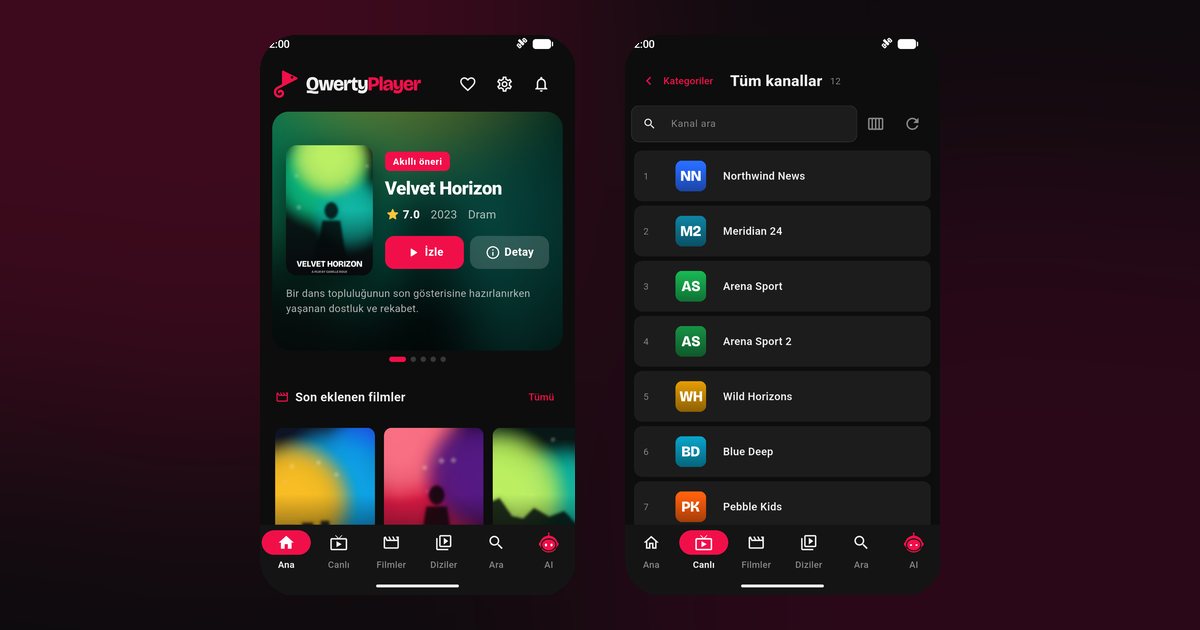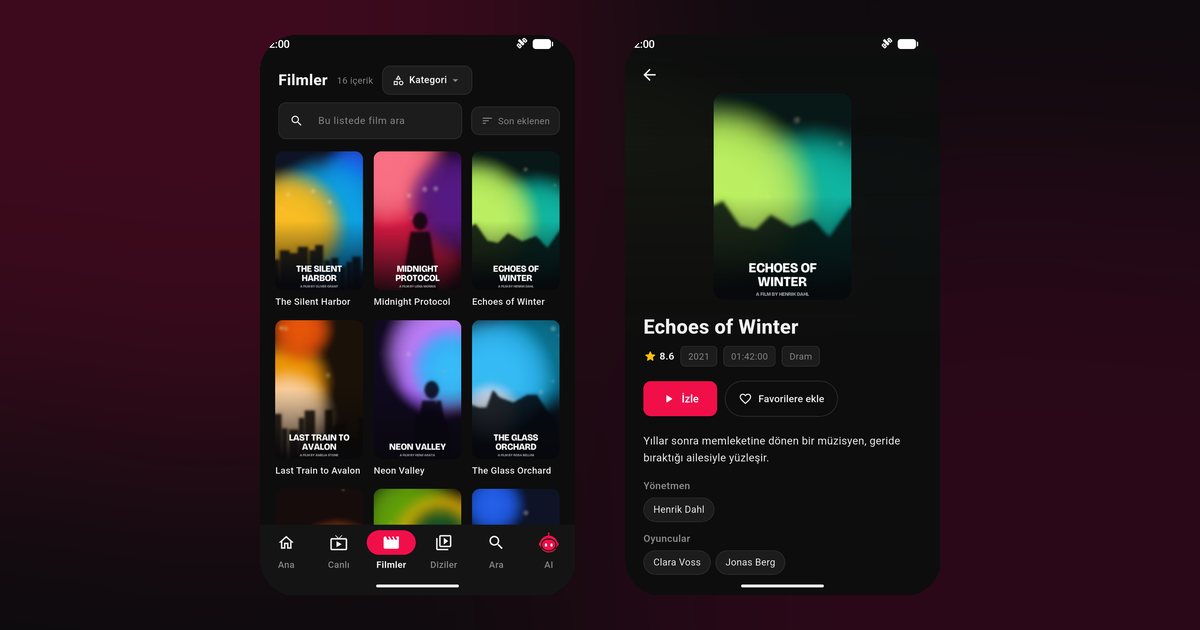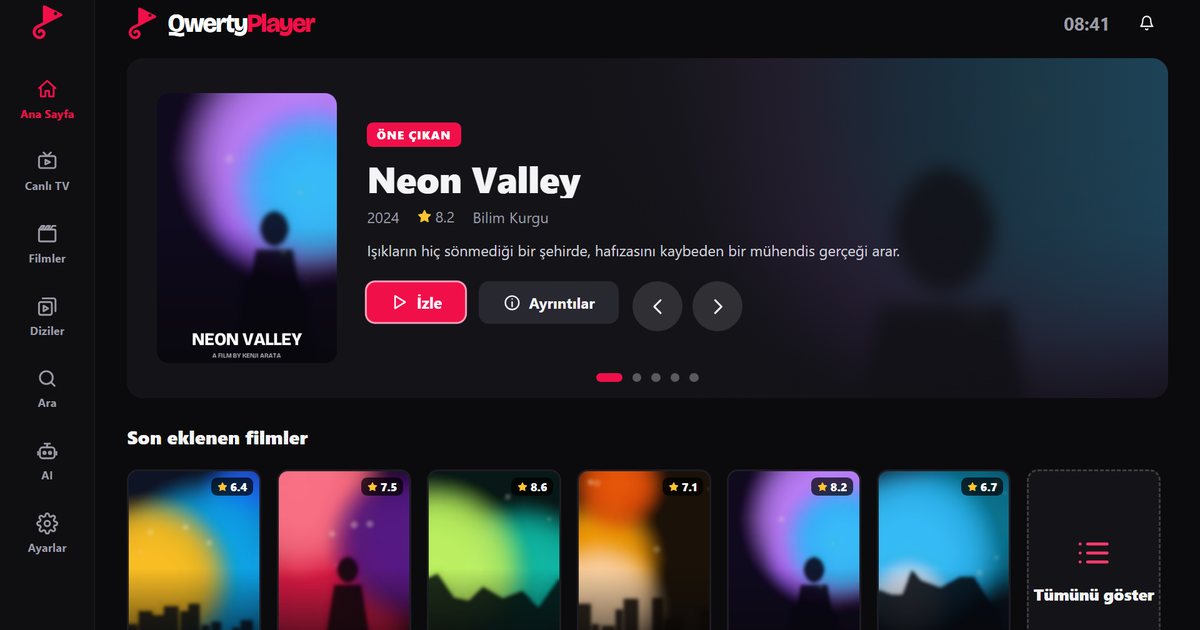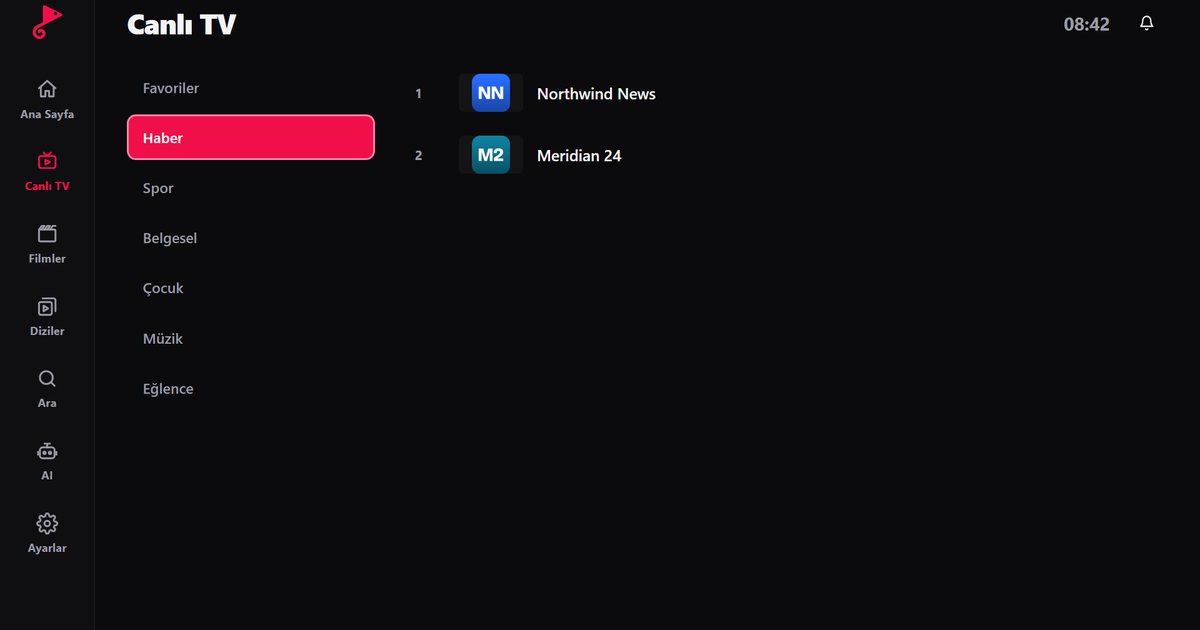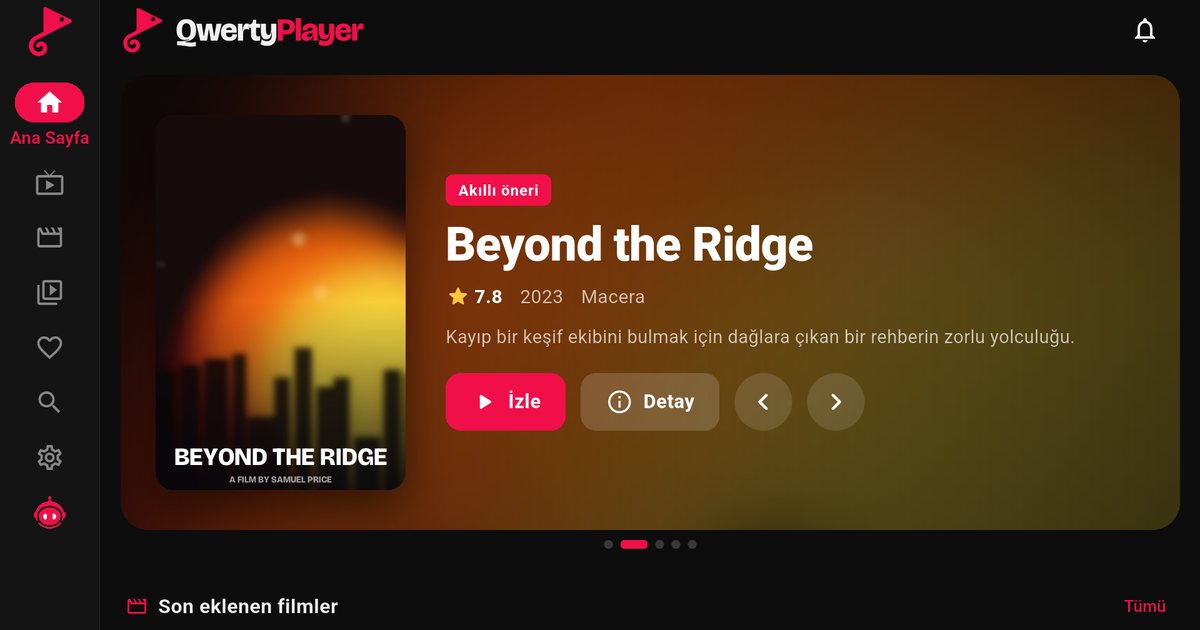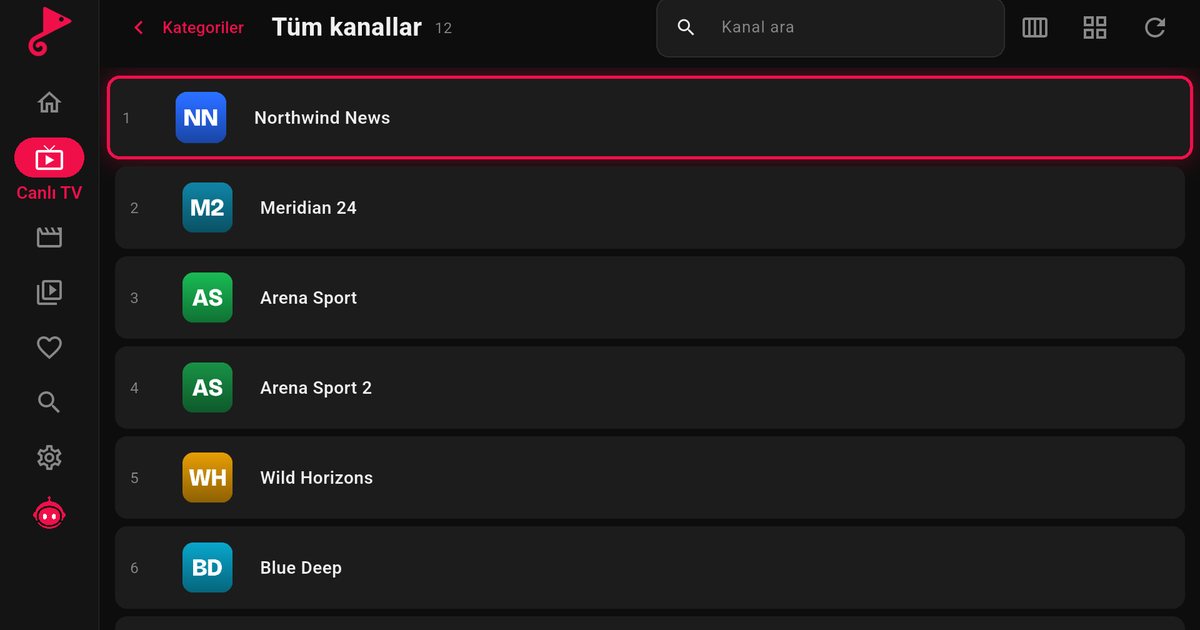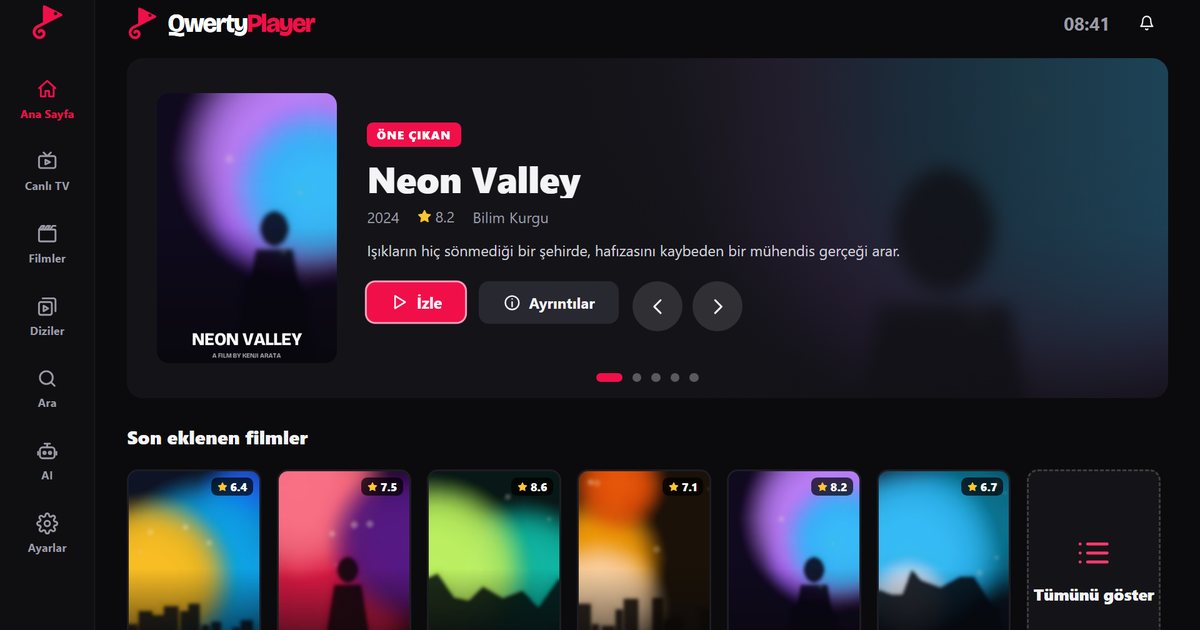
Most homes have more than one screen: a television in the living room, a Fire TV Stick in the bedroom, a phone on the sofa and a laptop on the desk. When you choose an IPTV player, the biggest convenience is being able to use the same app on all of them. QwertyPlayer is built for exactly that. You bring one playlist (an M3U link or an Xtream Codes account) and get the same organised interface on every device.
Setup guides by device
Each platform has its own app store and its own remote-control quirks, so we wrote a separate guide for each one.
- iPhone and iPad: IPTV player for iPhone and IPTV player for iPad
- Android phones and tablets: Android IPTV player. If your phone has no Google services, read the Huawei AppGallery guide
- Android TV, TV boxes and Google TV: Android TV box IPTV player and Google TV and Chromecast
- Amazon Fire TV Stick: IPTV player for Fire TV and adding an M3U playlist
- Samsung, LG and Philips TVs: Samsung Tizen, LG webOS and Philips Titan OS
- Computers: Windows IPTV player and Mac IPTV player
One playlist, many screens
Your provider gives you either an M3U link or Xtream Codes details (server address, username and password). You enter the same details once on each device. Typing a long link with a TV remote is slow and error-prone, so on televisions it is easier to use the Connect to TV page: the TV shows an address and a short-lived, single-use code, you type that code on your phone or computer, and the playlist is sent to the TV from there. If you are not sure which format you have, the guide to M3U and Xtream Codes explains the difference.
One practical point: how many devices can stream at the same time is decided by your provider, not by the player. If a second screen refuses to play while the first one is running, check the connection limit on your subscription before changing any settings.
Which device suits which kind of viewing?
| Device | Best for | Worth knowing |
|---|---|---|
| Smart TV or TV box | Evening viewing, films, series | A wired connection is more stable than Wi-Fi |
| Fire TV Stick | Cheap upgrade for an older TV | Add the playlist remotely instead of typing it |
| Phone or tablet | Travel, quick channel checks | Mobile data uses a lot of traffic |
| Windows or Mac | Desk work, big monitor | Easy to paste long links |
What QwertyPlayer includes
- Live TV, films and series in separate sections, with posters, summaries and season and episode lists.
- Search, favourites and resume where you left off.
- A programme guide (EPG) when your provider supplies the data: how to set up EPG.
- Audio and subtitle language selection when the stream offers it: audio and subtitle settings.
- Parental controls with a PIN: using it safely with children.
- Interface languages: English, Turkish, German and French.
Cost and choosing between players
QwertyPlayer is currently free to download and use. If you are comparing options, the article on free IPTV players lists what to check before installing anything, and how to choose an IPTV player gives a short checklist covering format support, speed with large lists and update history.
Before you start: three things to prepare
- Keep your provider's welcome message or account page open, because it contains the link or the server details.
- Check how many simultaneous connections your subscription allows, so you know how many screens can play at once.
- Decide where you will do the typing. A phone or computer is far easier than a TV remote.
Important note
QwertyPlayer is only a player. It does not provide, sell or recommend channels, films or playlists. You add content from a provider you are entitled to use, and you are responsible for having the right to watch it. We do not give legal advice; our article on legal and safe IPTV use covers the basics.
Frequently asked questions
Are IPTV player and IP TV player the same thing?
Yes. Both mean an app that plays television streams delivered over the internet. "IPTV" and "IP TV" are two spellings of the same technology.
Can I use the same playlist on several devices?
You can enter the same playlist details on each device. How many devices may stream at once depends on your provider's rules.
Do I have to type my playlist with the TV remote?
No. Enter the code shown on the TV on the Connect to TV page at qwertypro.xyz and send the playlist from your phone or computer.
Does QwertyPlayer provide channels?
No. It only plays what you add. You need your own M3U link or Xtream Codes account from a provider.
Is QwertyPlayer free?
It is currently free to download and use.
Try it with QwertyPlayer
Download with a free trial for Android, Android TV, Fire TV, Huawei and Windows.