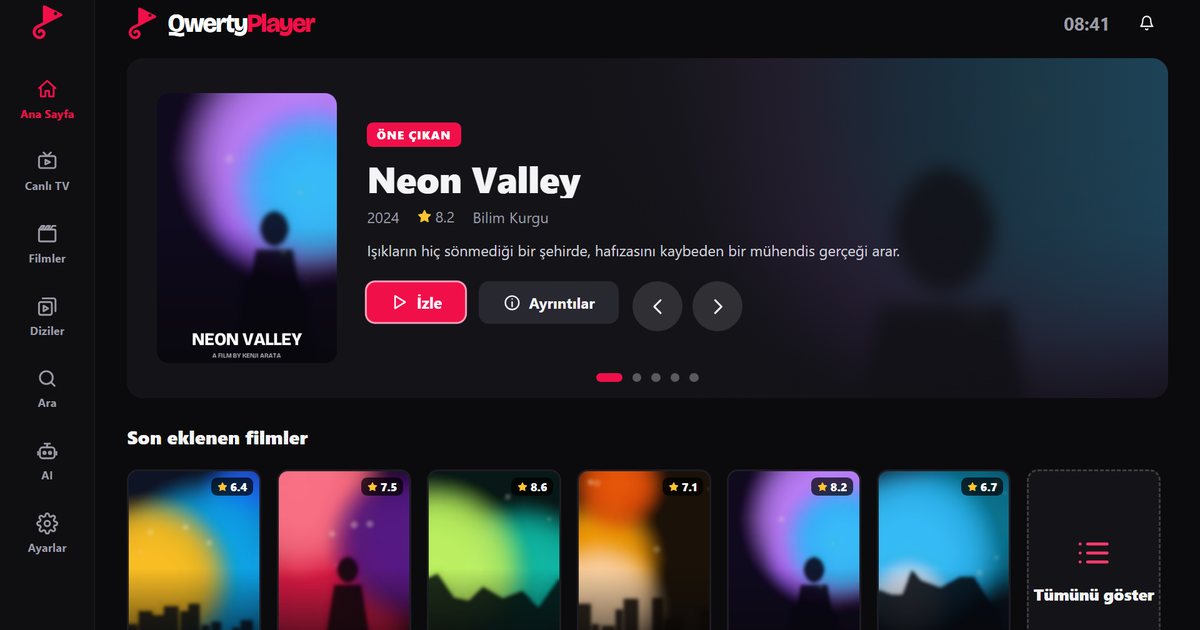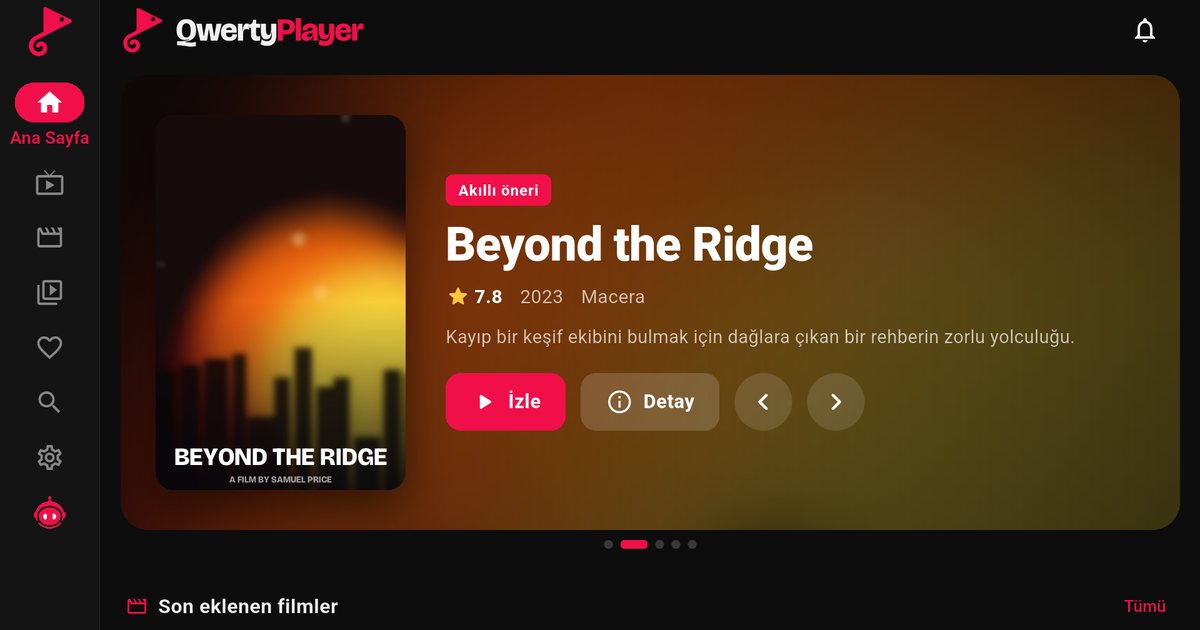
Newer Philips and JVC televisions use an operating system called Titan OS. For anyone searching for an IPTV player for Philips TV, the main difficulty is that the platform has a smaller app selection than Android TV or Tizen. QwertyPlayer is built for Titan OS and plays M3U and Xtream Codes playlists as live TV, films and series.
What is Titan OS?
Titan OS is a web-technology-based smart TV system used by Philips and JVC among other brands. Apps are installed from the TV's own store. You can browse the public Titan OS app catalogue here. Do not confuse these sets with older Philips models that run Android TV: those use the Play Store, and the Android TV guide applies to them instead.
Install the app
- Press the home button on the remote and open the app store.
- Use the search field and type "QwertyPlayer".
- Install the app and open it. An address and a code are displayed on screen.
- On a phone or computer, open the Connect to TV page, enter the code and add your playlist. It is sent to the TV, so you do not have to type it with the remote.
Search inside a TV store can be limited, and results sometimes depend on the software version. If the app does not show up, update the television's software and search again, and check the catalogue link above to see whether it is listed for your region.
Day-to-day use
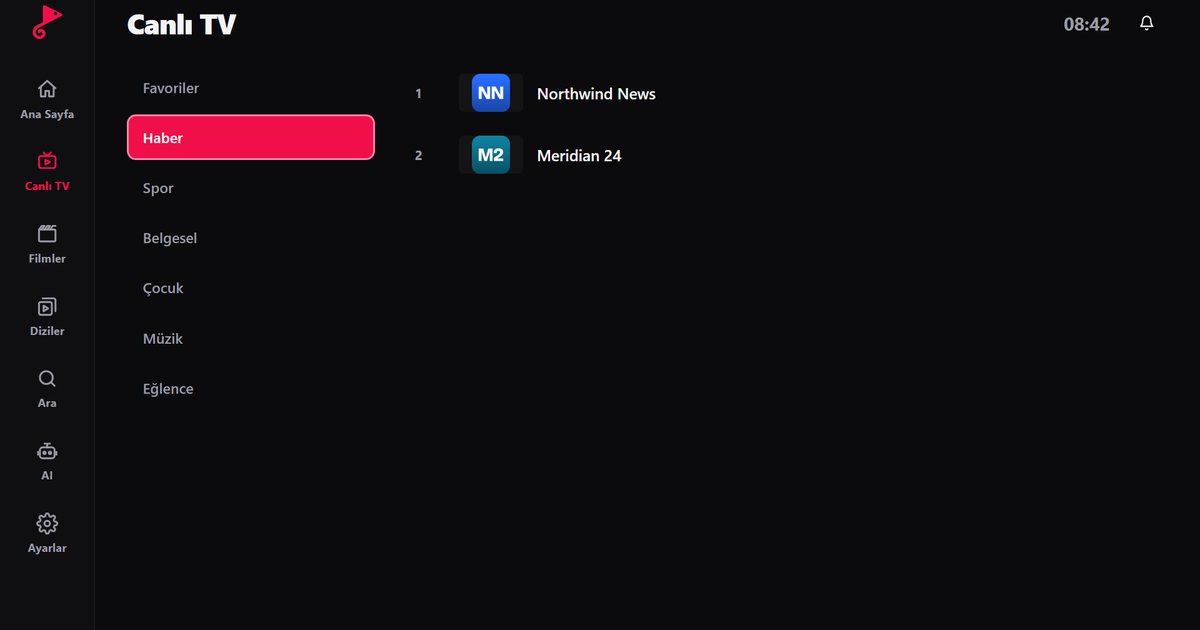
- The arrow keys and the OK button move through every menu. Categories and channels are shown next to each other on the live TV screen.
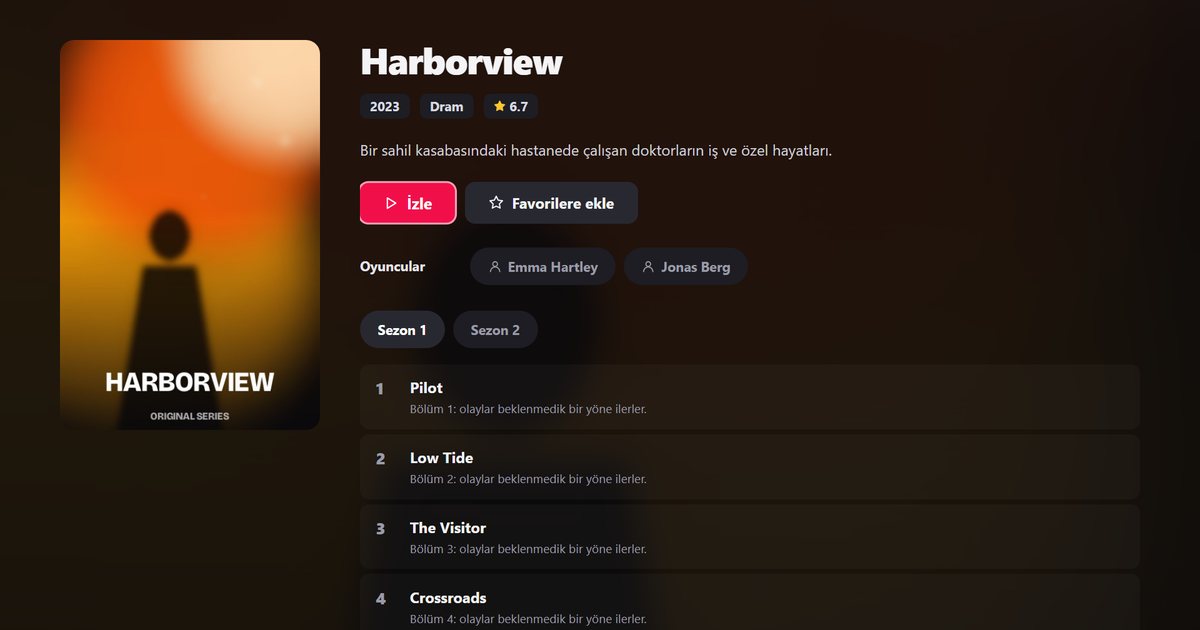
- Film and series pages show the poster, summary and season and episode lists.
- The programme guide uses EPG data from your provider. Xtream Codes accounts usually have it ready, while M3U lists may need an XMLTV address: EPG setup guide.
- If you cannot log in with Xtream Codes, check the server address, port, username and password. The Xtream Codes guide lists the usual errors.
- If children share the television, keep adult categories hidden. They are hidden by default and unlocked with a PIN you choose in Settings: parental controls.
Freezing and buffering
A wired Ethernet connection removes most network problems on a television. If the TV has to use Wi-Fi, a 5 GHz connection close to the router is better than a crowded 2.4 GHz one. To judge what your line can support, read how many Mbps IPTV needs, and use the buffering troubleshooting guide for the step-by-step checks.
Practical notes for Titan OS
Because the platform is built on web technology, apps update through the TV store rather than through a separate file. Keep automatic updates on if the television offers that option. If you share the TV with guests, remember that the playlist is stored in the app, so use parental controls and set a PIN. Titan OS sets from different brands can look slightly different, but the steps in this guide stay the same: install, note the code, send the playlist from another device.
Other brands
Samsung owners can read the Tizen guide, LG owners the webOS guide. For an overview see IPTV players for Smart TVs, and for every platform in one list, the all-devices guide.
Note: QwertyPlayer is only a player. It does not provide, sell or recommend channels or playlists.
Frequently asked questions
Can I watch IPTV on a Philips TV?
On Philips sets running Titan OS you can install an IPTV player from the TV store and add an M3U link or Xtream Codes account.
What is Titan OS?
A web-based smart TV operating system used on newer Philips and JVC televisions.
Does it work on older Philips TVs?
Older Philips models with Android TV use the Android TV version from the Play Store instead.
How do I add my playlist on a Philips TV?
Enter the on-screen code at the Connect to TV page and send the playlist from a phone or computer.
Try it with QwertyPlayer
Download with a free trial for Android, Android TV, Fire TV, Huawei and Windows.