When IPTV keeps buffering on a Smart TV, the picture freezes, a spinner appears and sometimes the sound carries on without video. The cause is rarely one single thing. It might be the Wi-Fi signal, a busy network, an overloaded TV, or the stream itself. Work through the checklist below in order, because the early steps are quick and fix most cases.
Step 1: decide whether it is one channel or all of them
Try three or four different channels and one film. If only one channel struggles, the problem is that stream on the provider side, and nothing on your TV will change it. If every channel buffers, keep reading. Also note when it happens: constant problems point to the connection, whereas freezing only in the evening points to congestion in your home or at your provider.
Step 2: check the connection from the TV
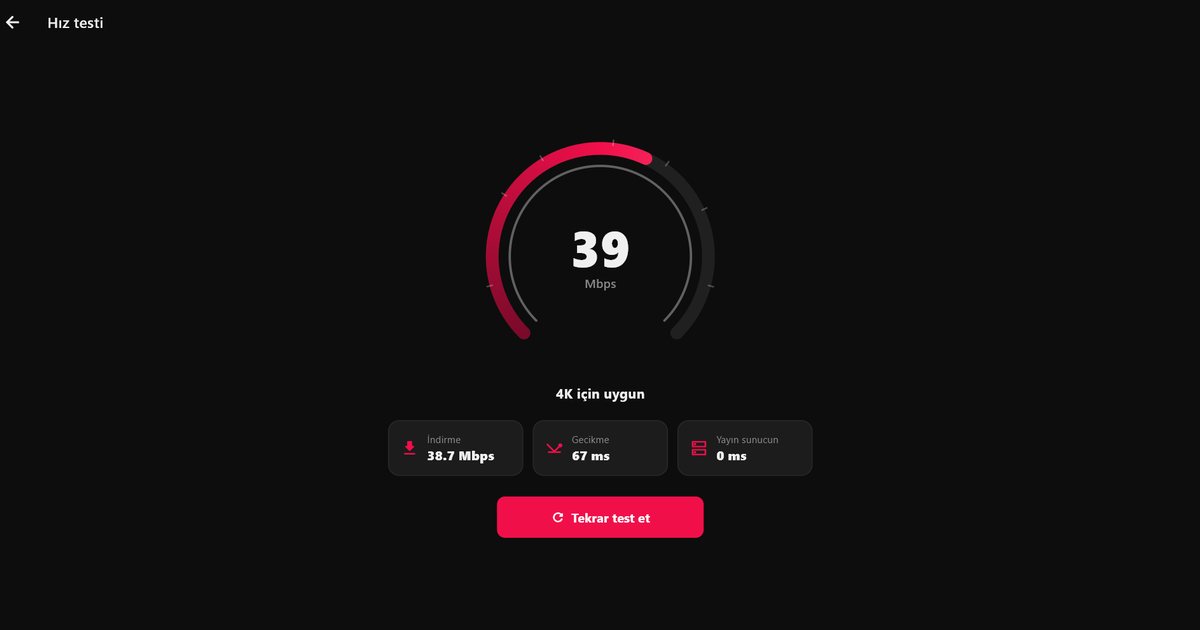
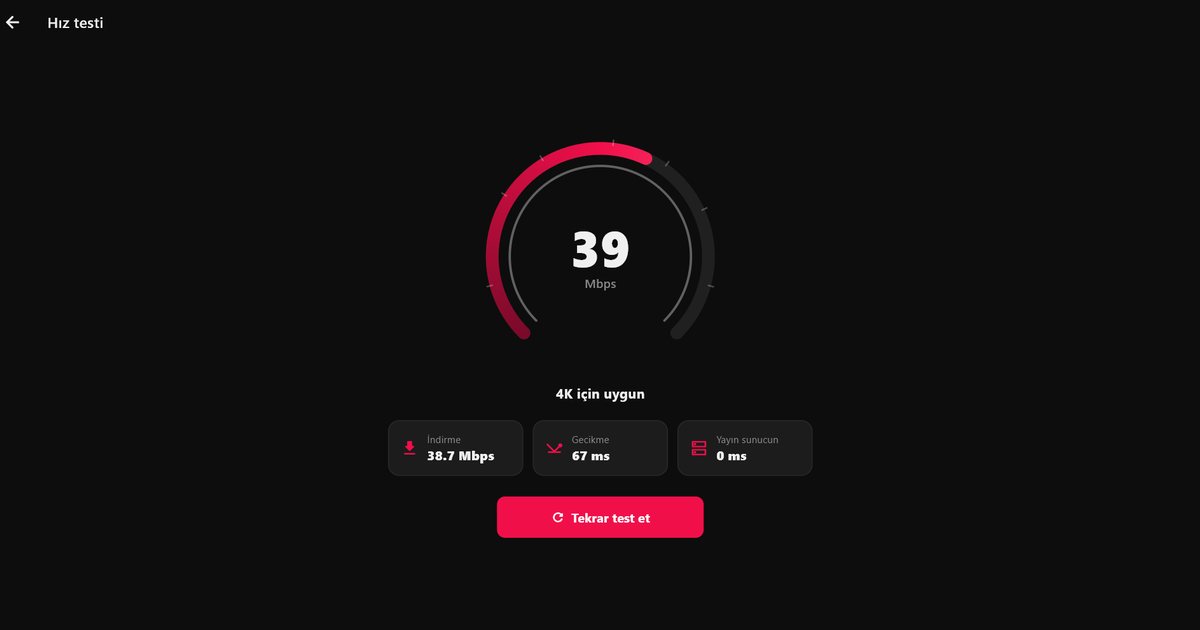
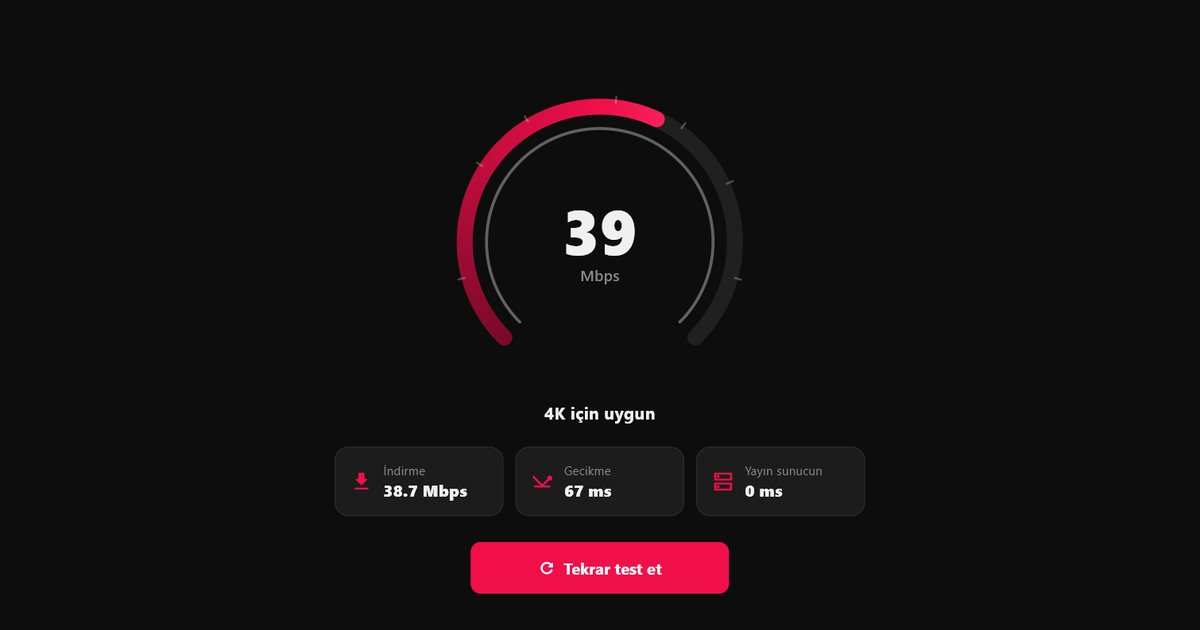
Run the speed test inside QwertyPlayer. It measures the connection the app actually uses, which is more useful than a test on your phone. For rough targets by picture quality, read how many Mbps IPTV needs. What counts is a steady speed, not a single high peak. A connection that swings wildly causes more stalls than a slower, stable one.
Step 3: improve the network path
- Use an Ethernet cable if your TV has a port and the router is within reach. A cable removes interference and is the single most effective fix.
- Prefer the 5 GHz Wi-Fi band if you must stay wireless and the router is in the same room or close by. The 2.4 GHz band is slower and more crowded.
- Reduce competing traffic. Game downloads, cloud backups and several people streaming at once all take bandwidth.
- Restart the router if it has been running for weeks.
- Move the router or add a mesh node if walls or a large distance sit between router and TV.
Step 4: relieve the TV itself
Smart TVs have modest processors and little memory compared with a phone. If the TV is slow in general, not only with IPTV, try the following.
- Close apps that run in the background and restart QwertyPlayer.
- Restart the whole TV, and for a deeper reset unplug it for a minute.
- Clear the app cache if your system offers that option in the app settings. Menu names depend on the system.
- Install pending system and app updates, because updates often include playback improvements.
- Free up storage if the TV is nearly full.
If the TV is old and still struggles with everything, a small external device will do better than any setting. The article on IPTV on an older Smart TV covers that route, and the guide to the best device for IPTV on a TV helps you pick one.
Step 5: consider the route to the provider
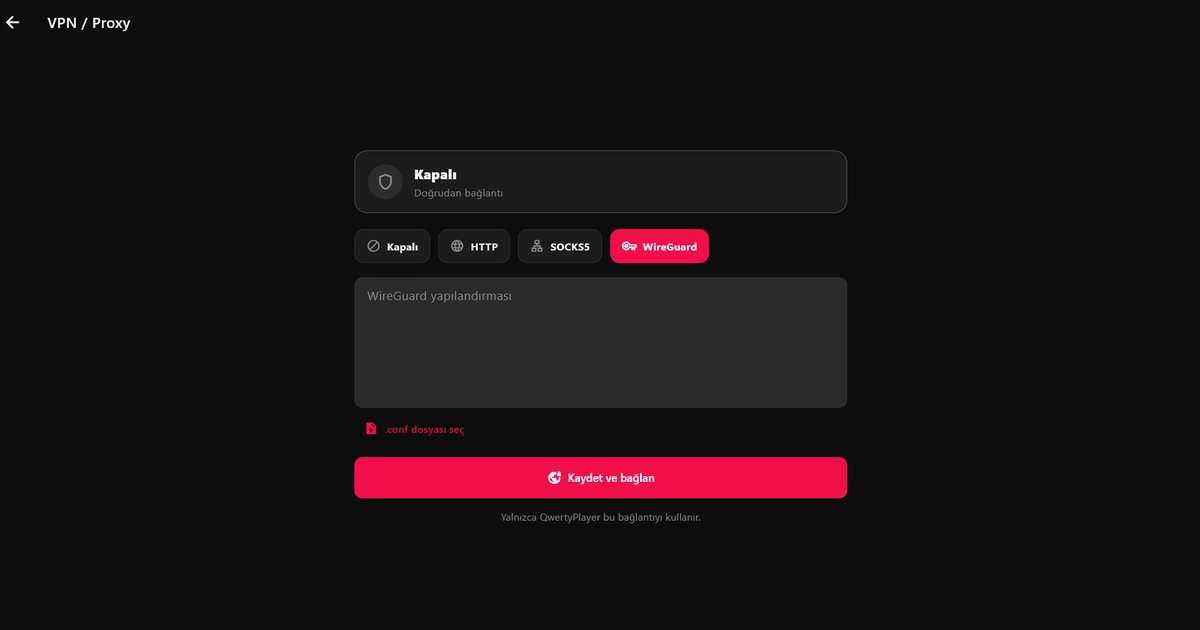
Sometimes the home network is fine but the path to the provider's server is congested or filtered by your internet service. In that case, a proxy or VPN that you already have may help. QwertyPlayer has a VPN and proxy section in Settings, where you can enter your own WireGuard configuration, or a SOCKS5 or HTTP proxy. It applies only to the app's own traffic, and we do not provide a VPN service. Read the proxy and VPN guide before you use it, and remember that it can also make things slower, so test with and without.
Quick diagnosis table
| What you see | Most likely cause | First fix |
|---|---|---|
| All channels freeze, evening only | Congestion at home or provider | Ethernet, fewer devices online |
| Only HD or 4K channels freeze | Speed too low or unstable | Speed test, 5 GHz or cable |
| Everything is slow on the TV | Low memory or full storage | Restart, update, free space |
| One channel only | Source stream problem | Try another channel, tell your provider |
The broader troubleshooting sequence, written for every device, is in the IPTV buffering fix guide. If you are still setting the TV up, return to the Smart TV install guide to confirm that the playlist and app are configured correctly.
Streams come from your own provider, and watching them legally is up to you.
Frequently asked questions
What makes a Smart TV freeze while playing live channels?
Weak Wi-Fi, an unstable connection, a TV short on memory, or a fault in that one stream. Compare several channels to narrow it down.
Is a cable really better than Wi-Fi for a TV?
In most homes, yes. A wired link avoids interference and is the single most effective change when the TV has a network port.
Where can I measure the speed my TV actually gets?
In the speed test inside QwertyPlayer, which uses the same connection as playback.
Can a VPN cure buffering?
Sometimes, if the route to the provider is the problem. It can also slow playback, so compare both ways with your own configuration in Settings.
Is it time for a new TV when streams stutter?
Rarely. Fix the network first. If the TV is slow overall, a small HDMI streaming device is cheaper than a new set.
Try it with QwertyPlayer
Download with a free trial for Android, Android TV, Fire TV, Huawei and Windows.