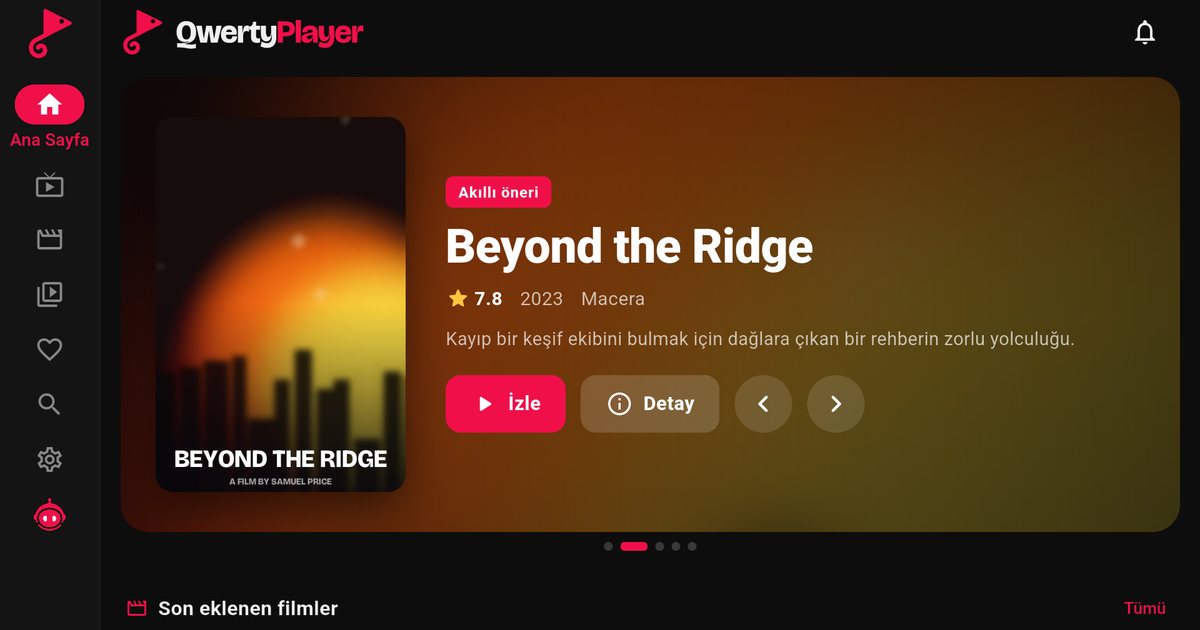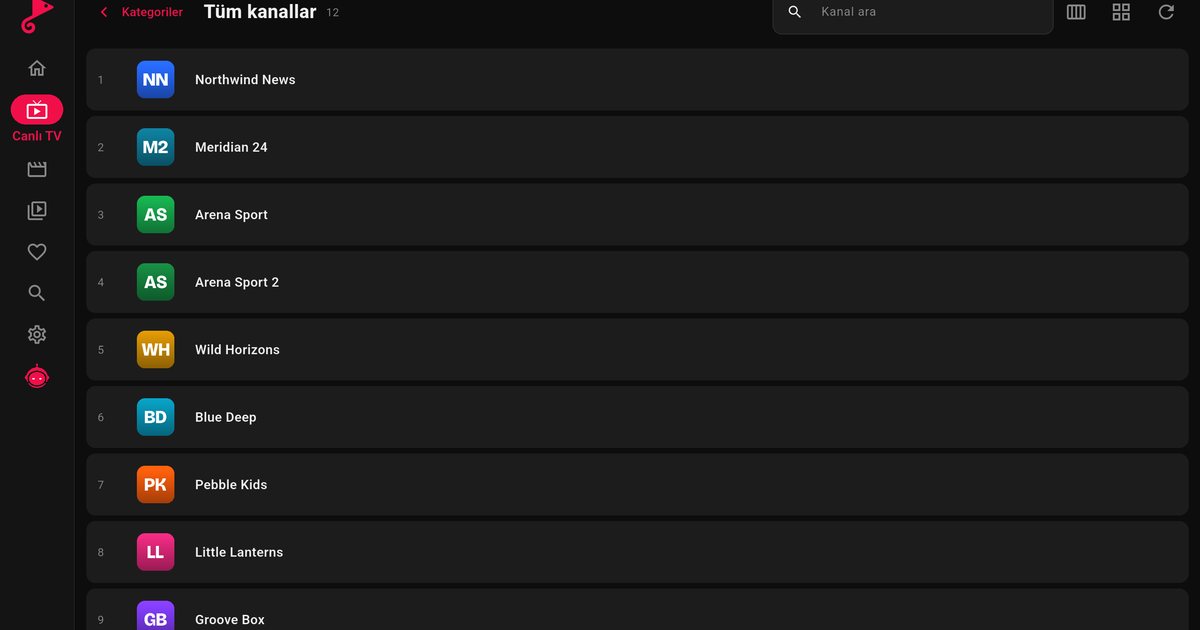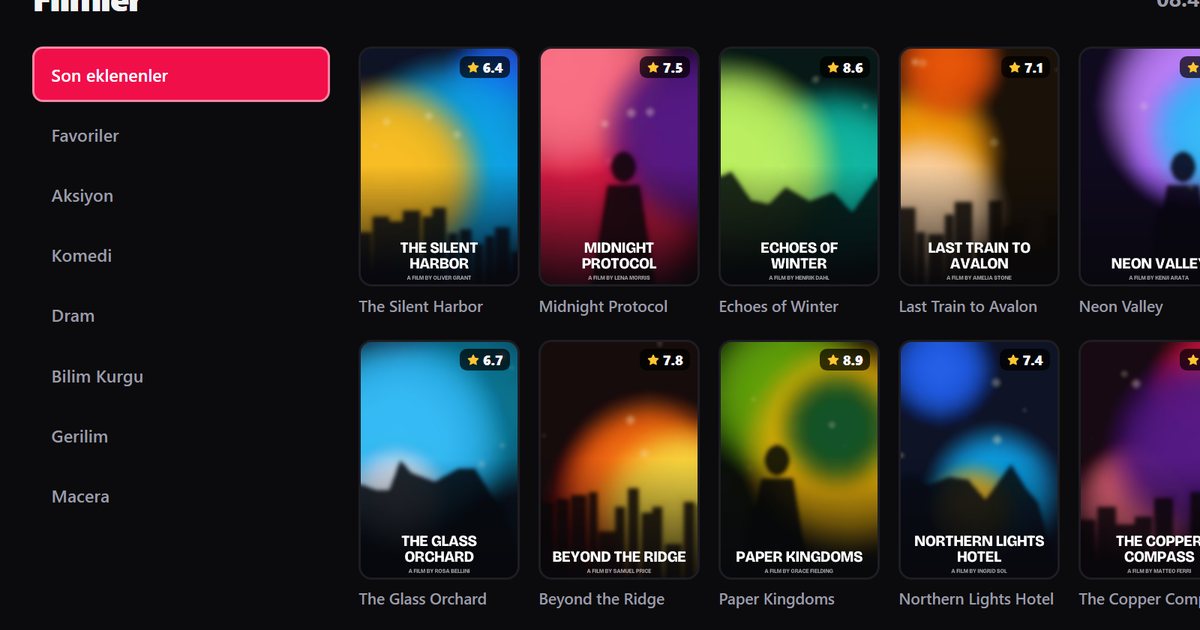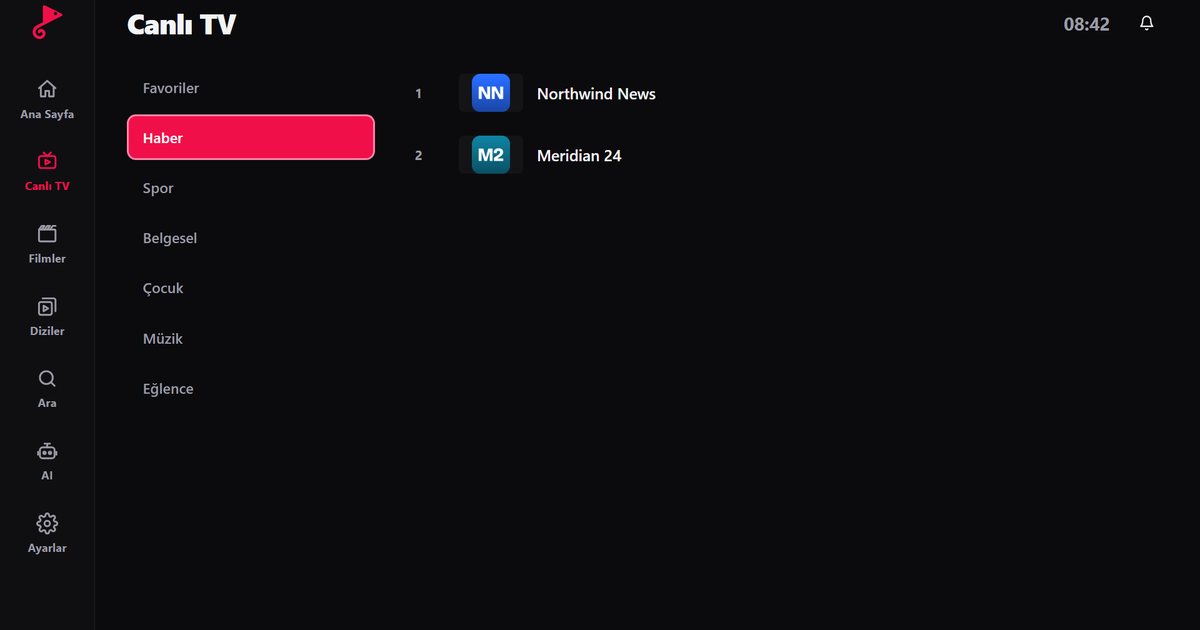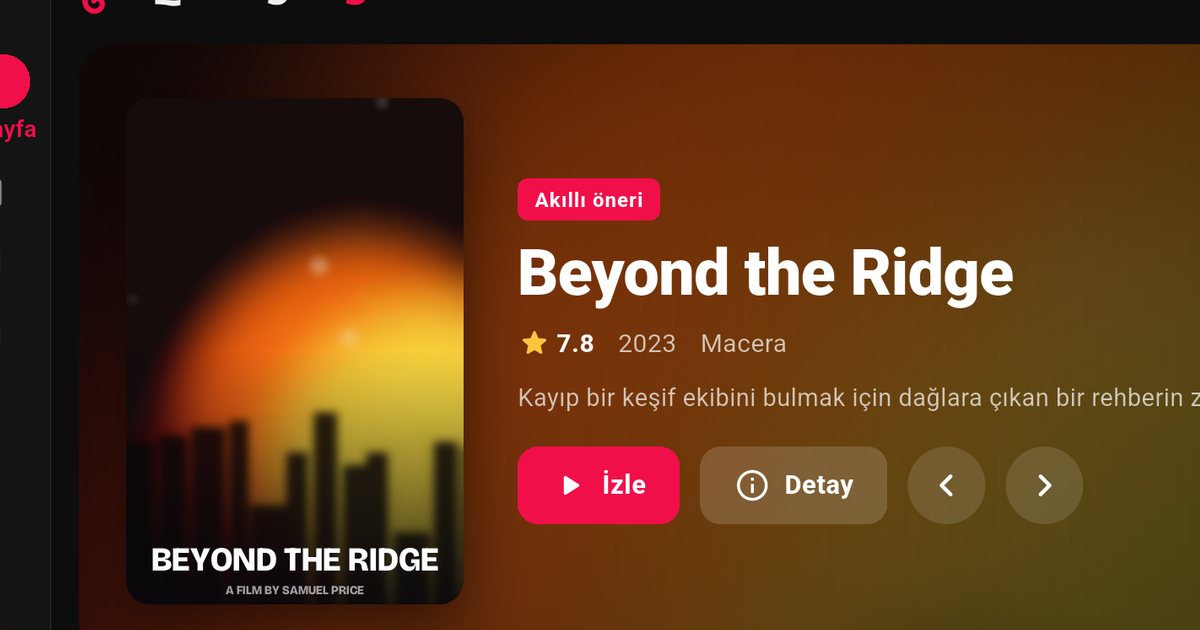
Sony Bravia televisions have long been among the easiest sets for installing apps, because they run Google TV or Android TV. If you are looking for an IPTV player for Sony Bravia, including the Bravia XR range, the process is the one you already know from a phone: open the store, install, sign in to your playlist. This guide covers the setup, a few picture and sound tips and the problems that come up most often.
Check your Bravia first
Sony has used different software over the years, so confirm what you have. Go to Settings > System > About, or Settings > Device preferences > About on some versions. If it lists an Android version and your home screen has an Apps section and Google Play, you are set. Models that run Google TV or Android TV all install apps from Google Play. If the About screen shows something else, use an external device instead; the Fire TV guide and the Google TV and Chromecast guide cover the options.
Install QwertyPlayer on a Bravia
- Press the Home button on the remote and open Apps, then Google Play.
- Search for QwertyPlayer and select Install. If it appears in the store, your model is supported.
- Open the app and choose M3U or Xtream Codes.
- Enter the details from your provider, or send them remotely as described below.
Add your playlist without typing
The Bravia remote is good for navigating but poor for typing a long link. Open the Connect to TV page on your phone or computer. QwertyPlayer on the TV shows an address and a short-lived, single-use code. Enter the code on the page, paste your M3U link or Xtream Codes details, and the list is sent to the TV. Playlist passwords are stored encrypted. Not sure which format you have? Read M3U and Xtream Codes explained.
Picture and sound tips
- Picture mode: try the standard or a cinema-style mode for films and series. Sports and live channels can look different with motion smoothing turned on or off, so test both on a channel you watch often.
- Sound: if you use a soundbar over HDMI, make sure the TV output setting matches what the soundbar supports. If a channel has no sound while others do, check the audio track selector in the player; some streams carry several audio languages. See audio and subtitle settings.
- Resolution: the picture quality you get depends on the stream your provider sends. A better TV cannot add detail that is not in the stream.
Program guide
If your provider supplies guide data, QwertyPlayer shows an EPG for live channels. With Xtream Codes it is usually automatic; with M3U the provider gives you a separate XMLTV address. Details are in our EPG setup guide.
Troubleshooting on Bravia
- Buffering or freezing: switch to Ethernet, or move closer to the router and use the 5 GHz band. The speed test inside the app shows whether the connection or the stream is the problem. More ideas are in fixing IPTV buffering.
- App slow after weeks of use: go to Settings > Apps, select QwertyPlayer and clear the cache. Do not clear data unless you are prepared to enter the playlist again.
- App missing after an update: install any pending system update, restart the TV and search Google Play again.
- Random restarts or lag across all apps: unplug the TV for a minute to restart it completely, and free some storage by removing apps you do not use.
- Playlist loads but some channels fail: that points to the stream or your provider, not to the TV. Try the same channel on another device to confirm.
Other brands
If you own more than one TV, our guide to Android TV brands shows how the setup differs on other makes, and TCL is the closest comparison since many of its sets also use Google TV.
QwertyPlayer is only a player and includes no channels. You use your own M3U link or Xtream Codes account from a provider you are entitled to use, and you are responsible for having the right to watch the content.
Frequently asked questions
Does QwertyPlayer work on Sony Bravia XR TVs?
Bravia XR sets run Google TV, so you install from Google Play. If you can see QwertyPlayer in the store on your TV, your model is supported.
Where do I find the app on a Sony TV?
Press Home, open Apps, then Google Play, and search for QwertyPlayer.
How do I enter my playlist on the Bravia?
Use the Connect to TV page at qwertypro.xyz. Enter the code shown on the TV, then send your M3U link or Xtream Codes details from a phone or computer.
Why is the picture soft on some channels?
Quality depends on the stream your provider sends. Check the same channel on another device before changing TV settings.
Can I use a Fire TV Stick on a Bravia instead?
Yes. Any HDMI input works, so you can use a Fire TV Stick or a Google TV device if you prefer.
Try it with QwertyPlayer
Download with a free trial for Android, Android TV, Fire TV, Huawei and Windows.