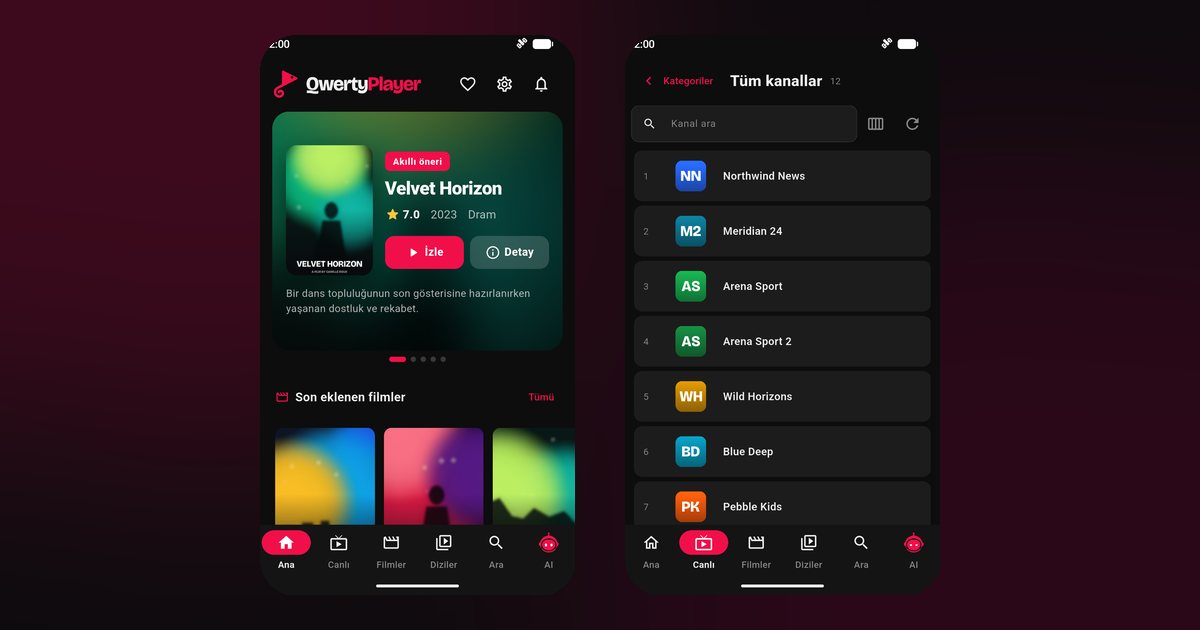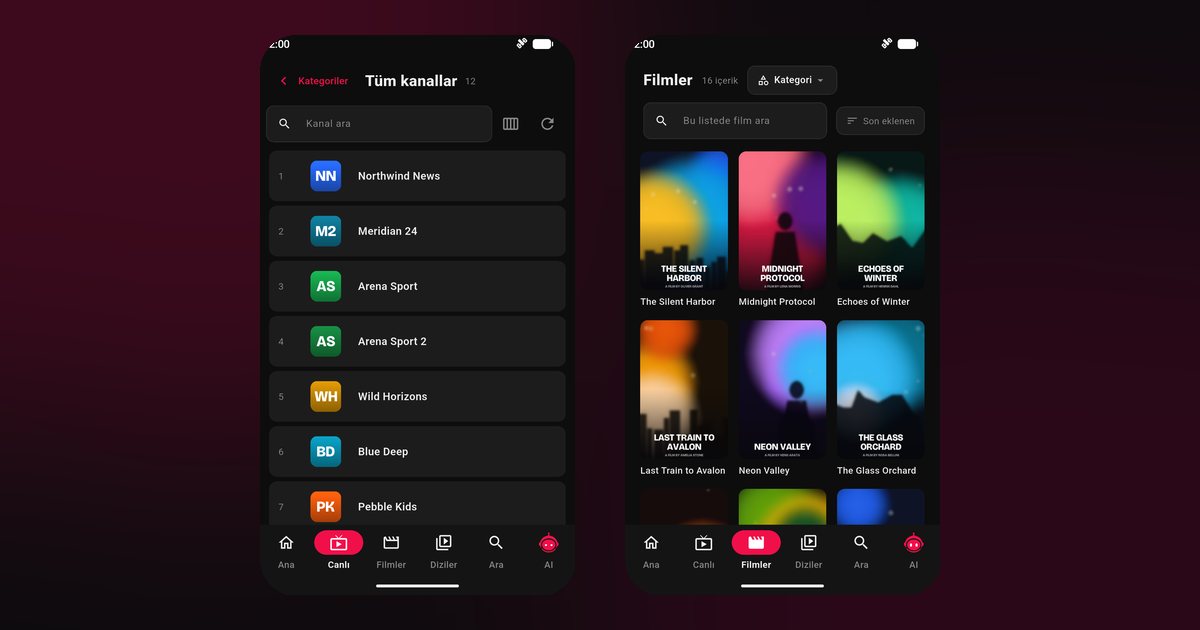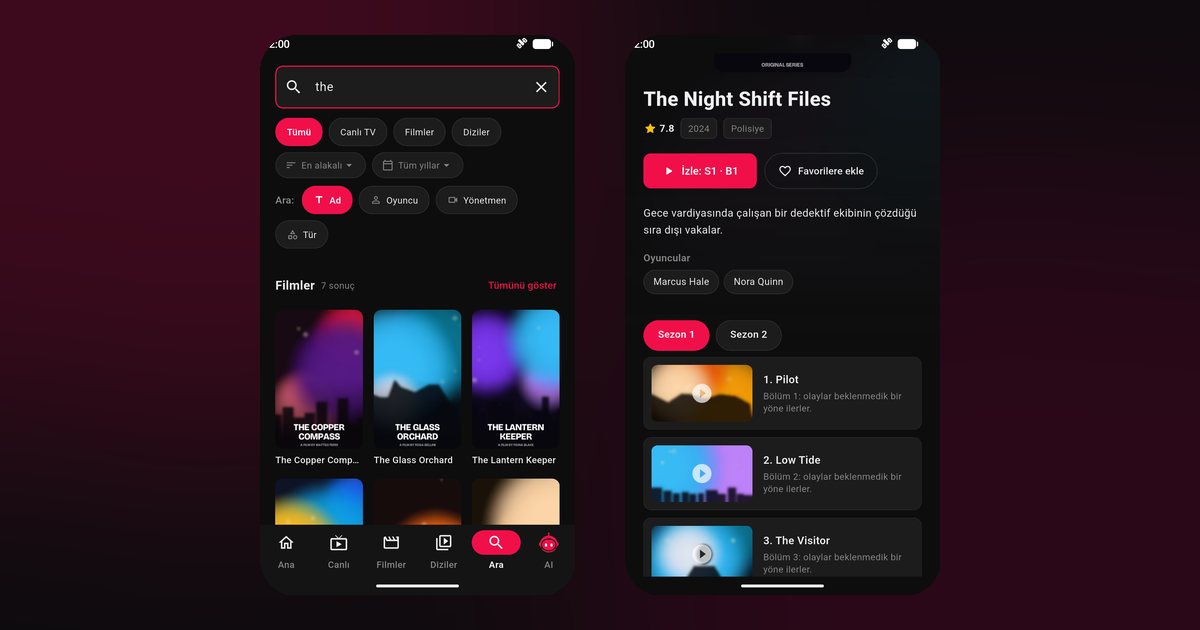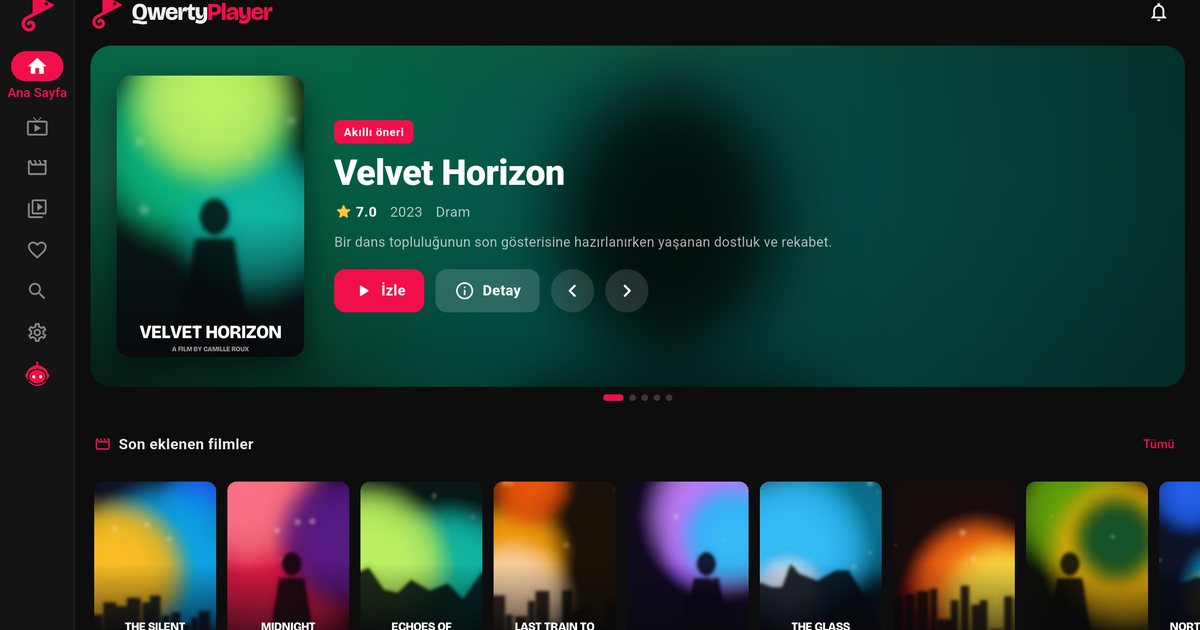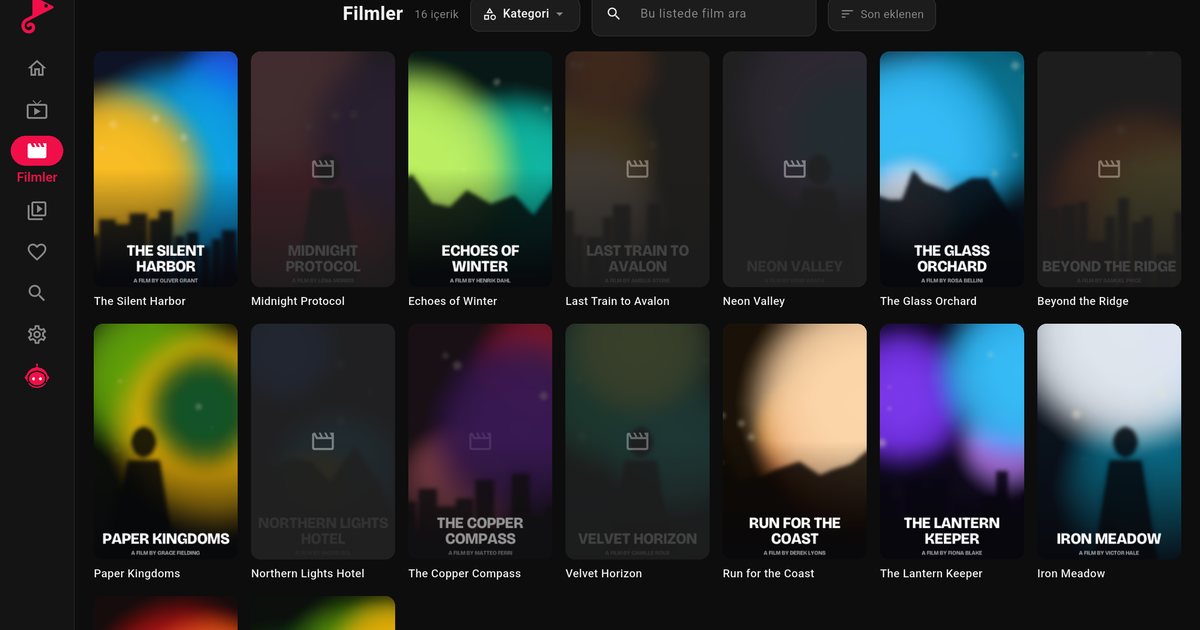
Tablets sit in a sweet spot between a phone and a television: big enough for a film, light enough for the sofa. If you own a Galaxy Tab S9, a Xiaomi Pad 6, a Lenovo Tab P12 or a Fire HD 10 and want an IPTV player for your Android tablet, the question is mainly which store to use and how to get value from the wider screen. Both are covered here.
Pick the store for your tablet
| Tablet family | Install route |
|---|---|
| Samsung Galaxy Tab S9, S9 FE, Tab A9 | Google Play |
| Lenovo Tab P12, Tab P11, Tab M10 | Google Play |
| Xiaomi Pad 6 and Redmi Pad | Google Play is preferred, though the maker's own store may also be installed |
| Huawei MatePad 11, MatePad SE and MatePad Pro | AppGallery; see the Huawei guide for models without Google services |
| Amazon Fire HD 8, Fire HD 10, Fire Max 11 | Amazon Appstore; if the app is not shown for your model, use the download page |
Fire tablets run Amazon's own system rather than standard Android, so menus differ from the other rows. Whatever you use, install only from sources you trust.
Loading your list
- Start QwertyPlayer after installing.
- Open the screen for adding a playlist.
- Choose Xtream Codes and fill in server, username and password, or paste an M3U link.
- Save and let the first load finish.
Entering text is far easier here than on a TV remote, so a tablet is a good place to prepare things and then pass them on with the Connect to TV page.
What the wide display gives you
- Programme guide: more channels and time slots fit at once when your provider supplies EPG data; see the EPG setup article.
- Posters and episodes: a film or series page shows artwork, summary and the season list together.
- Orientation: landscape for watching, portrait for scrolling categories one-handed.
- Several streams: the multi-screen option is more usable on a large panel when your connection allows.
A steady picture on Wi-Fi
Most tablets have no SIM, so Wi-Fi quality decides everything. Use the 5 GHz band in the room with the router, pause cloud backups and large downloads, and consider a mesh node if the tablet lives in a distant bedroom. Measure with the in-app speed test and compare with the Mbps targets. Stubborn freezing is covered in the buffering guide.
When it stops after the screen locks
The tablet's battery manager is the usual culprit. The page on Android background playback lists the settings by brand, and the Samsung Galaxy guide covers One UI menus found on Galaxy Tab.
Choosing a tablet for watching
You do not need a top model. A Galaxy Tab A9 or a Lenovo Tab M10 handles live TV comfortably as long as the Wi-Fi is good, while a Galaxy Tab S9 or a Xiaomi Pad 6 mainly adds a sharper and larger picture. What matters more is a stand or case so that you can watch hands-free, and enough free storage to keep the interface quick.
Sharing a tablet with children
Set the PIN under Settings before handing it over; adult categories stay hidden until it is entered. The parental controls article explains the details. Favourites keep the family channels at the top.
Compared with an iPad
Apple users have a separate route in the IPTV player for iPad guide. For other devices, see the Android brand overview and the general Android guide.
A reminder that the player brings no channels of its own; use streams you have the right to watch.
Frequently asked questions
Which tablet models does this cover?
Galaxy Tab S9, S9 FE and A9, Lenovo Tab P12, P11 and M10, Xiaomi Pad 6, Redmi Pad, Huawei MatePad and Amazon Fire HD tablets, among others.
Does it work on a Huawei MatePad?
Yes, via AppGallery or the download page, depending on the model.
Can I install it on an Amazon Fire HD tablet?
Look in the Amazon Appstore. If it is not listed for your model, the download page has an installation file.
Do I need a SIM card?
No. Wi-Fi is enough, and it is gentler on data allowances.
Can children use the tablet safely?
Set a PIN in Settings. Adult categories are hidden by default and open only with that PIN.
Try it with QwertyPlayer
Download with a free trial for Android, Android TV, Fire TV, Huawei and Windows.