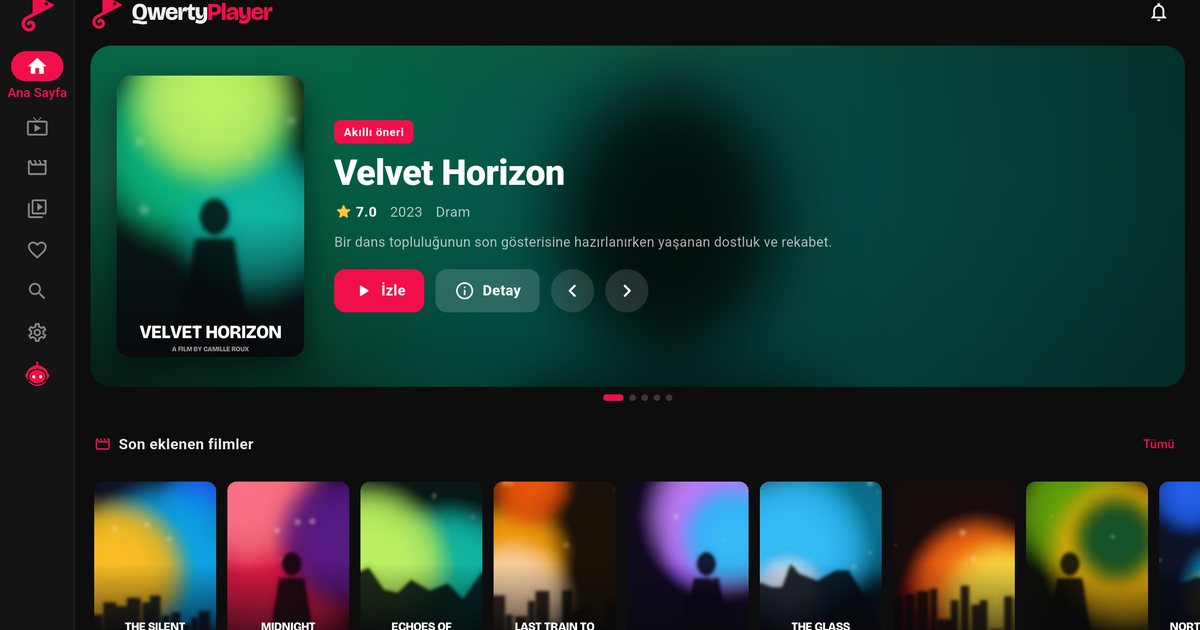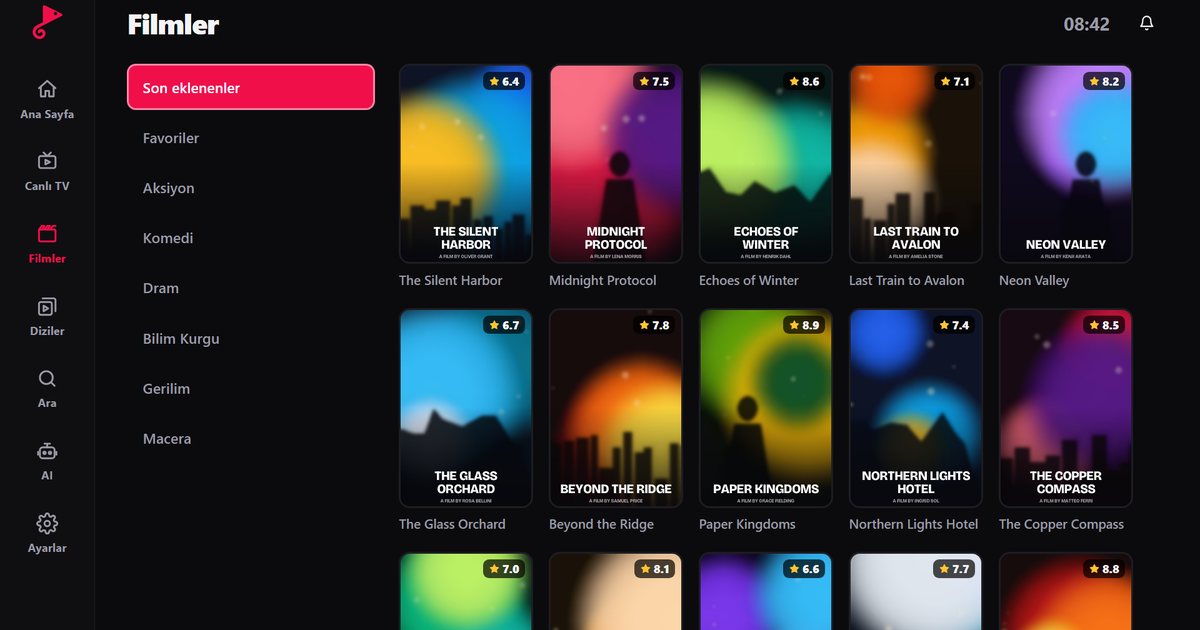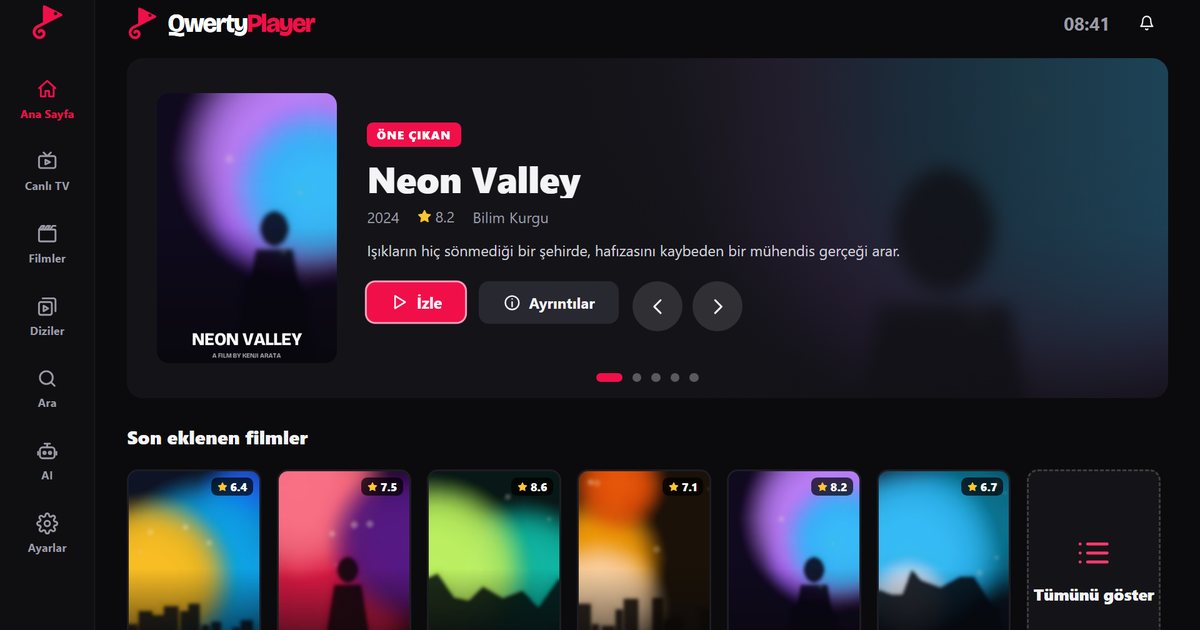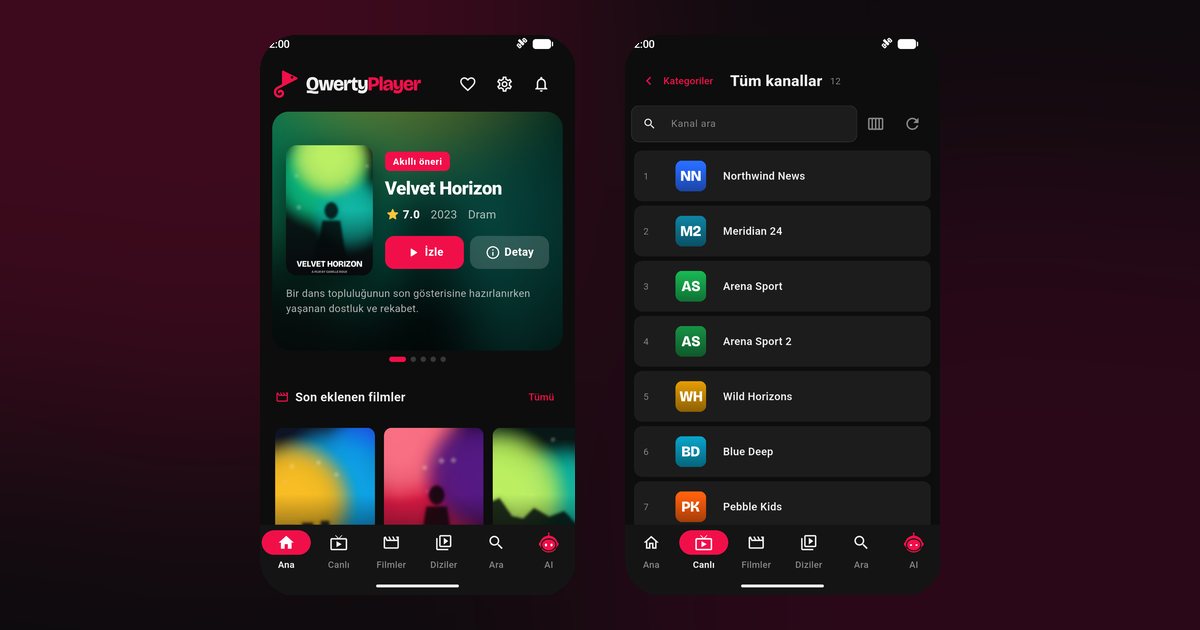
People searching for an IPTV player for iPhone usually want the same few things: install it from the App Store, add a playlist in a minute, and browse channels without lag. QwertyPlayer is an iOS IPTV player made for iPhone and iPad. It takes an M3U link or an Xtream Codes account and presents live TV, films and series in separate, tidy sections.
Install and add your playlist
- Open the App Store and search for "QwertyPlayer". Tap Get to install it.
- Open the app. The first screen is where you add a playlist.
- Choose Xtream Codes (server address, username, password) or an M3U link, depending on what your provider gave you.
- Save. Once the playlist has loaded, live channels, films and series appear in their own sections.
Not sure which option to pick? Xtream Codes usually gives cleaner categories, artwork and automatic programme data, while M3U is a single link to a list of streams. The comparison of M3U and Xtream Codes goes through the trade-offs, and the Xtream Codes login guide covers the typical mistakes: a wrong port, a trailing space, or a mixed-up username and password.
Copying the link correctly on iPhone
Most failed first attempts come from a damaged link. Copy the whole address from your provider's email or account page, paste it into the app and check that nothing was added at the end. If the link was sent as a message with a preview, long-press it and choose copy instead of retyping it. A link that ends in .m3u or .m3u8 is normal; what matters is that the full text, including every parameter, survives the copy. Our short explainer on the M3U8 playlist format shows what the file actually contains.
What you can do on the iPhone
- Search for channels, films and series by name.
- Resume films and episodes where you stopped, and keep a favourites list for the channels you open every day.
- Read the programme guide for live channels when your provider supplies EPG data: EPG setup.
- Switch audio and subtitle language when the stream includes more than one: audio and subtitles.
- Hide adult categories behind a PIN: parental controls. They are hidden by default and unlocked with the PIN you set in Settings.
Wi-Fi, mobile data and buffering
Live video uses a lot of data. On mobile data, a single hour of HD can consume well over a gigabyte, so Wi-Fi is the safer choice for long viewing. If playback stutters, first check the signal and the speed of your connection: the article on how many Mbps IPTV needs gives rough targets for SD, HD and 4K, and the buffering fixes guide lists the usual causes in order. If you need to route the traffic through a VPN or proxy, read the proxy and VPN guide first and check which options your version of the app offers.
Small habits that save time
Create favourites on the first day, because a playlist can hold thousands of channels and you will only use a few dozen. Keep your provider's support contact at hand in case the link changes. When one channel fails but others work, the problem is usually that single stream rather than your phone, so try another channel before changing any settings.
Watching on a bigger screen
The playlist you use on your iPhone can also be added on a television or computer. See the overview of IPTV players for every device, or the guide to the Mac IPTV player if you work on a Mac. For a television, the Connect to TV page lets you send the playlist from your phone without typing on the remote.
Note: QwertyPlayer is only a player and does not provide channels or playlists. Use it only with streams you have the right to watch.
Frequently asked questions
What is the best IPTV player for iPhone?
Look for an app that opens large playlists quickly, supports both M3U and Xtream Codes, offers EPG, search and parental controls, and is updated regularly. Our guide on choosing an IPTV player has a full checklist.
How do I add an M3U playlist on iPhone?
Open the add-playlist screen, choose the M3U link option, paste the full link from your provider and save.
Does the iPhone app support Xtream Codes?
Yes. Enter the server address, username and password from your provider.
Is the iPhone version free?
QwertyPlayer is currently free to download and use.
Can I use the same playlist on my TV?
Yes. Add the same details on the TV, or send them from your phone through the Connect to TV page.
Try it with QwertyPlayer
Download with a free trial for Android, Android TV, Fire TV, Huawei and Windows.