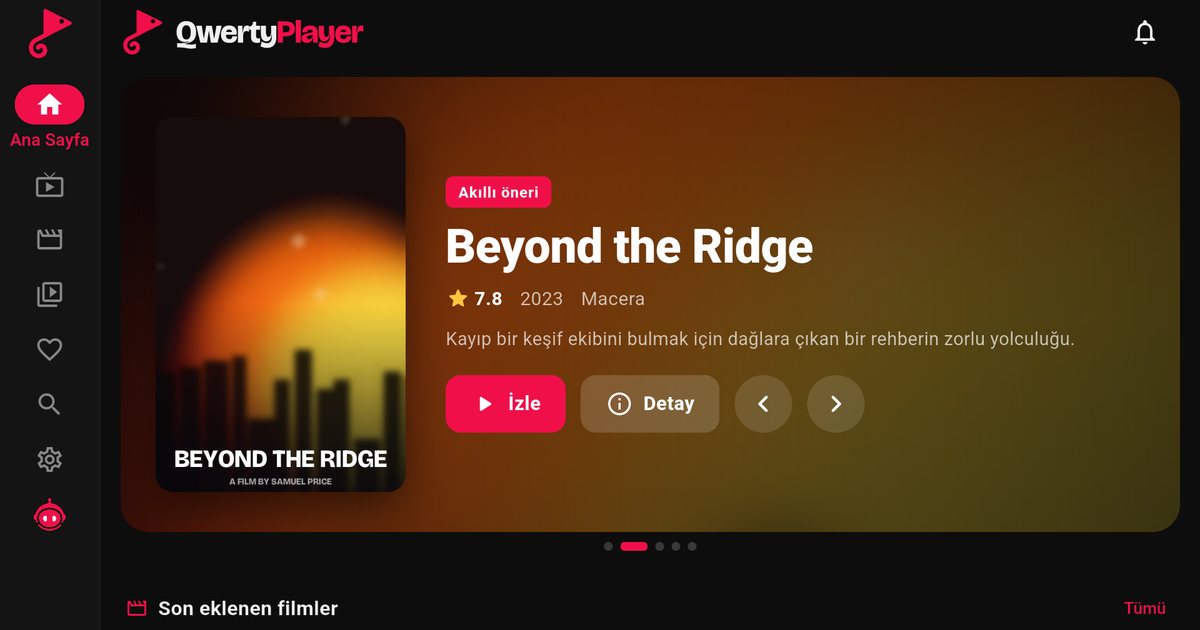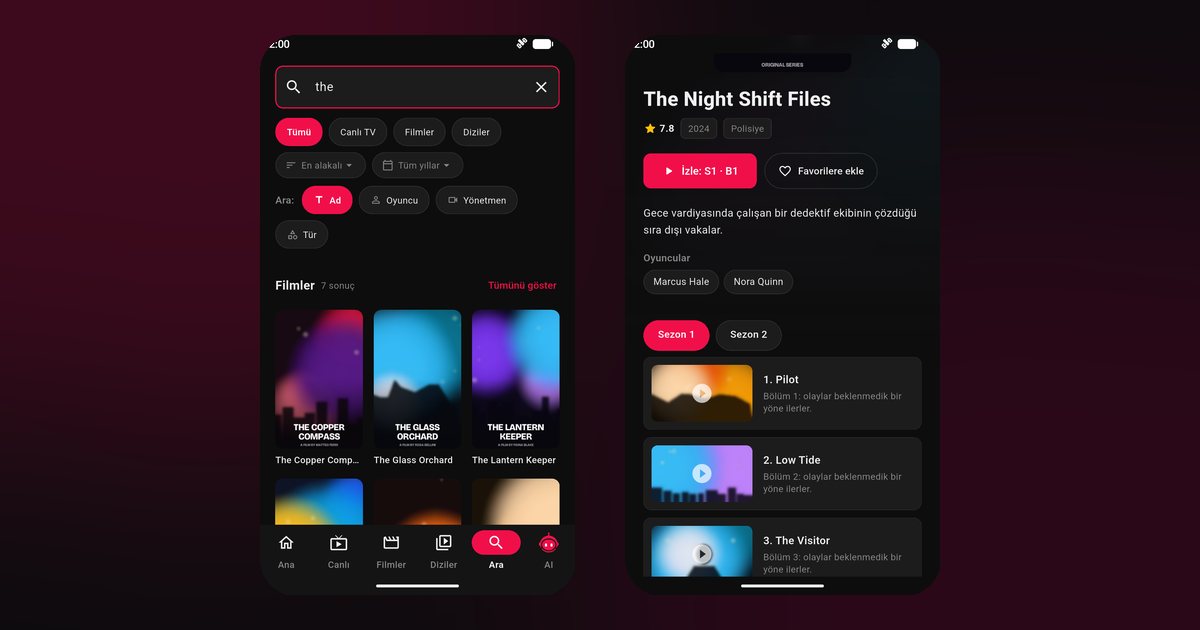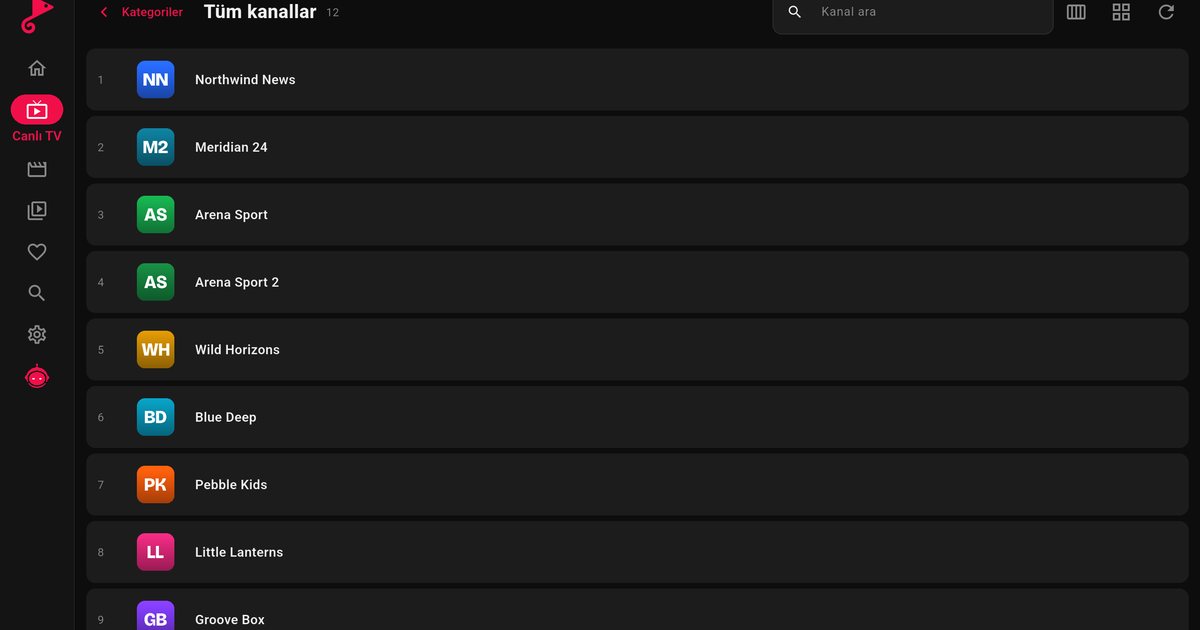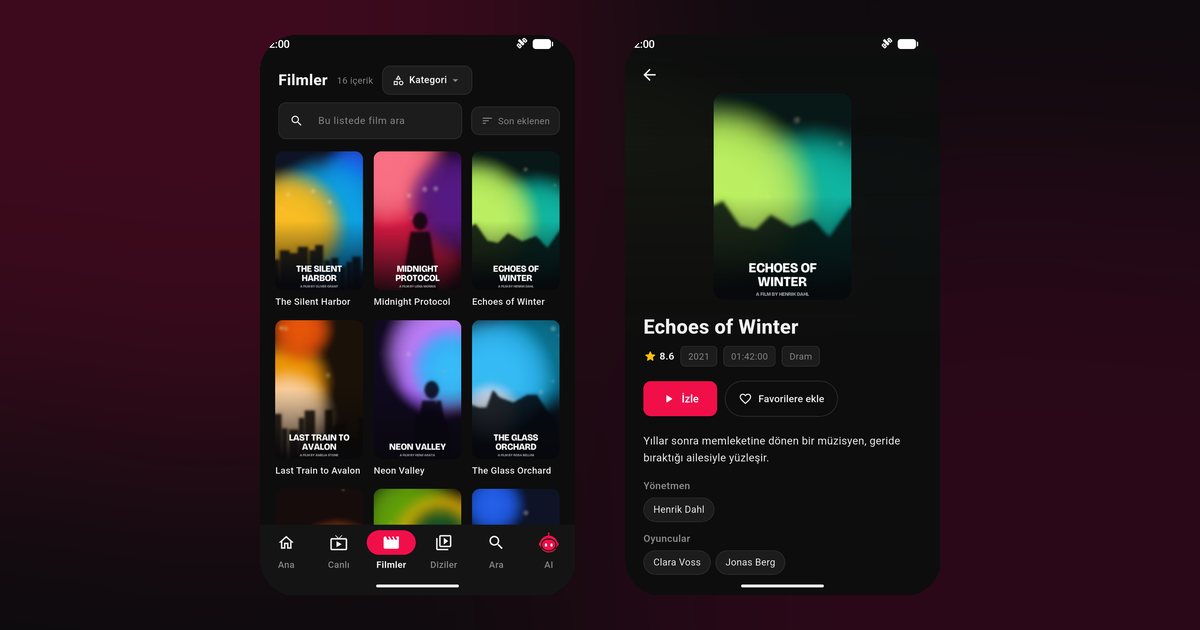
Xiaomi makes televisions, the Mi Box and the Mi TV Stick, and people who search for a Xiaomi TV IPTV player are usually trying to do one simple thing: get a reliable app onto the screen and add a playlist. In most of the world, Xiaomi TVs and streaming devices run Google TV or Android TV, so installation is a normal Google Play download. This guide covers what to check, how PatchWall fits in and what to do when something does not work.
Which Xiaomi device do you have?
- Xiaomi TV A and F series, and older Mi TV models: televisions that run Google TV or Android TV in international markets.
- Mi Box: a small box that plugs into HDMI and runs Android TV.
- Mi TV Stick: a compact stick that does the same job and can be fitted to any TV with an HDMI port.
To confirm, open Settings > Device preferences > About (the path varies slightly by software version) and look for an Android version. Xiaomi sells some models in a few regions with a different software setup, and a set without Google Play cannot use this guide. If that is your case, the external device route at the end applies.
What is PatchWall?
PatchWall is Xiaomi's home screen layer on some of its Android TV models. It shows content recommendations from various sources in a layout that looks different from the stock launcher. It is only the home screen, though. Apps still install from Google Play, and QwertyPlayer appears among your apps like any other. If the home screen feels crowded, you can usually find the app in the apps row or through the Apps entry in the menu.
Install from Google Play, not from random files
Because Xiaomi devices are easy to modify, you will see advice to download an app file from a website and install it manually. Avoid that. A file from an unknown source can be outdated or altered, and the app will not receive updates. Use the store:
- Open Google Play from the Apps row.
- Search for QwertyPlayer and install it. If it shows in the store, your device is supported.
- Open the app, choose M3U or Xtream Codes, and enter the details from your provider.
If you are unsure what your provider gave you, M3U versus Xtream Codes explains the difference.
Sending the playlist from your phone
Typing a long link with the Mi remote takes patience. Use the Connect to TV page: the TV shows an address and a short-lived, single-use code. Enter the code on your phone or computer, paste your link or account details, and the playlist arrives on the TV. If you also use an Android phone, the Android IPTV player guide covers the same app on your handset.
Troubleshooting on Xiaomi
- Playback stutters on Wi-Fi: Mi Box and Mi TV Stick rely on wireless, so keep them close to the router and prefer the 5 GHz band. A TV with an Ethernet port will usually be steadier on a cable. See IPTV internet speed and fixing buffering.
- Stick overheats or restarts: use the original power adapter instead of a weak TV USB port.
- Storage full: go to Settings > Apps and remove ones you do not use. Updates need free space.
- App slow after a while: clear its cache in Settings > Apps, then restart the device.
- Remote does not work in the app: re-pair the remote through Bluetooth settings or replace its batteries.
If the app is not available on your Xiaomi
If your model does not offer Google Play, plug in a Fire TV Stick (Fire TV guide) or a Google TV device and use that instead. It works through the TV HDMI input and switching sources takes one button press.
Related brands
Realme and OnePlus televisions use a very similar setup, covered in the Realme and OnePlus guide. The Android TV brands overview lists the others, and Google TV vs Android TV explains why your home screen may look different from a friend's.
QwertyPlayer is only a player and includes no channels. You use your own playlist from a provider you are entitled to use and are responsible for having the right to watch it.
Frequently asked questions
Does QwertyPlayer work on a Xiaomi Mi Box?
The Mi Box runs Android TV, so you can install the player from Google Play. If you can see it in the store, it is supported.
What is PatchWall and does it affect IPTV apps?
PatchWall is Xiaomi's home screen layer on some models. It does not change how apps are installed or how the player works.
Should I sideload the app on a Xiaomi TV?
No. Use Google Play so the app is genuine and gets updates. Files from unknown websites can be outdated or altered.
How can I add a playlist without typing?
Use the Connect to TV page at qwertypro.xyz. Enter the code displayed on the TV and send your playlist from a phone or computer.
My Xiaomi has no Google Play. What now?
Connect a Fire TV Stick or a Google TV device to an HDMI port and install the player there.
Try it with QwertyPlayer
Download with a free trial for Android, Android TV, Fire TV, Huawei and Windows.