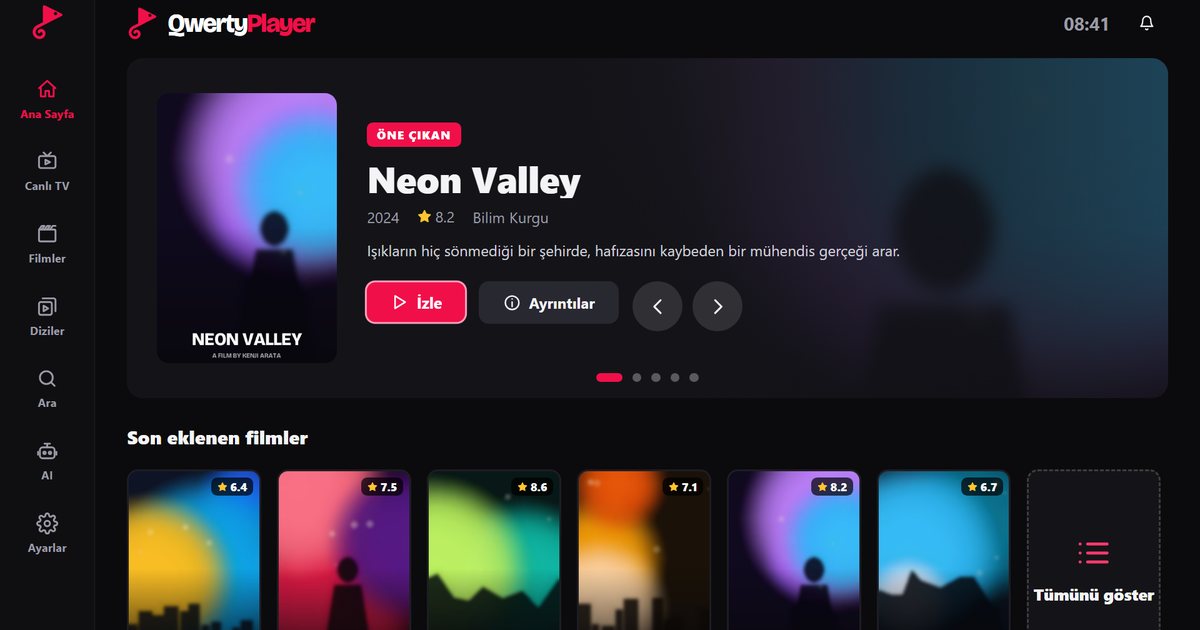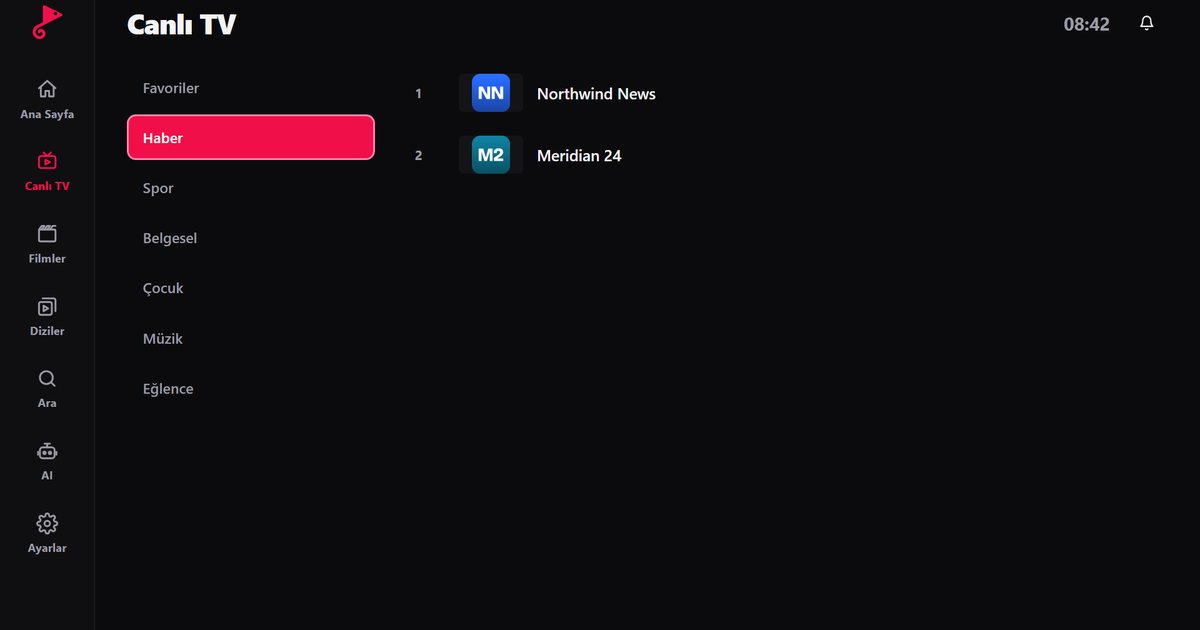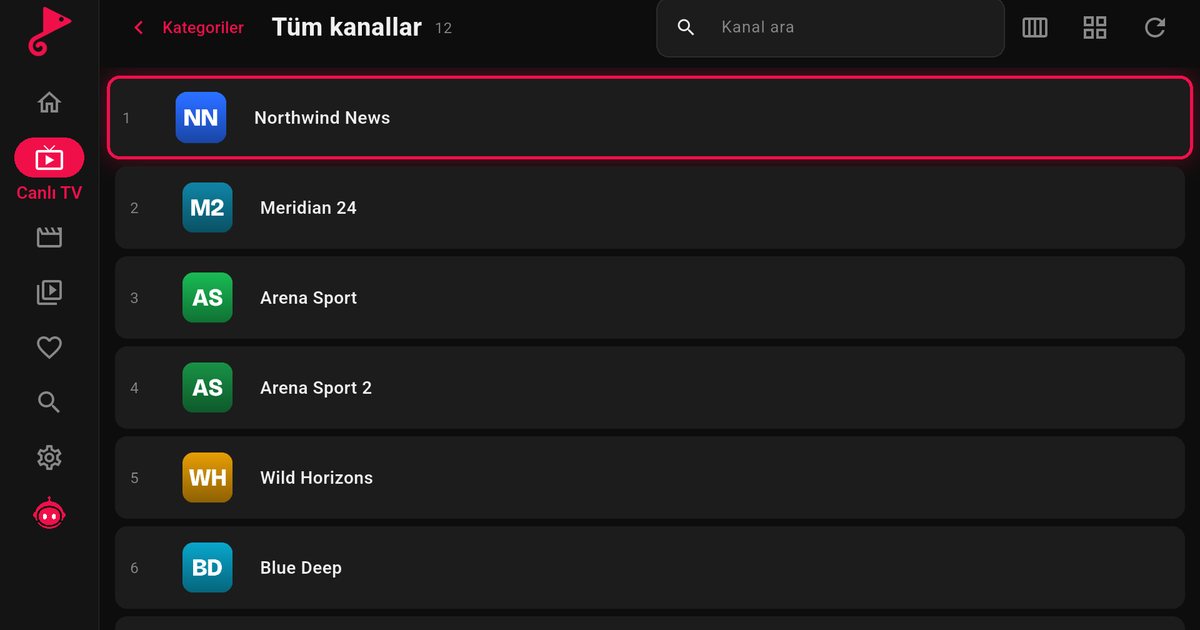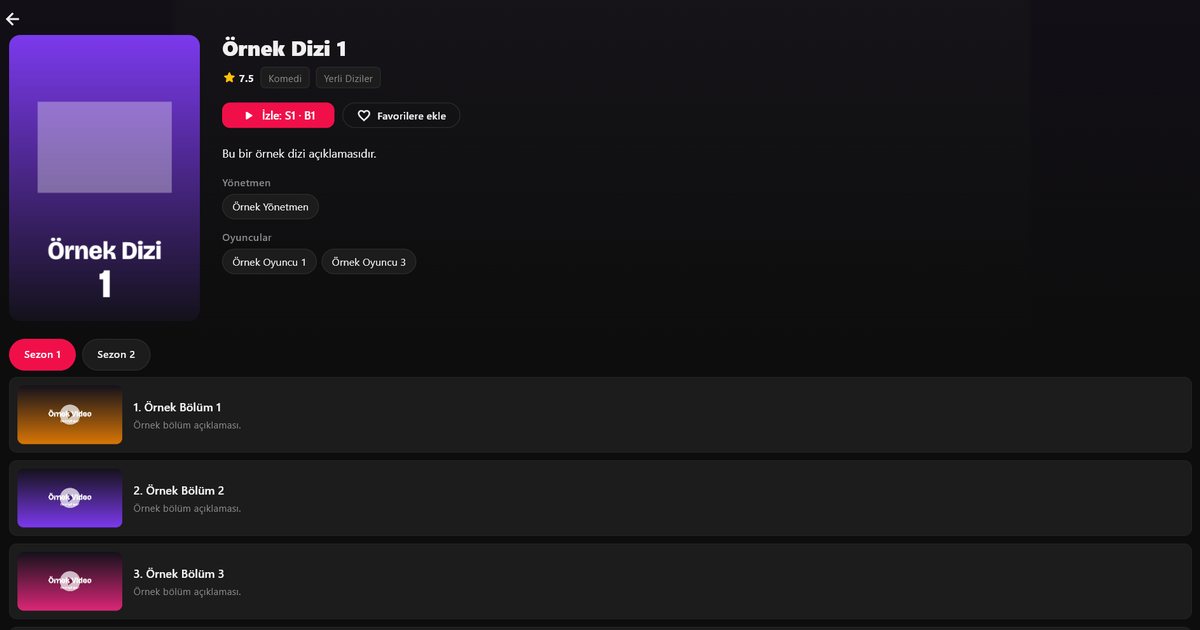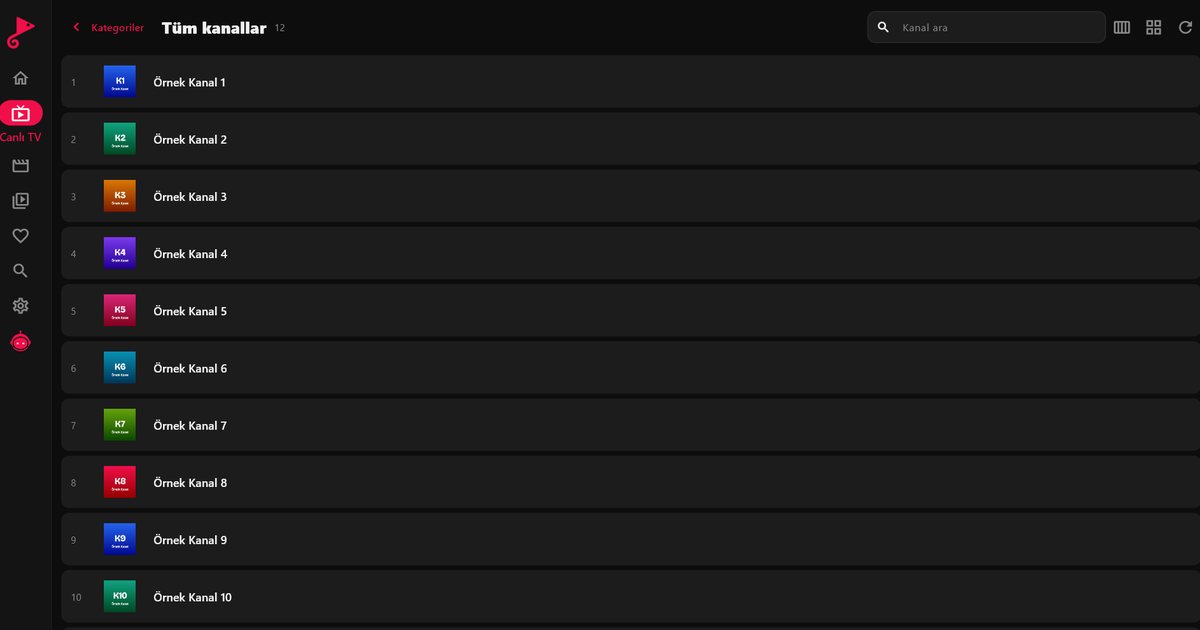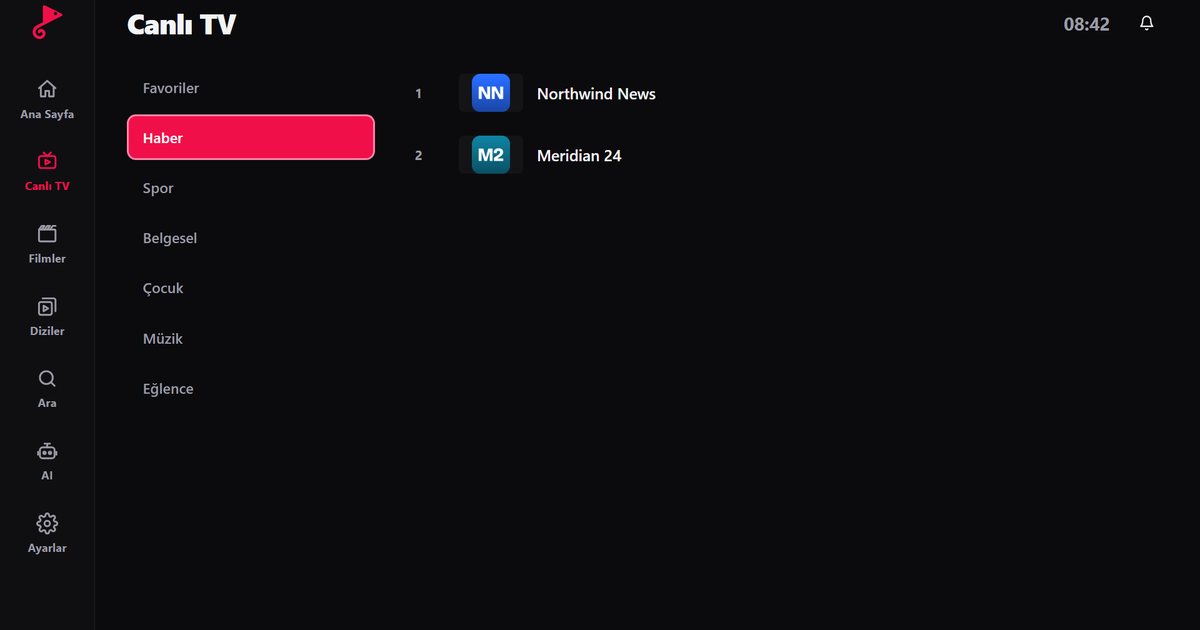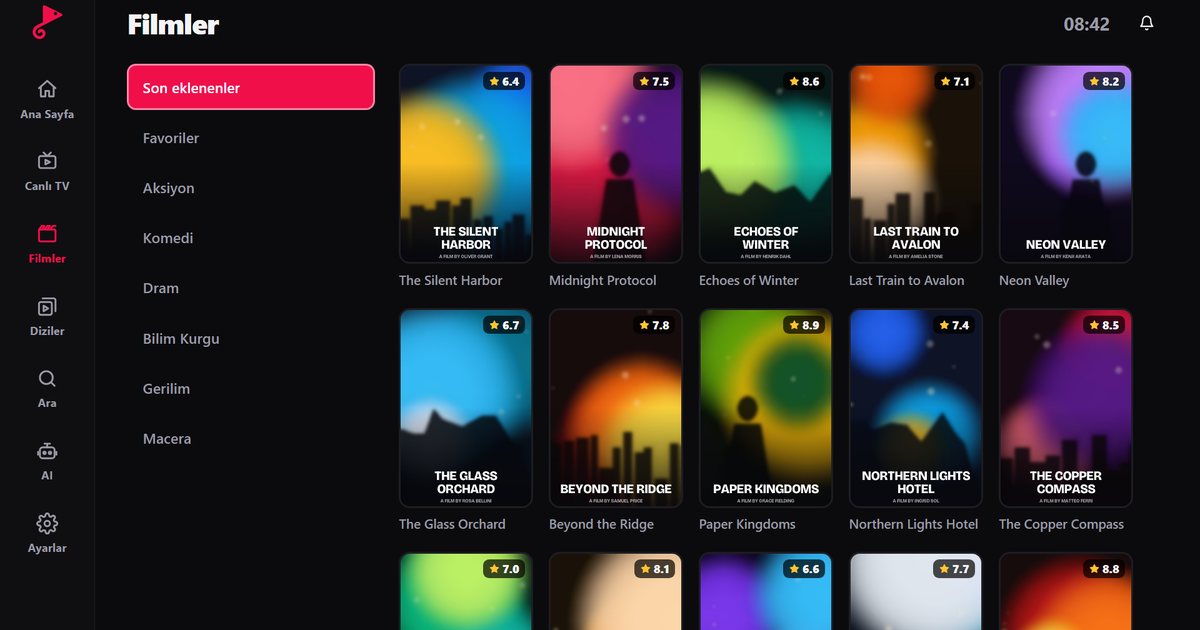
There are two common ways to add a playlist to an IPTV player: an M3U link and an Xtream Codes login. Both use the details your streaming service gives you. The steps below are for QwertyPlayer, but most IPTV players work the same way.
Adding an M3U playlist
- Open the app and go to Add playlist.
- Choose M3U link.
- Paste the full link you were given. It usually looks like
http://server:port/get.php?username=...&password=...&type=m3u_plus. - Name the playlist and save. Channels, movies and series load sorted into categories.
Adding Xtream Codes
- On Add playlist, choose Xtream Codes.
- Enter the server as
http://server:port. If the address has a sub-folder (for examplehttp://domain.com/iptv), type it in full. - Enter your username and password and save.
Xtream Codes is usually faster and brings movies, series episodes and the programme guide (EPG) in a more structured way. If your service offers both, choose Xtream Codes.
Sending the playlist from your PC to your TV
Typing long links with a remote is slow. In QwertyPlayer, enter the code shown on your TV on the connect your TV page, add the playlist from your PC or phone and it appears on the TV straight away.
Common mistakes
- Incomplete copy: parts such as
type=m3u_plusat the end must stay. - http and https mix-ups: use the address exactly as your service gives it.
- Expired account: if the list will not open, check with your provider that the account is active.
- Several devices at once: most services allow one connection; if another device is streaming, channels may not open.
If the list opens but streams stall, see how to fix IPTV buffering. For device setup, read the IPTV player guide.
Mit QwertyPlayer ausprobieren
Kostenlose Testversion für Android, Android TV, Fire TV, Huawei und Windows.