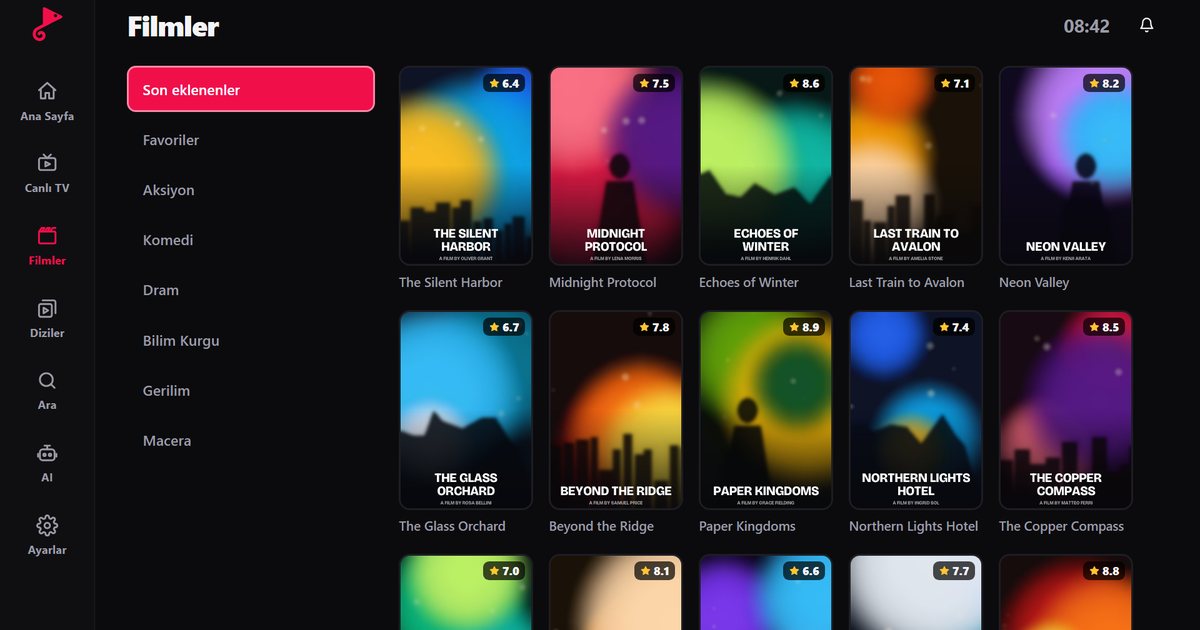
Before you can work out how to install IPTV on a Smart TV, you have to know what the set runs underneath. A Samsung, an LG, a Sony, a Philips, a Vestel or an Arçelik can each ship with a different operating system, and the store you open depends on that system, not on the logo. Below you will find a way to identify the system, a table of where the app lives, and a shortcut for getting your playlist onto the screen.
Step 1: find out which system your TV runs
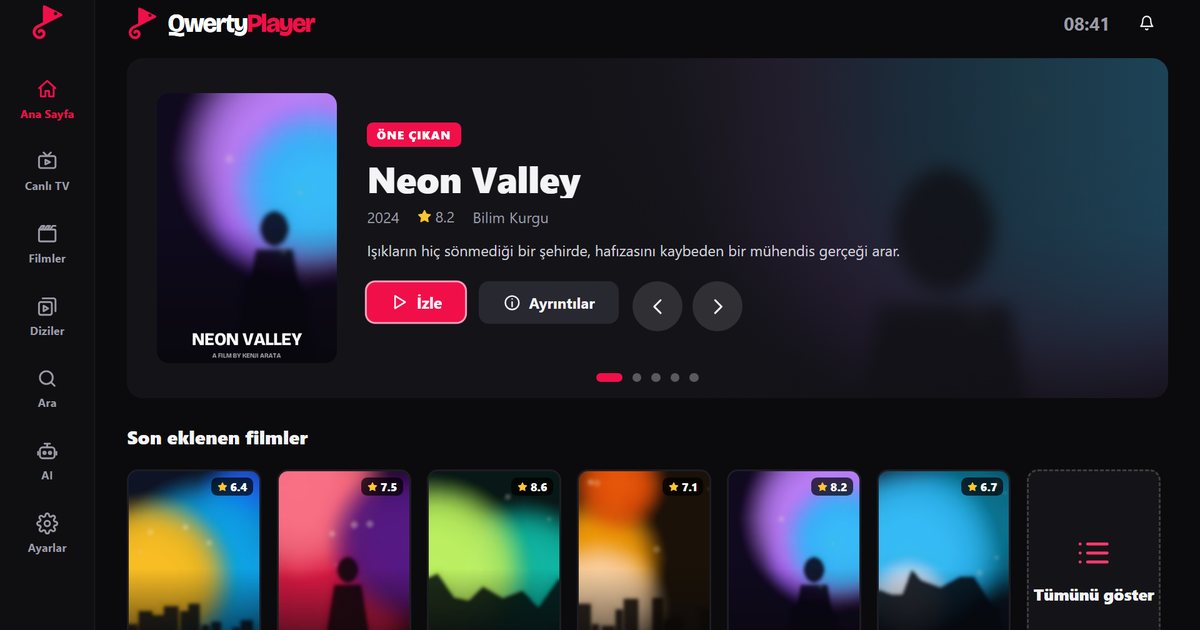
Open the TV settings and look for an About, Support or Device information section. The name of the platform is usually listed there. If you cannot find it, the home screen gives clues: a Google Play icon and a recommendations feed mean Google TV or Android TV, a bottom bar of apps with a Smart Hub button suggests Samsung, and a bar of cards across the bottom suggests LG webOS. Menu names vary by model and year.
Step 2: open the right app store
| System | Typical brands | Where to install QwertyPlayer |
|---|---|---|
| Google TV or Android TV | Sony, TCL, Xiaomi, Philips (some), Nvidia Shield and others | Google Play on the TV, then search |
| Samsung Tizen | Samsung | Apps section in Smart Hub |
| LG webOS | LG and licensed brands | LG Content Store |
| Titan OS | Philips, AOC, some JVC | The Titan OS app store |
| Fire TV | Fire TV Stick and Fire TV Edition TVs | Amazon Appstore |
| Brand-specific or mixed | Vestel, Arçelik, Beko, Regal, Dijitsu, Axen, Awox, Woon, Finlux, Seg, Next, Altus, Profilo, Onvo | Depends on the model: Google Play where Android TV or Google TV is installed, otherwise an external device |
| VIDAA or Roku | Hisense, some Sharp and Toshiba; Roku TVs | No QwertyPlayer app on these systems |
Series names such as Crystal UHD, QLED, The Frame, OLED, QNED, NanoCell or Bravia tell you the picture technology, not the software, so always confirm the system in the settings. Turkish-market brands are covered in our guide to Turkish TV brands and the Vestel, Arçelik and Beko page.
If you see VIDAA or Roku, jump to the section below on external devices. Detailed brand pages are in our guides to Android TV brands, Samsung Tizen models, webOS TV brands and Titan OS brands.
Step 3: install the app
- Open the store listed in the table for your system.
- Use the search field and type QwertyPlayer.
- Open the result and choose Install or Get.
- When the installation finishes, launch the app from the home screen or the app list.
If the search shows nothing, do not install a lookalike. Instead read what to do when the IPTV app is missing from your TV store. It covers region settings, software updates and alternatives.
Step 4: add your playlist
Your provider gives you an M3U link or Xtream Codes details (server address, username and password). Both work. If you are unsure of the difference, the guide to M3U and Xtream Codes explains it in plain language.
The TV remote is slow for typing a long link, so use the Connect to TV page:
- Open QwertyPlayer on the TV and choose the option to connect from a phone or computer. The TV shows an address and a short-lived, single-use code.
- On your phone or computer, open the address shown and enter the code.
- Paste your M3U link or Xtream details there and send them.
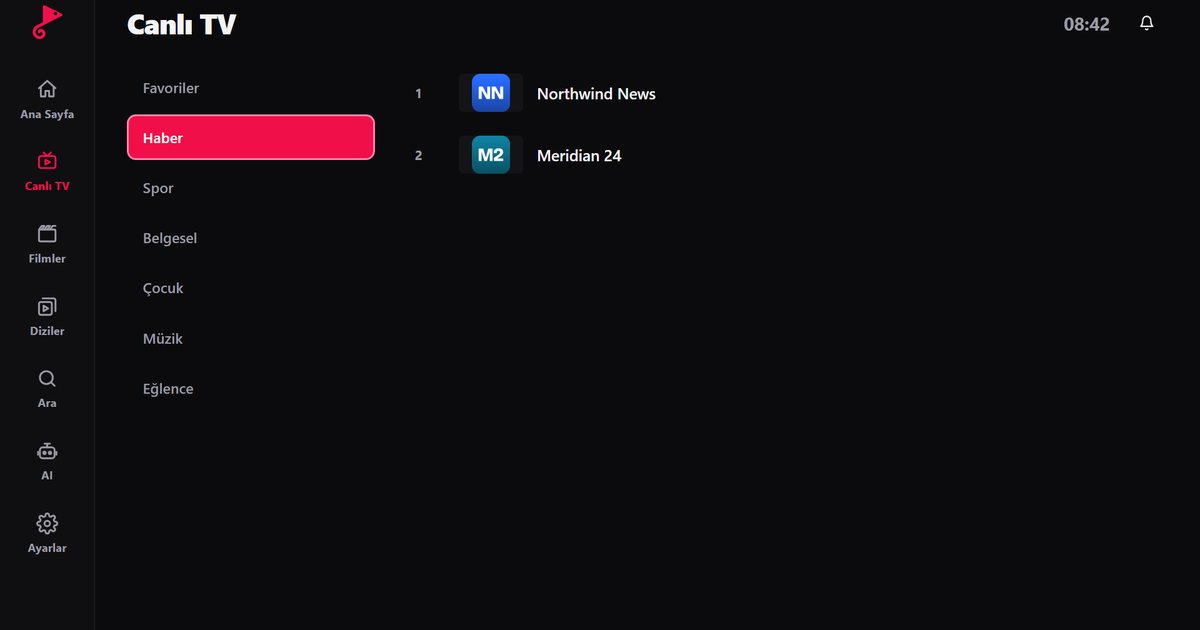
- The playlist appears on the TV. Live TV, films and series load into their own sections.
For more on pasting and checking the link, see how to add an M3U playlist to a Smart TV.
Step 5: tidy up and test
Add your regular channels to favourites, check that the programme guide loads if your provider supplies EPG data, and play one live channel and one film to confirm everything works. If a stream stutters, work through the Smart TV buffering guide. A wired connection solves a surprising number of problems.
If your TV has no supported system
When the TV runs VIDAA, Roku or another closed system, plug a streaming device into an HDMI port. A Fire TV Stick, an Android TV or Google TV box, or Chromecast with Google TV all run QwertyPlayer. The article on the best device for IPTV on a TV helps you choose. You can also read the single-brand answer for VIDAA televisions.
Content always comes from your own provider; the player does not supply any.
Frequently asked questions
What is the first thing to check before installing an IPTV app on a TV?
The operating system. Look in the TV settings under About, Support or Device information, then open the store that belongs to that system.
Which televisions can install QwertyPlayer directly?
Sets running Google TV or Android TV, Samsung Tizen, LG webOS, Titan OS and Fire TV. VIDAA and Roku TVs need an external device.
Is my Vestel or Arçelik TV supported?
It depends on the model. If the TV has Android TV or Google TV, install from Google Play. If it runs a brand-specific system without the app, use an HDMI streaming device.
Can I skip typing on the remote?
Yes. Open the address shown on the TV from your phone, enter the code and send the playlist from there.
Does it cost anything to install?
QwertyPlayer is currently free to download and use.
Try it with QwertyPlayer
Download with a free trial for Android, Android TV, Fire TV, Huawei and Windows.